
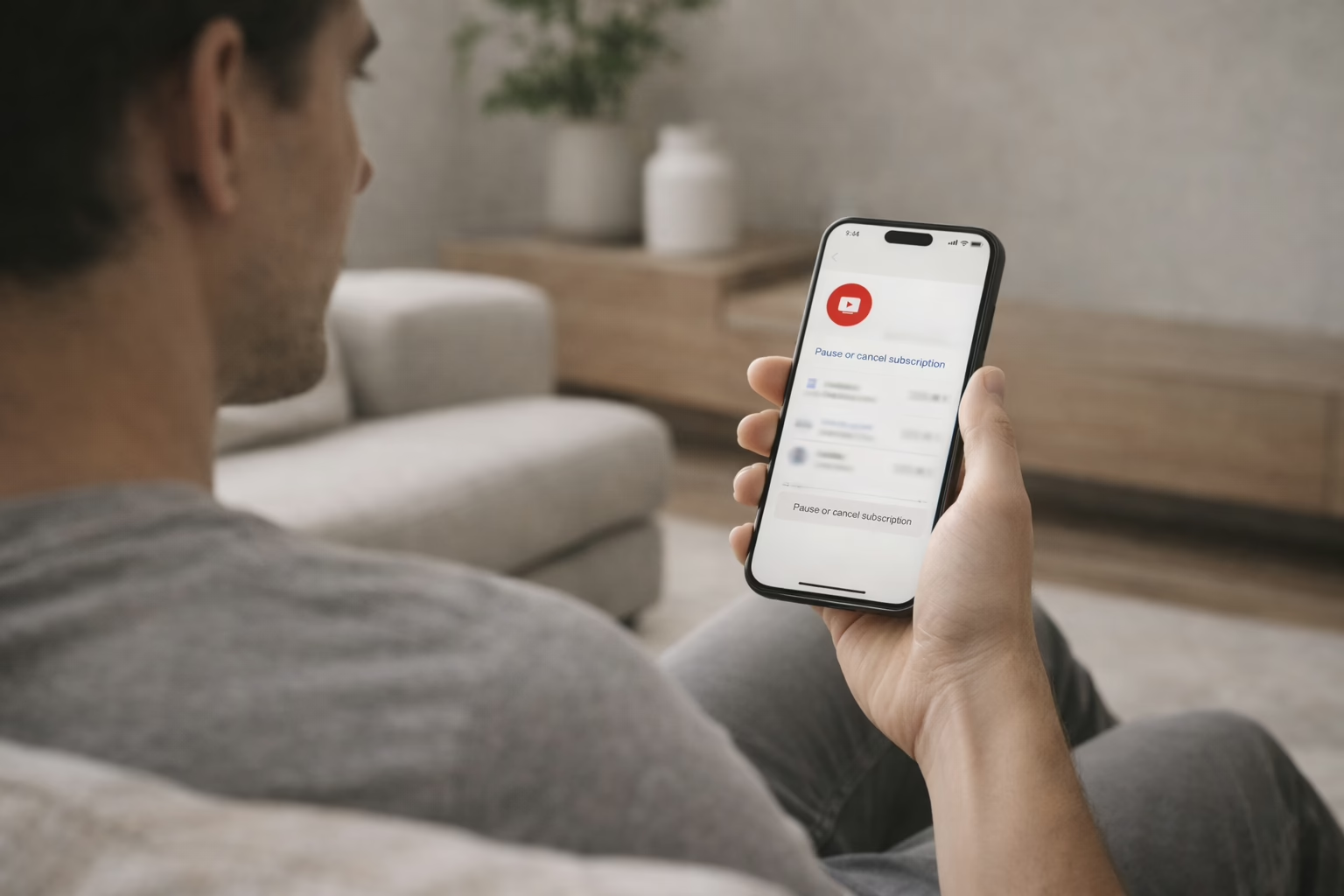
YouTube TV is great when it works for you, but not every month feels worth the price. Maybe your favorite channel disappeared. Maybe life got busy. Or maybe it’s just time to take a break. Whatever the reason, canceling (or even just pausing) your subscription isn’t complicated. In fact, you can do it in under a minute if you know where to click.
This guide walks through the exact steps to cancel or pause YouTube TV from your phone or computer, and what happens afterward. No stress, no fluff – just clear instructions that’ll get you out smoothly.
Why You Might Want to Cancel or Pause
Before diving into the how-to, let’s talk about the why. Maybe you’re traveling, switching to another service, or just not watching enough TV to justify the cost. YouTube TV doesn’t lock you into a contract, so you’re free to cancel or pause at any time.
The pause feature can come in handy if you’re not quite ready to let it go. It’s like putting your subscription on hold without deleting your account or preferences.
The Difference Between Canceling and Pausing
Canceling ends your subscription completely. Once your current billing period is over, you lose access to YouTube TV. Recorded programs in your library will expire after 21 days.
Pausing puts your subscription on hold for a set period (up to 6 months). During the pause, you won’t be charged, but you also won’t have access to live channels or new recordings. When the pause ends, billing resumes automatically.
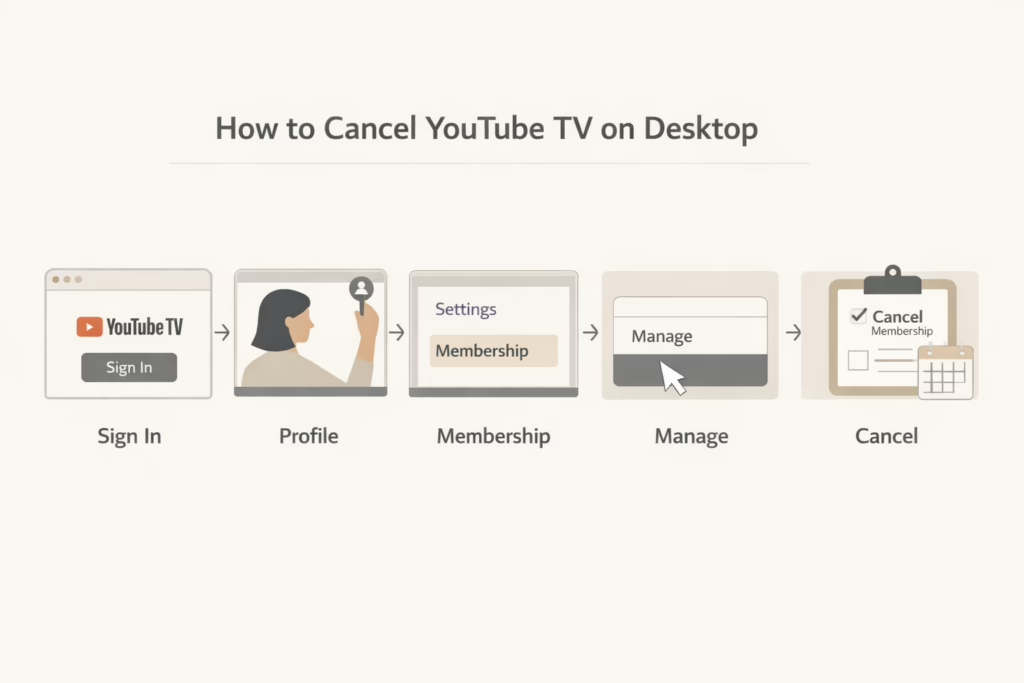
How to Cancel YouTube TV on Desktop
If you’re using a computer, here’s how to cancel:
- Go to tv.youtube.com and sign in.
- Click your profile icon in the top right corner.
- Go to Settings, then Membership.
- Find YouTube TV in the list and click Manage.
- Choose Cancel membership at the bottom.
- Follow the prompts – YouTube will probably offer you a pause option or a discount. You can still cancel from there.
Once you complete the cancellation steps, your subscription will remain active until the end of the billing cycle. After that, you’ll lose access to live TV and saved content.
How to Cancel Using the YouTube TV App
If you’re canceling through the app on a phone or tablet:
- Open the YouTube TV app.
- Tap your profile photo.
- Go to Settings, then Membership.
- Tap Manage and select Cancel.
- Finish the cancellation steps.
Note: In some cases, the mobile app may redirect you to the desktop version. This happens if you originally signed up through a browser or linked your account with a Google service.
What If You Subscribed Through Apple?
If you subscribed directly through YouTube TV, the standard way to cancel is through a browser. Just go to the YouTube TV website, tap your profile icon in the top right, then head to Settings > Membership. From there, click Manage, then Cancel membership. This process works the same whether you’re using a desktop or your phone’s browser.
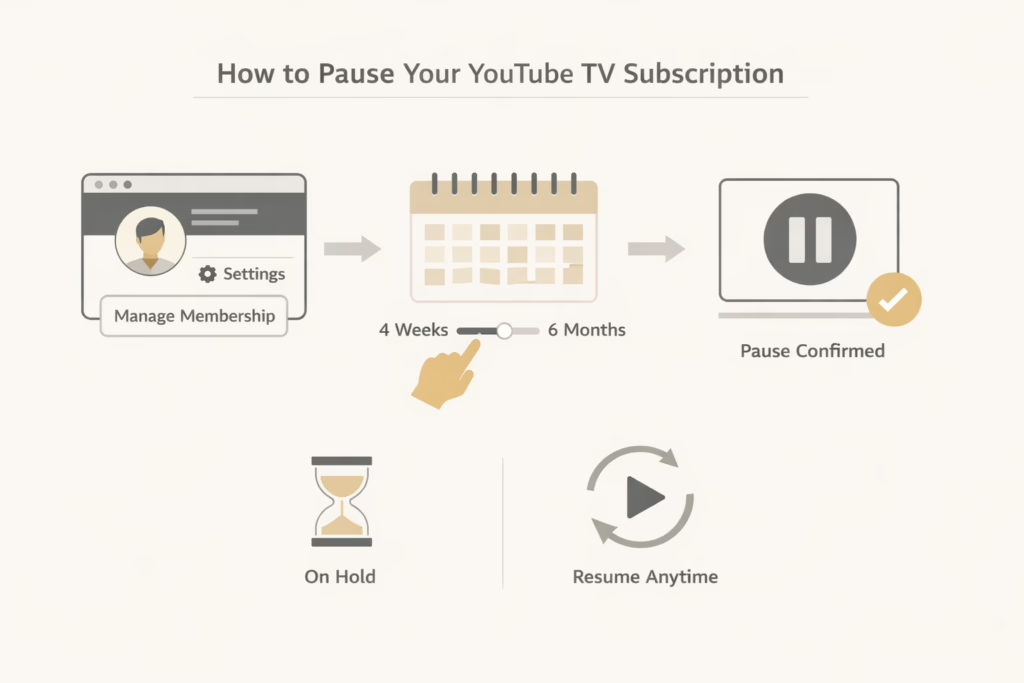
How to Pause Your YouTube TV Subscription
Not ready to quit but want to take a break? Pausing your account is simple:
- Sign in at tv.youtube.com.
- Click your profile picture and go to Settings.
- Select Membership, then click Manage.
- Choose Pause membership.
- Pick how long you want the pause to last (anywhere from 4 weeks to 6 months).
- Confirm the pause.
You can resume service early if you change your mind. Just go back to the same settings and click Resume.
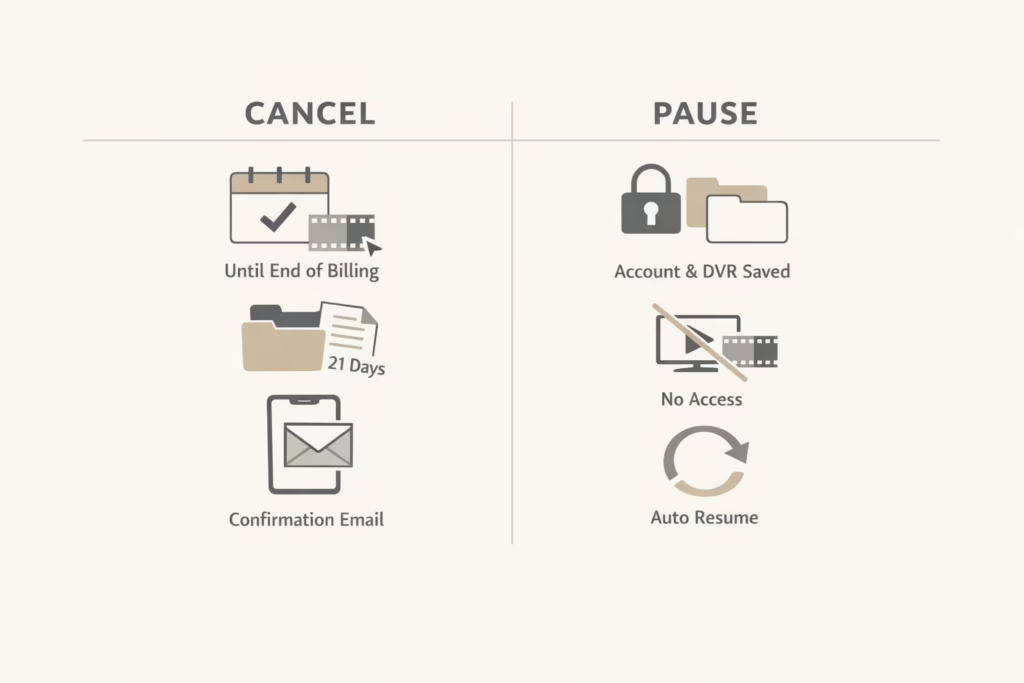
What Happens After You Cancel or Pause YouTube TV
Canceling and pausing your subscription don’t have the same result, and it’s easy to get them confused. Canceling cuts off access for good, while pausing puts things on hold temporarily. Below is a clear look at what each action means for your account, access, and recordings.
What Happens After You Cancel
Access Continues Until Your Billing Period Ends
Canceling YouTube TV doesn’t shut things off right away. You’ll still be able to watch live channels and recordings until the end of your current billing cycle.
Recordings Disappear 21 Days After the Cancellation Takes Effect
Even after your billing period ends, your DVR recordings won’t vanish immediately. They stay available for 21 days in case you decide to come back or want to rewatch anything.
You’ll Receive a Confirmation Email. Keep It Just in Case
Once cancellation is confirmed, YouTube TV sends you an email. It’s a good idea to hang on to it in case there’s ever a billing issue or you need to reference your cancellation later.
What Happens When You Pause
Your Account and DVR Remain Untouched During the Pause
Pausing doesn’t reset anything. Your profile, preferences, and DVR library stay exactly as they were when you hit pause.
You Won’t Be Billed While Your Subscription Is Paused
Once your current billing period ends, charges stop for the entire pause duration. You won’t see any surprise payments while the pause is active.
No Access to Live TV or Recordings During the Pause
While paused, you won’t be able to watch live channels or access saved recordings. Everything stays locked until the subscription is resumed.
Billing Resumes Automatically When the Pause Ends
When the pause period runs out, your subscription turns back on by itself and billing starts again. If you want to return earlier, you can unpause anytime through your account settings.
Things to Keep in Mind Before You Cancel or Pause
If you’re thinking about canceling or pausing your YouTube TV subscription, there are a few things worth knowing. YouTube TV sometimes offers special deals, like a free week or a temporary discount, when you start the cancellation process. You can accept the offer if it sounds good, or still go back and cancel afterward. There’s no trick to it.
Pausing your subscription is a smart option if you’re undecided. It puts everything on hold but keeps your settings and recordings safe. Once you’re ready, you can pick up where you left off. It’s more flexible than canceling, especially if you’re just taking a short break.
Also, double check which Google account you’re signed into. A lot of people have more than one, and it’s easy to accidentally manage the wrong subscription. Taking a second to confirm the right account can save you from a bit of frustration later.
Summary: Quick Comparison
| Feature | Cancel | Pause |
| Ends Billing | Yes | Temporarily |
| DVR Saved | 21 days post-cancel | Preserved during pause |
| Access During | Until end of billing | No access |
| Auto-Renew | No | Yes (after pause ends) |
| Can Resume Early | No | Yes |
Final Thoughts
Whether you’re taking a break from streaming or leaving for good, YouTube TV gives you flexibility. You’re not stuck with long-term contracts, and both cancellation and pause options are designed to be user-friendly.
If you’re unsure, pause first and see how it feels. If you’re ready to walk away, make sure you’ve downloaded or noted anything important from your account before the 21-day countdown ends.
No hidden tricks. No complicated steps. Just a few clicks, and you’re done.
FAQ
1. Can I cancel YouTube TV at any time?
Yes. There’s no contract and no penalty for canceling. Once you cancel, you can keep watching until the end of your current billing period. After that, access shuts off automatically. Just keep in mind that YouTube TV doesn’t offer partial refunds, even if you cancel early in the month.
2. What happens to my recordings after I cancel?
Your DVR recordings don’t disappear right away. YouTube TV keeps them for about 21 days after your subscription ends. If you resubscribe during that window, everything comes back. After that, the recordings are deleted and can’t be recovered.
3. Is pausing better than canceling?
It depends on your situation. Pausing works well if you know you’ll come back, like during travel or a busy stretch when you’re not watching TV. Canceling makes more sense if you’re unsure or switching services. Pausing keeps your settings and library intact, while canceling eventually wipes them.
4. How long can I pause my YouTube TV subscription?
You can pause your subscription for as little as four weeks or as long as six months. You choose the length when you pause it. When that time runs out, your subscription automatically resumes and billing starts again unless you cancel or pause again.
5. Will I still be charged while my account is paused?
No. Once your current billing cycle ends, charges stop for the entire pause period. You also won’t have access to live TV or DVR during that time. If you decide to come back early, you can manually resume and billing will start right away.
6. What if I subscribed through Apple or another provider?
If you signed up through Apple, your mobile carrier, or an internet provider, you’ll need to cancel through that service instead of YouTube TV directly. The steps are usually found in your subscription or billing settings. Canceling inside the YouTube TV app won’t usually work in those cases.