
Thinking about canceling Kindle Unlimited? Maybe you’ve read what you wanted, or you’re just not using it enough to justify the monthly charge. Whatever the reason, the process is simple – once you know where to look. You won’t find a “Cancel” button in the Kindle app, and the steps aren’t super obvious unless you’ve done it before. This guide walks you through it without the fluff, just clear steps and what to expect after you click “end membership.”
Why You Might Want to Cancel Kindle Unlimited
There’s no shame in hitting pause on a subscription that just isn’t working for you anymore. Kindle Unlimited sounds great in theory, and for some folks, it really is, but for others, it ends up being one more monthly charge that doesn’t quite earn its spot. Maybe your reading habits changed, or the catalog isn’t giving what you hoped it would. Whatever the case, here are a few common reasons people cancel:
- You’re not reading enough to justify the monthly fee.
- Most of the books you want aren’t included in the Unlimited library.
- You’re switching to audiobooks or physical books.
- You tried the free trial and it’s about to renew.
- You just want to pause, not cancel entirely.
Whatever your reason, the process is reversible. And if you change your mind later, reactivating is quick.
Important: Where You Can (and Can’t) Cancel
Let’s get this out of the way first: you can’t cancel Kindle Unlimited through the Kindle app. You also can’t do it through the standard Amazon app unless it opens the full desktop version in a browser. So if you’re on a phone or tablet, switch your browser to desktop mode.
You need to use a browser (on mobile or desktop) and sign into your Amazon account.
Step-by-Step: How to Cancel Kindle Unlimited
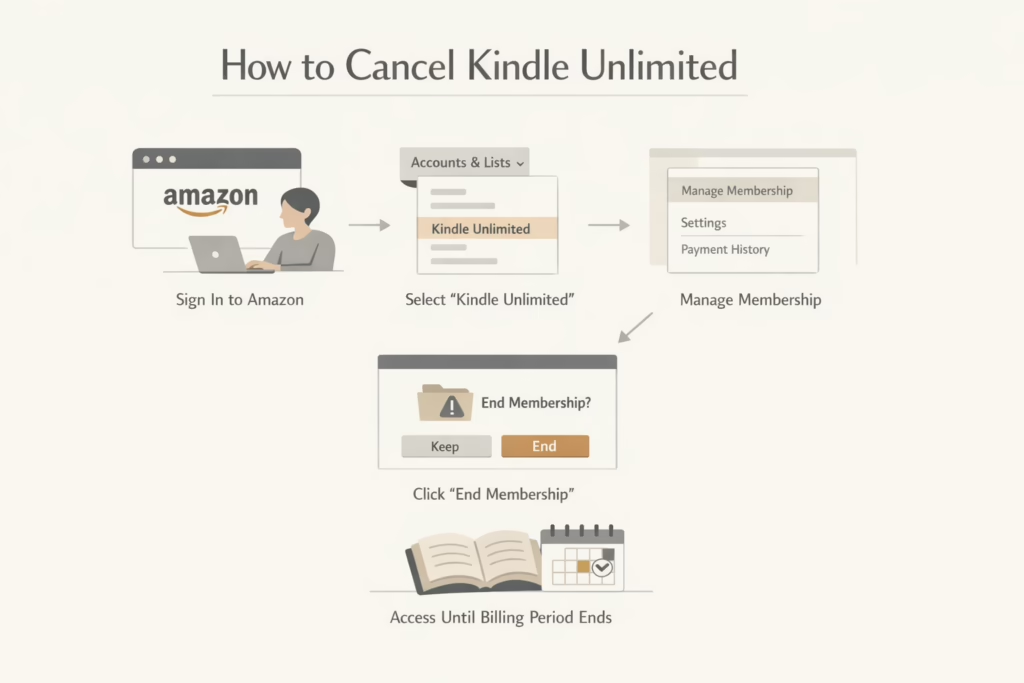
Amazon doesn’t exactly throw a big “Cancel” button in your face. If you’ve never done it before, it can feel like you’re playing hide and seek with the settings. But once you know where to look, the process is simple and quick. Here’s how to cancel your Kindle Unlimited subscription in just a few steps:
- Go to amazon.com and sign into your account.
- Hover over Accounts & Lists at the top right.
- From the dropdown, select Kindle Unlimited.
- On the left side, find Manage Membership.
- Click Cancel Kindle Unlimited Membership.
- On the next page, hit End Membership.
And you’re done. You’ll still have access until your current billing period ends, so there’s no pressure to read everything in one day.
If you’re on a mobile browser, just make sure to switch to desktop mode. The steps stay the same, but the menu might look a little different.
Can You Pause Instead of Canceling?
Yes, in some cases. Amazon offers a pause option for one month, but only if you’re on a standard paid plan. If you’re on a free trial or promotional offer, you won’t see the pause option at all.
Pausing takes effect at the end of your current billing cycle. Your access stops for one month, then resumes automatically unless you manually restart it sooner.
You can resume anytime from your Kindle Unlimited page.
What Happens After You Cancel
Here’s what to expect once you cancel:
- You keep your access to Kindle Unlimited until the end of your billing period.
- Borrowed books disappear from your device after that date.
- Purchased books stay in your library forever, even if they were discounted under Kindle Unlimited.
- You won’t be charged again unless you sign up again.
There’s no refund for unused time, but you’re not billed again unless you opt in. If you’re on a prepaid plan (like a gift subscription or bundle), you can cancel, but you won’t get money back for unused months.
How to Make Sure It’s Really Canceled
After hitting “End Membership,” Amazon will confirm the cancellation. You can double-check by going back to the Kindle Unlimited page in your account settings. If it shows an end date instead of a renewal date, you’re good.
Also, you should get an email confirmation. If you don’t see one, check spam just in case.
Things That Might Confuse You
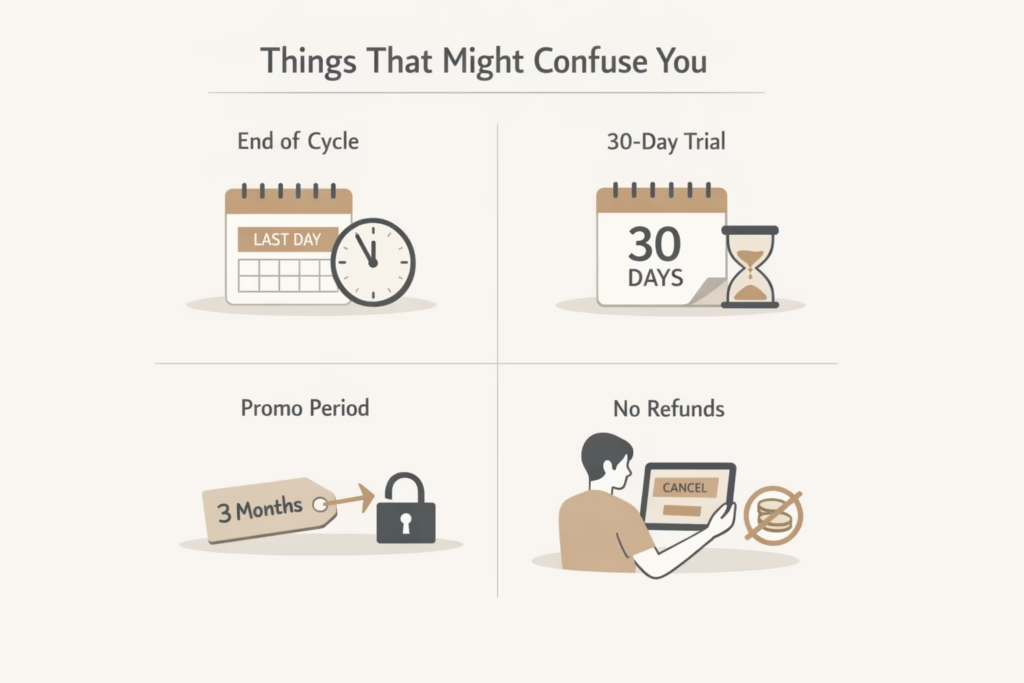
Canceling a subscription should be simple, but with Kindle Unlimited, a few details can catch people off guard. Some things don’t work the way you’d expect, especially if you’re in a promo period or using the free trial. Here’s a quick rundown of the stuff that tends to trip people up:
- “Cancel” doesn’t mean instant shutdown: You keep access until the end of the billing cycle.
- Free trial still ends after 30 days: Even if you cancel earlier.
- Promo deals won’t override billing rules: If you’re in month two of a three-month deal and cancel, you still lose access when that cycle ends.
- You can cancel mid-month: There will be no penalty, but again, no refunds.
Just something to keep in mind so there are no surprises later.
Can You Get a Refund?
Generally, no. Amazon doesn’t offer refunds for Kindle Unlimited unless something went wrong. If you were charged unexpectedly or had a billing issue, your best bet is to contact Amazon Customer Support.
It doesn’t hurt to explain your situation. While they don’t guarantee refunds, in rare cases they might offer a credit.
What If You Subscribed via Apple or Google Play?
If you signed up through the Amazon app on iOS or Android and used Apple’s App Store or Google Play billing, the cancellation process is different:
- For Apple: go to your iPhone’s Settings > Apple ID > Subscriptions.
- For Google Play: open the Play Store app > your profile > Payments & Subscriptions.
From there, cancel like you would any other app subscription. You’ll still have access until your billing cycle ends.
What to Do Before Canceling
Make the most of your last days:
- Use all your borrows: You can have up to 20 books out at once.
- Download what you’re reading: Remember that it’ll disappear later.
- Finish anything you’ve started: So you’re not left hanging.
If You Want to Restart Later
You can always rejoin Kindle Unlimited by going back to the Kindle Unlimited Central page and signing up again. If Amazon is running a new promo (like 2 months for free), you might even be eligible, depending on your account history.
Just know that restarting your membership doesn’t restore books you had borrowed before.
Alternatives to Canceling
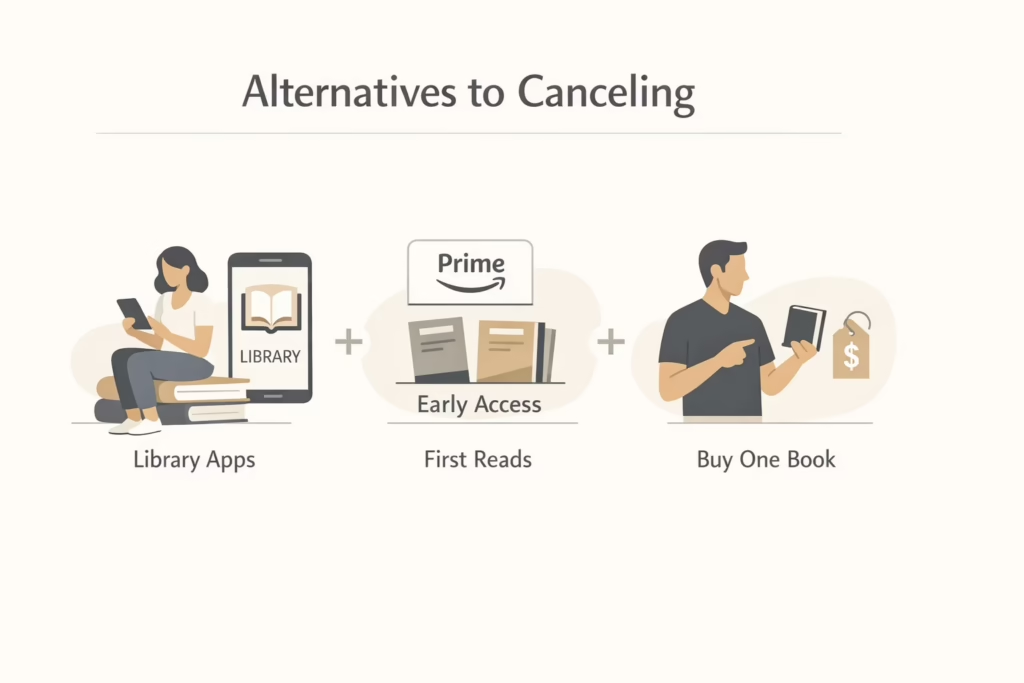
If you’re not 100% sure about canceling, here are a few other options:
- Switch to a lower-cost reading habit: Check out your local library’s OverDrive or Libby app.
- Try Amazon First Reads: It’s free for Prime members and offers early access to select titles.
- Buy books one at a time: If you only read occasionally, you may end up saving money compared to the subscription.
Final Thoughts
Canceling Kindle Unlimited isn’t hard, but Amazon doesn’t make it overly obvious either. Once you know where to look, the whole thing takes two minutes. Just make sure you’re using a browser, not the app, and double-check your cancellation date.
Whether you’re taking a break or done for good, you’re not locked in. You can always come back later, no strings attached.
FAQ
1. Can I cancel Kindle Unlimited anytime, or do I need to wait for the billing cycle to end?
You can cancel anytime you like. There’s no waiting period or penalty. Once you cancel, your subscription stays active until the end of your current billing cycle. That means you can keep reading until that date – Amazon just stops billing you after that.
2. Will I lose all my downloaded books right away after canceling?
Not immediately. You’ll keep access until your billing period runs out. After that, anything you borrowed through Kindle Unlimited disappears from your library, even if you downloaded it. But if you actually bought a book (not borrowed), that stays with you.
3. Is there a pause option instead of canceling completely?
Sometimes, yes. Amazon gives the option to pause your membership for one month, but only if you’re on a regular monthly plan. If you’re in a free trial or using a special promo deal, the pause option isn’t available.
4. How do I know if my Kindle Unlimited subscription is actually canceled?
Once you hit “End Membership,” you’ll see a confirmation page with your subscription end date. Amazon also sends a follow-up email. If you don’t see it, check your spam folder just to be safe. You can always double-check your status by going back to the Kindle Unlimited section in your Amazon account.
5. Can I get a refund if I forgot to cancel in time?
It’s not guaranteed, but it’s worth asking. Amazon generally does not issue refunds for Kindle Unlimited. You can still contact support if you believe there was a billing mistake, but refunds are not guaranteed even if you didn’t use the service.