

Managing subscriptions from your iPhone doesn’t have to be a mystery. Whether you’re wrapping up a free trial or trimming monthly expenses, knowing how to cancel directly from your device is a small skill that can save a lot of hassle. In a few quick steps, you can review what you’re still paying for, cut off unused services, and avoid that “why was I charged again?” feeling. No digging through apps or chasing down fine print – everything you need is right there in your settings.
Where Your Subscriptions Live on iPhone
There are two main paths you can take to reach your list of active subscriptions: through the Settings app or via the App Store. Both lead to the same screen, so it doesn’t really matter which route you prefer.
Method 1: Cancel Through Settings App
Here is how you should act:
- Open Settings
- Tap your name at the top
- Select Subscriptions
- Scroll through the list and tap the one you want to manage
- Tap Cancel Subscription
That’s it. If you don’t see a cancel button, it might mean the subscription is already set to expire.
Method 2: Cancel Through the App Store
The path is as simple:
- Open the App Store
- Tap your profile photo in the top-right corner
- Tap Subscriptions
- Choose the one you want to cancel and hit Cancel Subscription
This method is handy if you’re already browsing the App Store and remember to check on a subscription. It’s the same destination either way – Apple just gives you two doors to walk through.
What Happens After You Cancel
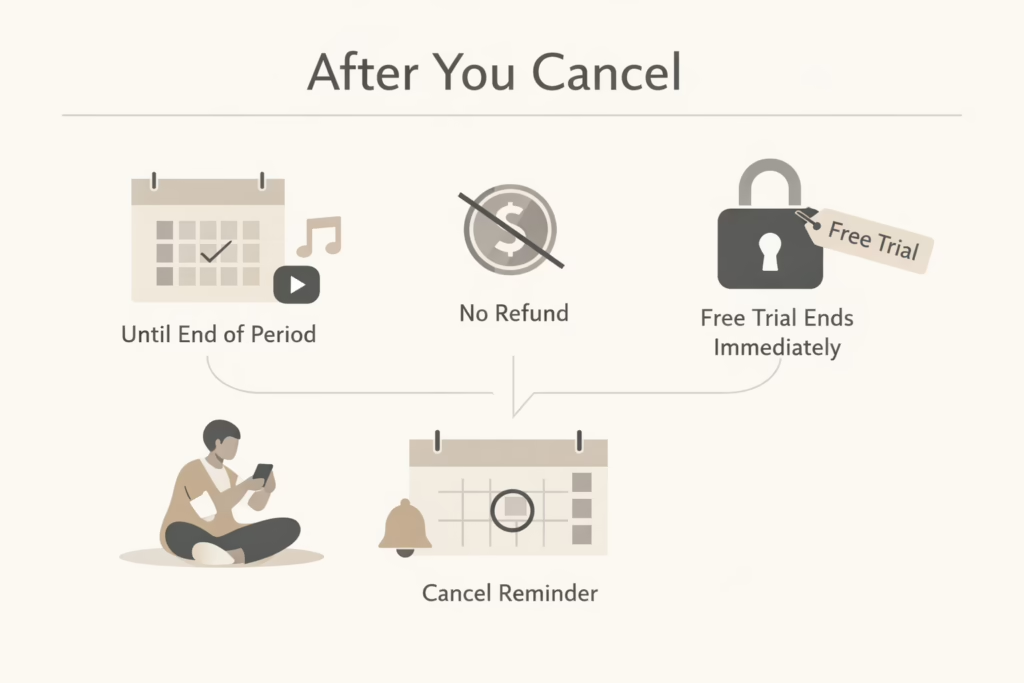
Cancelling a subscription doesn’t mean everything disappears instantly. In most cases, your access continues until the end of the billing period, since you’ve already paid for it.
What you can expect:
- You won’t be billed again, but you keep access until the current plan ends.
- There’s no refund for unused time unless Apple makes an exception.
- If it’s a free trial, access might stop right after cancellation (so cancel near the end if you want to try everything).
This last part trips people up. Free trials often cut off the moment you cancel, not when the trial would have ended. If you want to use every day of the trial, set a reminder to cancel the day before it converts.
Why You Might Not See the Subscription You’re Looking For
Sometimes the subscription just isn’t there. You open the menu, scroll around, and – nothing. That doesn’t always mean you’re not subscribed. It might mean you didn’t subscribe through Apple.
Here are a few common reasons this happens.
In many cases, the subscription wasn’t started through Apple at all. Some services, like Spotify or Netflix, require you to sign up directly on their website, which means Apple can’t manage or cancel the billing for you. Another possibility is that you used a different Apple ID when you subscribed, especially if you’ve had more than one account over the years. Sometimes the subscription belongs to a family member and is tied to their Apple ID, not yours. And if you’re using Apple services on an Android device, the charge may be coming through Google Play instead of Apple.
How to Double-Check
There is a clear and easy-to-navigate instruction:
- Search your email for subject lines like “Receipt from Apple” or “Invoice”
- Look through your bank or card statements
- Open the app itself and check the account or billing section
- Visit account.apple.com and sign in with any other Apple ID you might’ve used
Still nothing? You’re probably not being billed by Apple at all – in this case, you’ll need to cancel through the provider directly.
Canceling Apple One Plans
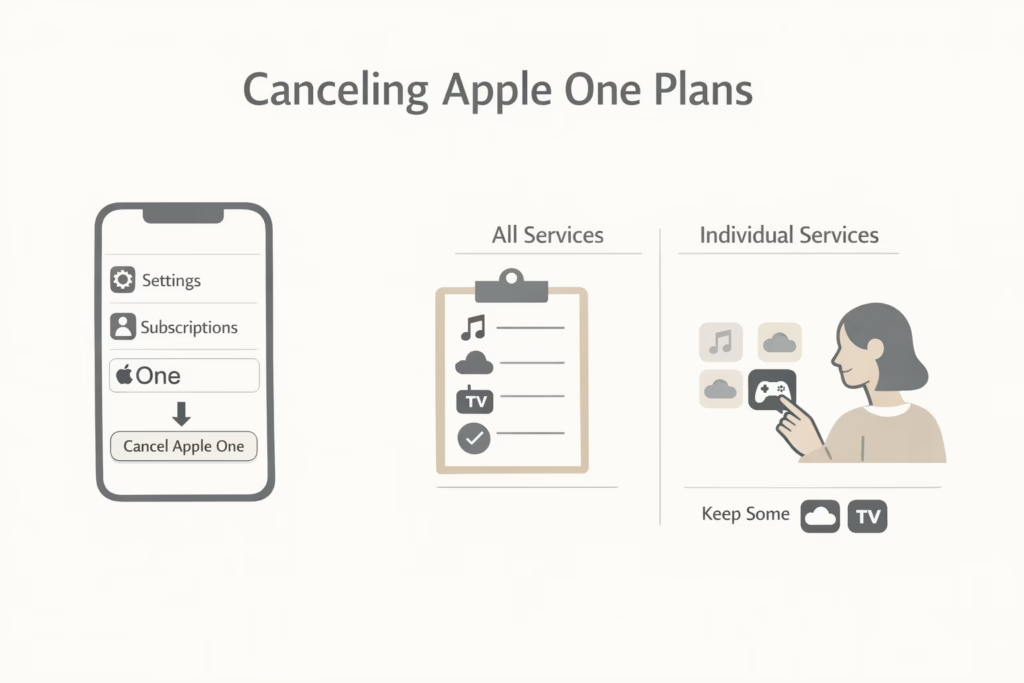
If you’re subscribed to Apple One (Apple Music, iCloud+, TV+, and more in a bundle), cancelling works a little differently.
- Head to Settings > Your Name > Subscriptions
- Tap Apple One
- Tap Cancel Apple One if you want to remove everything
- Or choose Select Individual Services to stop just one (like Apple Arcade) and keep the rest
Keep in mind: Apple One is designed to be a package. Cancelling individual services lowers the value, so make sure it makes sense for your use.
iCloud+ Storage: Downgrade Instead of Cancel
iCloud+ doesn’t have a typical “Cancel” button. If you want to go back to the free 5GB plan:
- Go to Settings > Your Name > iCloud > Manage Storage
- Tap Change Storage Plan
- Choose Downgrade Options
- Enter your Apple ID password if asked
- Select the Free plan
Like everything else, the downgrade takes effect after the current billing cycle ends.
Reactivating a Subscription You Previously Canceled
If you canceled something and changed your mind, good news — reactivating is usually straightforward.
Steps to resubscribe:
- Go to Settings > Your Name > Subscriptions
- Scroll down to Inactive or Expired
- Tap the subscription
- Choose a new plan and confirm your payment details
Just know that once reactivated, your billing cycle restarts from that date forward. It doesn’t pick up where it left off.
Don’t Forget About These
A few services manage their subscriptions slightly differently:
Apple Music, Apple TV, and Apple Arcade
These follow the standard cancellation steps via Settings or App Store. On Windows, you can use the Apple Music or Apple TV app to cancel.
Android Users Using Apple Services
If you signed up for Apple Music or Apple TV on an Android device through Google Play, you’ll need to cancel inside the Google Play app, not through Apple.
Old iTunes for Windows
Still on iTunes? You can cancel by opening iTunes, choosing Account > View My Account, scrolling to Settings > Subscriptions, and clicking Manage, then Cancel Subscription.
A Few Tips to Avoid Surprise Charges
It’s easy to sign up for things and forget about them, especially when trials turn into paid plans without much warning. If you’d rather not be caught off guard by a sudden charge, a little maintenance can go a long way. Here are a few ways to stay ahead of it:
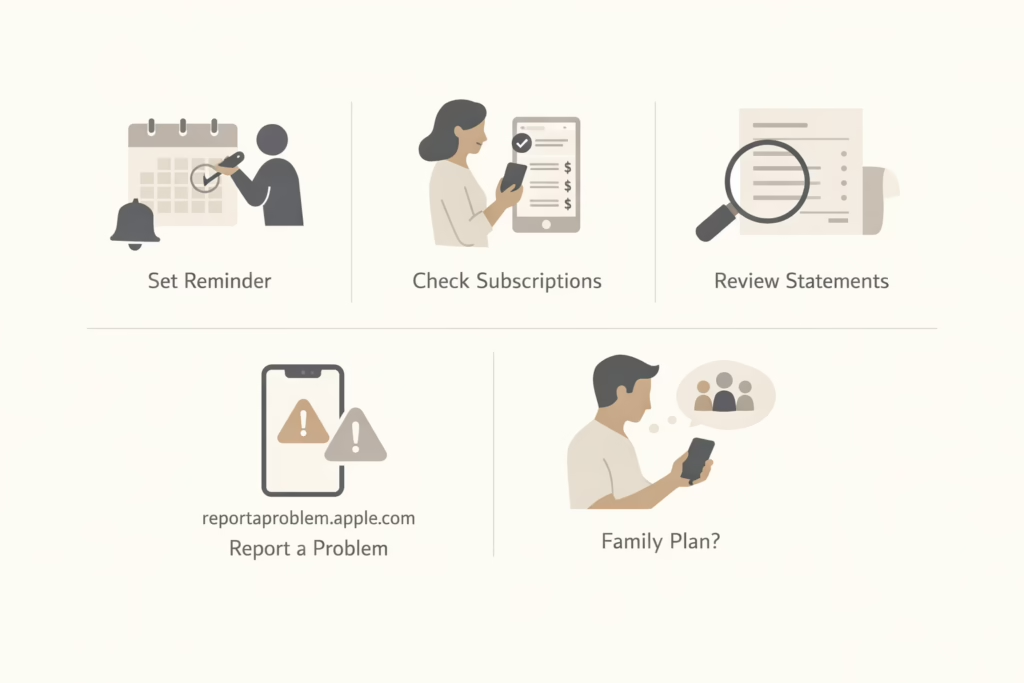
- Set a calendar reminder a few days before a free trial ends.
- Check subscriptions regularly to catch services you forgot about.
- Scan billing statements monthly for anything unexpected.
- Use Apple’s “Report a Problem” site (reportaproblem.apple.com) if something seems off.
- Double-check family plans – you might be paying for someone else’s access.
The Bottom Line
Canceling iPhone subscriptions isn’t hard once you know where to look. Apple keeps most of it inside one menu, but you do need to know whether you’re being billed through Apple or not. Once you get the hang of it, it’s easy to keep your list clean and make sure you’re only paying for what you actually use.
And if you forget a few? We’ve all been there. The good news is, a quick trip into Settings is usually all it takes to fix it.
FAQ
1. Can I cancel a subscription on iPhone without using the App Store?
Yes. You don’t need to open the App Store if you don’t want to. Just go to Settings > Your Name > Subscriptions, and you’ll land in the same place. It’s the fastest route for most people.
2. Why isn’t my subscription showing up?
If it’s not showing up in your Subscriptions list, there’s a good chance Apple isn’t the one billing you. Some services, like Netflix or Spotify, skip Apple entirely and handle billing through their own websites or platforms like Google Play. Double-check your email receipts or your card statements to see who’s charging you.
3. What happens if I cancel during a free trial?
With free trials, canceling early often ends the access immediately. That means if you cancel on day two of a seven-day trial, you’re likely done then and there. If you want to keep using the trial until the last day, it’s better to set a reminder and cancel right before it ends.
4. Will I lose access immediately after canceling?
Not unless it’s a free trial. For paid subscriptions, you’ll usually keep full access until the end of your current billing period. So if you cancel halfway through the month, you can still use the service until that period runs out.
5. Can I get a refund after canceling?
In most cases, no. Apple doesn’t refund unused time by default. But you can request one through reportaproblem.apple.com if something seems off or you were charged by mistake. They don’t always approve of it, but it’s worth trying.
6. How do I cancel a subscription for someone else in my family?
You can’t cancel subscriptions tied to another person’s Apple ID, even in a Family Sharing group. You’ll need to ask them to cancel it themselves. If you’re the family organizer, though, you can manage shared purchases or subscriptions that you’ve activated under your own account.