
Canceling a subscription shouldn’t feel like a puzzle. Whether you’re trimming your digital expenses or just not watching enough to keep Apple TV+, knowing exactly where to tap or click can save time and frustration. But let’s be honest – Apple doesn’t always make it obvious. Depending on how you signed up (through the App Store, the web, or even Amazon), the steps can vary a bit. In this guide, we’ll walk through everything clearly, without assuming you already know the difference between tv.apple.com and the TV app on your iPhone. Let’s get into it.
First, Let’s Clear Up the Confusion: Apple TV vs Apple TV+
Quick reminder: Apple TV is an app that helps you access content, while Apple TV+ is Apple’s own streaming service. You can cancel Apple TV+ as a paid subscription, but you can’t really “cancel” the Apple TV app itself because it’s built into your device.
So if you’re getting charged monthly, you’re most likely subscribed to Apple TV+. That’s the part you want to cancel.
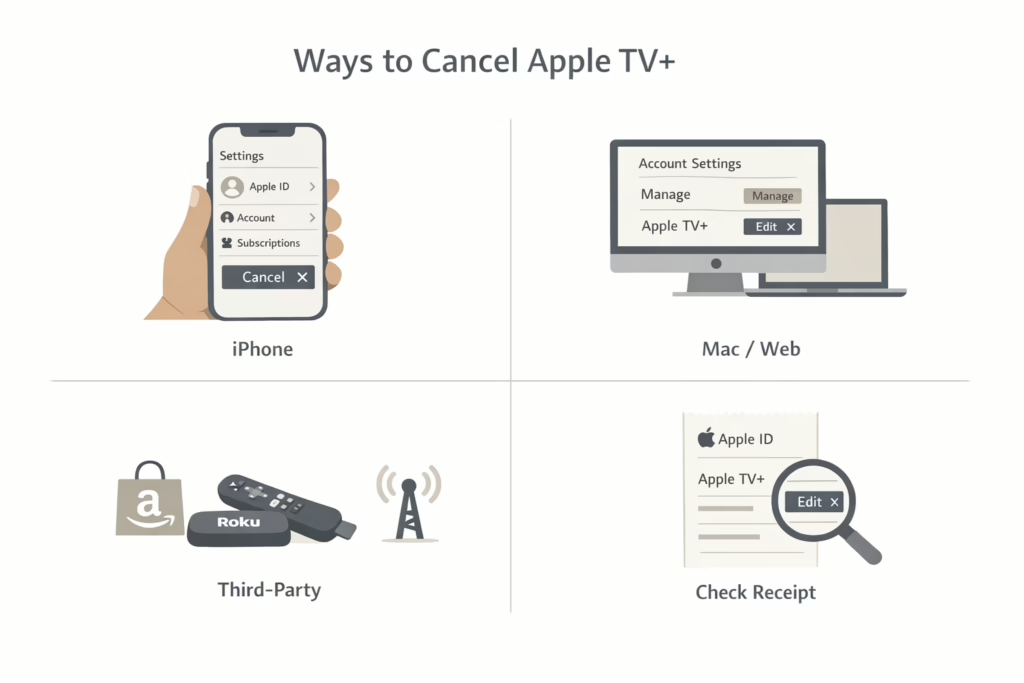
Common Ways to Cancel Apple TV+
Depending on how you signed up, Apple TV+ can be canceled in a few different places. It’s not one-size-fits-all, so your exact steps might vary. Here’s how to handle it based on where you started your subscription.
Option 1: Cancel Apple TV+ on Your iPhone
If you’re subscribed directly through Apple, using your iPhone is usually the fastest and most straightforward option. Here’s how to do it:
- Open the Settings app.
- Tap your name at the top (Apple ID).
- Select Subscriptions.
- Find Apple TV+ in the list and tap it.
- Tap Cancel Subscription. If you don’t see a cancel button, look for a note in red that says the subscription is already set to expire.
That’s it. Once canceled, you’ll still have access until the current billing cycle ends.
Can’t find the subscription? If Apple TV+ isn’t listed under your subscriptions, don’t panic. Check if you used a different Apple ID (common if you have more than one). Search your email for “receipt from Apple” to find out which account was charged. If the receipt shows someone else’s Apple ID (like a family member), they’ll need to cancel it from their own account.
Option 2: Cancel from Your Mac
Prefer doing it from a computer? If you use a Mac, the process is similar:
- Open the App Store.
- Click your name (bottom left corner).
- Click Account Settings.
- Scroll down to Subscriptions and hit Manage.
- Find Apple TV+ and choose Edit, then click Cancel Subscription.
Option 3: Cancel on the Web (tv.apple.com)
This method works whether you’re on a Windows PC, a Chromebook, or just don’t want to mess with device settings.
- Go to tv.apple.com in your browser.
- Sign in with your Apple ID (top right corner).
- Click the account icon and choose Settings.
- Scroll to Subscriptions and click Manage.
- Hit Cancel Subscription.
If you subscribed directly through Apple’s site, this will work. If not, you’ll see a note saying you need to cancel through another provider.
Option 4: Subscribed Through Amazon, Roku, or a Carrier?
If you signed up for Apple TV+ through a third party like Amazon or your mobile carrier, you won’t find the cancel button in your Apple account. Here’s what to do:
If You Used Amazon:
- Go to amazon.com/appstoresubscriptions
- Find Apple TV+ in your list
- Select Cancel Subscription
If You Used Roku:
- Open Roku’s website or your device’s subscriptions page
- Locate Apple TV+
- Cancel from there
If you subscribed via a wireless carrier, You’ll need to contact your carrier’s customer support or log in to your account on their site.
Apple doesn’t manage those subscriptions, so they literally can’t cancel it for you.
Don’t Forget the Trial Catch
Signed up for a free or discounted trial? Be careful with the timing.
If you cancel a trial even one day early, your access might end immediately. For most full-price subscriptions, cancellation means you keep access until the end of the billing period.
So, if you want to make the most of a free month, cancel a day or two before it ends.
What If You Still Get Charged?
If you canceled and still see a charge on your bank statement, here’s what might be going on:
- Wrong account: You canceled on one Apple ID, but got billed from another.
- Shared family billing: Someone else in your Family Sharing group subscribed.
- Third-party billing: You canceled in the wrong place. For example, if you subscribed via Amazon, canceling on Apple’s site won’t stop it.
How to check which account was charged? Look at your email receipts. Check your bank statement to confirm the exact amount and billing source. Use reportaproblem.apple.com to view charges and request refunds (if applicable).
Can You Get a Refund?
Apple doesn’t guarantee refunds for subscriptions, but you can still request one if the charge was recent and you haven’t used the service much, or if you forgot to cancel in time. It’s also worth trying if you thought you had already canceled but still got billed.
To ask for a refund, go to reportaproblem.apple.com and sign in with the right Apple ID. Click on “I’d like to,” then choose “Request a refund.” You’ll be asked to pick a reason and select Apple TV+ from your purchase history. Once you submit the request, Apple usually responds within a day or two. If they approve it, the refund should show up after a few more days.
What Happens After You Cancel?
Here’s what you can expect:
- You’ll still have access until the end of your current billing period (unless you cancel a free trial).
- No content will be deleted from your devices, but you won’t be able to stream Apple TV+ originals after expiration.
- If you resubscribe later, your watch history usually remains linked to your account.
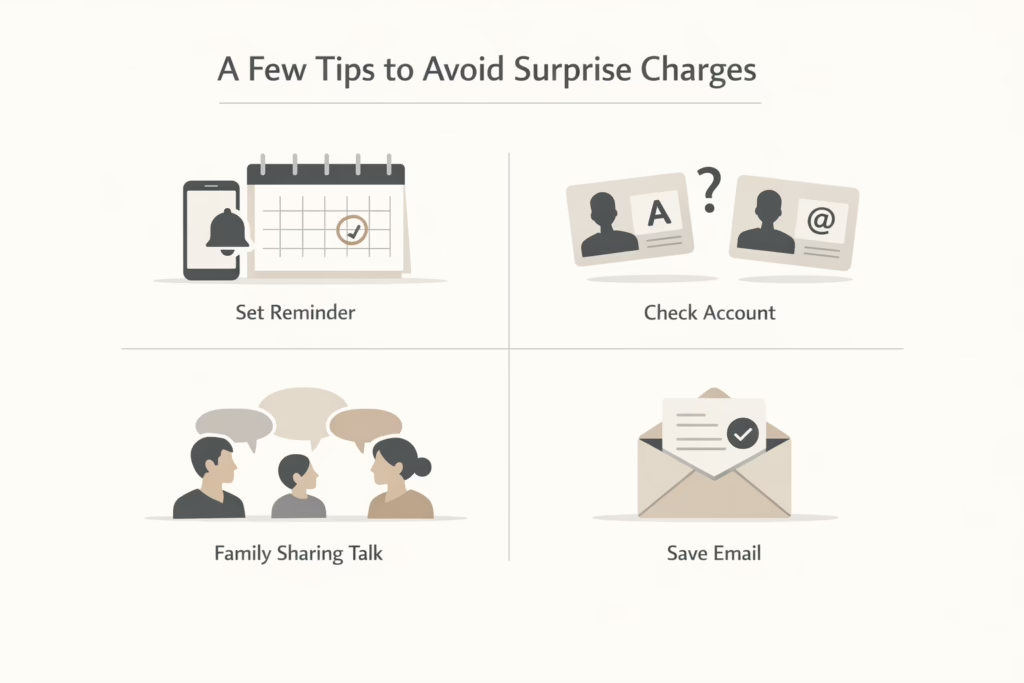
A Few Tips to Avoid Surprise Charges
These simple tricks can help you to avoid unexpected situations.
Set a Reminder Before Your Billing Date
It’s easy to forget when a subscription is about to renew, especially with so many services running in the background. To avoid surprise charges, set a calendar reminder a few days before your Apple TV+ billing date. That way, you’ll have time to decide whether to keep it or cancel before it auto-renews.
Check Which Account Was Used
If you have more than one Apple ID or share devices with others, double-check which account was actually used to sign up. A lot of confusion (and unexpected charges) come from canceling the wrong account or forgetting you signed up under a different email.
Communicate Within Family Sharing
Using Family Sharing? Talk to the people in your group. Sometimes one person subscribes, and someone else cancels, thinking it’s theirs. This can lead to overlapping charges or missing content. A quick check-in helps avoid that.
Save Your Confirmation Emails
After you cancel, you should get an email confirming the cancellation. It’s a small thing, but it can be helpful if there’s ever a billing mistake later. Keep it in your inbox just in case you need to prove when you canceled.
Still Stuck? Contact Apple Support
Sometimes, none of the methods above work. In those cases, reach out directly:
- Visit getsupport.apple.com
- Choose Subscriptions & Purchases
- Select Apple TV+
- Pick Billing & Subscriptions, then choose to chat or talk with support
Apple reps can help figure out which ID was charged, check if a cancellation went through, or process refunds in special cases.
Final Thoughts
Canceling Apple TV+ shouldn’t require detective work, but depending on how you signed up, it can feel that way. The key is knowing where to look: device settings, the web, or even third-party platforms like Amazon. Take a few minutes to follow the right path and make sure you’re canceling from the correct account.
And if all else fails? Don’t hesitate to ask for help. Apple’s refund system and support staff are generally decent at resolving billing issues, especially if you act quickly.
FAQ
1. Do I lose access right away after canceling Apple TV+?
In most cases, no. When you cancel a paid Apple TV+ subscription, you keep access until the end of your current billing period. You can still stream shows and finish whatever you started. The only real exception is free trials. If you cancel those early, access may end sooner than you expect.
2. Why don’t I see Apple TV+ under my subscriptions?
This usually means one of three things. You might be signed into a different Apple ID, the subscription could be under a family member’s account, or you signed up through a third party like Amazon or a mobile carrier. Checking your email for an Apple receipt is the quickest way to figure out which account or service is actually billing you.
3. Can I cancel Apple TV+ from any device?
Yes, as long as you’re logged into the right account. You can cancel from an iPhone, iPad, Mac, or directly on the web at tv.apple.com. If you subscribed through another company, though, you’ll need to cancel it through them instead. Apple won’t show a cancel button for subscriptions it doesn’t manage.
4. What happens if I cancel and then change my mind?
Nothing bad. You can resubscribe at any time, even right after canceling. Your watch history and preferences usually stay tied to your Apple ID, so it doesn’t feel like starting over. You’ll just be charged again once the new billing cycle begins.
5. Can I get a refund if I forgot to cancel?
Refunds aren’t guaranteed, but they’re possible in some situations. If the charge just went through and you haven’t really used the service, it’s worth requesting a refund through Apple’s Report a Problem page. Apple reviews these requests individually, so the outcome can vary, but trying doesn’t hurt.
6. Does deleting the Apple TV app cancel my subscription?
No, and this trips up a lot of people. Removing the app from your phone or TV does nothing to your subscription. Billing continues until you cancel it properly through your Apple account or the service that charged you. Always double-check your subscriptions list to be sure.