
There’s a lot to love about Disney Plus – from Marvel binges to weekend classics – but sometimes, it’s just time to hit pause. Maybe you’re juggling too many streaming apps, or maybe that free trial ran its course and you’re not watching as much as you thought you would. Whatever the reason, canceling your Disney+ subscription isn’t complicated, but it does depend on how you signed up. If you’ve ever tried to find the cancel button and felt like it was hiding behind a curtain of menus, you’re not alone. Let’s walk through how it actually works – no fluff, no confusion, just the steps you need.
First Things First: Know Who Bills You
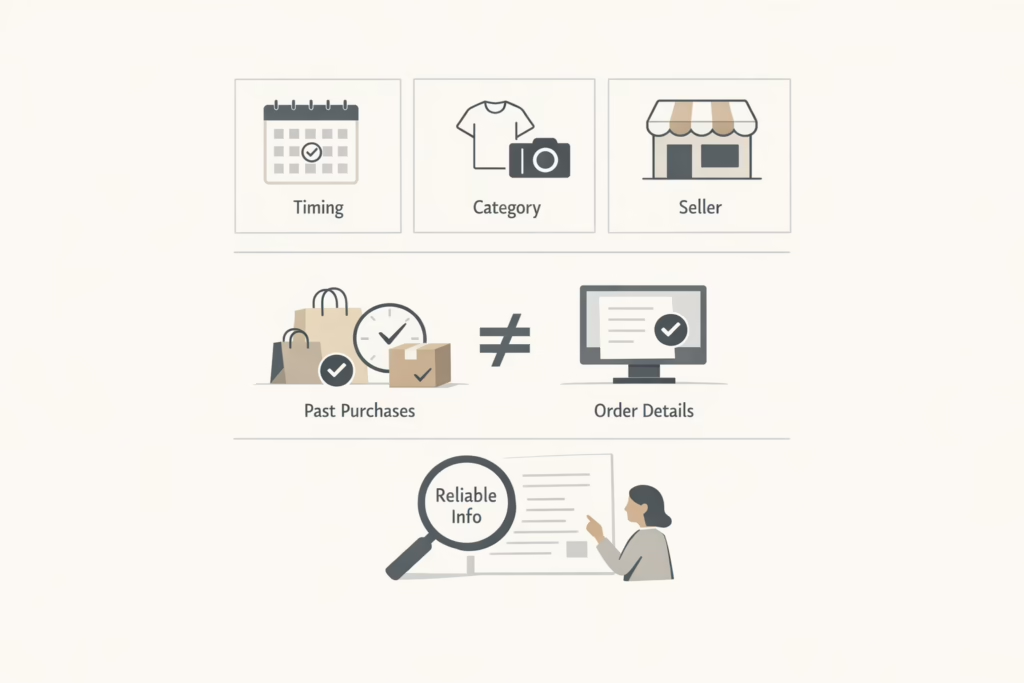
Before diving into cancellation steps, take a moment to confirm how you subscribed. Why? Because if your billing is handled by someone other than Disney+ (like Apple or Amazon), you’ll have to cancel through that platform.
You’re likely billed directly by Disney+ if you signed up on disneyplus.com via browser or you manage your subscription through Disney’s site or app.
You might be billed by a third party if you used the App Store, Google Play, Amazon, Roku, or another platform, you subscribed through a bundle offer (like Hulu or ESPN+), or you signed up via your cable or mobile provider.
Figuring this out first saves time. Check your email receipts or billing info in your Disney+ account.
How to Cancel Disney+ (Direct Billing)
If you pay Disney+ directly, the process is pretty straightforward. Here’s what to do:
On a Web Browser (Computer or Mobile)
- Go to disneyplus.com and log in
- Click or tap your profile icon
- Select Account
- Under Subscription, choose your Disney+ plan
- Click Cancel Subscription
That’s it. You’ll still have access until the end of your billing period, but you won’t be charged again. Disney+ generally doesn’t offer refunds for unused time, but you can contact support to request a refund in exceptional cases.
Disney+ also lets you pause your subscription if you’re billed monthly and don’t have a bundle. The pause begins at the start of your next billing cycle, and you won’t be charged or have access during that time. You can resume anytime through the same account settings.
Keep in mind:
- Bundled subscriptions can’t be paused.
- If you have add-ons or extra members, those get paused too.
- You must be current on payments to be eligible.
Canceling a Disney+ Bundle Plan
Bundled plans can be a bit messier, especially if you had one of the services before upgrading to a Disney+ bundle with Hulu or ESPN+.
Canceling a standalone Hulu subscription won’t affect your Disney+ bundle if they were billed together. But it’s best to review your account settings to confirm how services are linked. The previous plan stops, but the bundle stays active. If you cancel the bundle and had a pre-existing standalone subscription (e.g., Hulu or ESPN+), it may resume billing separately – check your accounts to confirm and cancel if needed.
Signed up for Hulu, then upgraded to a Disney+ bundle? Canceling Hulu won’t affect the bundle.
Canceled the bundle? Hulu may automatically restart with its standalone price and plan.
If you subscribed through Hulu or another partner, you must cancel the bundle directly through that partner’s platform, not Disney+.
Canceling Disney+ Through Third Parties
If you’re billed through another company, you’ll need to cancel through them. Disney+ can’t cancel these subscriptions for you.
Here’s where to go depending on the provider:
- Apple: Use the Settings app on iPhone/iPad or the App Store on Mac
- Google Play: Use the Play Store app > Payments & Subscriptions
- Amazon: Visit your Amazon account under Memberships & Subscriptions
- Roku: Use your Roku device or visit my.roku.com
- Mobile carriers (like Verizon or AT&T): Go through your carrier’s app or billing support
It’s a good idea to look up their help pages if you can’t find the subscription listed easily. Each platform handles cancellation a bit differently.
What Happens After You Cancel
Canceling doesn’t cut you off instantly. Here’s what to expect after you confirm cancellation:
- You’ll still have access until the end of your current billing cycle.
- No automatic refunds for unused time, even if you cancel right after being charged.
- If you’re on a paused plan, you can resume any time, but a new billing cycle will begin as soon as you do.
This gives you a little flexibility. If you’re mid-series or have something queued up, you can still finish it before the account closes.
Restarting a Canceled Subscription
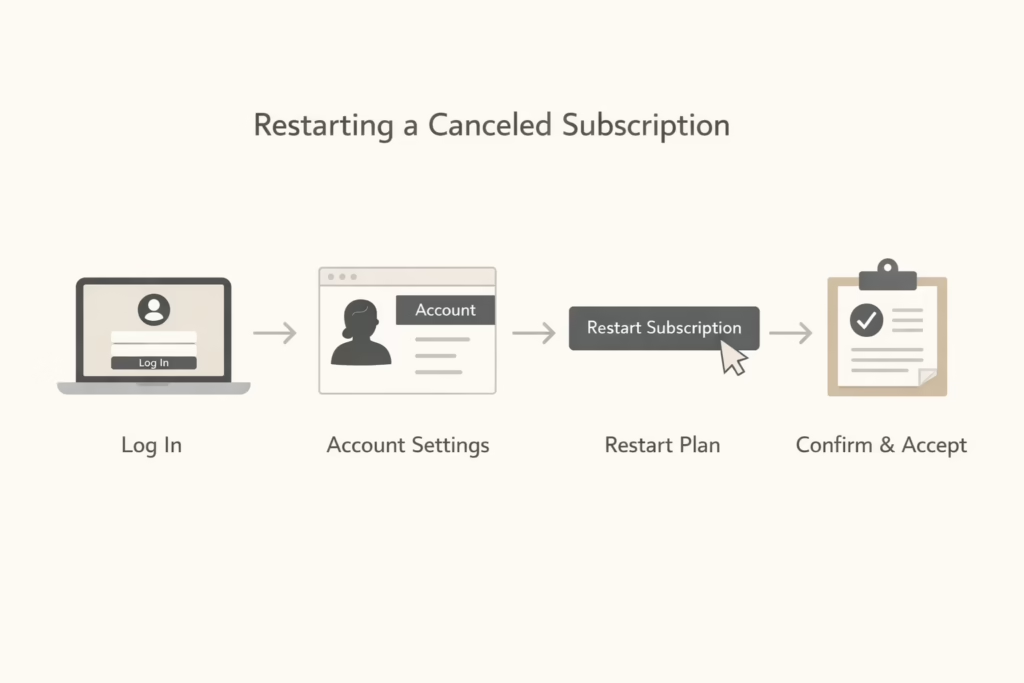
Let’s say you canceled Disney+, then changed your mind. As long as your billing cycle hasn’t fully ended yet, you can restart without any interruptions:
- Log in at disneyplus.com
- Head to your Profile > Account
- Click Restart Subscription
- Confirm and accept the terms
If your billing period has already ended, you’ll need to resubscribe from scratch. Same goes for third-party subscriptions.
Want to Delete Your Account Entirely?
Canceling your Disney+ subscription only stops future billing – it doesn’t erase your account. If you want to fully delete everything tied to your profile, including your name, email, and other personal info, you’ll need to take a separate step. First, make sure your subscription is canceled. After that, go to Disney’s privacy settings or support page and submit a request to delete your account. Once your Disney account deletion is processed, most personal data is removed, but some information may be retained in accordance with legal or business requirements. Just keep in mind that this might also impact your access to other Disney-owned services that use the same login.
Common Pitfalls to Avoid
People often assume canceling is just one click away, but a few things can trip you up. Here’s what to double-check:
- You’re logged into the right account (especially if you share with family).
- You’re canceling through the right platform (Disney+ vs. Apple vs. Hulu, etc.).
- You check your email for confirmation after canceling.
- You keep any confirmation numbers or screenshots in case you’re charged later.
A missed cancellation can result in unexpected charges. Make sure you go all the way through the process and see a confirmation screen or email.
Quick Tips Before Canceling
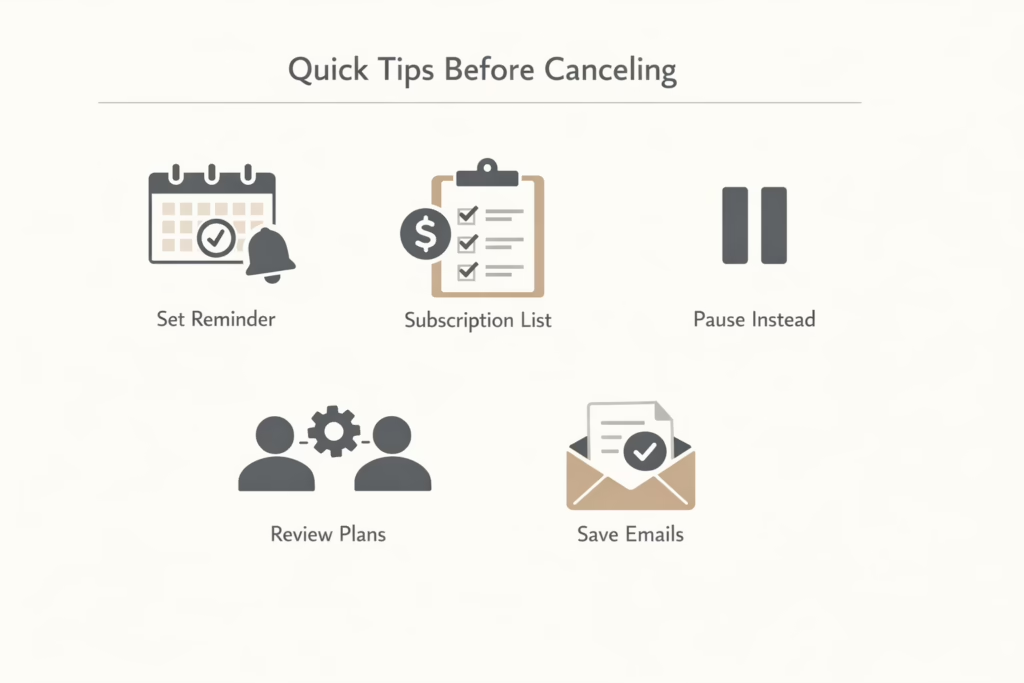
If you’re planning to cancel, consider doing the following:
- Set a calendar reminder a few days before your renewal date.
- Make a list of which streaming services you’re currently paying for.
- Pause instead of canceling if you’re just taking a break.
- Review family plans or bundle settings to avoid duplicates.
- Save confirmation emails for your records.
Final Thoughts
Canceling Disney Plus isn’t hard once you know where to look. The biggest challenge is simply figuring out who is billing you and navigating their system. After that, it’s usually a few clicks.
Whether you’re simplifying your subscriptions, switching to a different service, or just taking a break, make sure your cancellation is complete and confirmed. And if you ever want to come back, Disney+ makes it pretty easy to restart.
FAQ
1. Do I lose access to Disney+ right after canceling?
No, you’ll still be able to watch until your current billing cycle ends. So if you cancel today but you’ve already paid through the end of the month, you get to finish out the month.
2. Can I cancel on my phone, or do I need a computer?
You can cancel from your phone, but the experience is better in a browser (either mobile or desktop). Some options might not appear in the Disney+ app. So if something looks off, try switching to a regular browser like Chrome or Safari and head to disneyplus.com.
3. What if I signed up through Apple or Amazon?
Then you’ll need to cancel through them. Disney+ can’t manage subscriptions that were set up through third-party platforms. Go to your Apple ID settings, Amazon account, or wherever you signed up. Look under subscriptions and manage it from there.
4. Can I pause instead of canceling?
If you’re billed monthly and directly through Disney+, yes. Pausing lets you take a break without losing your account setup. But it won’t work for bundles, and it’s not available if you’re behind on payments. The pause starts with your next billing date.
5. Will canceling affect my Hulu or ESPN+ access?
It might, depending on how your bundle was set up. If you signed up for Disney+ first and added a bundle later, canceling one part won’t always cancel the rest. On the flip side, if you cancel the bundle, your original Hulu or ESPN+ plan might come back unless you cancel that too.
6. I canceled but still got charged. What now?
First, double-check which account you canceled and which email you used. A lot of people have more than one Apple ID or Google account floating around. If the charge still doesn’t make sense, reach out to Disney+ support or your billing provider to sort it out.
7. Is deleting my Disney+ account the same as canceling?
No. Canceling stops future charges, but your account still exists. If you want to wipe out your profile, email, and all that data, you’ll need to delete your Disney+ account separately through their privacy settings. Just make sure you’ve canceled first.