

There comes a point when you realize you’re not really using that Netflix subscription. Maybe the show you loved ended two seasons ago. Maybe you’re just trying to cut down on expenses or screen time. Whatever the reason, canceling Netflix isn’t a big deal, and it doesn’t need to feel like one. You won’t have to jump through hoops or call anyone. It’s all right there in your account settings. The process takes just a few clicks, and if you ever want to come back later, your account history doesn’t just vanish. This guide walks you through the exact steps, the small print, and what happens next, so there are no surprises.
What Netflix Offers, and Why Some People Cancel Anyway
Netflix still delivers a solid mix of original shows, popular movies, documentaries, and even mobile games. It’s easy to use, works on nearly any device, and lets you create profiles for everyone in the house. Whether you’re into true crime, dramas, anime, or background noise while you fold laundry, there’s usually something to watch.
But even with all that, canceling makes sense for a lot of people. Maybe you’ve finished the series you came for. Maybe you’re tired of the constant price hikes. Or maybe you’re just juggling too many subscriptions at once and something has to go. Whatever the reason, leaving Netflix doesn’t need to be a big decision. You can always come back later if you miss it.
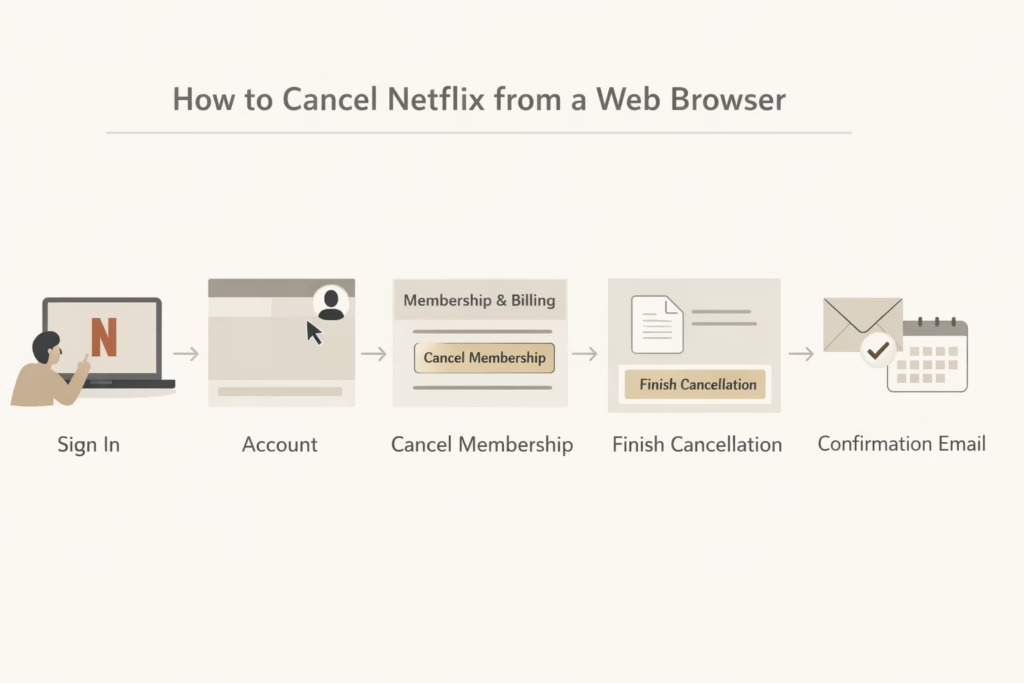
How to Cancel Netflix from a Web Browser
If you’re on a computer, this is the most straightforward way to cancel.
Here’s what you do:
- Open Netflix and sign in.
- Hover over your profile icon (top right corner).
- Click on Account.
- Look for the Membership & Billing section.
- Click Cancel Membership.
- On the confirmation screen, click Finish Cancellation.
That’s it. You’ll get an email confirming the cancellation, and your access will stay active until the end of your current billing cycle. You won’t be charged after that unless you come back and restart your plan.
Canceling Netflix on the Mobile App
Netflix lets you cancel directly from the app too, which is handy if you’re already on your phone. However, the app doesn’t offer a separate cancellation interface. It just redirects you to the browser version, so the flow ends up being the same either way.
For both Android and iOS:
- Open the Netflix app.
- Tap My Netflix in the bottom right.
- Tap the menu icon (three lines or your profile image).
- Select Account. (This opens a browser window.)
- Then follow the same cancellation steps listed above.
Canceling Through a Third-Party Provider
Here’s where it gets a little tricky.
If you signed up for Netflix through a third-party service (like your phone company, Apple, or Google), you’ll need to cancel it through that platform. Netflix won’t let you cancel directly if your billing is handled elsewhere.
Depending on your provider:
- Apple: Go to Settings → Apple ID → Subscriptions → Netflix → Cancel.
- Google Play: Open the Play Store → Menu → Subscriptions → Netflix → Cancel.
- Cable/Internet providers: Log in to your provider’s website and manage subscriptions from your account dashboard.
Can’t find where you’re being billed from? Check your original billing email or log in to Netflix and go to the Account section. Under “Membership & Billing” it will show where your payments are coming from.
What Happens After You Cancel?
One nice thing about Netflix is that canceling doesn’t delete your account. Your profile details, ratings, recommendations, and game saves (yes, Netflix has mobile games now) all stick for 2 years.
So if you come back later, you won’t have to start from scratch.
And if you’re wondering, no, Netflix doesn’t automatically delete your data right after canceling. But if you’re trying to fully remove yourself, there’s a different process for account deletion (we’ll touch on that later).
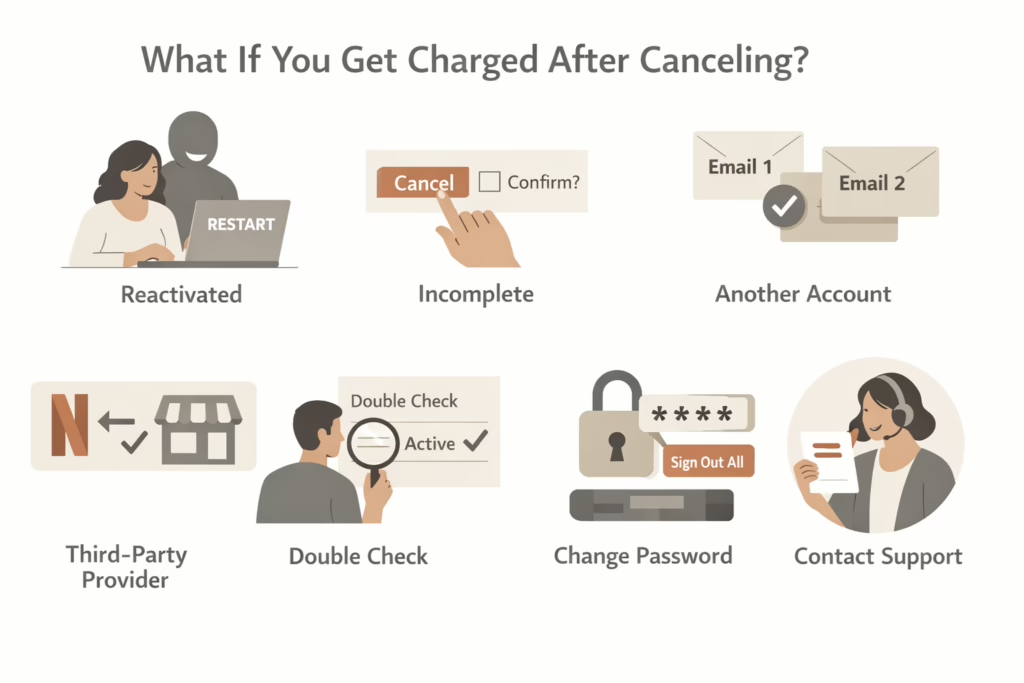
What If You Get Charged After Canceling?
It happens. You cancel, forget about it, and then see another charge a month later. Here are the most common reasons:
- Someone else on your account accidentally reactivated it.
- You didn’t finish the final confirmation step.
- You have another active Netflix account using a different email.
- You signed up through a third-party provider, and only canceled via Netflix, not them.
What to do:
- Log in at netflix.com/cancelplan to double-check your status.
- Go to netflix.com/password and change your password.
- Be sure to check the option to sign out of all devices. This logs everyone out and ensures no one else can restart it.
- If you’re still stuck, contact Netflix support with your billing info.
Is Pausing Netflix an Option?
Sort of. Netflix does offer a “pause” option, but it’s not available to everyone.
Here’s how it works:
- You can pause your subscription for up to 3 months.
- This is only available on certain plans (not the basic one).
- While paused, your account is locked and you don’t get charged.
- After the pause ends, billing resumes automatically.
It’s a decent option if you’re not ready to fully cancel but want a break. Keep in mind, though, the pause option doesn’t show up for all users. You’ll only see it during the cancellation flow if it’s available to you.
How to Delete Your Netflix Account Completely
If you want to fully delete your Netflix account, not just cancel the subscription, you have to go a step further.
First, cancel your membership as usual. Wait until the end of your billing cycle (the account must be inactive first). Then email privacy@netflix.com from the same email you used to sign up. Request full deletion of your account and all associated data.
Once deleted, you won’t be able to recover any history or saved settings. If you change your mind later, you’ll need to create a new account from scratch.
Don’t Forget to Cancel the Trial (If You’re on One)
Free trials aren’t as common on Netflix anymore, but if you managed to get one, remember this:
- Cancel during the trial, and your access ends immediately.
- If you forget to cancel before the trial ends, you’ll be charged for the next billing cycle.
So it’s a good idea to set a reminder a day or two before the trial expires. That gives you time to cancel without rushing.
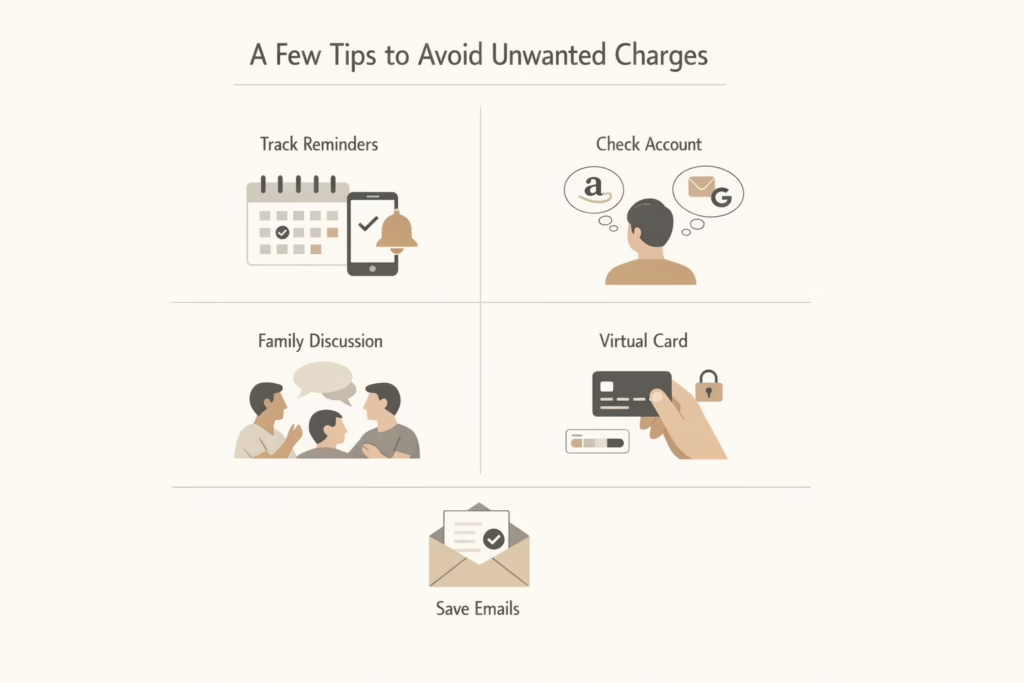
A Few Tips to Avoid Unwanted Charges in the Future
Subscription management can be messy. Here are some ways to avoid surprises, especially with services like Netflix:
- Use a subscription tracker app or calendar reminders.
- Always double-check which account you’re using (some people forget they signed up with Apple ID or Gmail).
- If you’re in a family group, talk with others who might be sharing your subscription.
- Save your cancellation confirmation emails.
- Consider using a virtual card or wallet with a spending limit for subscriptions.
Thinking About Coming Back?
Netflix doesn’t make you feel bad about leaving. If you decide to return later, just log in with your old credentials and hit the Restart Membership button.
Your saved info should still be there if it’s within the retention window (usually up to 24 months).
You can even change plans when you come back, whether it’s a cheaper tier or one with no ads.
The Bottom Line
Canceling Netflix isn’t a dramatic process. You don’t need to call anyone or write a long message. It’s a few clicks, and you’re done. If anything, the hardest part is remembering to follow through. Just make sure you go all the way to the Finish Cancellation step and double-check for any billing from third-party platforms.
And if you ever want to come back? Your Netflix queue will be right where you left it.
FAQ
1. Can I cancel Netflix anytime, or do I have to wait until the end of the month?
You can cancel whenever you want. Netflix doesn’t lock you in. Once you cancel, your subscription stays active until the end of your current billing cycle. That means you can still watch until your paid month runs out. There’s no refund for unused days, but at least you’re not losing access right away.
2. If I cancel Netflix, will my profiles and watch history disappear?
Nope, not right away. Netflix holds onto your account info for a pretty generous amount of time. You can come back months later, and your watch list, recommendations, and even game progress will still be there. Unless you request full account deletion, your data sticks around.
3. I canceled, but I still got charged. What happened?
The most common reason is that the cancellation didn’t fully go through, or someone on your account restarted it. Double-check your cancellation email, and log into your account to see your current status. Also, make sure you’re not paying through Apple, Google Play, or a cable provider – that sometimes slips under the radar.
4. Is there a way to pause Netflix instead of canceling?
Kind of. Some users see a “pause” option during cancellation that lets you stop payments for up to 3 months. It’s not available to everyone, and it doesn’t work on all plans, but it’s worth checking. Just remember that it resumes automatically when the pause ends.
5. Do I need to delete my account separately after canceling?
Yes. Canceling stops the billing, but it doesn’t delete your account or personal data. If you want to completely erase everything, wait until your billing cycle ends, then email Netflix at privacy@netflix.com and ask them to delete your account. Once it’s gone, it’s gone for good.