
Need to cancel your Peacock subscription but unsure where to start? Whether you’re looking to save some money or simply no longer need the service, we’ve got you covered. In this guide, we’ll walk you through the steps to cancel your Peacock Premium or Premium Plus plan, whether you’re on your phone, desktop, or through a third-party service. Let’s get you through this quickly and painlessly.
What You Need to Know Before Cancelling Your Peacock Subscription
Before we dive into the cancellation steps, let’s address some important points you should know first. This will help you set the right expectations.
No Prorated Refunds
One key thing to keep in mind is that Peacock does not offer prorated refunds if you cancel your subscription before your billing cycle ends. If you decide to cancel, you can continue using your plan until the end of the current billing period. After that, your subscription will not renew.
Your Account Will Remain Active
Even after you cancel, your account won’t be deleted. All your watch history, preferences, and saved shows will be available if you choose to resubscribe later. This is useful if you want to return to Peacock in the future without losing your progress.
Subscriptions via Third Parties
If you signed up for Peacock through third-party services (like Apple, Google, Roku, Amazon, or cable providers), you’ll need to cancel through the respective service. This can often be confusing, so we’ll go over how to handle those specific cancellations shortly.
Now that we’ve got the basics covered, let’s break down how to cancel Peacock depending on how you signed up.
How to Cancel Peacock on Desktop or Laptop
Canceling your subscription through the Peacock website is probably the easiest method, especially if you’ve subscribed directly through them. Here’s a step-by-step breakdown:
Step 1: Visit the Peacock Website
Go to PeacockTV.com using your preferred web browser.
Step 2: Log In to Your Account
Click the Sign In button at the top right of the screen. Enter your email and password to access your account.
Step 3: Access Account Settings
Once logged in, click on your profile icon (top-right corner). From the drop-down menu, select Account.
Step 4: Navigate to ‘Plans & Payments’
In the Account section, find the Plans & Payments tab. This will show you details about your current plan, billing cycle, and payment information.
Step 5: Cancel Your Subscription
Look for the option to Change or Cancel Plan. Click on it and follow the on-screen instructions. Peacock may try to offer you incentives to stay, like discounts or a different plan, but if you’re ready to cancel, scroll past and confirm.
Step 6: Confirm Cancellation
Once you confirm the cancellation, you’ll see a confirmation message on the screen, and you’ll also receive an email verifying the cancellation. Your subscription will remain active until the end of the billing period.
How to Cancel Peacock on iPhone (iOS)
If you signed up for Peacock via the App Store, you’ll need to cancel through your Apple account, not directly through the Peacock app. Here’s how you do it:
Step 1: Open Settings
On your iPhone, open the Settings app.
Step 2: Access Your Apple ID
At the top of the screen, tap your name and profile picture to open your Apple ID settings.
Step 3: Go to Subscriptions
Scroll down and tap Subscriptions. You may need to sign in with your Apple ID or use Face ID to access your subscription list.
Step 4: Find Peacock
Locate Peacock in the list of active subscriptions. Tap on it.
Step 5: Cancel Your Subscription
Once you’re in the Peacock subscription details, tap Cancel Subscription at the bottom. You may need to confirm your cancellation. Your subscription will remain active until the end of the current billing cycle.
How to Cancel Peacock on Android
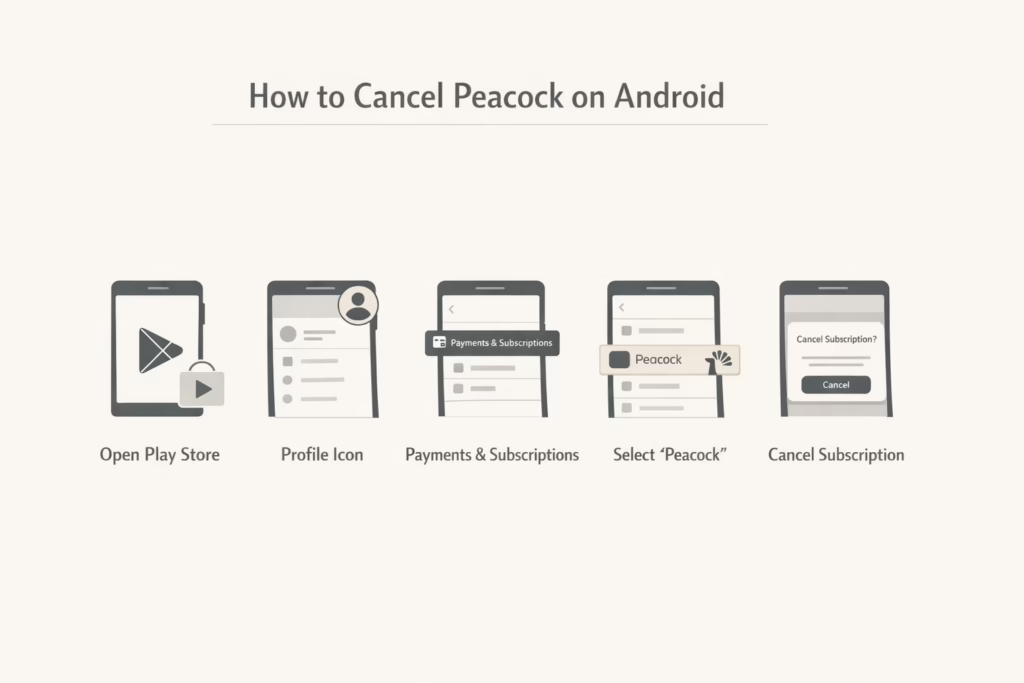
For Android users who signed up via Google Play, you will need to cancel through your Google account. Here’s how:
Step 1: Open Google Play Store
Launch the Google Play Store on your Android device.
Step 2: Access Your Profile
Tap your profile icon in the top-right corner of the screen.
Step 3: Go to Payments & Subscriptions
Select Payments & subscriptions from the menu, then tap Subscriptions.
Step 4: Find Peacock
Scroll through the list of subscriptions and tap on Peacock.
Step 5: Cancel Subscription
Tap Cancel Subscription and follow the on-screen instructions to confirm. Like with Apple, your subscription will continue until the end of your billing period.
How to Cancel Peacock on Roku
If you signed up for Peacock through Roku, you can cancel directly through your Roku device. Here’s how:
Step 1: Go to the Roku Home Screen
Press the Home button on your Roku remote.
Step 2: Open Your Account Settings
Scroll down and select Settings > Account > Manage Account.
Step 3: Cancel Your Subscription
Under the Manage Subscriptions section, select Peacock. Then, click Cancel Subscription and confirm your choice. This will stop your Peacock subscription from renewing at the next billing cycle.
How to Cancel Peacock via Cable Provider (Xfinity, Spectrum, etc.)
If you’re subscribed to Peacock via a cable provider like Xfinity, Spectrum, or another, you’ll need to cancel your subscription through them. Here’s how to go about it:
Step 1: Log Into Your Cable Provider’s Account
Go to the account management page of your cable provider. You may need to use the provider’s app or website.
Step 2: Locate Subscriptions
Find the subscriptions section where you can manage add-ons and streaming services.
Step 3: Cancel the Peacock Add-On
Look for Peacock under your list of services. Follow the prompts to cancel the Peacock subscription from your account.
Since each cable provider has a slightly different process, you may need to refer to their support pages for more specific instructions.
Common Problems When Cancelling Peacock
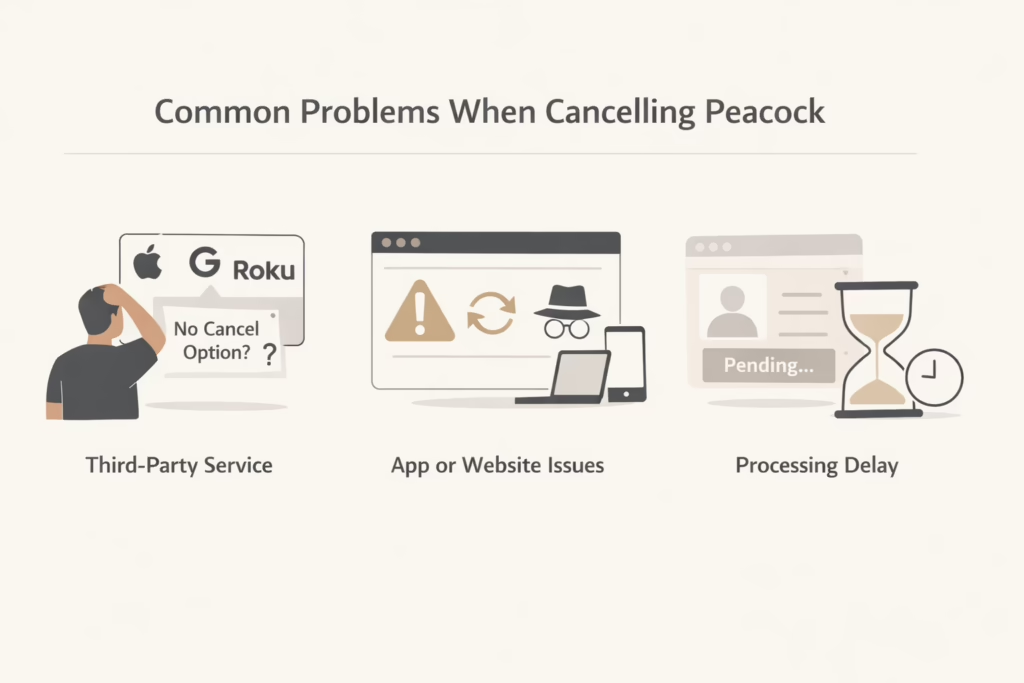
Even though the cancellation process is straightforward, some users may run into issues. Here are a few common problems and how to fix them:
- Can’t find the cancel button? If you can’t find the cancel button, it’s likely because you signed up through a third-party service like Apple, Google, or Roku. You’ll need to cancel through those platforms, not directly via Peacock.
- Website or app issues?Sometimes Peacock’s website or app may act glitchy, preventing you from accessing cancellation options. Try clearing your browser cache, using an incognito window, or switching to a different device or browser to troubleshoot.
- Subscription doesn’t cancel immediately? Peacock’s subscription system may take some time to fully process cancellations. If you don’t receive an immediate confirmation email or see a change in your account settings, give it a few hours. It should update soon.
What Happens After You Cancel Peacock?
After you cancel your Peacock subscription, nothing changes right away. You keep full access to Peacock Premium or Premium Plus until the end of your current billing cycle. That means you can still watch shows, movies, and live events without any interruptions, even if you cancel immediately after a renewal. Peacock does not cut access early, and there is no penalty for canceling ahead of time.
Once the billing period ends, your account automatically switches to Peacock’s free tier, if it is available in your region. You will lose access to Premium-only content, including certain movies, live sports, and Peacock Originals, but your account itself stays active. Your profiles, watch history, and saved preferences remain in place, which makes it easy to return later without starting from scratch.
How to Reactivate Your Peacock Subscription
If you decide to come back to Peacock after canceling, reactivating your subscription is straightforward. Simply sign in to your existing account on the Peacock website or app, go to your account settings, and choose a plan. You can select between Premium and Premium Plus, depending on whether you want ads or an ad-free experience. The process usually takes less than a minute.
Because your account is never deleted, Peacock remembers your watch history, saved shows, and profiles. This means you can pick up right where you left off, without redoing any setup. If you previously canceled through a third party like Apple, Google, or Roku, make sure you reactivate using the same platform to avoid billing issues or duplicate subscriptions.
Final Thoughts
Canceling your Peacock subscription doesn’t need to be complicated. Whether you’re on your phone, computer, or through a third-party service, the process is straightforward if you follow the right steps. Always remember to check your subscription’s billing cycle so you’re not caught off guard by the next payment.
If you find yourself stuck or confused during the process, don’t hesitate to reach out to Peacock’s customer support for assistance. They’re there to help with any subscription-related issues.
By keeping this guide handy, you can confidently navigate through the cancellation process and manage your subscriptions without any stress.
Frequently Asked Questions
Can I cancel my Peacock subscription at any time?
Yes, you can cancel your Peacock subscription whenever you want. There are no long-term commitments. Once you cancel, your plan stays active until the end of your current billing period and will not renew after that.
Will I get a refund if I cancel Peacock early?
Peacock does not offer refunds for unused time. If you cancel before your billing cycle ends, you can still use the service until that date, but any remaining time is not refunded.
How do I know if my Peacock subscription is canceled?
After canceling, you should see a confirmation message on screen and receive a confirmation email. You can also check your account under the Plans & Payments section. It should show that your plan will not renew.
Why can’t I find the cancel option in my Peacock account?
This usually means you subscribed through a third-party service like Apple, Google Play, Roku, or a cable provider. In that case, you must cancel the subscription directly through that service, not through Peacock.
Can I cancel Peacock from the mobile app?
In most cases, no. If you subscribed through the App Store or Google Play, you need to cancel through your Apple ID or Google account settings. The Peacock app itself does not always show a cancel option.