
Xbox Game Pass is a great way to dive into a massive library of games, but sometimes, you might decide it’s time to part ways with the service. Whether you’re switching to a different platform or just want to save a little cash, canceling Game Pass is easier than you think. In this guide, we’ll walk you through the steps to cancel on your Xbox console, PC, or even your phone, so you can stop the subscription without any hassle. Ready to take control of your account? Let’s get started.
First, Understand What Canceling Xbox Game Pass Really Means
Before clicking anything, it helps to understand what Microsoft actually treats as a cancellation. Canceling Xbox Game Pass does not always mean you lose access right away. In most cases, canceling simply turns off recurring billing. You keep access to the service until the end of your current billing period, and only then does the subscription expire.
That distinction matters more than people expect. Many users assume something went wrong when they can still play games days after canceling. In reality, this is normal behavior and not a billing error.
When you cancel, there are only two possible outcomes. You may turn off recurring billing and keep access until the paid period ends, or you may be offered the option to cancel immediately, sometimes with a refund. Whether that second option appears depends on your country, the timing of your last charge, and how recently the subscription renewed.
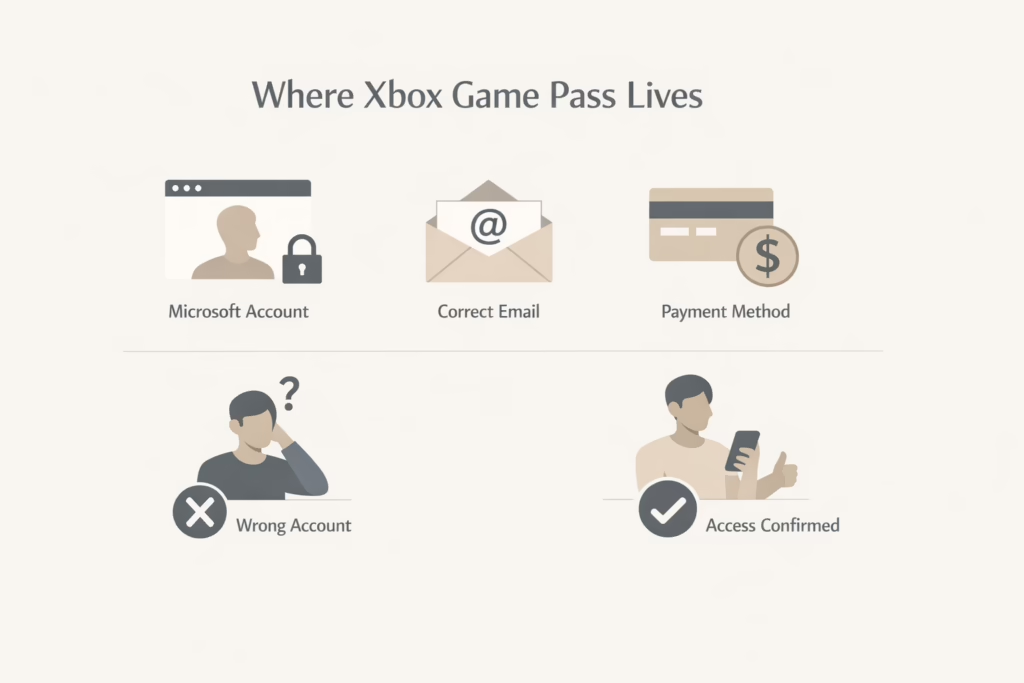
Where Xbox Game Pass Subscriptions Actually Live
This is where most confusion starts.
Even though Game Pass is tied to your Xbox, subscription management does not live on the console itself in the way people expect. The Xbox interface often redirects you to Microsoft account settings.
Your Game Pass subscription is attached to:
- Your Microsoft account
- The specific email used when signing up
- The payment method on file
If you sign into the wrong Microsoft account, your subscription simply will not appear. This is the most common reason people believe the cancel option is missing.
Before proceeding, confirm:
- You know the exact email used for Game Pass
- You can access that Microsoft account
- You are not logged into a secondary or family account
Once that is clear, cancellation becomes straightforward.
How to Cancel Xbox Game Pass on an Xbox Console
Canceling directly from the console works, but the menus are deeper than most people expect.
Follow these steps carefully:
- Turn on your Xbox and sign into the account that owns the subscription
- Press the Xbox button on your controller
- Open Profile & system
- Go to Settings
- Select Account
- Choose Subscriptions
- Select Xbox Game Pass from the list
- Choose Cancel subscription
- Follow the on-screen prompts
At this point, Microsoft may show you two options:
- Turn off recurring billing
- Cancel immediately, if eligible
If you accept a refund, access may end right away. If you simply turn off billing, access usually continues until the end of the current period.
Once confirmed, the system should display a cancellation message. Take a screenshot if possible.
How to Cancel Xbox Game Pass on a PC or Mac
Managing your subscription through a browser is often clearer than using the console.
Steps to cancel on a computer:
- Open a browser and go to account.microsoft.com
- Sign in using the email linked to your Game Pass subscription
- Open the Subscriptions section
- Locate Xbox Game Pass
- Click Manage
- Select Cancel subscription
- Choose whether to stop recurring billing or cancel immediately
If you have multiple Microsoft subscriptions, double check that you are modifying the correct one. Microsoft 365 and Game Pass often sit side by side in the same list.
After cancellation, the subscription status usually changes to something like:
- Expires on [date]
- Turn on recurring billing
That wording confirms cancellation was successful.
Can You Cancel Xbox Game Pass on Your Phone?
Yes, but not directly through the Xbox app.
The Xbox mobile app does not support subscription cancellation. This confuses many users because the app shows account details but hides billing controls.
To cancel using your phone:
- Open a mobile browser
- Go to account.microsoft.com
- Sign in to your Microsoft account
- Navigate to Subscriptions
- Select Xbox Game Pass
- Tap Cancel subscription
- Follow the prompts
The steps are identical to desktop cancellation, just on a smaller screen.
Deleting the Xbox app does nothing. Uninstalling Game Pass does nothing. Only account-level cancellation counts.
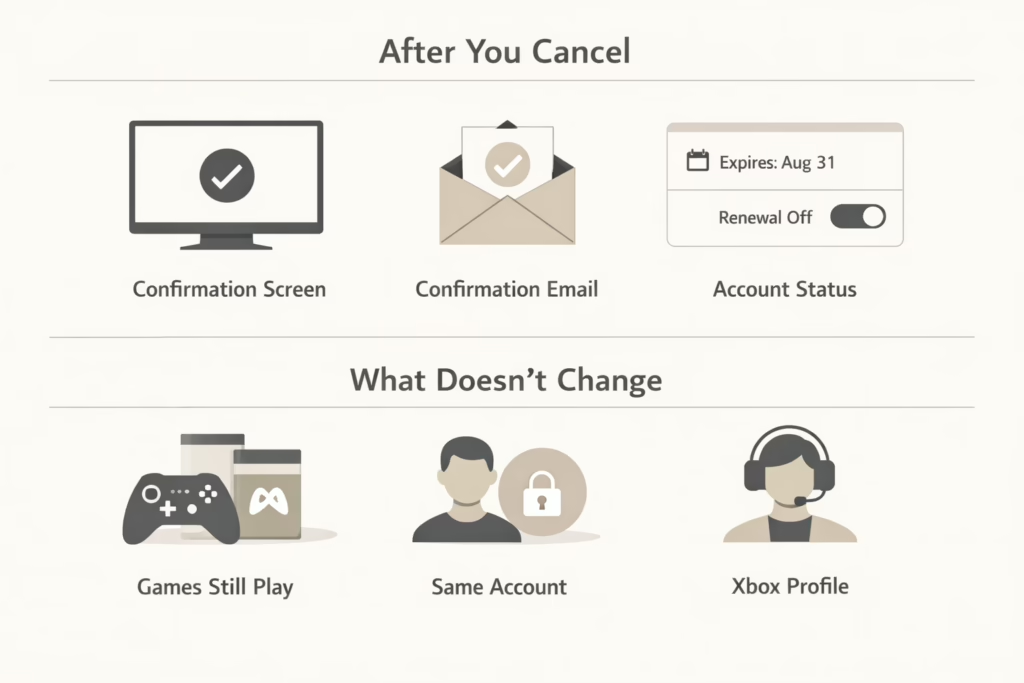
What Happens Immediately After You Cancel
Once the cancellation goes through, nothing dramatic happens on the surface. That’s normal. Most of the changes happen quietly in the background.
What You Should See Right Away
After completing the cancellation steps, Microsoft usually confirms it in a few small but important ways.
You should see:
- A confirmation screen at the end of the cancellation process
- A confirmation email sent to the email address linked to your Microsoft account
- An updated subscription status in your account showing an expiration date or the option to turn recurring billing back on
These signals matter. If you do not see at least one of them, it is worth double-checking your account.
What Does Not Happen Immediately
This is where a lot of confusion comes from. Canceling does not trigger instant shutdowns or account changes.
Here is what does not happen right away:
- Games do not disappear instantly if you kept access until the end of the billing period
- Your Microsoft account is not deleted or restricted
- Your Xbox profile, settings, and login remain exactly the same
Seeing Game Pass games still working after cancellation usually means your paid time is still active.
How Access Ends After Cancellation
If you chose to turn off recurring billing instead of canceling immediately, you can keep playing until the current billing period ends.
Once that date passes:
- Game Pass titles you do not own will no longer launch
- Purchased games remain playable
- Your account stays active and ready if you ever decide to subscribe again
Nothing shuts down unexpectedly. Access ends on the date shown in your account, not before.
How to Verify That Xbox Game Pass Is Truly Canceled
Never assume cancellation worked. Always verify.
On console:
- Press the Xbox button
- Go to Profile & system
- Open Settings
- Select Account
- Choose Subscriptions
- Confirm no active Game Pass subscription appears
On web or mobile browser:
- Log into account.microsoft.com
- Open Subscriptions
- Look for Xbox Game Pass
- Confirm the status shows expiration or billing off
If the option says Turn on recurring billing, cancellation is complete.
Refund Rules You Need to Know Before Canceling
Refunds do exist for Xbox Game Pass, but they are limited and depend heavily on where you live. In many regions, including the United States, canceling your subscription does not automatically trigger a refund. In most cases, you simply keep access to Game Pass until the end of your current billing period, and billing stops after that.
Some countries allow prorated refunds, but only under specific conditions. Eligibility can depend on how recently you were charged, whether your subscription term is longer than one month, and local consumer protection laws. These rules are set by Microsoft and vary by region, so there is no universal policy that applies everywhere.
The most important thing to understand is that refund eligibility is shown during the cancellation process itself. If Microsoft offers you a refund, you will see that option clearly on screen. If it is not shown at that moment, it is not available for that charge. Refunds are not added later and cannot usually be requested after the cancellation is complete.
If you want a refund and one is offered, you must accept it during the cancellation flow. Skipping that step means the subscription will simply run until the paid period ends, with no money returned.
What If You Are Billed Through a Third Party?
This situation requires a bit more attention than a standard cancellation. If you signed up for Xbox Game Pass through a mobile carrier, a bundled promotion, or another service that includes Game Pass as part of a package, the billing may not be handled directly by Microsoft.
In many cases, canceling through your Microsoft account will stop future charges. However, some third-party providers require their own confirmation or separate cancellation steps. If billing continues after you cancel Game Pass through Xbox, the original payment provider is usually the one you need to contact.
When this happens, check the source of the charges on your bank statement and reach out to that provider directly. They can confirm whether additional steps are needed to fully stop billing.
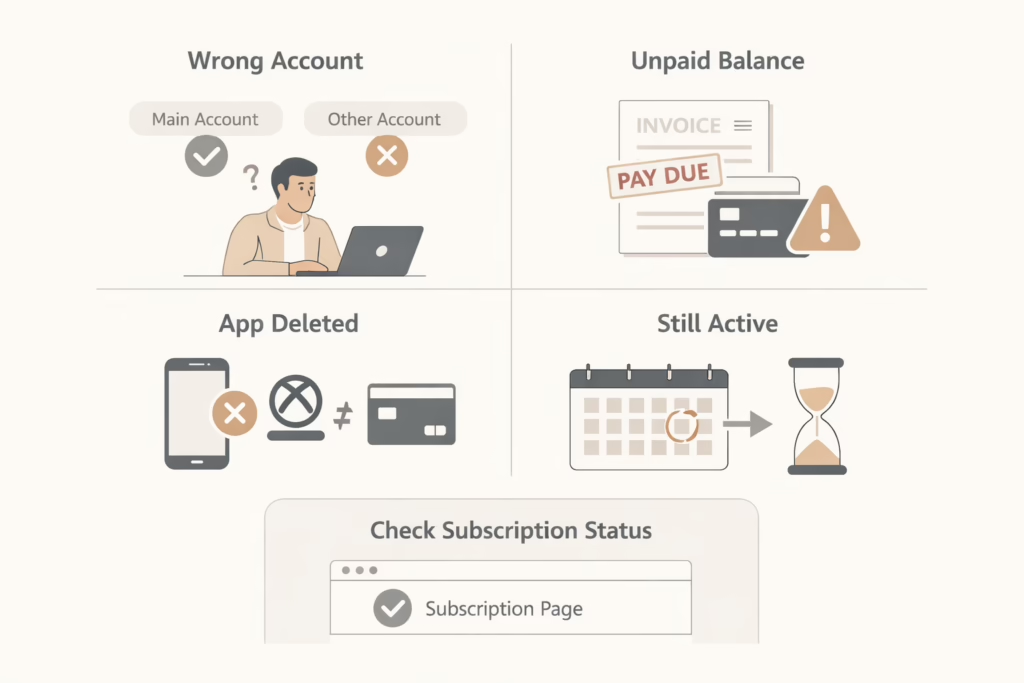
Common Problems People Run Into When Canceling
Most cancellation issues follow a few predictable patterns. Once you know them, they are easy to spot and fix.
- Being logged into the wrong Microsoft account: Game Pass does not appear because you are signed into a secondary email or a family account instead of the one that owns the subscription.
- Pending balances on your account: Outstanding charges can block cancellation until they are paid. Microsoft will not close an active subscription with unpaid balances.
- Expecting app deletion to cancel billing: Removing the Xbox app or Game Pass app does nothing. Subscriptions are controlled at the account level, not by installed apps.
- Misreading expiration as active billing: Seeing continued access after canceling usually means the billing period has not ended yet. Access does not equal ongoing charges.
If something looks wrong, always check the subscription status page in your Microsoft account. That page reflects the actual billing state, not guesses or assumptions.
Can You Pause Xbox Game Pass Instead of Canceling?
No.
Xbox Game Pass does not offer a pause or freeze option. You either keep the subscription active or cancel it.
If you plan to return later, cancellation is still the correct move. Your account remains intact, and re-subscribing later is simple.
What Happens to Games and Saves After Cancellation
This part worries many players, often unnecessarily.
Owned games stay owned. Game Pass games stop working unless purchased.
Cloud saves usually remain tied to your account, especially for games you own. Saves for Game Pass-only titles may be retained for some time, but Microsoft does not guarantee how long.
If you play a Game Pass title regularly and care about long-term access, buying it before cancellation is the safest option.
Removing Payment Methods After Cancellation
Canceling stops future charges, but some people prefer extra peace of mind.
After cancellation, you can remove or replace the payment method linked to your Microsoft account. This step is optional but useful if:
- You share the account
- You previously had billing issues
- You want to prevent accidental reactivation
Payment methods cannot always be removed while a subscription is active, so do this after canceling.
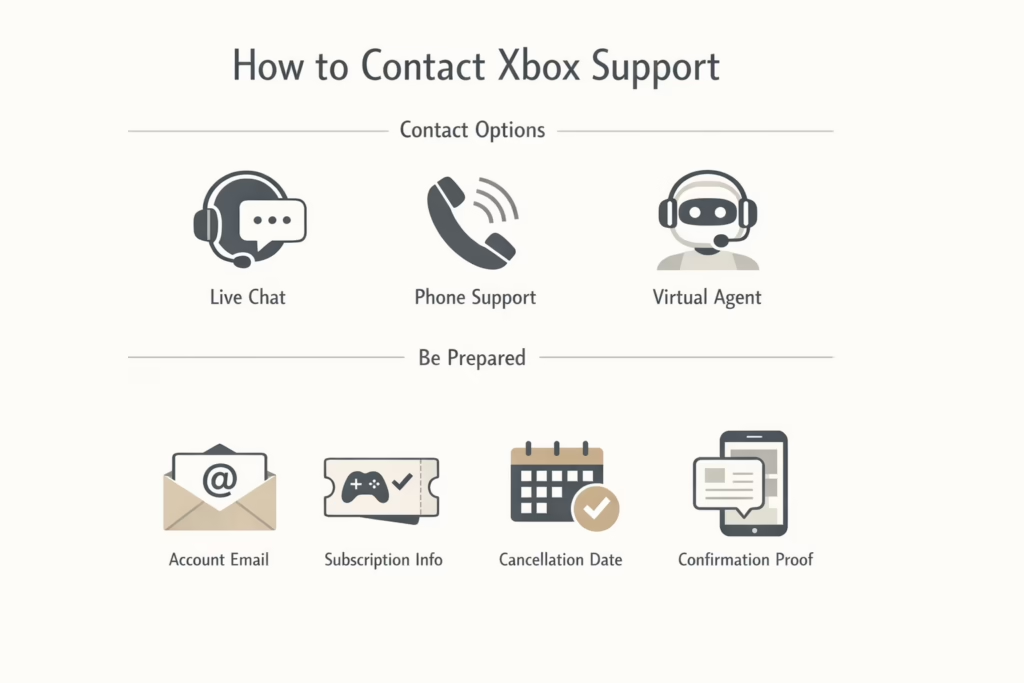
How to Contact Xbox Support If Something Goes Wrong
If your cancellation does not stick or charges continue after you have followed the correct steps, Xbox support is your next stop. In most cases, they can resolve billing issues quickly once they see what happened on the account.
Ways to Reach Xbox Support
Xbox offers several support channels depending on how urgent the issue is. You can use live chat for real-time help, request phone support if you prefer speaking to someone directly, or use the virtual agent, which is available around the clock for basic issues and account checks.
Any of these options can help with subscription problems, but live chat is often the fastest for billing-related questions.
What to Prepare Before You Contact Support
Before reaching out, take a moment to gather a few key details. Having your Microsoft account email ready is essential, along with the name of the subscription you canceled and the date you completed the cancellation. If you received a confirmation email or took a screenshot of the cancellation screen, keep that nearby as well.
Providing these details upfront usually speeds things up. When support can immediately verify your cancellation and billing status, the issue is often resolved in one conversation.
Conclusion
Canceling Xbox Game Pass is not difficult, but it rewards patience and verification. Most problems come from assumptions, not from the process itself.
If you follow the correct account, cancel in the right place, and confirm the status afterward, billing stops exactly when it should. No surprises. No lingering charges.
That is how subscription cancellations should work.
If you are done with Game Pass for now, cancel it cleanly and move on. The games will still be there if you decide to return later.
Frequently Asked Questions
Can I cancel Xbox Game Pass at any time?
Yes. You can cancel Xbox Game Pass whenever you want. There is no minimum commitment. Canceling simply stops future billing, and in most cases you keep access until the end of your current billing period.
Will I lose access to games immediately after canceling?
Not usually. If you turn off recurring billing, you can keep playing until the paid period ends. Immediate loss of access only happens if you choose an instant cancellation option with a refund, when that option is offered.
Why do I still have access after canceling?
This is normal. Access continues until the expiration date shown in your Microsoft account. Seeing games still available does not mean billing is active.
Can I cancel Xbox Game Pass from the mobile app?
No. The Xbox mobile app does not allow subscription cancellations. You must cancel through a web browser by signing into your Microsoft account.
Do I get a refund when I cancel?
Refunds depend on your location and timing. In many regions, including the United States, refunds are not guaranteed. If a refund is available, Microsoft will offer it during the cancellation process. If you do not see that option, it is not available for that charge.