
Canceling SiriusXM sounds simple until you actually try to do it. Some people can cancel in minutes. Others get stuck because they’re looking in the wrong place or canceling with the wrong company. The difference usually comes down to one detail most people overlook: who actually bills you.
This guide walks through how SiriusXM cancellation really works. No pressure language, no filler, and no shortcuts that quietly fail. Just the practical steps, what to watch for, and how to make sure the subscription actually stops when you expect it to.
First Thing to Know: Who Bills You Controls the Cancellation
Before clicking any cancel button, you need to answer one question clearly.
Who bills you for SiriusXM?
This matters more than anything else. SiriusXM cannot cancel subscriptions that are billed by another company. Apple, Google, Roku, and mobile carriers all manage their own subscriptions, even if the content comes from SiriusXM.
If you are not sure who bills you, check one of the following:
- Your bank or credit card statement
- Your email receipts
- Your Apple ID or Google Play subscriptions list
- Your Roku account subscriptions page
- Your mobile carrier add-ons
Once you know the billing source, the rest of the process becomes much simpler.
What Happens When You Cancel SiriusXM
Canceling SiriusXM does not usually shut off access right away. In most situations, cancellation simply stops future recurring billing while your current subscription stays active until the end of the paid billing period. Once that date passes, the subscription expires on its own.
This often confuses people. They cancel, open the app or turn on the radio, and still hear content. That does not mean the cancellation failed. It is normal behavior and not a billing error.
Refunds are uncommon and depend on timing, location, and who bills you. Unless a refund is clearly offered during cancellation, it is safest to assume the service will continue until the current cycle ends. One more detail worth stressing: uninstalling the SiriusXM app does nothing. The subscription is controlled by the billing system, not the app itself.
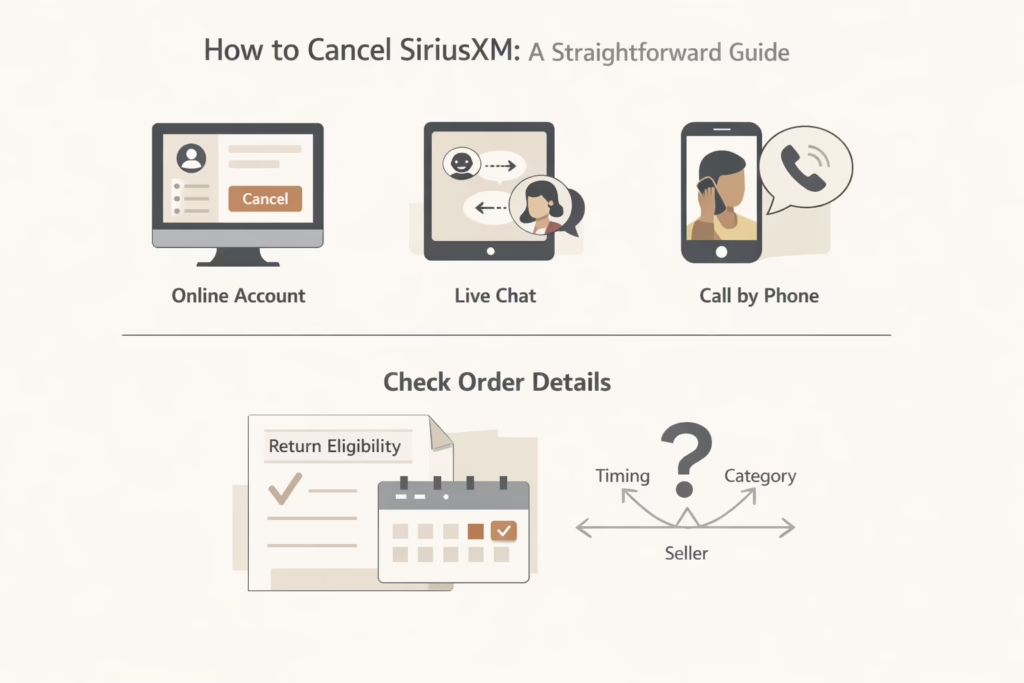
How to Cancel a SiriusXM Subscription Billed Directly by SiriusXM
If you signed up through:
- SiriusXM.com
- A SiriusXM phone agent
- Mail-in enrollment
- A trial that later converted to paid service billed by SiriusXM
Then SiriusXM bills you directly.
Option 1: Cancel Through the Online Account Center
This is the most straightforward option for most people.
Steps generally include:
- Signing in to your SiriusXM account
- Opening the subscriptions section
- Selecting the option to cancel service
Depending on your account, you may be prompted to chat with an agent to complete the cancellation.
Option 2: Cancel via Live Chat
Live chat is often faster than phone support.
You will typically:
- Start with a virtual agent
- Be transferred to a live representative if needed
- Confirm account details and cancellation
Have your account number or radio ID ready. The radio ID can usually be found by tuning your car radio to channel 0.
Option 3: Cancel by Phone
Phone cancellation availability has changed over time, and hours may vary.
If phone support is available:
- Call the official SiriusXM support number
- Ask clearly to cancel the subscription
- Request confirmation of cancellation
Always write down the date, time, and name of the representative if you speak to a live agent.
Canceling SiriusXM If You Subscribed Through Apple
If you subscribed through the SiriusXM app on an iPhone or iPad, Apple bills your subscription.
SiriusXM cannot cancel this for you.
How Apple-billed SiriusXM Cancellation Works
You must cancel through your Apple account:
- Open Settings on your device
- Tap your name at the top
- Go to Subscriptions
- Select SiriusXM
- Tap Cancel Subscription
Important things to know:
- The cancellation takes effect at the end of the billing cycle
- You must cancel at least 24 hours before renewal to avoid charges
- Deleting the app does not cancel the subscription
If you have multiple Apple IDs, make sure you are logged into the one that was used for the subscription.
Canceling SiriusXM on Android or Android TV
If you subscribed through the SiriusXM app on an Android device, Google Play handles billing.
How Google Play Cancellation Works
You can cancel either on your device or through a browser.
On your device:
- Open the Google Play Store
- Tap your profile icon
- Go to Payments and subscriptions
- Select Subscriptions
- Tap SiriusXM
- Choose Cancel subscription
Through a browser:
- Sign in to your Google account
- Visit the subscriptions page
- Locate SiriusXM
- Cancel the subscription
Just like with Apple:
- The subscription runs until the end of the billing cycle
- You must cancel more than 24 hours before renewal
- Uninstalling the app has no effect
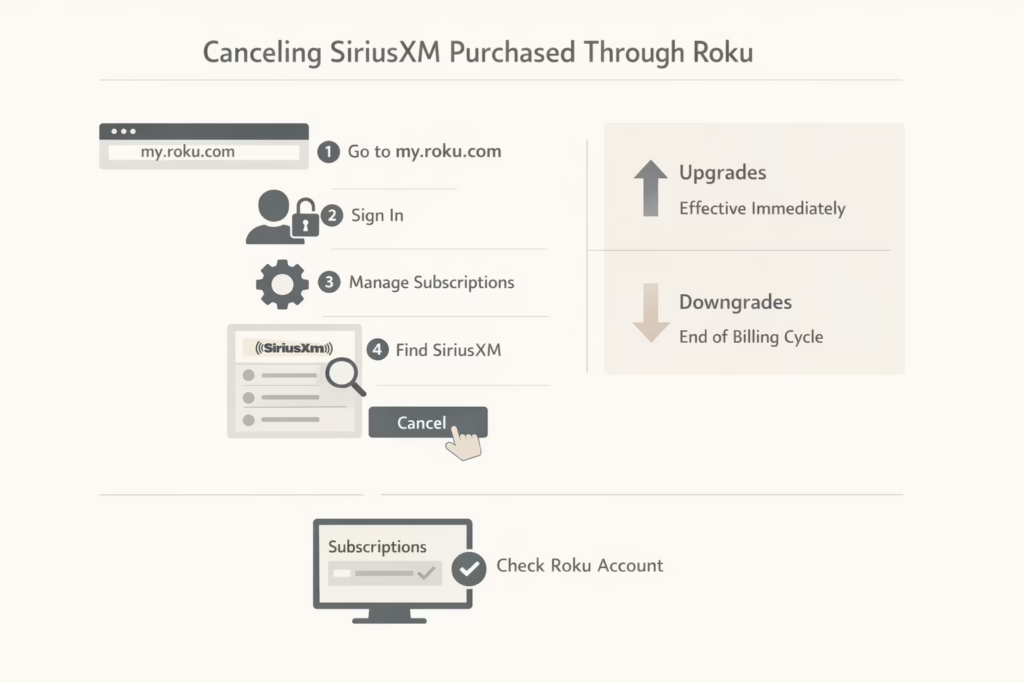
Canceling SiriusXM Purchased Through Roku
If you subscribed using the SiriusXM app on a Roku device, Roku bills the subscription.
This cannot be canceled inside the SiriusXM app.
How Roku Cancellation Works
You must cancel through your Roku account:
- Go to my.roku.com on a browser
- Sign in to your Roku account
- Open Manage your subscriptions
- Find SiriusXM
- Select Cancel subscription
Roku may ask for a cancellation reason before confirming.
Downgrades and upgrades work differently:
- Upgrades usually apply immediately
- Downgrades take effect after the current billing cycle ends
Always check your Roku subscriptions page after canceling to confirm the status.
Canceling SiriusXM Billed Through a Mobile Carrier
Some SiriusXM subscriptions are billed through mobile carriers such as T-Mobile. When this is the case, the carrier controls billing and account changes. SiriusXM cannot cancel the subscription directly, even if you contact their support. To stop the service, you must cancel it through your carrier’s account tools or customer support.
How Carrier-Based Cancellation Works
You must cancel through the carrier:
- Log into your carrier account
- Find add-ons or subscription services
- Remove SiriusXM from your plan
If you run into problems while canceling through your carrier, contact the carrier’s support team directly and ask specifically about SiriusXM add-ons. Being clear about the service you want removed usually speeds things up and helps avoid confusion with other account features.
Carrier-billed subscriptions often stay active until the end of the billing cycle tied to your mobile plan.
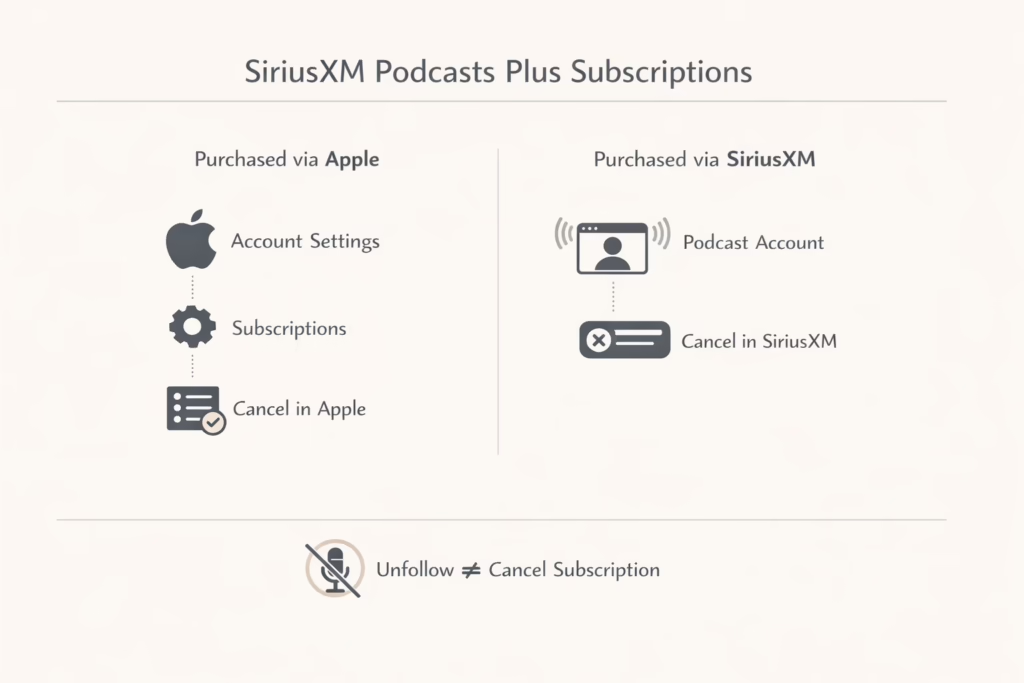
SiriusXM Podcasts Plus Subscriptions
SiriusXM Podcasts Plus subscriptions are handled separately from radio subscriptions.
If Purchased Through Apple Podcasts
You must cancel through Apple:
- Go to Apple account settings
- Open Subscriptions
- Cancel SiriusXM Podcasts Plus
Unfollowing a podcast does not cancel the subscription.
If Purchased Through SiriusXM Using Supporting Cast
You can manage and cancel directly through the SiriusXM Podcasts Plus account page.
As with other subscriptions, access usually continues until the end of the billing cycle.
Timing Matters More Than People Expect
One of the most common reasons people get charged after canceling is timing. Most billing providers require you to cancel at least 24 hours before the renewal date for the change to take effect.
If you cancel too close to renewal, the subscription may renew one more time, and you will usually keep access for that additional billing period. This is not a mistake or a delay. It is simply how subscription billing works across platforms. If avoiding an extra charge matters to you, it is best to cancel earlier than you think you need to.
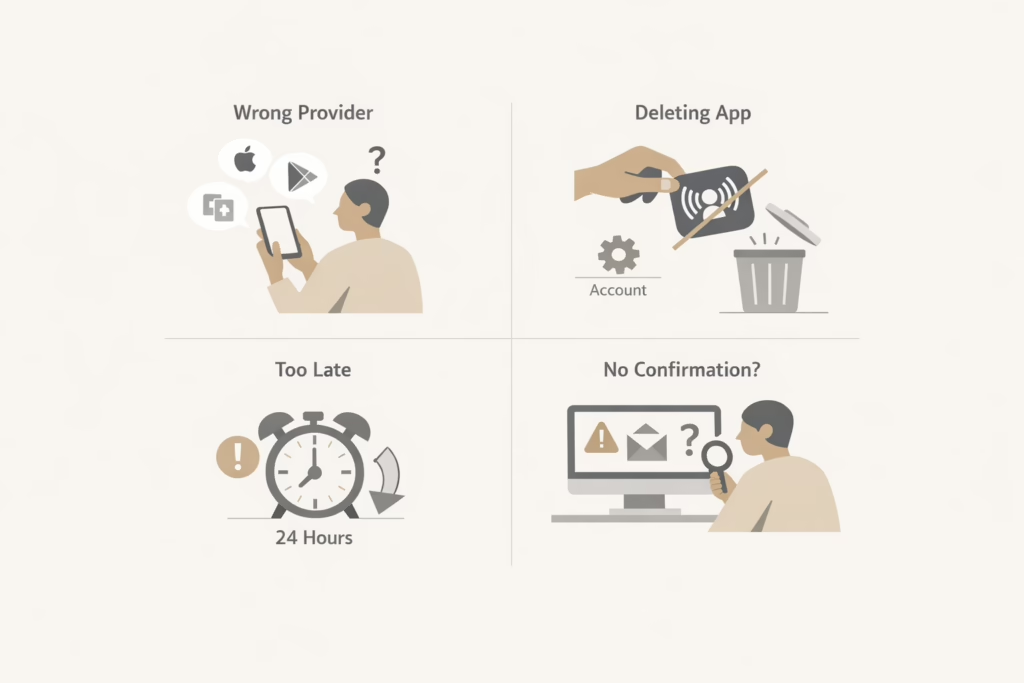
Common Mistakes That Cause Ongoing Charges
Most SiriusXM billing issues come from a few predictable errors:
- Canceling in the wrong place: Canceling through SiriusXM does nothing if Apple, Google Play, Roku, or a carrier bills you. Always cancel through the billing provider.
- Assuming the app controls the subscription: Deleting the SiriusXM app does not cancel anything. Subscriptions are managed in account settings, not through app icons.
- Missing the 24-hour window: Late cancellations often result in one more charge. Setting a reminder can help avoid this.
- Not confirming cancellation: Always look for proof that the cancellation went through, such as a confirmation screen, a confirmation email, or an updated subscription status in your account.
If you do not see confirmation, assume the cancellation did not complete and follow up right away.
How to Confirm Your SiriusXM Subscription Is Actually Canceled
After canceling, take a few minutes to verify.
Check:
- Your account subscription status
- Your email for confirmation
- Your billing provider subscriptions list
If the subscription still appears active after cancellation:
- Contact the billing provider immediately
- Reference the cancellation date and method
Documentation matters if a dispute becomes necessary.
What Happens After SiriusXM Ends
Once the subscription expires, streaming access ends and in-car service stops. Your account itself usually remains active, which means your login details and preferences may still be saved if you decide to return later.
Canceling a subscription does not permanently delete your account. Account removal is a separate process and must be requested explicitly if you want your information fully removed.
Can You Pause SiriusXM Instead of Canceling
Some SiriusXM subscriptions offer a pause option, depending on how the subscription is billed and which promotion you are on. Pausing temporarily stops billing while keeping your account active, which can be useful if you plan to return soon.
That said, pausing is not always available, and the terms vary. It is important to read the pause conditions carefully before choosing this option. A paused subscription is not the same as a canceled one, and billing will resume automatically once the pause period ends.
Final Word
Canceling SiriusXM does not need to be stressful, but it does require clarity.
Once you know who bills you, the process becomes straightforward. The real problems come from assumptions, rushed cancellations, or canceling in the wrong place.
Take a few extra minutes to confirm details, cancel early, and verify the result. That small effort is usually the difference between a clean exit and a frustrating billing issue later.
If you ever feel unsure, stop and double-check before proceeding. With subscriptions, patience saves money.
Frequently Asked Questions
Can I cancel SiriusXM online, or do I have to call?
In many cases, you can cancel online through your SiriusXM account or by using live chat. Whether this option is available depends on how your subscription is billed. If a third party like Apple, Google Play, Roku, or a mobile carrier bills you, cancellation must be done through that provider instead.
Why can I still use SiriusXM after I canceled?
This is normal. Canceling usually stops future billing but does not end access immediately. You typically keep the service until the end of your current billing period, after which the subscription expires.
Will I get a refund if I cancel early?
Refunds are not guaranteed. In most cases, SiriusXM and third-party billing providers allow you to use the service until the end of the billing cycle but do not issue partial refunds unless explicitly stated during cancellation.
Does deleting the SiriusXM app cancel my subscription?
No. Removing the app from your device does not cancel the subscription. Billing continues until the subscription is canceled through the correct account or billing provider.
How do I know who bills my SiriusXM subscription?
Check your bank or credit card statement, your email receipts, or the subscriptions section of Apple ID, Google Play, Roku, or your mobile carrier account. The company charging you is the one that controls cancellation.