Dubai Hills has a certain rhythm to it. Mornings feel unhurried, afternoons hum with quiet confidence, and style here is less about shouting and more about knowing exactly who you are. That mindset spills naturally into the local beauty scene.
A hair salon in Dubai Hills Estate isn’t just a quick stop between errands,it’s part of the lifestyle. These are places where stylists remember how you wear your fringe, where color choices are discussed over coffee, and where the end result feels like you, just a little more put-together.
Across the area, you’ll find salons that balance technique with taste, some leaning into modern, fashion-forward looks, others favoring effortless, low-maintenance hair that grows out beautifully. The common thread is quality. Skilled hands, thoughtful consultations, and an understanding that good hair should work just as well on a school run as it does at dinner.
Below, we’ve gathered standout salons in Dubai Hills that locals quietly rely on, the kind you return to without overthinking it, because they simply get it.
1. Gladys Beauty Saloon
Gladys Beauty Saloon has been part of the local beauty scene for many years, and their Dubai Hills location follows the same steady approach they use across their other branches. They work as a team but place strong emphasis on individual attention, adjusting treatments based on hair type, condition, and personal routine rather than fixed formulas.
Their space is set up to feel calm and practical rather than rushed. Clients usually come in for regular maintenance as much as for change, and the staff seem used to working with people who know what they want as well as those who need a bit of guidance. Somewhere along the way, Dubai naturally became part of their story as the brand expanded.
Address: Gardenia Residence – Building B – Shop No 1 – Dubai – United Arab Emirates
Phone: 04-5790666
2. The Juice Beauty
The Juice Beauty approach beauty from a broad, menu-driven perspective, where hair services sit alongside body, face, and nail treatments. Their Dubai Hills presence reflects this all-in-one structure, making it a place people often visit when they want more than just a haircut.
They tend to work in a methodical way, with services clearly divided by category and length. Hair services range from basic trims to technical styling, supported by a system that allows clients to mix and match treatments depending on time and need.
Key Highlights:
Spa and salon format under one roof
Structured service categories
Suitable for combined beauty appointments
Clear separation between essential and technical services
Services:
Haircuts and blow-dries
Hair styling and braiding
Hair treatments
Nail care
Body and face treatments
Contact Information:
Website: thejuicebeauty.com
Email: info@thejuicebeauty.com
Facebook: www.facebook.com/juicesalondubai
Instagram: www.instagram.com/thejuicebeauty.ae
Address: Dubai Hills Golf Estate, Dubai, United Arab Emirates
Phone: (04) 557 9688
3. The Loft Fifth Avenue
The Loft Fifth Avenue focuses heavily on hair work, particularly color and styling. From the way their services are presented, it is clear they spend most of their time on technique, whether that means layered cuts, detailed blow-dries, or multi-step coloring.
Their Dubai Hills clientele often comes in with a clear idea of what they want, especially for events or regular styling. The salon works with both adults and children, and their menu reflects a strong interest in finishes, texture, and controlled styling rather than quick fixes.
Key Highlights:
Hair-focused salon with technical emphasis
Strong range of coloring options
Styling services designed for different occasions
Separate services for adults and children
Services:
Haircuts and trims
Blow-dries and styling
Hair coloring and toning
Highlights and balayage
Hair extensions
Contact Information:
Website: theloftfifthavenue.com
Facebook: www.facebook.com/theloftfifthavenue
LinkedIn: www.linkedin.com/company/75427400
Instagram: www.instagram.com/theloftfifthavenue
Address: Al Khail Rd – Hadaeq Sheikh Mohammed Bin Rashid – Dubai
4. Bianco Spa
Bianco Spa presents itself as a women-only space with a minimalist approach to beauty. Their Dubai Hills Mall location follows the same calm, pared-back design found in their other branches, with hair services forming a central part of the experience rather than an add-on.
They keep their hair menu straightforward, focusing on clean cuts, color work, and treatments that fit into everyday routines. The atmosphere is intentionally quiet, and the salon feels more like a pause in the day than a busy beauty stop.
Address: 1st Floor, Dubai Hills Mall – Dubai – United Arab Emirates
Phone: +971 4 333 6166
5. Vinca Rosea Spa
Vinca Rosea Spa operates with a detailed service structure, especially when it comes to hair. Their Dubai Hills branch reflects a system where consultations play an important role, particularly for color work and treatments that depend on hair condition.
They offer a wide range of options, from simple trims to advanced repair treatments and styling for formal occasions. The setup suits people who prefer clear steps and defined service durations rather than open-ended appointments.
Key Highlights:
Detailed hair service menu
Strong focus on treatments and repair
Structured consultation-based approach
Suitable for routine and occasion styling
Services:
Haircuts and trims
Hair coloring and highlights
Blow-dries and styling
Hair spa and repair treatments
Hair extensions
Contact Information:
Website: vincaroseaspa.com
Email: info@vincaroseaspa.com
Facebook: www.facebook.com/vincaroseaspa
Instagram: www.instagram.com/vincaroseaspa
Address: Dubai Hills Park Park Heights 1, Shop R04 – Dubai – United Arab Emirates
Phone: +97144577953
6. Ksenses World Ladies Salon
Ksenses World Ladies Salon blends traditional grooming with modern beauty services. Their Dubai Hills Mall branch is part of a broader setup that includes wellness-inspired treatments alongside standard hair work.
Hair services are offered as part of a larger beauty routine rather than in isolation. The salon tends to attract clients who like spending time on maintenance and self-care, often combining hair appointments with other treatments during the same visit.
The Corner Barber is a men-focused barbershop in Dubai Hills that concentrates on classic hair grooming and barbering. The team specializes in men’s haircuts, trims, and clean, well-maintained styles, focusing on precision and consistency rather than trends.
Their Dubai Hills location fits neatly into the neighborhood setup, serving clients who prefer reliable hair services and familiar barbers. The menu stays clear and functional, centered on traditional haircutting and beard grooming, while the relaxed atmosphere encourages regular visits rather than one-off appointments.
NStyle operates on a large-scale salon model, offering hair services alongside nails and body treatments. Their Dubai Hills presence reflects the same standardized setup used across their other locations, with clearly defined services and time slots.
Hair services range from everyday cuts to chemical treatments and extensions. The system works well for people who like knowing exactly what to expect, both in terms of process and structure, without needing lengthy discussions.
Dubai Hills doesn’t really do extremes, and that’s reflected in its hair salons. What you see across the area is a steady mix of places that fit into everyday life rather than trying to impress from a distance. Some focus tightly on hair, others fold it into a wider beauty routine, and a few are built around simple, familiar grooming. None of it feels accidental.
What ties these salons together is how naturally they slot into the neighborhood. Appointments aren’t treated like events, but they’re also not rushed errands. People come back because the work fits their routines, their hair grows out well, and the experience feels predictable in a good way. In Dubai Hills, a hair salon is less about making a statement and more about keeping things balanced, consistent, and quietly well done.
Dubai is a city that doesn’t do average, and hair is no exception. A great hair salon here isn’t just about scissors and color – it’s about understanding your look, your lifestyle, and the statement you want to make. From effortless everyday styles to bold transformations, the right hair salon in Dubai blends technical skill with creativity, making sure you walk out feeling like yourself, just sharper.
1. Rami Jabali Hair Salon
Rami Jabali Hair Salon developed around the professional background of its founder, who has worked in the hair industry across different markets before settling in the UAE. The salon reflects a structured approach to hairdressing, shaped by years of international training and exposure to fashion, media, and event-related styling. Their work spans regular salon services as well as styling connected to public events, editorial shoots, and formal occasions, which influences how their team approaches cuts, color, and overall hair presentation.
Their setup integrates hair services with spa and personal care options, allowing clients to manage different grooming needs in one place. The salon operates from a hotel location on Palm Jumeirah, which affects both the pace and style of daily operations. Their team includes stylists and technicians with varied backgrounds, working across hair cutting, coloring, treatments, and extensions, while following consistent salon processes rather than individual-focused branding.
Key Highlights:
Hair salon in Dubai with international styling background
Team trained across multiple professional hair care brands
Experience with editorial, event, and personal styling
Located at W Hotel on Palm Jumeirah
Offers combined hair and spa services
Services:
Haircuts and styling
Hair coloring and highlights
Hair treatments
Hair extensions
Waxing
Manicure and pedicure
Contact Information:
Website: ramijabali.com
Phone: +971 43630369
Email: info@ramijabali.com
Address: W Hotel Dubai The Palm, West Crescent, Palm Jumeirah, Dubai, UAE
Facebook: www.facebook.com/RamiJabaliSalon
Instagram: www.instagram.com/ramijabali
2. Pastels Salon
Pastels Salon is a hair salon in Dubai with a long-standing presence in the local beauty industry, working across hair, skin, and nail care. Their team structure is larger than average for a single salon, which allows services to be spread across different specializations such as cutting, coloring, extensions, and beauty treatments. With locations in Jumeirah and at the Ritz-Carlton, their setup reflects a salon model designed to serve both residential and hospitality-driven clients.
Their work leans toward routine maintenance as well as more involved hair services. Hair cutting, styling, and color form the core of their daily operations, supported by treatment-focused services that address hair condition and upkeep. The salon environment is designed around calm, functional spaces rather than fast turnover, which shapes how appointments and services are handled across both locations.
Key Highlights:
Hair salon in Dubai with multiple locations
Large team covering hair, skin, and nail services
Focus on structured hair cutting and coloring services
Mariadowling Salon focuses mainly on hair color work, shaped around the long-term professional background of its founder. Operating from the Jumeirah area, the salon follows a color-first approach where consultations, application, and finishing are handled in a one-to-one format. This setup reflects how the team works with clients who see hair color as part of their everyday appearance rather than an occasional change.
Their structure differs from general salons by concentrating on color services supported by cutting and styling. The team consists of trained colorists and stylists who work within a defined process, from initial discussion through to final styling. The physical space is arranged to support longer appointments, with attention given to lighting, seating, and privacy, which shapes how clients experience time spent in the salon.
Key Highlights:
Hair salon in Dubai with a color-focused service model
Located in the Jumeirah district
Team trained specifically in hair coloring techniques
One-to-one consultation and service structure
Designed for longer, appointment-based visits
Services:
Hair coloring
Color correction
Haircuts
Blow-dry and styling
Hair treatments
Contact Information:
Website: www.mariadowling.com
Phone: +971 4 345 4225
Address: Al Meena Residence – mariadowling – Al Mina St – Madinat Dubai Al Melaheyah – Al Mina – Dubai
Facebook: www.facebook.com/mariadowlingdubai
Instagram: www.instagram.com/mariadowlingdubai
Twitter: x.com/mariadowling_m
4. Rossano Ferretti HairSpa Dubai
Rossano Ferretti ia a part of an international hair spa concept built around a distinctive cutting philosophy and approach to natural hair. The Dubai location follows the same structure seen across their global salons, where hair cutting, care, and styling are treated as a personalized process rather than a fixed routine. Their work reflects long-term exposure to different hair types and cultural styling habits, which shapes how services are adapted for clients in the city.
The HairSpa is based within a hotel setting and functions more like a private studio than a high-volume salon. The focus is on individual appointments, longer sessions, and controlled pacing. Hair services are supported by product use that aligns with their wider brand, emphasizing ingredient awareness and scalp care alongside cutting and styling. The overall setup is designed to support consistency in method rather than trend-driven services.
Key Highlights:
Hair salon in Dubai operating as part of a global HairSpa network
Based at Park Hyatt Dubai
Uses a defined cutting method developed by the brand founder
Appointment-based structure with individual-focused sessions
Combines hair care, cutting, and styling in a spa-style setting
At Boho Salon in Dubai, hair and beauty services are offered with a commitment to sustainability. The salon works across hair styling, coloring, treatments, and nail services, with processes shaped around product selection and daily practices that reduce environmental impact. Their approach reflects a structured salon model where consultations, treatments, and aftercare are planned around hair condition and long-term maintenance rather than quick results.
Boho Salon functions as part of a wider UAE presence, with branches in both Dubai and Abu Dhabi. The team includes hairdressers, nail technicians, and specialists trained to work with different hair types, including curls and extensions. The salon integrates ethical product use into regular services, which influences how treatments are selected and applied during appointments.
Key Highlights:
Hair salon in Dubai with a sustainability-focused operating model
Offers hair, nail, and makeup services
Uses vegan and cruelty-free product lines
Provides tailored consultations based on hair type and condition
Part of a multi-location salon group within the UAE
Services:
Hair cutting and styling
Hair coloring
Hair treatments
Hair extensions
Curly hair services
Nail services
Makeup services
Contact Information:
Website: bohosalon.ae
Phone: +97143313568
Email: info@bohosalon.ae
Address: Q Gardens Boutique Residences, First Floor, Arjan
Facebook: www.facebook.com/bohosalon.ae
Instagram: www.instagram.com/bohosalon.ae
6. CHALK Salon
CHALK Salon is a hair salon in Dubai that brings together hair and nail services within a creative, mixed-use environment. Based in Alserkal Avenue, the salon functions within an arts-focused district, which influences how the space is designed and how services are delivered. Their setup supports a unisex model, serving women and men alongside a private section intended for clients who prefer additional privacy. Daily operations cover standard salon services alongside more specialized care, including curly hair routines and grooming.
CHALK works with a team of trained hairstylists and nail technicians who follow consultation-led processes. Haircuts, color, and treatments are structured around individual hair type and styling habits rather than fixed looks. The salon environment integrates non-salon elements such as pop-ups and visual spaces, but the core function remains focused on hair, grooming, and nail care delivered through scheduled appointments.
Key Highlights:
Hair salon in Dubai located in Alserkal Avenue
Unisex salon with separate areas for women, men, and private guests
Offers both hair and nail services
Focus on consultation-based styling and care
Operates within an arts and culture district
Services:
Haircuts and styling
Hair coloring
Hair treatments
Curly hair services
Men’s grooming
Nail services
Contact Information:
Website: www.chalk.ae
Phone: +971 043466284
Email: hello@chalk.ae
Address: Al Qouz 1, Alserkal Avenue, Warehouse 63, Dubai, United Arab Emirates
Unik Hair Studio is located in The Greens, developed around a consultation-led approach to hair and beauty services. Founded by a Scandinavian team, the salon reflects a working style shaped by international training and a preference for simple, functional environments. Appointments are structured to allow time for discussion around hair routine, personal style, and maintenance, which guides how cuts, color, and treatments are carried out.
Unik Hair Studio pairs hair services with a curated selection of nail treatments, delivering a focused and well-defined service range. The team consists of stylists with experience across different markets, working with product lines selected for ingredient transparency and reduced environmental impact. The salon operates within a hotel setting, which influences both the atmosphere and the pace of daily service.
Key Highlights:
Hair salon in Dubai located in The Greens
Founded by an international, Scandinavian-led team
Consultation-based approach to hair services
Uses product lines selected for sustainability considerations
Offers both hair and limited nail services
Services:
Hair cutting and styling
Hair coloring and highlights
Balayage
Hair treatments
Nail services
Contact Information:
Website: www.unikhair.studio
Phone: +97143594446
Email: hello@unikhair.studio
Address: Zabeel House by Jumeirah – 4th Floor – 4th St – The Greens – Dubai
The Nest Salon is a hair salon in Dubai founded by two professional hairdressers whose careers developed across different countries before settling in the UAE. Based in Jumeirah, with an additional location in Sobha Hartland, the salon follows a boutique-style setup shaped by the founders’ hands-on background in hair styling and coloring. Their work focuses on structured consultations and consistent techniques, particularly around color, cuts, and long-term hair care, rather than high-volume services.
The Nest Salon provides hair and nail services in a serene, appointment-focused setting. The team works across everyday styling, smoothing treatments, and event-related hair, supported by regular training and clearly defined service processes. Sustainability is built into daily operations through product selection and salon practices, which influences how services are delivered without changing the core focus on hair and nail care.
Key Highlights:
Hair salon in Dubai with locations in Jumeirah and Sobha Hartland
Founded by professional hairdressers with international experience
Boutique-style salon environment
Focus on hair coloring, cuts, and long-term hair care
Incorporates sustainability into salon practices
Services:
Haircuts and styling
Hair coloring
Hair smoothing treatments
Special occasion and wedding hair
Manicure and pedicure services
Contact Information:
Website: thenestsalon.ae
Phone: +971 4 286 8818
Email: Jumeirah@thenestsalon.ae
Address: Jumeirah St – next to Al Masraf Bank, Umm Suqeim – Umm Suqeim 1, Dubai, UAE
Facebook: www.facebook.com/thenesthair
Instagram: www.instagram.com/thenestdubai
9. The Green House Salon
The Green House Salon is a hair salon in Dubai founded by a local stylist with years of professional experience, combining personal expertise with team leadership. Located in Dubai, the salon focuses on structured consultations and individualized approaches to hair coloring, cuts, and maintenance. Their methods emphasize education and care, guiding clients on how to maintain healthy hair alongside regular salon visits.
The Green House specializes in color-focused services, including blonde, balayage, and lightening treatments, supported by precision cutting and styling. The team works with a consistent process to ensure results last while protecting hair health. The salon environment is designed to prioritize client comfort and staff development, reflecting a focus on long-term relationships rather than high-volume services.
Key Highlights:
Hair salon in Dubai founded by a local stylist with extensive experience
Focus on personalized hair coloring and care
Consultation-led approach for all treatments
Emphasis on client education and hair health
Salon environment prioritizes staff development and wellbeing
Services:
Haircuts and styling
Hair coloring, including balayage and lightening treatments
Blonde color services
Hair treatments
Consultation and aftercare guidance
Contact Information:
Website: thegreenhousehair.com
Phone: +971 585542723
Email: thegreenhouse.ae@gmail.com
Address: Shop 9,The Wings Building, Arjan Al Barsha South
Instagram: www.instagram.com/thegreenhouse.dubai
10. The Lunatic Fringe Salon
The Lunatic Fringe Salon is a hair salon in Dubai that emphasizes highly personalized hair and beauty services. Located in a premium setting, the salon follows a consultation-driven approach where each client’s hair type, color preferences, lifestyle, and features guide every treatment. The team is trained to maintain consistent standards across hair, nail, and beauty services, focusing on tailored outcomes rather than mass service delivery.
At The Lunatic Fringe, haircuts, coloring, and treatments are complemented by beauty services like nail care, lash lifts, and facials. Their approach involves in-depth consultations and step-by-step planning for every service, allowing clients to leave with results that are both functional and aligned with their personal style. The salon environment prioritizes comfort and attention to detail, reflecting a structured yet client-centered operation.
Key Highlights:
Hair salon in Dubai with a focus on personalized services
Consultation-led approach for all treatments
Offers hair, nail, and beauty services
Team trained to maintain consistent British salon standards
Focus on healthy hair practices and long-term results
Services:
Haircuts and styling
Hair coloring and highlights
Keratin and smoothing treatments
Hair and scalp care treatments
Nail services including manicures and pedicures
Lash lifts, brow lamination, and facials
Contact Information:
Website: www.lunaticfringedubai.com
Phone: +971643571133
Email: info@lunaticfringedubai.com
Address: Le Royal Meridien Beach Resort and Spa.
Facebook: www.facebook.com/lunaticfringedubai
Instagram: www.instagram.com/lunaticfringedubai
11. The Salon Dubai
The Salon Dubai is a Dubai-based hair and beauty salon located in the Jumeirah Beach Residence (JBR) area, serving clients with a focus on routine care and structured appointments. Their approach emphasizes professional guidance for both hair and skincare, with services planned around individual needs rather than generic treatments. The salon works with a team of stylists and therapists trained to support hair maintenance, color, and styling alongside complementary beauty services.
At The Salon Dubai, haircuts, coloring, and treatments are complemented by facials and nail services. The team works to educate clients on maintaining healthy hair and skin at home, complementing the in-salon services. The environment is designed to balance efficiency with a calm, professional setting, ensuring personalized attention within standard appointment structures.
Key Highlights:
Hair and beauty salon in Dubai’s JBR area
Offers hair, skincare, and nail services
Consultation-led approach to hair and beauty care
Focus on routine maintenance and healthy hair practices
Staff trained to provide structured and educational services
Sisters Beauty Lounge is a well-established hair and beauty salon in Dubai, with multiple locations, including a flagship branch in Dubai Mall. The salon combines hair services with full-spectrum beauty treatments, following a structured approach that allows stylists and technicians to customize services based on individual client needs. Their team works across cutting, coloring, and hair treatments while also integrating nail, skin, and lash care, making it a multi-service hair salon environment.
Sisters Beauty Lounge offers a combination of high-end hair services, including luxury treatments like gold-infused hair care, extensions, and advanced coloring techniques. The team emphasizes personalized consultation for every appointment to ensure hair health and long-lasting results. The salon also incorporates sustainability and charitable initiatives into its operations, reflecting a broader approach to client care and social responsibility.
Key Highlights:
Hair and beauty salon in Dubai with multiple locations
Offers hair, nail, lash, and skin treatments
Personalized consultation-led approach
Focus on luxury hair treatments, coloring, and extensions
Integrates sustainability and charitable initiatives into operations
Services:
Haircuts and styling
Hair coloring and highlights
Hair treatments, including 24K Liquid Gold and extensions
Nail services
Lash and brow treatments
Skincare and facial treatments
Contact Information:
Website: www.sistersbeautylounge.com
Phone: +9718007478377
Address: Lower Ground Floor, Grand Parking: P1
Facebook: www.facebook.com/SistersBL
Instagram: www.instagram.com/sistersbl
13. Willow Lane Hair and Beauty
Willow Lane Hair and Beauty is a boutique-style hair and beauty salon in Dubai, located in the Jumeirah Lake Towers (JLT) area. The team consists of UK-trained hair and beauty professionals who focus on personalized consultations to guide clients through haircuts, coloring, and styling. The salon combines a relaxed, approachable atmosphere with structured techniques for hair, nails, and beauty treatments.
Willow Lane specializes in hair coloring techniques like balayage, ombré, and highlights, alongside haircuts and blowouts. They also provide hair extensions and a range of beauty services including nails, waxing, and threading. The salon emphasizes creating an easy-going, client-focused experience that blends style expertise with comfort and attention to detail.
Key Highlights:
Hair and beauty salon in Dubai located in JLT
Boutique-style environment with UK-trained stylists
Consultation-led approach for hair and beauty services
Specializes in hair coloring, cuts, and extensions
Offers a full range of beauty services in a relaxed setting
Services:
Haircuts and styling
Hair coloring, including balayage, ombré, and highlights
Hair extensions
Nail services, including acrylics and pedicures
Waxing and threading
Contact Information:
Website: www.willowlane.ae
Phone: 052-584-8201
Email: info@willowlane.ae
Address: Willow Lane, Downstairs at Lake Level, Next to Costa Coffee, Cluster C, JLT, Dubai
Tara Rose Salon is a Dubai-based hair and beauty salon, with additional locations in Abu Dhabi. The salon emphasizes creating a welcoming, personalized experience for every client, blending professional hair services with a relaxed and comfortable environment. The team focuses on understanding individual lifestyles, preferences, and hair goals before delivering tailored services.
Tara Rose Salon provides a full spectrum of hair treatments including cutting, styling, coloring, and hair extensions. Alongside hair services, they offer nails, facials, and other beauty treatments, ensuring clients can cover multiple needs in one visit. This approach brings together technical skill, meticulous attention to detail, and client comfort, making it perfect for regular upkeep or styling for special events.
Key Highlights:
Hair and beauty salon with locations in Dubai and Abu Dhabi
Personalized consultations for every client
Focus on haircuts, coloring, styling, and hair extensions
Offers nails, facials, and other beauty treatments
Warm and intimate salon environment
Services:
Haircuts and styling
Hair coloring and highlights
Hair extensions
Manicures and pedicures
Facial treatments
General beauty services
Contact Information:
Website: www.tararosesalon.com
Phone: +97144572309
Email: info@tararosesalon.com
Address: Daytona House (between Exit & DKC Veterinary Clinic) – Unit LB 03 – Motor City – Dubai
Facebook: www.facebook.com/tararosesalon
Instagram: www.instagram.com/tararosesalon
15. Kozma Curl Salon
Kozma Curl Salon in Dubai focuses on haircare specifically for curly hair, providing tailored services that work with natural textures rather than against them. Their team of stylists and assistants offers a mix of coloring, cutting, and styling options, as well as lessons on how to manage and maintain curly hair. The salon is structured to handle a variety of hair lengths and densities, making it adaptable for different client needs. Beyond basic cuts, they emphasize treatments like steam hydration and specialized curl techniques to support hair health and texture.
The salon also has programs designed for children, teaching them how to care for their curls and offering styling services suitable for young clients. Kozma Curl integrates hands-on learning into their services, helping clients understand how to style and maintain curls at home. The focus is on providing functional, texture-conscious approaches rather than one-size-fits-all styling, making it a place where curly hair can be properly cared for and managed.
Key Highlights:
Specializes in curly hair care and styling
Offers both cutting and coloring services
Provides lessons for clients to manage curls at home
Services available for children and adults
Steam and deep hydration treatments included
Supports various hair lengths and densities
Services:
Curly hair cuts (dry and wet)
Root color and full color treatments
Highlights (foil and hand-painted)
Color correction per hour
Steam and hydration treatments
Curly style lessons and styling sessions
Kids’ haircuts and styling programs
Curl transition services (rod application and lessons)
Twist out and unraveling techniques
Contact Information:
Website: www.kozmaandkozma.com
Phone: +9715655445
Address: Al Wasl Rd – Umm Suqeim – Umm Suqeim 2 – Dubai – United Arab Emirates
Facebook: www.facebook.com/kozmacurl
Instagram: www.instagram.com/kozmacurl
16. Salon Nicolas
Salon Nicolas in Dubai is a hair salon led by Nicolas Hallak, who trained internationally and brings a broad perspective from cities like Amsterdam, Paris, and New York. The salon focuses on offering a full range of hair services, combining local expertise with global trends. The team emphasizes continual learning and development, with workshops and seminars to maintain skills and stay updated on new techniques and tools. The salon operates with modern equipment and professional-grade products, aiming to provide consistent service for various hair types and styles.
Education and skill-sharing are an integral part of the salon’s approach. They collaborate with major brands to host training sessions and events, supporting stylists in expanding their knowledge. The salon’s setup and services are structured to accommodate both everyday styling needs and more specialized treatments, making it a space for ongoing hair care, styling, and professional growth.
Key Highlights:
Founded and led by Nicolas Hallak, trained internationally
Emphasis on continuing education and training
Collaboration with global hair brands
Uses professional-grade equipment and products
Offers a mix of local expertise and international trends
Services:
Haircuts and styling for different hair types
Coloring and highlighting services
Specialized treatments and trend-based services
Workshops and skill-building seminars for stylists
Consultation and personalized hair care planning
Contact Information:
Website: www.nicolas-salon.com
Phone: +971585907820
Email: info@nicolassalon.com
Address: Aurora Tower – Al Sufouh – Dubai, Media City – Dubai
Facebook: www.facebook.com/nicolasladiessalon
Instagram: www.instagram.com/nicolas.salon
17. Hush Salon
Hush Salon in Dubai is a multi-location hair and beauty space, offering a mix of hair, makeup, body, and nail services. The salon is led by Abdallah Fakhreddine, who brings two decades of experience and international training in Paris and London. The team combines technical skill with creativity, drawing inspiration from fashion and art to deliver tailored looks. Hush blends professional hair care with an immersive salon environment, offering both vibrant communal areas and private VIP rooms for clients seeking discretion.
The salon emphasizes a holistic approach to service, providing treatments that extend beyond hair to include body and nail care. The stylists’ expertise is complemented by modern equipment and a setting that balances luxury and comfort. Hush’s approach focuses on personalization, ensuring clients receive attention suited to their style preferences, lifestyle, and occasions, whether casual or special events.
Key Highlights:
Led by Abdallah Fakhreddine with international training
Multiple locations across Dubai
Combines hair, makeup, body, and nail services
Offers both vibrant communal spaces and private VIP rooms
Equipment and treatments designed for a comfortable, modern experience
Services:
Haircuts, styling, and coloring
Bridal and special occasion hair and makeup
Nail care and treatments
Body treatments and hair wellness
Personalized consultations and tailored styling
Contact Information:
Website: hushsalondubai.com
Phone: +971588474776
Email: info@hushsalondubai.com
Address: 1st Floor Colonnade Oud Metha, Dubai, UAE. Park in Car Park B near A7
Facebook: www.facebook.com/hushsalondubai
Instagram: www.instagram.com/hushsalondubai
18. 91 Beauty Salon
91 Beauty Salon in Dubai focuses on providing a full-service beauty experience, combining hair, nails, and other treatments under one roof. The salon emphasizes professional skill and personalized service, aiming to address each client’s unique needs. Its approach is centered on creating a space where clients can feel comfortable and supported while receiving tailored hair and beauty treatments. The team prioritizes consistency and attention to detail in every appointment.
The salon also places a strong focus on its internal culture, investing in ongoing staff development, teamwork, and skills training. This ensures that the team remains informed about the latest techniques and maintains high service standards. Integrity, respect, and passion guide the salon’s operations, fostering a professional yet approachable environment for clients visiting Dubai for hair and beauty services.
Key Highlights:
Full-service beauty salon in Dubai
Focus on personalized hair and beauty experiences
Strong internal culture emphasizing development and teamwork
Staff trained in up-to-date techniques and treatments
Professional, skill-driven approach with attention to detail
Services:
Haircuts, styling, and coloring
Nail treatments including manicures and pedicures
Skin and beauty treatments
Personalized consultations and tailored service
Ongoing hair and beauty maintenance guidance
Contact Information:
Website: www.91beautysalon.com
Phone: +971 58 560 9122
Email: info@91beautysalon.com
Address: 91 Beauty Salon, Unit 4, The Wings, Arjan, Al Barsha
Facebook: www.facebook.com/91BeautySalon
Instagram: www.instagram.com/91beautysalon
Conclusion
Dubai’s hair salon scene reflects the city itself – layered, fast-moving, and shaped by people from everywhere. What stands out isn’t one single style or approach, but the range of philosophies behind each salon. Some focus on texture or curl education, others on color work, technical precision, or long-term hair health. Together, they show how hair care in Dubai has grown into something thoughtful and structured rather than trend-driven or one-size-fits-all.
Looking across these salons, it becomes clear that choosing a hair salon in Dubai is less about chasing a name and more about finding the right fit. The common thread is attention – to training, to consistency, and to understanding how people actually live with their hair day to day. That balance between skill and practicality is what defines the modern salon experience here, and why the city continues to attract professionals and clients who take hair seriously without making it complicated.
Dubai takes grooming seriously. A haircut here is rarely just a quick trim – it is part routine, part ritual. From classic straight-razor shaves to carefully styled fades, the city’s barbershops have evolved into places where detail matters and atmosphere counts. People are not just looking for a chair and clippers anymore, they want consistency, confidence, and a space that feels considered.
This guide looks at barbershops in Dubai that have built a reputation for doing things properly. These are businesses that focus on skilled barbers, well-run studios, and a clear sense of style, without turning grooming into a performance. If you care about how you look but also value professionalism and comfort, these are the places setting the standard across the city.
1. The Corner Barber
The Corner Barber feels like one of those places people end up returning to without really planning to. Their setup leans toward a clean, classic barbershop look, but without trying too hard to feel retro or trendy. What stands out is how structured everything feels once you sit down – they keep things calm, focused, and fairly traditional, which works well if you just want a proper haircut without noise or pressure to experiment.
Their approach to grooming is pretty straightforward. The barbers spend time understanding what the client actually wants, not what looks good on Instagram that week. Whether it is a routine trim or a full beard clean-up, the work stays consistent and controlled. It feels more like a regular spot you trust rather than a place chasing attention.
Key Highlights:
Traditional barbershop setup with a modern, clean feel
Focus on consistency rather than trends
Calm environment without rushed appointments
Barbers who stick to classic techniques
Works well for regular grooming routines
Services:
Men’s haircuts
Beard trimming and shaping
Hot towel shaves
Hair styling
Grooming maintenance
Contact Information:
Website: www.thecornerbarberuae.com
Email: info@thecornerbarberuae.com
Phone: +971 4 575 4790
Address: D2 Community Centre – R06 – Damac Hills 2 – Dubai – U.A.E
Instagram: www.instagram.com/the_corner_barber
Facebook: www.facebook.com/The-Corner-Barber
2. 1847
1847 is built around the idea that grooming does not have to be rushed or overly complicated, but it should feel intentional. Their spaces lean more toward private lounges than loud barbershops, and that sets the tone from the start. Appointments are handled in a calm, structured way, so clients are not sitting around waiting or feeling pushed through a routine.
What they focus on is consistency. Haircuts, shaves, and grooming services follow a clear process, and the barbers stick closely to what works rather than chasing trends. It feels like a place designed for people who want regular upkeep and a predictable result every time, without having to explain themselves over and over again.
Key Highlights:
Grooming spaces designed to feel private and quiet
Structured appointments without crowding
Focus on routine grooming rather than trends
Clear processes for hair and beard services
Consistent results across visits
Services:
Men’s haircuts
Beard trimming and shaping
Traditional wet shaves
Hair and scalp grooming
General men’s grooming services
Contact Information:
Website: 1847formen.com
Email: API@1847.ae
Phone: +9718001847
Address: API 1000 – Al Thanya Street – corner Al Wasl Rd – Dubai – United Arab Emirates
Instagram: www.instagram.com/1847formen
Facebook: www.facebook.com/1847formen
3. The Shave Shop
The Shave Shop leans hard into classic barber culture, but without feeling stuck in the past. Their spaces feel familiar in a good way – leather chairs, straight razors, and a pace that is slower than most places in the city. It is the kind of barbershop where the barber actually takes a moment to look at your hair and beard before picking up the tools.
What they do well is keeping things simple and consistent. Haircuts, shaves, and beard work follow traditional methods, and the barbers seem comfortable sticking to what they know rather than trying to reinvent grooming every week. It suits people who prefer a reliable routine and a clean finish, not a long conversation about trends or styles they did not ask for.
Key Highlights:
Strong focus on traditional barber techniques
Calm, old-school barbershop atmosphere
Unrushed appointments and steady workflow
Barbers experienced with classic cuts and shaves
Clear, no-nonsense approach to grooming
Services:
Men’s haircuts
Beard trimming and shaping
Straight razor shaves
Hot towel treatments
Basic grooming maintenance
Contact Information:
Website: theshaveshop.ae
Email: info@theshaveshop.ae
Phone: +971 50 718 6049
Address: Lavender 1 Emirates Garden – Al Barsha South Fourth – Jumeirah Village Circle – Dubai
Instagram: www.instagram.com/theshaveshopuae
4. CG Barbershop
CG Barbershop comes across as a place that knows exactly what it is and does not try to be anything else. The vibe is relaxed and social, the kind of spot where regulars walk in, nod at the barber, and sit down without much explanation. It feels more like a neighborhood barbershop than a polished lounge, which works well if you prefer things to stay simple and familiar.
They focus on everyday grooming done properly. Haircuts and beard work are handled with confidence, and the barbers seem comfortable working with different styles without turning it into a whole discussion. There is a casual rhythm to the place, conversations happen naturally, and nobody is rushing through appointments just to move on to the next chair.
Key Highlights:
Casual barbershop atmosphere without formality
Easygoing approach to hair and beard grooming
Barbers comfortable with a range of styles
Feels like a local spot rather than a luxury space
Good fit for regular, no-fuss visits
Services:
Men’s haircuts
Beard trimming and shaping
Hair styling
Basic grooming touch-ups
Routine maintenance cuts
Contact Information:
Website: cgbarbershop.com
Email: info@cgbargershop.com
Phone: 04 227 4666
Address: Arjaan by Rotana, Al Sufouh Complex, Dubai
LinkedIn: www.linkedin.com/company/cg-barbershop
Instagram: www.instagram.com/cg.barbershop
Facebook: www.facebook.com/ClassicGentsbarbershop
5. Bo Barbershop
Bo Barbershop feels like a place that leans more toward personality than polish. The setup is relaxed, the mood is casual, and nothing about it feels stiff or overplanned. It is the kind of barbershop where people talk, joke around, and still walk out with a solid cut. You get the sense that the barbers are comfortable in their space and not trying to impress anyone.
Their grooming style stays practical. Haircuts and beard work are handled in a straightforward way, with enough attention to detail but without turning it into a whole production. It works well for people who want a clean look and a normal experience, not silence or luxury rituals, just a decent barber who knows what they are doing.
Key Highlights:
Relaxed and social barbershop atmosphere
Focus on everyday haircuts and grooming
Barbers who keep things simple and direct
Easygoing approach without formality
Feels more local than polished
Services:
Men’s haircuts
Beard trimming and shaping
Hair styling
Grooming touch-ups
Routine maintenance cuts
Contact Information:
Website: www.bobarbershop.com
Email: hello@bobarbershop.com
Phone: +971589992614
Address: The Bay Gate Tower, Ground Floor Business Bay, Dubai
Instagram: www.instagram.com/bo.barbershop
6. MK Barbershop
MK Barbershop is a place built for people who already know what they want. The setup is clean and modern, but not flashy, and the atmosphere stays relaxed throughout the visit. You are not walking into a loud or chaotic space, it is more controlled, with barbers who focus on the chair in front of them rather than everything happening around them.
Their work leans toward clean cuts and tidy grooming. The barbers take a practical approach, listening first and then getting on with the job without dragging things out. It suits people who want to look sharp but do not want to turn a haircut into a whole event. You come in, get exactly what you asked for, and leave without any fuss.
Key Highlights:
Clean and modern barbershop setup
Calm environment without distractions
Straightforward approach to hair and beard work
Barbers who focus on precision over trends
Works well for regular grooming visits
Services:
Men’s haircuts
Beard trimming and shaping
Hair styling
Grooming touch-ups
Routine maintenance cuts
Contact Information:
Website: mkbarbershop.ae
Email: info@mkbarbershop.ae
Phone: 043353223
Address: Dar Wasl Mall – 2050 – Al Wasl Rd – Al Wasl – Dubai
Instagram: www.instagram.com/mkbarbershopuae
7. The Gentlemen’s Lounge
The Gentlemen’s Lounge feels closer to a calm retreat than a busy barbershop. Their spaces are quiet, well-organized, and clearly designed for people who prefer a slower pace. From the moment clients walk in, everything feels deliberate – no crowding, no loud music, no pressure to rush through an appointment.
They focus on routine grooming done in a steady, predictable way. Haircuts, shaves, and beard work follow a clear structure, and the barbers keep things professional without being stiff. It suits people who like knowing exactly what they are going to get each visit, with enough personal attention to make it feel comfortable but not overdone.
Skills DXB sits somewhere between a modern barbershop and a creative studio. The space has energy, but it is controlled, not chaotic. You notice pretty quickly that the barbers here take their work seriously, but they do not make a big show of it. People come in, talk through what they want, and the barbers get straight to it.
Their focus is on clean, current styles without overcomplicating things. Whether it is a sharp fade or a simple tidy-up, they seem comfortable working with different looks and hair types. The atmosphere stays relaxed, conversations feel natural, and nobody is trying to upsell or push extras. It works well for people who like modern cuts but still want a normal, grounded experience.
Key Highlights:
Modern barbershop with a relaxed vibe
Barbers comfortable with current styles and trends
Easy communication without overexplaining
Balanced mix of skill and casual atmosphere
Suits people who want sharp but practical grooming
Services:
Men’s haircuts
Fade and modern styling
Beard trimming and shaping
Hair styling
Grooming touch-ups
Contact Information:
Website: skillsdxb.com
Email: skillsdxb@gmail.com
Phone: +971 4 368 4327
Address: Clover Bay Tower – 15th Floor – 1504 Marasi Dr – Business Bay – Dubai
Instagram: www.instagram.com/skills.dxb
Facebook: www.facebook.com/skills.dxb
9. House of Cuts
House of Cuts is a place that is comfortable sitting in the middle of modern and casual. The setup is clean and current, but it does not feel stiff or overly styled. People come in, say what they want, and the barbers get on with it. There is a steady flow to the place, but it never feels rushed or chaotic.
Their approach to grooming stays practical. The barbers focus on clean cuts, fades, and everyday styles that people actually live with, not just something that looks good for a photo. Conversations are easy, the atmosphere stays relaxed, and there is no sense of being pushed into something extra. It suits people who want a fresh look without turning the visit into a whole event.
Key Highlights:
Modern but relaxed barbershop setup
Focus on clean, wearable haircuts
Easygoing atmosphere with no pressure
Barbers who keep things simple and clear
Good fit for regular grooming routines
Services:
Men’s haircuts
Fade and modern styling
Beard trimming and shaping
Hair styling
Grooming touch-ups
Contact Information:
Website: houseofcuts.ae
Email: info@houseofcuts.ae
Phone: 04-456-1476
Address: 15 Northside – Marasi Dr Business Bay Dubai, UAE
Instagram: www.instagram.com/houseofcutsdxb
Facebook: www.facebook.com/people/House-Of-Cuts
10. Julian Hairdressing Dubai
Julian Hairdressing Dubai is more like a long-running local spot than a trendy barbershop trying to keep up with every new style. The place has a calm, familiar rhythm to it. People come in knowing they are going to be listened to, not rushed, and not pushed toward something they did not ask for. It is the kind of salon where regulars trust the chair and do not overthink the visit.
Their approach to grooming stays practical and personal. Haircuts and grooming are handled with care, but without turning it into a big performance. The team focuses on what works for the person sitting in front of them, whether that is a simple tidy-up or a more considered cut. It suits people who value experience and consistency over hype.
Get Fade is a place built around one clear idea – clean cuts, done properly, without dragging things out. The setup is modern and straightforward, and the energy stays focused on the chair, not the hype around it. People usually walk in knowing what they want, and the barbers are quick to pick that up without turning it into a long back-and-forth.
They spend most of their time on sharp fades, tidy line work, and everyday styles that hold up once you leave the shop. The atmosphere is relaxed and social, but not chaotic. It suits people who like modern cuts, want to keep things looking fresh, and prefer a barbershop that gets to the point without feeling rushed.
Key Highlights:
Strong focus on fades and clean finishes
Modern, no-frills barbershop setup
Easy communication between barbers and clients
Fast, focused appointments without pressure
Good fit for regular upkeep and sharp styles
Services:
Men’s haircuts
Fade and line work
Beard trimming and shaping
Hair styling
Grooming touch-ups
Contact Information:
Website: getfade.gettimely.com
Phone: 056 966 8258
Address: Shop 20, Al Attar Business Center, Al Barsha, Dubai
Instagram: www.instagram.com/getfade_barbers
12. Beats & Cuts
Beats & Cuts is a barbershop that knows its crowd and leans into it. The vibe is lively without being messy, music in the background, people talking, and barbers moving with confidence. It does not feel staged or overly planned. It feels like a place where regulars come in, sit down, and trust the process without overthinking it.
Their focus is on modern cuts and sharp finishes, but the experience stays relaxed. The barbers listen, ask a couple of simple questions, and get to work. There is no long sales talk or awkward silence, just a straightforward grooming session that feels familiar. It suits people who like energy in a barbershop and want a clean result without turning it into a formal appointment.
Key Highlights:
Lively and social barbershop atmosphere
Focus on modern haircuts and clean finishes
Barbers who work fast without rushing
Easygoing communication with clients
Feels more like a local hangout than a studio
Services:
Men’s haircuts
Fade and modern styling
Beard trimming and shaping
Hair styling
Grooming touch-ups
Contact Information:
Website: www.beatsandcuts.com
Email: info@beatsandcuts.com
Phone: 04 342 7727
Address: Shop M10-08 Box Park Al Wasl Road Dubai, U.A.E
Instagram: www.instagram.com/beatsandcuts
Facebook: www.facebook.com/BeatsAndCuts
13. Peaky Blinders Barber
Peaky Blinders Barber leans into a themed look, but once you sit down, the focus shifts quickly to the cut itself. The place has a strong personality, darker tones, classic barber details, and a vibe that feels deliberate without being over the top. It is not trying to feel quiet or minimal, and that works for people who like a bit of character in the room while they get cleaned up.
What stands out is how traditional the approach feels once the clippers come out. Haircuts and beard work follow familiar methods, with barbers taking their time to get the shape right instead of rushing through. It suits people who like classic styles, sharp lines, and a barbershop experience that feels old-school but still comfortable enough for regular visits.
Key Highlights:
Strong themed barbershop with a classic feel
Focus on traditional barber techniques
Barbers take time with cuts and beard work
Calm pace without rushing appointments
Appeals to people who like character and routine
Services:
Men’s haircuts
Beard trimming and shaping
Traditional barber cuts
Hair styling
Grooming maintenance
Contact Information:
Website: peakyblindersbarber.com
Email: peakyblinders26@yahoo.com
Phone: 04 557 3027
Address: Mag 218 Tower, Al Khayay St, Dubai Marina, Dubai
14. Verve Barbershop
Verve Barbershop is one of those places that feels clean and well put together, but it does not feel stiff or quiet. There is a steady flow of people, light conversation, and barbers who seem settled into their routine rather than trying to put on a show.
They focus on clean, everyday grooming that fits real life. Haircuts and beard work are done with care, but without turning the session into a long process. The barbers listen, clarify a couple of details, and get to work. It suits people who want to look sharp without feeling like they have to commit to a full lounge-style experience every time.
Key Highlights:
Clean and modern setup without feeling formal
Relaxed atmosphere with a steady pace
Focus on practical, wearable haircuts
Easy communication with barbers
Good option for regular grooming visits
Services:
Men’s haircuts
Beard trimming and shaping
Hair styling
Grooming touch-ups
Routine maintenance cuts
Contact Information:
Website: vervebarbershop.com
Phone: 97145544108
Address: Ground Floor, Fountain Views, Dubai Mall
Instagram: www.instagram.com/vervebarbershop
15. Bekky Barber
Bekky Barber likes to keep things personal. It is not loud or overdesigned, and it does not try to impress you the second you walk in. The space feels calm and familiar, more like a regular spot you would come back to than a one-time visit. People seem comfortable there, and that shows in how the barbers work and interact.
They focus on everyday grooming done properly. Haircuts and beard work are handled with attention, but without overthinking every detail. The barbers take a moment to understand what the client wants, then get on with it in a steady, relaxed way. It suits people who like a simple experience where the result matters more than the setting.
Akin Barbershop is a place that was built for people who want things done properly but without the drama. The space is clean and modern, but it does not feel cold or overdesigned. There is a calm confidence to how everything runs. You walk in, get greeted, talk through what you want, and that is it. No long speeches, no trying to upsell you on something extra.
They focus on solid, everyday grooming that actually fits real routines. Haircuts and beard work are handled with care, but the process stays relaxed and natural. The barbers listen first, then work steadily without rushing or overthinking it. It suits people who like a sharp look but want the experience to stay simple and comfortable.
Key Highlights:
Clean and modern setup without feeling formal
Calm, steady atmosphere during appointments
Focus on practical, wearable haircuts
Barbers who listen before getting to work
Easy fit for regular grooming routines
Services:
Men’s haircuts
Beard trimming and shaping
Hair styling
Grooming touch-ups
Routine maintenance cuts
Contact Information:
Website: www.akinbarbershop.com
Email: weareakin@akinbarbershop.com
Phone: +971 52 364 7092
Address: Street – off Sheikh Zayed Road – Trade Center Second – Dubai
Instagram: www.instagram.com/akinbarber
17. Project Hairway
Project Hairway is one where people come in with a clear idea of what they want, and the barbers are happy to meet them there. The setup is modern and tidy, but it does not feel stiff or overly styled. There is a calm flow to the place, with barbers focused on their work and clients feeling comfortable enough to speak up about small details.
Their approach to grooming is practical and considered. Haircuts and styling are handled with attention, but without dragging the process out. The barbers listen, adjust if needed, and keep things moving at a steady pace. It works well for people who like a clean, put-together look and want the experience to stay straightforward and easy.
Key Highlights:
Clean and modern barbershop environment
Calm, focused atmosphere during appointments
Barbers who pay attention to small details
Straightforward approach without extra fuss
Good fit for regular grooming and styling
Services:
Men’s haircuts
Hair styling
Beard trimming and shaping
Grooming touch-ups
Routine hair maintenance
Contact Information:
Website: projecthairway.com
Email: projecthairway@gmail.com
Phone: +971 4 570 8352
Address: Westburry Residence – Marasi Dr – Business Bay – Dubai – United Arab Emirates
Instagram: www.instagram.com/projecthairway
Facebook: www.facebook.com/projecthairway
Conclusion
Dubai has no shortage of barbershops, but the good ones tend to share a few simple things in common. They listen, they stay consistent, and they do not overcomplicate what should be a straightforward experience. Whether you prefer a quiet, no-fuss visit or a place with a bit more energy, there is something here that fits how you actually live and groom.
The real takeaway is that a good barbershop is not about trends or labels. It is about finding a spot you trust, where you can sit down, say what you want, and walk out feeling like yourself. Once you find that, everything else becomes background noise.
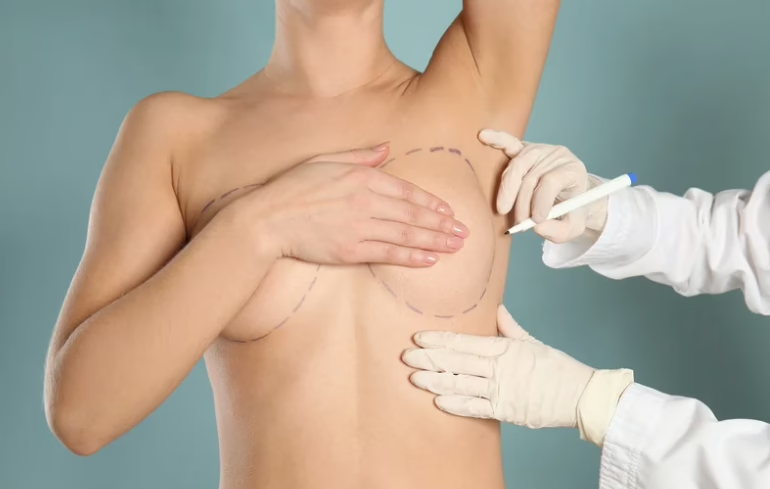
Choosing the right breast reduction surgeon is a significant decision that requires careful consideration. Whether you’re seeking relief from physical discomfort, aiming for a more balanced aesthetic, or addressing both, it’s crucial to find a surgeon who understands your specific needs and can deliver personalized care. Dubai is known for its world-class medical services, and many highly skilled surgeons specialize in breast reduction, offering a range of techniques to ensure the best possible results. The city’s healthcare professionals are not only trained in the latest advancements but also dedicated to providing a patient-centric experience that focuses on comfort, safety, and long-term satisfaction. When it comes to breast reduction surgery, qualifications matter, but so does the approach – finding a surgeon who listens to your concerns and explains your options in detail is essential to achieving a positive and lasting outcome.
1. Dr. Rory McGoldrick
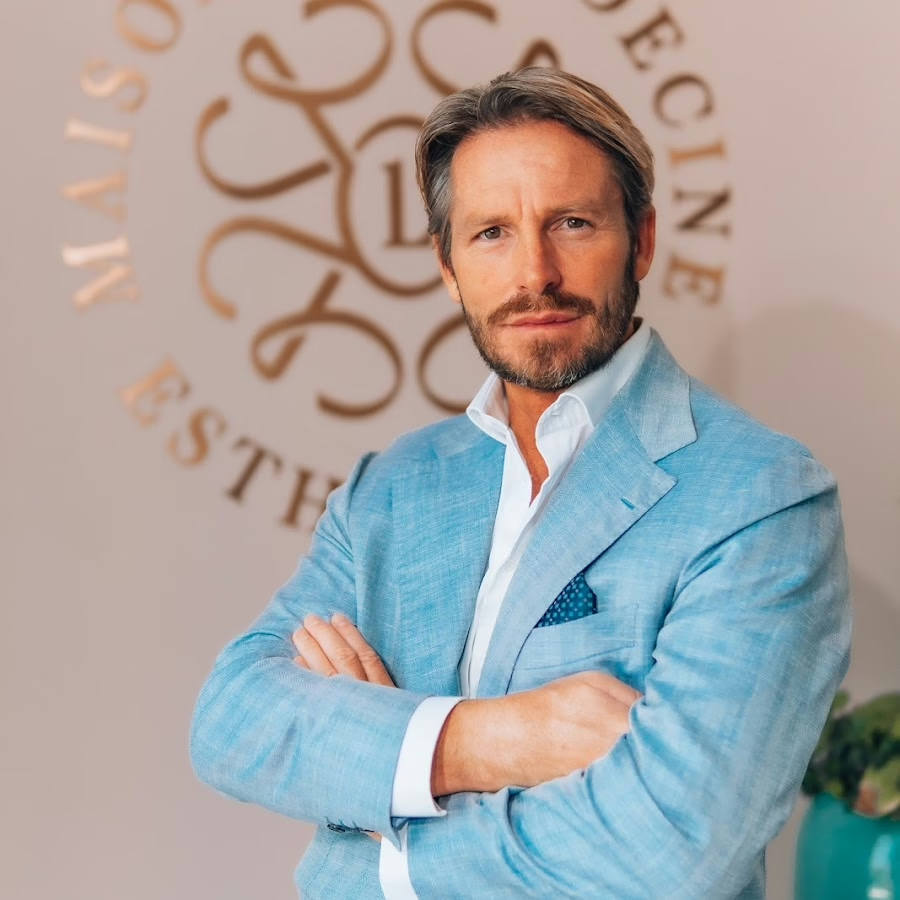
Dr. Rory McGoldrick is a highly experienced and respected plastic and reconstructive surgeon based in Dubai, renowned for his expertise in breast and abdominal contouring surgeries, particularly focusing on mommy makeovers. With over 20 years of experience in the field, Dr. McGoldrick has received extensive training at prestigious institutions across Europe, North America, and the UK. He is a consultant surgeon, a title that reflects his advanced qualifications and years of surgical practice. His qualifications include degrees from St. Mary’s (Imperial College London) and St. George’s Hospitals (University of London), along with board certification in Plastic Surgery from the Royal College of Surgeons of England.
In addition to his surgical training, Dr. McGoldrick has an interest in aesthetic breast surgery, non-surgical rejuvenation, and breast cancer reconstruction. As a founding member of MPSI Clinic, he has dedicated much of his career to bringing world-class aesthetic and reconstructive surgeries to the Middle East. His research on facial aging at Stanford University and experience in microsurgical breast reconstruction are just a few of the reasons why he is considered a top choice for patients seeking both cosmetic and reconstructive breast surgeries.
Key Highlights:
Over 20 years of experience in plastic and reconstructive surgery
Board-certified by the Royal College of Surgeons of England
Specializes in aesthetic breast surgery, body contouring, and breast cancer reconstruction
International lecturer and Key Opinion Leader for Allergan
Address: CosmeSurge Hospital, Jumeirah Beach Rd, opposite Burj Al Arab, Umm Suqeim Second, Jumeirah 3, Dubai
Phone: +971 544007589
2. Dr. Frank Conroy
Dr. Frank Conroy is a highly skilled plastic surgeon with over 20 years of experience in the field, specializing in breast reduction and body contouring surgeries. His training has spanned several prestigious medical institutions in the UK, Ireland, North America, and the Middle East, equipping him with a wealth of expertise in both surgical and non-surgical aesthetic treatments. Dr. Conroy is known for his approachable and empathetic nature, which helps patients feel comfortable and confident throughout their consultation and surgery process. He emphasizes a patient-centered approach, ensuring that each patient’s expectations are aligned with the likely outcomes.
At Genesis Healthcare Centre in Dubai, Dr. Conroy provides a comprehensive range of procedures, with a particular focus on breast reduction, breast reconstruction, and advanced laser treatments. He is recognized for his ability to achieve natural-looking results that enhance patients’ appearance while maintaining a minimalistic and balanced aesthetic. As a member of the British Association of Aesthetic Plastic Surgeons and the Emirate Plastic Surgery Association, Dr. Conroy’s commitment to excellence is reflected in his ongoing education and involvement in the medical community.
Key Highlights:
Member of prominent medical associations including BAAPS and the Emirate Plastic Surgery Association
Expertise in breast reduction, breast reconstruction, and skin cancer treatments
Completed advanced fellowships at the Bedford Laser Unit and Allergan Breast Fellowship
Known for a compassionate, patient-centered approach to surgery and non-surgical treatments
Address: North Tower, 3rd & 4th Floor, Dubai Science Park, Dubai UAE
Phone: +971 505 157413
3. Allen Rezai
Mr. Allen Rezai is a leading plastic, aesthetic, and reconstructive surgeon known for his expertise in delivering natural results. With practices in both London and Dubai, he has earned a reputation for his ability to achieve understated yet beautiful outcomes, focusing on a “less is more” philosophy. Mr. Rezai works with high-profile individuals, including royals and celebrities, ensuring that each procedure is done with utmost discretion and care. His philosophy is rooted in the belief that aesthetic procedures should enhance a patient’s natural beauty rather than alter it drastically.
Renowned for his artistry in aesthetic surgery, Mr. Rezai specializes in a wide range of procedures, from breast surgeries to facial reconstructions. He takes a holistic approach to patient care, ensuring that each individual’s unique features are preserved and enhanced. As a respected figure in both the UK and GCC regions, Mr. Rezai’s practice focuses on creating natural results, whether through surgical or non-surgical methods. His consultations prioritize clear communication and realistic expectations, ensuring that patients are fully informed before making any decisions.
Key Highlights:
Renowned for achieving natural results with minimalistic techniques
Specializes in aesthetic, plastic, and reconstructive surgery
Experience working with high-profile patients, including celebrities and royals
Focuses on a “less is more” approach to surgery
Services:
Aesthetic Breast Surgery, including Breast Reduction
Facial Aesthetic Procedures and Reconstructive Surgery
Non-Surgical Aesthetic Treatments
Body Contouring and Liposuction
Consultation for High-Profile Patients with Strict Anonymity
Address: Unit 101, 1st Floor, Building 72, Dubai Healthcare City
Phone: +971 44312396
4. Dr. Amani Landoulsi Helal
Dr. Amani Landoulsi Helal is a plastic, reconstructive, and cosmetic surgeon. Her academic and clinical expertise spans a wide range of specialties, from breast and face surgery to body contouring and regenerative procedures. She is an associate professor of medicine and has received extensive training at prestigious hospitals in Strasbourg, Nantes, and Paris. Dr. Amani is particularly known for her commitment to combining advanced surgical techniques with a natural, aesthetically pleasing approach. She is an active member of various international associations, including ASAPS and IPRAS, and regularly updates her skills by attending global conferences and surgical congresses.
Dr. Amani’s practice is centered around providing comprehensive care, and she works closely with specialists from other fields, such as oncology, gynecology, and dermatology, to offer holistic treatment plans. She places significant emphasis on patient safety, comfort, and satisfaction. Known for her meticulous attention to detail, Dr. Amani focuses on achieving optimal, natural results while maintaining a patient-centered approach throughout the process. Her multidisciplinary approach and extensive experience make her a trusted choice for both cosmetic and reconstructive procedures.
Key Highlights:
Specializes in face and breast surgery, body contouring, and post-weight-loss reconstruction
Member of international medical associations like ASAPS, IPRAS, and ISPRES
Published multiple research papers and supervised doctoral theses
Services:
Breast Reduction and Aesthetic Breast Surgery
Post-Weight Loss Body Contouring
Regenerative Surgery and Scalp Pathology Treatments
Address: Villa#1184, AI Wasl Road, Ai Manar, Umm Suqeim 2, Dubai, UAE
Phone: +971 4 3306611
5. Dr. Jaffer Khan
Dr. Jaffer Khan is a plastic and reconstructive surgeon with over two decades of experience in aesthetic and reconstructive surgery. Having trained in the UK, Dr. Khan’s background includes extensive work at Cork University Hospital and renowned institutions like St. Bartholomew’s and the Royal London Hospitals. His practice in Dubai, where he is the Medical Director and Founder of Aesthetics International and The Nova Clinic by Aesthetics, covers a wide range of surgeries, including breast and body contouring, as well as aesthetic surgery of the face. He is particularly known for his expertise in breast surgery and his commitment to delivering tailored results to each patient.
Dr. Khan’s approach combines technical precision with a focus on patient care, making sure that patients feel supported and well-informed throughout the process. His reputation as a breast surgeon in Dubai has been built on his skill and compassionate approach to surgery. Additionally, Dr. Khan has contributed to the academic world as a visiting professor and has led a number of international presentations and publications. His clinic in Dubai brings together a team of highly skilled aesthetic physicians, and his reputation attracts visiting surgeons from around the world.
Key Highlights:
Over 20 years of experience in plastic and reconstructive surgery
Trained at prestigious institutions in the UK and internationally
Known for expertise in breast surgery and body contouring
Founder of Aesthetics International and The Nova Clinic by Aesthetics
Visiting professor and leader of aesthetic surgery training programs
Services:
Body Contouring and Liposuction
Facial Aesthetic Surgery and Reconstructive Procedures
Address: Utamah Villa # 1049c, Intersection of Al Wasl Rd & Al Thanya Rd, Jumeirah, Dubai, UAE
Phone: +971 4 384 5600
6. Dr. Buthainah Al-Shunnar
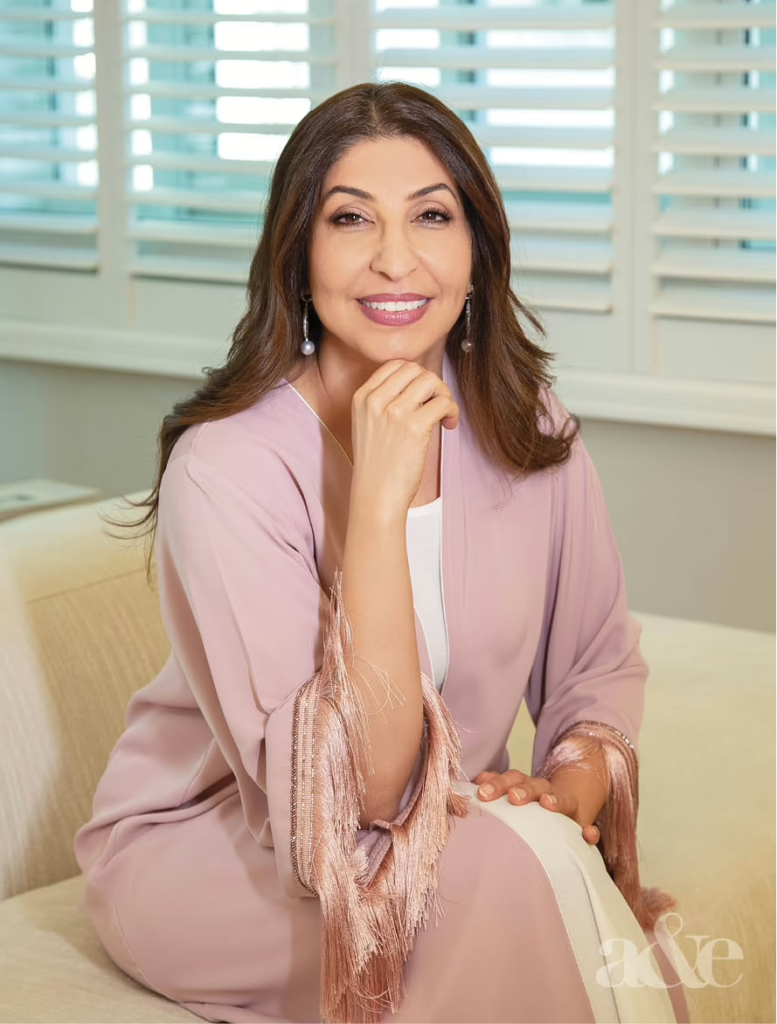
Dr. Buthainah Al-Shunnar is a pioneering Emirati plastic surgeon and the founder of Al Shunnar Plastic Surgery Clinic in Dubai. Dr. Al-Shunnar brings a wealth of experience in both cosmetic and reconstructive surgery. She received her medical education and surgical training in Dublin, Ireland, and at Johns Hopkins Hospital in the US, where she completed her general surgery and plastic surgery training. After years of practice in the US, Dr. Al-Shunnar returned to the UAE and established her own clinic, where she focuses on breast surgery, breast cancer reconstruction, and body contouring.
Dr. Al-Shunnar’s practice is known for a patient-centric approach, where safety, comfort, and realistic expectations are prioritized. She is particularly passionate about breast reconstruction for breast cancer patients and strives to give back hope and femininity to those affected. Her work extends beyond surgery, as she also provides anti-aging services and permanent makeup. Dr. Al-Shunnar’s extensive experience and dedication to patient care have made her a well-respected figure in the field of plastic surgery.
Key Highlights:
Extensive experience in breast surgery, breast cancer reconstruction, and body contouring
Practiced in the US, with a focus on reconstructive and cosmetic procedures
Founder of Al Shunnar Plastic Surgery Clinic in Dubai
Published and presented work at international plastic surgery conferences
Services:
Breast Cancer Reconstruction and Post-Surgical Care
Address: Villa #591, Jumeirah Beach Rd, Dubai, UAE
Phone: +971 4 395 3033
7. Dr. Mario Russo
Dr. Mario Russo works as a plastic and reconstructive surgeon in Dubai, where he leads the plastic surgery department at Lucia Clinic. His background is shaped by years of practice across Italy, the UK, and the Middle East, which shows in how structured and methodical his consultations tend to be. Breast reduction is part of a wider practice that also includes facial and body surgery, and it is usually discussed in terms of proportion, posture, and long-term comfort rather than isolated appearance. Patients often note that discussions stay practical, with clear explanations of what can and cannot realistically change.
What stands out in Dr. Mario Russo’s work is the balance between surgical precision and restraint. He is known for preferring outcomes that look settled and natural over time, rather than dramatic shifts. His experience across different healthcare systems seems to influence his approach – careful planning, attention to safety, and a steady pace from consultation to recovery. Media appearances and conference involvement are part of his professional profile, but day-to-day work remains focused on individual cases and gradual improvements rather than quick transformations.
Key Highlights:
Head of Plastic Surgery
Trained and practiced in Italy, the UK, and the UAE
Registered specialist with the UK General Medical Council
Experience across breast, face, and body procedures
Regular participant in European medical conferences
Dr. Mazen Arafeh is a board-certified plastic, aesthetic, and reconstructive surgeon who completed his medical education and specialist training at the University of Belgrade. His surgical foundation was built in a large academic hospital environment, where exposure to high surgical volumes shaped a hands-on and problem-solving mindset. In breast reduction cases, the focus often starts with physical symptoms such as back or shoulder strain, before moving into shape and proportion.
His practice covers a wide range of body procedures, which gives context to how breast reduction fits into overall body balance. Dr. Mazen Arafeh is known for discussing options in a straightforward way, especially when patients come in after previous surgeries or with very specific functional concerns. Multilingual communication also plays a role in consultations, which can make the process feel more relaxed for patients from different backgrounds.
Key Highlights:
Board-certified plastic and reconstructive surgeon
Dr. Augusto Valente background includes working alongside well-known figures in plastic surgery, which influenced a strong technical base in body contouring and breast procedures. Breast reduction is typically approached as part of an overall body plan, especially in patients who combine it with other reshaping surgeries.
Since relocating his practice to the UAE, Dr. Augusto Valente has continued to focus on both surgical and non-surgical treatments. His consultations often include discussions about timing, recovery, and how different procedures interact with each other over time. Alongside surgery, he also provides injectable treatments, which reflects a broader interest in gradual, layered results rather than single-step changes.
Key Highlights:
Background in advanced body contouring techniques
Experience with both surgical and injectable treatments
Regular involvement in international medical meetings
Dr. Matteo Vigo has been practicing plastic and reconstructive surgery in Dubai since 2012, after completing his medical education in Milan and specialist training in Verona. Early in his career, he worked closely with breast units where reconstructive and aesthetic breast surgery formed a large part of daily clinical work. That background still shows in how breast reduction is approached today – usually discussed alongside posture, weight distribution, and how the body may change over time, not just cup size or shape.
Over the years, Dr. Matteo Vigo has held senior clinical roles in several Dubai clinics and continues to split his work between breast surgery, body contouring, and regenerative treatments. He is also involved in training other surgeons on fat grafting systems, which adds a technical layer to how volume management is planned during breast procedures. Consultations tend to be structured but conversational, with space for patients who come in unsure or carrying concerns from previous surgeries.
Key Highlights:
Trained in plastic and reconstructive surgery in Italy
Experience in both reconstructive and aesthetic breast surgery
Background in fat grafting and regenerative techniques
Lecturer in breast surgical methods in Europe
Practices across multiple clinics in Dubai
Services:
Breast reduction
Breast reconstruction
Breast lift and reshaping
Body contouring procedures
Regenerative and fat transfer treatments
Contact Information:
Website: www.plasticsurgerydubaiuae.com
E-mail: booking@matteovigo.com
Facebook: www.facebook.com/DrMatteoVigo
Twitter: x.com/drMatteoVigo
LinkedIn: www.linkedin.com/in/matteo-vigo-125613b
Instagram: www.instagram.com/drmatteovigo
Address: HEALTHBAY VITALIA Al Wasl Road, Umm Al Sheif, Dubai
Phone: +971 56 2825 825
11. Dr. Adnan Tahir
Dr. Adnan Tahir is a UK-trained plastic surgeon who has been working in Dubai for more than a decade. His early training took place in British teaching hospitals, with later fellowship experience in aesthetic surgery in Europe. Breast reduction is one of several procedures he performs regularly, often discussed in practical terms such as daily discomfort, clothing fit, and recovery expectations rather than cosmetic trends.
What patients often notice during consultations is the amount of time Dr. Adnan Tahir spends explaining options and limits. He tends to favor conservative surgical plans, especially when breast reduction is combined with lifting or reshaping. His background also includes reconstructive work such as burns and trauma, which influences how safety and tissue handling are prioritized in elective procedures.
Key Highlights:
UK-trained consultant plastic surgeon
Background in reconstructive and aesthetic surgery
Fellowship training in aesthetic surgery in Europe
Dr. Abizer Kapadia practices at the American Academy of Cosmetic Surgery Hospital in Dubai Healthcare City. His training spans India, the UK, and the UAE, which has shaped a balanced approach to cosmetic and reconstructive surgery. Breast reduction is handled as part of a broader plan that looks at body proportion, skin quality, and long-term comfort, especially for patients who have lived with physical strain for years.
Day-to-day work includes a mix of breast surgery, microsurgery, and facial procedures, which keeps his practice varied. Dr. Abizer Kapadia is known for staying closely involved throughout the treatment process, from the first consultation through recovery. Some patients come in with very clear goals, while others arrive unsure and need time to talk through realistic outcomes, and his approach tends to adjust to both.
Key Highlights:
Consultant plastic surgeon at a hospital-based setting
Trained across India, the UK, and the UAE
Experience in cosmetic and reconstructive surgery
Focus on proportion and long-term results
Services:
Breast surgery and reconstruction
Body contouring
Microsurgical procedures
Facial aesthetic surgery
Contact Information:
Website: www.drakapadia.com
E-mail: contact@drabizerkapadia.com
LinkedIn: www.linkedin.com/in/drabizerkapadia
Instagram: www.instagram.com/dr.abizer_kapadia
Phone: +971 55 571 8498
13. Dr. Dragana Spica
Dr. Dragana Spica works in Dubai as part of a practice that blends surgical and non-surgical aesthetic care under a hospital-linked setting. She comes from a background shaped by training in Serbia and long-term work within university hospital systems, which shows in how cases are assessed methodically rather than rushed. Breast reduction is usually discussed alongside posture, lifestyle, and how the body has changed over time, especially for patients dealing with long-term discomfort rather than short-term cosmetic goals.
What tends to stand out in consultations is a direct, sometimes cautious tone. The practice does not push a single solution and is known to suggest alternatives when expectations and outcomes do not fully match. Work is often coordinated with other specialists, which helps in more complex cases where weight change, hormonal factors, or previous procedures are involved. The overall approach stays practical and grounded, with an emphasis on safety and realistic outcomes rather than dramatic shifts.
Key Highlights:
Experience within university hospital systems
Medical director role in a hospital-linked aesthetic unit
Multidisciplinary collaboration across specialties
Regular involvement in surgical education and updates
Services:
Breast augmentation
Abdominoplasty with liposuction
Eyelid surgery
Botox and dermal fillers
Non-surgical facial rejuvenation
Contact Information:
Website: dr-dragana.com
Address: Emaar Towers – Marina Promenade – next to Spinneys – Marsa Dubai – Jumeirah Beach Residence – Dubai
Phone: +971 58 540 5844
14. Dr. Tarek Bayazid
Dr. Tarek Bayazid leads a practice in Dubai that focuses on a wide range of aesthetic and reconstructive procedures. The team operates with a structured consultation style, where breast reduction is approached through careful planning rather than quick decisions. Patients are usually walked through options step by step, including recovery timelines and possible limitations, which can be helpful for those balancing surgery with work or family commitments.
There is a noticeable emphasis on staying aligned with international surgical standards. The practice maintains active membership in global plastic surgery societies, which influences how techniques are selected and updated. While the scope of procedures is broad, the tone of care remains consistent – measured, patient-focused, and rooted in established surgical principles rather than trends.
Key Highlights:
Board-certified plastic surgery background
Membership in international plastic surgery societies
Focus on structured consultations and planning
Experience in both aesthetic and reconstructive procedures
Services:
Breast lift
Body contouring procedures
Facial plastic surgery
Reconstructive surgery
Contact Information:
Website: www.drtarekaesthetics.com
E-mail: drtarekaesthetics@gmail.com
Address: 21B 2 A St, Jumeirah, Jumeirah 1, Dubai
Phone: +971 50 262 8774
Conclusion
Breast reduction surgery is rarely about one simple reason. For some, it is physical comfort. For others, it is balance, movement, or finally feeling at ease in everyday clothes. What becomes clear when looking at breast reduction surgeons in Dubai is that there is no single approach that fits everyone. Each surgeon brings a different background, pace, and way of working, and that matters more than titles or claims.
The real work happens in the consultation room. It is in how clearly options are explained, how honest the limits are, and whether the plan makes sense for your body and your life. Dubai offers a wide range of surgeons with varied training and perspectives, which gives patients room to compare and choose carefully. Taking that time often makes the difference between a procedure that looks good on paper and one that actually feels right long after recovery is over.
Finding the right thyroid surgeon in Dubai is not just a medical decision – it is a personal one. Thyroid conditions can affect energy, weight, mood, and overall quality of life, so the person handling your treatment needs more than technical skill. They need judgment, restraint, and the ability to explain complex choices in plain language.
Dubai offers access to highly trained specialists working in modern hospitals, many with international backgrounds and experience across different thyroid disorders. The challenge is not availability, but clarity. Knowing what to look for, which questions to ask can make the process far less overwhelming and far more reassuring.
1. Dr Jerome Paris
Dr Jerome Paris works in Dubai as part of a broader ENT and head and neck surgery practice, where thyroid conditions are treated alongside other neck and gland-related disorders. Their background sits at the intersection of oncology, ENT surgery, and facial structures, which shapes how thyroid nodules and tumors are approached in practice. Тheir work often reflects how closely it connects to surrounding nerves, glands, and cosmetic outcomes, especially in cases where neck surgery can leave visible impact.
Much of the thyroid-related work here involves nodules and tumors. There is a noticeable emphasis on surgical precision and minimizing disruption to nearby structures, something that tends to matter more to patients who are concerned about voice changes or neck scarring. Consultations are typically detailed and technical, with a tendency to explain why surgery is or is not the right step, rather than defaulting to intervention.
Key Highlights:
Background in ENT and head and neck surgery rather than general surgery
Regular work with thyroid tumors and neck lumps
Experience managing complex anatomy around nerves and glands
Address: Jumeirah Beach Road, near Dubai Canal, Jumeirah, Jumeirah 2, Dubai, United Arab Emirates
Phone: 800 444 444
2. Dr Emran Ghaffar Khan
Dr Emran Ghaffar Khan focuses on thyroid conditions from a medical angle. Their work centers on how the thyroid affects the rest of the body, from energy levels to weight changes and heart health. Many patients come here before surgery is even considered, often trying to stabilize overactive or underactive thyroid function through long-term management rather than immediate procedures.
What stands out in their approach is the overlap between thyroid care and broader endocrine issues. It is common for thyroid disorders to appear alongside diabetes, cholesterol problems, or blood pressure concerns, and consultations often cover more ground than patients expect. Treatment plans tend to be practical and adjusted over time, especially for people who have struggled with fluctuating hormone levels or inconsistent results elsewhere.
Key Highlights:
Long-term focus on thyroid hormone balance
Experience with both hyperthyroidism and hypothyroidism
Management of thyroid issues alongside diabetes and metabolic conditions
Multilingual communication for diverse patient backgrounds
Address: Dubai Hills, Alkhail Road, Marabea’ East Exit
Phone: +971 800 7777
3. Dr Nagwa Khalil Akasha
Dr Nagwa Khalil Akasha approaches thyroid disorders as part of a wider endocrine picture, often looking beyond lab results alone. Her work frequently involves patients who have lived with symptoms for years, such as fatigue, weight changes, or mood shifts, before a clear thyroid diagnosis was made. Consultations tend to be thorough and educational, with time spent helping patients understand how daily habits can influence thyroid function alongside medication.
There is also a noticeable emphasis on continuity of care. Many patients are followed over long periods, especially when thyroid disorders overlap with diabetes, calcium imbalance, or parathyroid issues. Тreatment often evolves gradually, adjusting medication, diet, and monitoring based on how the body responds over time.
Key Highlights:
Long-standing experience with thyroid and endocrine disorders
Emphasis on patient education and self-management
Management of thyroid issues alongside calcium and parathyroid conditions
Ongoing follow-up rather than one-off consultations
Services:
Thyroid disorders
Parathyroid and calcium metabolism disorders
Hormonal disease management
Endocrine consultations and monitoring
Contact Information:
Website: drnagwaakasha.com
E-mail: drnagwa.marketing@gmail.com
Facebook: www.facebook.com/drnagwaakasha
Instagram: www.instagram.com/drnagwaakasha
Address: International Modern Hospital, Port Rashid Road, Al Mankhool, Dubai, United Arab Emirates
Phone: +971 507541446
4. Dr. Yara Latifah
Dr. Yara Latifah works with thyroid conditions from a clinical endocrinology perspective, often seeing patients before or after surgery rather than only at the point of intervention. Much of the day-to-day work revolves around thyroid balance, follow-up care, and managing symptoms that tend to linger even when test results look stable on paper. In practice, this means a lot of adjustment over time rather than quick fixes, especially for patients who are juggling thyroid issues alongside weight changes or blood pressure concerns.
Another part of the work involves supporting surgical patients, where endocrine input matters both before and after procedures. It is not unusual for consultations to shift between medication planning, lifestyle discussion, and realistic expectations about recovery. The overall approach leans practical and structured, with attention to how thyroid function affects everyday life rather than focusing narrowly on a single diagnosis.
Key Highlights:
Focus on medical management of thyroid disorders
Experience with endocrine care around surgical treatment
Address: Al Hebiah First – Dubai Motor City – Dubai
Phone: 800 444 444
5. Dr. Amit Chakraborty
Dr. Amit Chakraborty approaches thyroid conditions from a surgical oncology angle, where the thyroid is often part of a wider head and neck picture. His work typically involves cases where cancer is suspected or confirmed, and surgery plays a central role in treatment planning. Rather than treating thyroid surgery as routine, decisions are framed around preserving function, especially voice and swallowing, which can be a concern for many patients heading into neck surgery.
In consultations, the focus tends to stay grounded in anatomy and outcomes rather than broad promises. Some patients arrive already overwhelmed by information, and the discussion often narrows things down to what needs to be addressed now versus what can wait. There is also visible collaboration with other specialists, which matters in complex cases where thyroid cancer overlaps with surrounding structures.
Key Highlights:
Surgical focus on thyroid cancer within head and neck oncology
Dr. Deepika Patel handles thyroid issues as part of a larger endocrinology practice that covers a wide range of conditions for both adults and kids. A lot of patients come in with symptoms that have been building up over time – things like feeling tired all the time or struggling with weight changes that don’t make sense. Instead of jumping straight to changing medications, the focus is on really understanding those patterns first. It’s a more laid-back approach, which is especially helpful for people who’ve already been on different treatments but haven’t seen the results they hoped for.
She also sees quite a few patients dealing with thyroid problems during pregnancy or while managing other hormonal issues, which definitely adds a layer of complexity. The follow-ups here aren’t rushed – they’re more about checking in consistently and seeing how things evolve over time, rather than just focusing on how a patient looks at one visit. Dr. Patel’s approach is clear and practical, especially when it comes to long-term care, where monitoring and adjustments are part of the bigger picture.
Key Highlights:
Manages thyroid disorders in adults and children
Experience with pregnancy-related endocrine care
Combines thyroid care with broader hormonal management
Address: Near Sharaf DG, Mankhool, Kuwait Road, Al Mankhool, Dubai
Phone: +971 44 400 500
7. Dr. Abdul Razzak Juratli
Dr. Abdul Razzak Juratli works as an ENT and head and neck surgeon, and thyroid-related surgery sits naturally within that scope. Much of the thyroid work here comes through neck lumps, cysts, or tumors that need careful surgical planning rather than rushed decisions. Years of experience in ENT surgery show up in how closely the thyroid is considered alongside the voice box, nerves, and surrounding structures, which is often a concern for patients worried about speech or swallowing after surgery.
Day to day practice reflects a very hands-on surgical background. Cases are often discussed in practical terms – what can be safely removed, what should be monitored, and what risks are realistic. There is also a noticeable teaching mindset, shaped by years spent training medical students and junior doctors, which tends to come through in consultations that explain the reasoning behind each step rather than glossing over it.
Key Highlights:
ENT and head and neck surgical background
Regular management of thyroid and neck-related conditions
Experience with complex neck anatomy and nerve preservation
Address: Al Zahra St., Near Clock Tower, Al Musalla, P.O. Box: 3499, Sharjah, United Arab Emirates.
Phone: +971 6 561 9999
8. Dr. Fatma AlMarashi
Dr. Fatma AlMarashi approaches thyroid care from a medical endocrinology angle, where diagnosis and long-term management matter more than quick intervention. Many patients come in after months, sometimes years, of unclear symptoms like fatigue or weight changes that never quite added up. Appointments often focus on sorting out those details first, rather than jumping straight into aggressive treatment.
Thyroid work here often includes imaging, biopsy coordination, and ongoing follow-up. There is a structured way of working through results and next steps, which can be reassuring for patients who prefer clarity over guesswork. The setting feels more like a place for steady monitoring than one-off visits, especially for people managing thyroid conditions alongside diabetes or metabolic issues.
Key Highlights:
Medical management of thyroid conditions
Experience with thyroid ultrasound and biopsy coordination
Long-term follow-up for endocrine disorders
Focus on structured, step-by-step care
Services:
Thyroid assessment and monitoring
Thyroid ultrasound and biopsy
Diabetes and metabolic care
Hormonal disorder management
Contact Information:
Website: drfatmaendocrinecenter.ae
E-mail: info@facedclinic.com
Address: 4009 Block C, Al Razi Building, Dubai Healthcare City
Phone: +971 4 513 6155
9. Dr. Sadir Alrawi
Dr. Sadir Alrawi usually gets involved when thyroid problems move beyond monitoring and surgery becomes part of the conversation. Many of the cases are tied to cancer or more complex endocrine issues, so the thyroid is rarely treated on its own. Instead, it is looked at as one piece of a larger plan, where timing, sequencing, and input from different specialists all matter. It is less about a single procedure and more about how everything fits together.
Most patients coming in already know their situation is not simple. Conversations tend to be straightforward and practical, covering what surgery involves, what recovery might realistically look like, and whether reconstruction could be part of the process. There is a clear focus on coordination between surgeons, medical teams, and support services, especially when thyroid surgery overlaps with head and neck or digestive tract conditions.
Key Highlights:
Surgical oncology focus with thyroid and endocrine surgery
Experience managing complex and cancer-related cases
Multidisciplinary approach to treatment planning
Consultations available in English and Arabic
Services:
Thyroid cancer surgery
Endocrine surgery involving thyroid and parathyroid
Dr. Hecham Harb’s work with thyroid conditions sits within a wider endocrinology practice, where hormone balance, follow-up, and long-term control tend to matter more than quick decisions. In many cases, thyroid issues show up alongside diabetes, bone health concerns, or weight changes, so conversations often move between symptoms rather than staying fixed on one lab result. The approach feels measured and methodical, especially for patients who have seen their numbers shift over time without clear answers.
He also spends a fair amount of time managing thyroid and parathyroid problems that need careful monitoring rather than surgery. Appointments usually focus on adjusting treatment gradually and explaining why certain changes are being made. It is the kind of setting where patients who like clarity and steady follow-up tend to feel more comfortable.
Key Highlights:
Medical management of thyroid and parathyroid conditions
Experience across endocrinology and internal medicine
Regular follow-up for long-term hormone conditions
Address: Al Hebiah First – Dubai Motor City – Dubai
Phone: 800 444 444
11. Tugan Tezcaner
Tugan Tezcaner approaches thyroid surgery from a general and endocrine surgery background, where teamwork is a central part of how cases are handled. Thyroid procedures are usually discussed within a broader surgical plan, taking into account nerve monitoring and minimally invasive options where appropriate. There is a clear sense that surgery is not treated as a solo act, but as a coordinated effort between specialists.
In practice, this often means spending time on planning and setting expectations before anything happens in the operating room. Patients who come in with concerns about voice changes or recovery tend to get straightforward answers, not guarantees. The style is practical and direct, with a focus on safe technique rather than speed.
With Dr. Sudhanshu Dev Singh, thyroid care usually starts with listening rather than jumping straight to conclusions. Many people come in after being told for years that their symptoms are minor or unrelated – weight changes that do not add up, tiredness that never quite goes away. Appointments often begin by laying all of that out and connecting the dots before any decisions are made, which tends to make patients feel like they are finally being taken seriously.
The thyroid is rarely treated in isolation here. Bone health, calcium levels, and other hormone-related issues often enter the conversation, sometimes unexpectedly. Follow-ups are planned but not mechanical, focusing more on how things shift over time than on a single snapshot. The overall tone stays practical and easy to follow, which helps when ongoing monitoring becomes part of everyday life.
Key Highlights:
Management of thyroid disorders in adults and children
Address: Al Barsha 1, API Business Suites, 3RD Floor, Sheikh Zayed, Dubai, UAE
Phone: +971 4 379 4444
13. Dr. Ali Al Khazaali
Dr. Ali Al Khazaali has extensive experience in endocrinology, particularly focusing on thyroid conditions. He completed his American Board Endocrinology Fellowship at Saint Louis University in the USA, following a Doctor of Medicine degree from Al-Qadisiya University in Iraq. His background in treating various thyroid disorders, such as hypothyroidism, hyperthyroidism, and thyroid cancer, adds a comprehensive layer to his practice. Over the years, he has gained recognition for his holistic approach to thyroid care, from diagnosing and managing thyroid nodules to handling more complex thyroid cases.
Patients benefit from Dr. Khazaali’s expertise not just in thyroid treatment but also in a variety of endocrine and metabolic issues. His work with conditions like diabetes, obesity, and hormonal imbalances shows how interconnected the thyroid can be with other areas of health. His practice is built on providing personalized care, ensuring that each patient’s needs are met with precision and care.
Key Highlights:
Specializes in thyroid diseases, including hypothyroidism, hyperthyroidism, and thyroid cancer
Comprehensive experience in managing diabetes, obesity, and hormonal disorders
Offers advanced diabetes care with insulin pumps and continuous glucose monitoring
Services:
Thyroid disorder management
Diabetes management (Type 1, Type 2, gestational)
Obesity and metabolic health
Hormonal health (PCOS, menopause, low testosterone)
Address: Building 57, Building 55 26th St, Umm Hurair Second, Dubai Healthcare City, Dubai
Phone: +971 04 429 7777
14. Dr. Ahmed Elhassan
Dr. Ahmed Elhassan is a consultant endocrinologist who holds certifications in endocrinology, obesity medicine, and internal medicine. His approach to treating thyroid disorders is centered around a thorough understanding of both the clinical and hormonal factors at play. He provides tailored treatment plans for thyroid patients, with expertise in managing thyroid, parathyroid, pituitary, and adrenal disorders. Having over 13 years of experience in the field, Dr. Elhassan blends extensive knowledge with hands-on practice to address both common and complex cases.
While his primary focus is on thyroid conditions, Dr. Elhassan is equally skilled in handling other endocrine issues like obesity, bone remodeling disorders, and male/female hormone imbalances. He works closely with patients to craft individualized care plans, focusing on long-term wellness and providing clear, actionable steps for managing thyroid and metabolic health.
Key Highlights:
Board-certified in endocrinology, obesity medicine, and internal medicine
Over 13 years of experience in managing thyroid and endocrine disorders
Expertise in handling thyroid, parathyroid, pituitary, and adrenal conditions
Address: Building 57, Building 55 26th St, Umm Hurair Second, Dubai Healthcare City, Dubai
Phone: +971 04 429 7777
15. Dr. Ishrat Khan
Dr. Ishrat Khan is a consultant endocrinologist who completed her training in the UK, including CCTs in Diabetes & Endocrinology and Internal Medicine. Throughout her career, Dr. Khan has worked in multiple hospitals in the UK, where she honed her skills in managing complex diabetes and thyroid disorders. Her expertise spans thyroid conditions such as overactive and underactive thyroid, thyroid cancer, and prolactinomas. She also treats related endocrine issues like pituitary, adrenal, and gonadal disorders, bringing a broad perspective to her practice.
In addition to her clinical expertise, Dr. Khan is passionate about education and research. She regularly contributes to training medical professionals and has published various articles in diabetes and endocrinology. This commitment to continuous learning enhances her ability to offer up-to-date treatments tailored to each patient’s needs.
Key Highlights:
CCTs in Diabetes and Endocrinology and Internal Medicine from the UK
Extensive experience in managing thyroid and pituitary disorders
Active in teaching and research, with published articles in endocrinology
Focus on personalized care for thyroid and metabolic conditions
Services:
Thyroid and pituitary disorder management
Hormonal health (including reproductive endocrinology)
Address: Jumeirah Beach Road, near Dubai Canal, Jumeirah, Jumeirah 2, Dubai, United Arab Emirates
Phone: 800 444 444
Conclusion
In the end, choosing the right thyroid surgeon in Dubai is all about finding someone who listens to your concerns, takes the time to understand your unique situation, and provides clear, practical solutions. The best doctors bring a combination of expertise, experience, and compassion to their practice – helping you feel more informed and confident about your treatment options.
Whether you’re dealing with a complex thyroid issue or simply seeking a second opinion, there are skilled surgeons in Dubai who can guide you through the process with care and precision. It’s about finding that balance between technical expertise and a genuine understanding of your needs, so you can take the next step toward better health with peace of mind.
Rhinoplasty is one of those procedures where skill really shows. A good result does not scream surgery. It looks balanced, natural, and like it always belonged to your face. In Dubai, you will find no shortage of surgeons offering nose jobs, but that also makes the choice harder, not easier.
Some surgeons focus on dramatic changes, others are known for subtle refinements, and a few truly understand how breathing, structure, and aesthetics work together. This article is not about hype or rankings. It is about helping you understand what actually matters when looking for the best rhinoplasty surgeon in Dubai, so you can make a decision that feels right long after the swelling is gone.
1. Dr Levente Deak
Dr Levente Deak approaches rhinoplasty as a balance between structure, function, and appearance. His work is shaped by dual training in ENT surgery and facial plastic surgery, which influences how nasal form and breathing are considered together rather than separately. This perspective is visible in how procedures are planned, with attention given to both internal anatomy and external proportions.
His professional background includes clinical work in Europe, the UK, and the UAE, along with focused fellowship training in rhinoplasty and ENT. Research remains part of his ongoing practice, not just an earlier career phase, and this academic involvement informs how techniques are selected and refined. Patients are seen in a clinical setting where continuity and direct surgeon involvement are maintained throughout assessment and treatment.
Key Highlights:
Dual training in ENT and facial plastic surgery
Licensed to practice in the UK and UAE
International clinical experience
Ongoing involvement in medical research
Regular participation in professional education and conferences
Address: LIV Hospital City walk – 13th St Al Wasl – Dubai – United Arab Emirates
Phone: +971 5036 75151
2. Dr. Osman Bashir Tahir (Dr. OBT)
Dr OBT practices rhinoplasty as part of a broader approach to facial balance rather than as a standalone procedure. His work is grounded in careful planning and precision, with attention given to how the nose relates to surrounding facial features over time. The focus is usually on controlled, measured change rather than dramatic alteration, which shapes how treatment options are discussed with patients.
His medical background includes training in aesthetic plastic surgery and exposure to different surgical environments across several countries. This experience influences a structured way of working, where consultations tend to be detailed and decisions are made deliberately. Rhinoplasty is often evaluated alongside skin quality, facial proportions, and long-term stability, allowing space for realistic expectations and thoughtful surgical planning.
Key Highlights:
Focus on facial balance rather than isolated changes
Structured and deliberate surgical planning
International medical and aesthetic training
Emphasis on precision and proportion
Detailed consultation process
Services:
Rhinoplasty
Facial aesthetic surgery
Non-surgical facial treatments
Revision procedures
Individual aesthetic consultations
Contact Information:
Website: www.drobt.com
Email: enquiries@halcyonaestheticsdubai.com
Facebook: www.facebook.com/Dr.OBT
Instagram: www.instagram.com/dr.obt
Address: Alya Residence Shop No. 1 Jumeirah St Dubai, United Arab Emirates
Phone: 042682286
3. Dr Bashar Bizrah
Dr Bashar Bizrah has built his career around rhinoplasty and facial plastic surgery, combining long-term surgical practice with academic involvement. His work includes authoring educational material used in surgeon training, which reflects a strong focus on technique, anatomy, and procedural planning. This academic background plays a role in how surgeries are approached in practice.
His clinical work spans multiple locations, including London and Dubai, and involves patients from a wide range of ethnic and anatomical backgrounds. Rhinoplasty is treated as a highly individualized procedure, with attention given to surgical method, scar minimization, and recovery planning. Closed techniques and controlled operative processes are often part of the discussion for patients seeking predictable structural outcomes.
Key Highlights:
Long-standing focus on rhinoplasty and facial plastic surgery
Active involvement in surgical education and training
Author of academic resources on facial surgery
Experience with diverse patient profiles
International clinical practice
Services:
Rhinoplasty
Revision rhinoplasty
Facial plastic surgery
Blepharoplasty
Face and neck lift procedures
Contact Information:
Website: drbasharbizrah.com
E-mail: hello@bizrahmed.com
Facebook: www.facebook.com/drbasharbizrah
LinkedIn: www.linkedin.com/company/bizrahmed
Instagram: www.instagram.com/dr.basharbizrah
Address: BIZRAHMED, SHEIKH ZAYED ROAD, NEXT TO BENTLEY SHOWROOM, DUBAI
Phone: +971 800 249 724
4. Dr Basil Hassouneh
Dr Basil Hassouneh focuses on facial surgery with an emphasis on rhinoplasty and facial contouring. His work reflects long-term surgical practice combined with close patient interaction, where listening and planning appear to play a central role. The approach is grounded in understanding facial anatomy and how structural changes affect both appearance and everyday comfort.
His background includes years of surgical experience across aesthetic and functional facial procedures. Consultations tend to be personal rather than rushed, with attention given to individual concerns and realistic outcomes. Rhinoplasty is treated as a precise procedure that requires careful balance between form, function, and long-term stability rather than quick visual change.
Key Highlights:
Long-term focus on facial surgery and rhinoplasty
Attention to facial anatomy and nasal structure
Personal involvement throughout consultation and treatment
Experience with both primary and revision procedures
Clinical approach centered on planning and detail
Services:
Rhinoplasty (open and closed)
Revision rhinoplasty
Facial contouring procedures
Blepharoplasty
Endoscopic nasal surgery
Contact Information:
Website: basilhassouneh.com
E-mail: drbasilhassouneh@gmail.com
Instagram: www.instagram.com/drbasilhassouneh
Phone: 971 00 000 0000
5. Dr Seejo George
Dr Seejo George practices as an ENT specialist with a strong focus on rhinoplasty and nasal function. His work often sits at the intersection of breathing, structure, and appearance, which shapes how procedures are planned and discussed. Rhinoplasty is approached with attention to both medical and aesthetic factors, especially where nasal function is involved.
His clinical practice includes work across different hospital settings in Dubai and Sharjah. Advanced imaging tools are used as part of the planning process to help patients understand potential outcomes before surgery. Consultations are typically structured and detailed, allowing time to assess anatomy, breathing concerns, and expectations.
Key Highlights:
ENT background combined with rhinoplasty practice
Focus on nasal structure and breathing
Use of imaging during surgical planning
Hospital-based clinical experience
Treatment of both functional and aesthetic concerns
Address: Port Rashid Road, Al Mankhool Area, Bur Dubai, PO Box 121735, Dubai, UAE
Phone: +971-56-559-1908
6. Dr Ahmed Yassin Bahgat
Dr Ahmed Yassin Bahgat works primarily in ENT and sleep-related surgery, with a clinical focus on airway function and nasal structure. His background includes academic involvement alongside hands-on surgical practice, which influences a methodical and evidence-based approach to treatment. Nasal procedures are often considered in the context of breathing, sleep quality, and long-term function.
His training includes international exposure across Europe and the United States, which is reflected in the range of techniques used in practice. Consultations tend to focus on diagnosis and suitability rather than quick procedural decisions. For patients with functional nasal concerns, surgical planning is closely tied to overall airway health.
Key Highlights:
Focus on nasal and airway function
Academic and clinical background in ENT
International training exposure
Structured diagnostic approach
Experience with complex functional cases
Services:
Nasal airway procedures
Turbinate reduction
Functional nasal surgery
Sleep-related ENT treatments
Diagnostic ENT evaluations
Contact Information:
Website: azhd.ae/doctors/dr-ahmed-yassin-bahgat
Phone: +971 4 378 6666
Email: info@azhd.ae
Address: Al Zahra Hospital Dubai – Sheikh Zayed Road – Dubai – United Arab Emirates
Dr. Sanjay Parashar practices rhinoplasty as part of a broader facial surgery scope, rather than treating it as an isolated procedure. His background reflects long-term involvement in plastic surgery, academic work, and professional organizations, which shapes a structured and methodical approach to facial procedures. Rhinoplasty sits alongside other facial and nasal surgeries, with attention given to anatomy, proportion, and realistic outcomes.
His work appears closely connected to clinic-based practice at Cocoona, where consultations and procedures are positioned around individual planning rather than fixed templates. Educational writing and contributions to medical publications suggest a focus on explaining procedures clearly, which may matter to patients who want context before making decisions. Rhinoplasty here is approached as a technical procedure that requires balance between appearance and nasal structure.
Key Highlights:
Consultant plastic surgeon with academic involvement
Rhinoplasty offered within a wider facial surgery practice
Emphasis on anatomical understanding and planning
Experience with both primary and revision nasal procedures
Clinic-based consultations with structured evaluation
Address: Villa 898, AL RAAJI Street, Al Wasl Road, Dubai, U.A.E
Phone: +971 50 251 7184
8. Dr. Peter Baptista Jardin
Dr. Peter Baptista Jardin approaches rhinoplasty primarily from a functional ENT perspective, with strong emphasis on breathing, airway health, and sleep-related conditions. His clinical focus centers on how nasal structure affects airflow and overall sleep quality, which influences how nasal procedures are planned and discussed. Cosmetic considerations are generally secondary to functional outcomes in this setting.
His background includes long-standing involvement in ENT surgery and sleep medicine, with experience in advanced diagnostic and surgical techniques. Rhinoplasty is positioned alongside sinus surgery and septum correction, often as part of a broader treatment plan rather than a standalone aesthetic change. This approach may suit patients whose primary concern is nasal function rather than appearance alone.
Key Highlights:
ENT-focused approach to nasal surgery
Strong emphasis on breathing and airway function
Experience with sleep apnea related nasal conditions
Use of structured diagnostic tools in planning
Hospital-based surgical practice
Services:
Functional rhinoplasty
Septoplasty
Sinus surgery
Turbinate reduction
ENT diagnostic procedures
Contact Information:
Website: entspecialistdubai.com
E-mail: peterbaptista@rocketmail.com
Address: Al Zahra Hospital Dubai, Sheikh Zayed Rd – Al Barsha, Al Barsha 1 – Dubai – United Arab Emirates
Phone: +97143786666
9. Dr Annelyse Ballin
Dr Annelyse Ballin approaches rhinoplasty from an ENT-led perspective, where nasal structure, breathing, and facial balance are considered together. Her background in otolaryngology shapes how nasal surgery is planned, with attention given to function first and aesthetics as part of a broader clinical picture. This is reflected in her regular work with conditions such as septal deviation, turbinate enlargement, and nasal obstruction, which often overlap with cosmetic concerns.
Her training includes medical education in Brazil and a fellowship in facial restoration in the United States, followed by several years of clinical practice in Dubai. Rhinoplasty sits alongside sinus surgery and septoplasty in her work, rather than being treated as a standalone cosmetic procedure. Decision-making is described as shared, with a preference for conservative and evidence-based options when appropriate.
Address: North Tower, 3rd & 4th Floor, Dubai Science Park, Dubai UAE
Phone: +971 4 577 6500
10. Dr Mohan Rangaswamy
Dr Mohan Rangaswamy practices rhinoplasty within a broader plastic surgery framework that includes both aesthetic and reconstructive work. His background reflects long-term experience across different areas of plastic surgery, which influences a balanced view of facial proportions and structural change. Rhinoplasty is approached as part of overall facial harmony rather than as an isolated adjustment.
His work with patients from varied cultural backgrounds informs how facial aesthetics are discussed and planned. Alongside surgical procedures, he places value on explaining options in a clear and conversational way, helping patients understand what is realistically achievable. Rhinoplasty is positioned among other facial procedures, with planning that takes into account anatomy, healing, and long-term stability.
Key Highlights:
Broad plastic surgery background
Experience with diverse facial aesthetics
Rhinoplasty integrated into full facial planning
Emphasis on clear patient communication
Combination of aesthetic and reconstructive practice
Services:
Rhinoplasty
Facial aesthetic surgery
Fat grafting procedures
Reconstructive plastic surgery
Regenerative medicine applications
Contact Information:
Website: drmohanplasticsurgeon.com
E-mail: info@drmohanps.com
Facebook: www.facebook.com/drmohanplasticsurgeon
LinkedIn: www.linkedin.com/in/drmohanr
Instagram: www.instagram.com/drmohanr
Address: Building 73, 26th Street, Dubai Healthcare City, Dubai, U.A.E
Phone: +971 58 556 6426
11. Dr Lyor Hanan
Dr Lyor Hanan focuses on facial aesthetic surgery with a strong influence from his surgical training in Paris. His approach to rhinoplasty emphasizes proportion, facial balance, and subtle structural refinement rather than dramatic change. Rhinoplasty is treated as part of a wider understanding of facial anatomy, where small adjustments can have a significant visual impact.
His practice in Dubai includes both surgical and non-surgical nasal procedures, offering different options depending on anatomy and patient goals. Alongside traditional rhinoplasty, non-surgical techniques are used in selected cases to address minor contour concerns. Planning is guided by anatomical assessment and an overall view of facial symmetry.
Key Highlights:
Facial surgery training rooted in Paris
Focus on proportion and facial balance
Experience with surgical and non-surgical rhinoplasty
Dr. Stefano Pompei approaches rhinoplasty as part of a wider facial surgery practice, where balance and structure matter more than dramatic change. His work with nasal surgery sits alongside procedures for the face and neck, which gives him a broader view of how the nose fits into overall facial proportions. In consultations, the focus is usually on understanding what bothers the patient functionally or visually, and whether surgery is the right step at all.
When rhinoplasty is planned, Dr. Pompei works with both closed and open techniques, depending on whether the bridge, the tip, or both need adjustment. The way his practice is presented puts a lot of emphasis on explaining the process, recovery, and realistic outcomes upfront. This kind of transparency often helps patients feel more confident when deciding if and when to proceed.
Key Highlights:
Facial plastic surgery background with regular focus on rhinoplasty
Experience with both closed and open rhinoplasty techniques
Clear explanation of procedure steps and recovery expectations
Attention to facial balance rather than isolated changes
Address: Fakeeh University Hospital Dubai Silicon Oasis – Dubai, UAE
Phone: +971 4 414 4444
13. Dr. Basel Aldebs
Dr. Basel Aldebs works as an ENT and facial plastic surgeon, which shapes how he approaches rhinoplasty. Instead of looking at the nose purely from an aesthetic angle, he also considers breathing, internal structure, and previous surgeries. This is especially relevant for patients who have functional issues or are considering revision rhinoplasty after an earlier procedure.
His background includes work in both hospital and clinic settings, and his practice covers patients of different age groups. Rhinoplasty is part of a broader ENT surgical scope, so discussions often include whether septoplasty or sinus-related treatment should be combined with cosmetic correction. For many patients, this integrated approach helps clarify what problem surgery is actually meant to solve.
Choosing a rhinoplasty surgeon in Dubai is less about chasing titles and more about finding someone whose approach makes sense for you. The right surgeon is usually the one who listens carefully, explains options in plain language, and is honest about what surgery can and cannot change. A good consultation often feels more like a conversation than a pitch, with space for questions, doubts, and second thoughts.
It also helps to remember that rhinoplasty is not a one size fits all procedure. Some people care most about breathing, others about subtle shape changes, and many about both. Surgeons who work at the intersection of structure and aesthetics tend to think this way, looking at the nose as part of the whole face and the whole person, not as an isolated feature.
In the end, trust your judgment. Credentials and experience matter, but so does how comfortable you feel during the process. If a surgeon takes the time to understand your goals, walks you through the reasoning behind each option, and sets realistic expectations, you are likely on the right track. That kind of clarity is often the strongest sign that you have found the right match.
Finding the right vascular surgeon is not something most people plan for, but when the need comes up, the decision suddenly feels very real. In Dubai, there is no shortage of highly qualified doctors, modern hospitals, and advanced treatment options. The challenge is not availability – it is knowing where to start and who is actually worth your time.
This article is designed as a curated list. Not rankings, not hype, and not marketing claims. Just a clear, practical overview of vascular surgeons in Dubai who are known for their experience, clinical focus, and consistent patient care. Whether you are dealing with varicose veins, peripheral artery disease, or a more complex vascular condition, this list is meant to help you narrow things down and make a more confident choice.
1. Dr. Ashkan Haghshenas
Dr. Ashkan Haghshenas is a vascular surgeon whose clinical work covers a broad range of artery and vein conditions, with a strong day to day focus on venous disease. His practice includes varicose veins, diabetic foot conditions, chronic wounds, and both vascular and endovascular procedures. He works with patients who need practical treatment paths rather than aggressive surgical decisions, often starting with less invasive options where possible.
Dr. Ashkan has more than 15 years of experience in vascular surgery across Europe and the UAE. He is trained in conventional open surgery as well as non-invasive and laser-based procedures, which allows him to choose treatments based on how advanced the condition is, not just on one fixed technique. His work with varicose veins includes both visible surface veins and deeper circulation issues that are often missed when symptoms seem minor.
Key Highlights:
More than 15 years of experience in vascular surgery
Focus on varicose veins, diabetic foot, and chronic wound care
Experience with open, endovascular, and laser procedures
Treats both cosmetic and medical venous conditions
Practical approach to vein circulation and long term management
Who it’s best for:
Patients dealing with varicose veins or leg vein symptoms
People with diabetic foot or slow-healing vascular wounds
Those looking for non-invasive or laser-based treatments first
Patients who want a clear explanation of vein-related problems
Contact information:
Website: www.drashkan.com
2. Dr. Khaled Abdel Aal
Dr. Khaled Abdel Aal is a consultant vascular and endovascular surgeon with over three decades of clinical experience. He trained and practiced extensively in France before moving to the UAE, and his background reflects long-term work in complex vascular cases rather than short-term specialty focus. His clinical work includes both venous and arterial disease, covering early intervention as well as advanced conditions.
Dr. Khaled has treated a wide range of vascular problems, including peripheral artery disease, diabetic vascular complications, and aortic aneurysms. He also works with patients who require vascular access for dialysis and long-term circulation support. His approach combines open surgery and endovascular techniques, depending on the condition and the patient’s overall health rather than defaulting to one method.
Key Highlights:
Over 30 years of experience in vascular and endovascular surgery
French and European accredited vascular surgeon
Background in both open and minimally invasive procedures
Experience with arterial occlusion, aneurysms, and diabetic vascular disease
Long clinical practice history in Europe and the UAE
Who it’s best for:
Patients with complex arterial or vascular conditions
People with diabetic peripheral vascular disease
Those needing evaluation for aneurysm or arterial blockage
Dr. Murali Subramaniam is a consultant vascular surgeon with nearly three decades of surgical experience, much of it gained in the United Kingdom within the NHS system. He relocated to the UAE in 2021 and continues to work with a strong focus on structured care pathways and outcome-based treatment. His background includes both high-volume public healthcare systems and specialist surgical centers.
Dr. Subramaniam has a particular interest in minimally invasive surgery for varicose veins, limb salvage procedures, and diabetic foot care. He has been involved in setting up multidisciplinary clinics aimed at reducing major amputations and improving long-term vascular outcomes. Alongside clinical work, he has contributed to surgical research, training, and quality improvement projects, and has experience developing surgical tools used in practice.
Key Highlights:
Nearly 30 years of vascular surgery experience
Former NHS consultant vascular surgeon in the UK
Focus on minimally invasive varicose vein surgery
Strong background in diabetic limb salvage and bypass procedures
Experience in vascular access and aortic aneurysm repair
Who it’s best for:
Patients with diabetic foot or limb circulation problems
People needing minimally invasive varicose vein treatment
Those requiring vascular bypass or limb salvage evaluation
Patients who value structured, system-based surgical care
Contact information:
Instagram: www.instagram.com/drmuralisubramanian
4. Dr. Soroush Sohrabi
Dr. Soroush Sohrabi is a UK-trained vascular and endovascular surgeon who works across both arterial and venous conditions. His clinical work includes everyday vein problems as well as complex vascular cases that require careful planning rather than quick decisions. He regularly treats varicose veins, spider veins, peripheral artery disease, diabetic foot problems, deep vein thrombosis, and aneurysm-related conditions.
Dr. Sohrabi has spent over two decades working within structured healthcare systems, including long-term experience in the UK NHS. His background includes advanced training in both minimally invasive endovascular techniques and open vascular surgery. This allows him to adjust treatment plans based on how severe or advanced a condition is, rather than relying on a single method. His approach tends to focus on choosing the least invasive option that still offers long-term stability and safety.
Key Highlights:
UK-trained vascular and endovascular surgeon
Experience with both arterial and venous conditions
Works with minimally invasive and open surgical techniques
Treats varicose veins, PAD, diabetic foot, and DVT
Background in complex vascular and emergency cases
Who it’s best for:
Patients with both vein and artery-related conditions
People seeking minimally invasive vascular treatment options
Those needing second opinions for complex vascular issues
Patients managing long-term circulation problems
Contact information:
Website: www.vascularsurgery.ae
Address: NMC Royal Hospital – Dubai Investment Park (DIP) – Dubai – UAE
Dr. Ashok Gupta is a vascular surgeon whose clinical work is mainly focused on lower limb venous conditions and related circulation problems. His practice commonly involves treating varicose veins, spider veins, deep vein thrombosis, lymphedema, and diabetic foot complications. He works closely with patients who experience daily discomfort, swelling, or mobility issues linked to vein disease.
Dr. Gupta has more than three decades of experience in vascular surgery and has been involved in the use of minimally invasive vein treatments such as laser-based and radiofrequency procedures. His work often combines procedural treatment with guidance on long-term vein health, including movement and lifestyle habits that support circulation. His clinical approach leans toward steady, evidence-based care rather than aggressive intervention.
Key Highlights:
Focus on lower limb vein and circulation conditions
Works with laser and radiofrequency vein treatments
Experience with diabetic foot and chronic venous disease
Emphasis on long-term vascular care and mobility
Who it’s best for:
Patients with varicose veins or spider veins
People dealing with chronic leg swelling or discomfort
Those managing diabetic foot-related circulation issues
Patients looking for minimally invasive vein procedures
Contact information:
Website: drashokdubaiveinclinic.com
Phone: +971 42798200
Email: drgupta08@gmail.com
Address: Dr. Rami Hamed Center Building No. 52 – Dubai Healthcare City – Dubai – United Arab Emirates
6. Dr. Ahmed Farah Abdulrahman
Dr. Ahmed Farah Abdulrahman is a vascular surgeon with a background shaped by training and practice in both the Middle East and the United States. He earned his medical degree in Jordan and completed advanced surgical training in the US, including time at institutions affiliated with Harvard Medical School and the University of Iowa. His clinical work centers on vascular and endovascular surgery, covering both arterial and venous conditions that require careful assessment and long-term planning.
Dr. Farah works across a wide range of vascular problems, from carotid and aortic disease to peripheral arterial disease, venous disorders, and diabetic foot care. His approach reflects a structured surgical background, combining open surgery with endovascular techniques depending on the condition and patient needs. He also places emphasis on preparing patients before surgery and supporting recovery afterward, which is reflected in how his practice is organized around clear patient guidance.
Key Highlights:
American Board Certified in General Surgery
Focus on vascular and endovascular surgery
Experience with arterial, venous, and dialysis access procedures
Treats diabetic foot and chronic wound conditions
Background in US-based surgical training programs
Who it’s best for:
Patients with complex arterial or venous disease
People needing carotid or aortic condition management
Those requiring dialysis access surgery
Patients looking for structured surgical care and follow-up
Contact information:
Website: drahmedfarah.com
Phone: +971 50 429 4238
Email: theuaedoctor@gmail.com
Address: Building 37 – 26th St – Dubai – United Arab Emirates
7. Dr. Sathish Kandasamy
Dr. Sathish Kandasamy works as a consultant interventional radiologist with a strong focus on minimally invasive, image-guided vascular procedures. His clinical work often overlaps with vascular care, particularly in cases where surgery can be avoided through targeted endovascular techniques. He regularly treats conditions that affect blood vessels using catheter-based methods guided by imaging rather than open operations.
Dr. Kandasamy’s work includes vein-related conditions such as varicose veins, as well as vascular procedures connected to stroke care, aneurysms, and other complex circulatory problems. His role is often suited to patients who are exploring non-surgical options or who require precise vascular intervention without the recovery burden of major surgery. The emphasis in his practice is on controlled, targeted treatment rather than broad surgical correction.
Key Highlights:
Consultant interventional radiologist
Focus on minimally invasive vascular procedures
Uses image-guided endovascular techniques
Treats varicose veins and vascular-related conditions
Experience with stroke and aneurysm interventions
Who it’s best for:
Patients seeking non-surgical vascular treatments
People with varicose veins needing minimally invasive care
Those evaluated for endovascular stroke or aneurysm procedures
Patients advised against open vascular surgery
Contact information:
Website: www.drsathishvascular.com
Phone: +971-563-575053
Email: sathisam@gmail.com
Address: Zulekha Hospital Al Nahda 204th Rd – opposite Al Nahda – Al Nahda 2 – Dubai – UAE
Linkedin: www.linkedin.com/in/sathisam
8. Dr. Mohammed Sobeh
Dr. Mohammed Sobeh is a consultant vascular surgeon with long-standing experience in vascular care in the UAE. His clinical focus includes both arterial and venous conditions, with particular attention to varicose vein surgery and diabetic foot and wound management. His work reflects steady clinical practice rather than short-term procedural focus, especially for patients managing ongoing vascular conditions.
Dr. Sobeh’s approach is shaped by years of working with patients who require repeated assessment and long-term follow-up. In addition to vein-related procedures, he treats arterial conditions and chronic wounds linked to circulation problems. His practice environment is oriented toward outpatient vascular care, which suits patients who need regular monitoring and staged treatment rather than hospital-based surgery.
Key Highlights:
Consultant vascular surgeon
Focus on varicose vein surgery
Experience with diabetic foot and wound care
Treats both arterial and venous conditions
Long-term clinical practice in the UAE
Who it’s best for:
Patients with varicose veins requiring surgical evaluation
People managing diabetic foot or chronic wounds
Those needing outpatient-based vascular care
Patients looking for continuity in long-term treatment
Contact information:
Website: www.dsc.care
Phone: +971 4 362 4833
Email: info@dsc.care
Address: 7th Floor, Building 27 Block A, Dubai Healthcare City, Dubai, UAE
Dr. Ibrahim Riza is a vascular and endovascular surgeon with long-term experience managing a wide range of vascular conditions. His work focuses on diseases affecting arteries and veins, including carotid disease, aneurysms, deep vein thrombosis, diabetic foot complications, and varicose veins. His clinical background reflects years of consultant-level practice, both internationally and within the UAE.
Dr. Riza’s approach combines open vascular surgery and endovascular techniques, depending on the condition and how advanced it is. He has worked in leadership roles within hospital systems and professional vascular organizations, which shapes a methodical and guideline-driven style of care. His practice is suited to patients who need careful evaluation, clear treatment pathways, and long-term follow-up rather than one-off procedures.
Key Highlights:
Consultant vascular and endovascular surgeon
Treats both arterial and venous diseases
Experience with aneurysms and carotid conditions
Background in hospital leadership and clinical governance
Works across surgical and minimally invasive techniques
Who it’s best for:
Patients with arterial disease or aneurysms
People managing diabetic foot complications
Those with complex vein or clot-related conditions
Patients seeking structured, long-term vascular care
Contact information:
Website: dubaivascular.ae
Phone: +971 4 577 6509
Email: vascular@mail.com
Address: 36GR+234 Dubai Science Park Towers – Al Barsha South Second – Al Barsha South – Dubai – UAE
Choosing a vascular surgeon in Dubai is less about finding a single name and more about understanding what kind of care you actually need. Some cases call for long-term vein management, others for complex arterial work, and sometimes the right fit is simply a doctor who takes the time to explain what is going on without rushing decisions. That difference matters more than any label.
This article was put together as a list to help narrow the field, not to push one option over another. Each surgeon mentioned here brings a different focus, background, and way of working, which is exactly why taking a few extra minutes to compare them is worth it. When it comes to vascular health, clarity, experience, and a steady approach tend to matter more than bold claims.
Looking for a plastic surgeon in Dubai can feel overwhelming pretty fast. There are dozens of clinics, hundreds of doctors, and a lot of noise online that does not always help you make a clear decision. Some surgeons focus on subtle refinements, others handle complex reconstructions, and not every approach suits every person.
This article is meant to slow things down a bit. Instead of hype or big promises, we put together a carefully researched list of plastic surgeons in Dubai and explain what sets each one apart. Think of it as a grounded starting point – a list you can actually use to compare styles, experience, and specialties before booking a consultation.
1. Dr Adnan Tahir
Dr Adnan Tahir is a UK-trained plastic surgeon practicing in Dubai, with formal registration under the UK General Medical Council. His work tends to focus on balance and proportion, rather than visible or exaggerated changes. He often approaches procedures with the idea of doing less where possible, aiming for outcomes that sit naturally with a patient’s existing features.
During consultations, he is known for taking time to explain options and limitations before surgery. The process usually centers on setting realistic expectations and avoiding unnecessary intervention. His surgical work commonly includes body contouring and breast-related procedures, planned with attention to overall body harmony rather than isolated changes.
Key Highlights:
UK-trained plastic surgeon with GMC registration
Focus on proportion and restrained surgical planning
Regular work in body contouring and breast procedures
Consultation style centered on explanation and clarity
Who it’s best for:
Patients who prefer subtle, natural-looking outcomes
People who want a clear discussion before surgery
Those cautious about overcorrection or dramatic change
Dr Matteo Vigo is an Italian-trained plastic and reconstructive surgeon who has been working in Dubai since 2012. His background includes training in Milan and Verona, and his practice often focuses on breast surgery, facial procedures, and body contouring. He is also licensed in the UAE to perform the MIA Femtech breast enhancement procedure, which uses a minimally invasive approach.
His working style reflects detailed planning and careful measurements, especially in symmetry-focused procedures. Consultations typically involve a structured discussion about technique, recovery, and realistic results. He tends to avoid adding extra procedures unless they clearly align with the patient’s stated goals.
Key Highlights:
Italian training in plastic and reconstructive surgery
Focus on breast surgery, facial work, and body contouring
Licensed in the UAE for MIA Femtech procedures
Structured and measurement-driven surgical planning
Who it’s best for:
Patients focused on symmetry and proportion
People interested in minimally invasive breast options
Those who value detailed planning and explanation
Contact information:
Website: www.plasticsurgerydubaiuae.com
Phone: +971 56 2825 825
Email: booking@matteovigo.com
Address: 46J2+32R Healthbay Women’s Care – Al Wasl Rd – Jumeirah – Umm Al Sheif – Dubai – United Arab Emirates
Twitter: x.com/drMatteoVigo
Facebook: www.facebook.com/DrMatteoVigo
Linkedin: www.linkedin.com/in/matteo-vigo-125613b
Instagram: www.instagram.com/drmatteovigo
3. Dr Rory McGoldrick
Dr Rory McGoldrick is a London-trained plastic surgeon working in full-time private practice in Dubai. He focuses mainly on surgical procedures, particularly breast surgery and abdominal contouring, and is often associated with mommy makeover-type operations. His work is grounded in evidence-based techniques and structured surgical planning.
He limits his practice to surgical consultations and procedures, which shapes a more focused workflow. Much of his patient base comes through referrals, suggesting continuity of care and repeat trust. His approach often emphasizes realistic outcomes and discourages chasing perfection.
Key Highlights:
London-trained plastic surgeon based in Dubai
Focus on breast surgery and abdominal contouring
Surgical-only consultations and procedures
Emphasis on realistic expectations
Who it’s best for:
Patients seeking surgical-only treatment paths
Those considering breast or abdominal contouring
People who prefer a focused, surgery-centered practice
Contact information:
Website: www.drrorymcgoldrick.com
Phone: +971 543871452
Email: enquiries@drrorymcgoldrick.com
Address: CosmeSurge Hospital, Jumeirah Beach Rd – opposite Burj Al Arab – Dubai, United Arab Emirates
Dr Abizer Kapadia is a consultant plastic surgeon practicing in Dubai, with a background that covers cosmetic, reconstructive, and microsurgical procedures. His work commonly includes body contouring, breast surgery, and facial procedures, with planning shaped around the patient’s anatomy and recovery timeline rather than a fixed approach. He tends to focus on structured preparation and predictable recovery rather than aggressive change.
In consultations, he usually emphasizes clarity around expectations and aftercare. The process is designed to be straightforward, with attention to safety and follow-up rather than speed. His style reflects a patient-first mindset, where procedures are adapted to fit long-term comfort and realistic outcomes.
Key Highlights:
Consultant plastic surgeon based in Dubai
Experience in cosmetic and reconstructive procedures
Focus on body contouring, breast, and facial surgery
Emphasis on planning, safety, and recovery
Who it’s best for:
Patients looking for structured surgical planning
People who value clear recovery guidance
Those interested in cosmetic and reconstructive options
Contact information:
Website: www.drakapadia.com
Phone: +971 55 571 8498
Email: contact@drabizerkapadia.com
Address: American Academy, Building 73 – Umm Hurair Second – Dubai Healthcare City – Dubai – UAE
Linkedin: www.linkedin.com/in/drabizerkapadia
Instagram: www.instagram.com/dr.abizer_kapadia
5. Dr Anshu Mishra
Dr Anshu Mishra is a plastic surgeon in Dubai with experience across cosmetic, reconstructive, and non-surgical procedures. Her work often includes breast surgery, body contouring, and treatments tailored to women, alongside reconstructive care when needed. She approaches surgery with an emphasis on customization, adjusting each plan to suit individual anatomy and goals.
Her consultation style usually involves detailed discussion and expectation setting before moving forward. She places importance on follow-up care and availability during recovery, aiming to keep the process manageable and transparent for patients.
Key Highlights:
Plastic surgeon practicing in Dubai
Work across cosmetic, reconstructive, and non-surgical care
Focus on personalized treatment planning
Strong emphasis on consultation and aftercare
Who it’s best for:
Patients seeking tailored surgical plans
Women considering breast or body procedures
People who value detailed explanations and follow-up
Contact information:
Website: dranshuplasticsurgeon.com
Phone: +971 50 719 2644
Email: dranshumishraplasticsurgeon@gmail.com
Address: CosmeSurge Hospital Umm Suqeim 02-Dubai-United Arab Emirates
Dr Dragana Spica is a European and UAE board-certified plastic and reconstructive surgeon based in Dubai. Her work spans surgical and minimally invasive procedures, with frequent focus on facial aesthetics, breast surgery, and body contouring. She is known for combining surgical knowledge with non-surgical techniques when appropriate, rather than relying on a single method.
She tends to approach consultations as a planning exercise, looking at balance and long-term maintenance rather than one-off changes. The emphasis is usually on controlled adjustments that fit naturally with a patient’s features and lifestyle.
Key Highlights:
Board-certified plastic and reconstructive surgeon
Experience in surgical and minimally invasive procedures
Focus on face, breast, and body treatments
Planning centered on balance and long-term outcomes
Who it’s best for:
Patients interested in both surgical and non-surgical options
People looking for gradual, controlled aesthetic changes
Those who prefer a measured, planning-driven approach
Contact information:
Website: dr-dragana.com
Phone: +971 58 540 5844
Address: Emaar Towers – Marina Promenade – next to Spinneys – Marsa Dubai – Jumeirah Beach Residence – Dubai – UAE
7. Dr Faisal Salim
Dr Faisal Salim is a plastic surgeon based in Dubai whose work mainly centers on breast surgery, facial procedures, and body contouring. His approach usually starts with understanding the underlying concern rather than jumping straight to a procedure. This often leads to treatment plans that are adjusted around anatomy, lifestyle, and long-term comfort, instead of short-term visual change.
He is known for spending time during consultations to explain options, limits, and recovery in plain terms. The process tends to be structured and calm, with an emphasis on safety and realistic outcomes. His surgical style often suits patients who want noticeable improvement without obvious signs of surgery.
Key Highlights:
Focus on breast, face, and body procedures
Condition-based approach to surgical planning
Strong emphasis on consultation and expectation setting
Attention to recovery and follow-up care
Who it’s best for:
Patients who want clear, structured guidance
People considering breast or facial surgery
Those looking for natural-looking changes
Contact information:
Website: www.faisalsalim.com
Phone: +971 04 348 5600
Email: info@faisalsalim.com
Address: Dr Imran Tahir Aestheticare Villa 929B Al Wasl Rd Dubai
Dr Yasser Khattab is a board-certified plastic, reconstructive, and aesthetic surgeon practicing in Dubai. His background includes a broad surgical scope, covering breast, body, face, and hand surgery. This range often shapes a practical approach, especially in cases where function and form both matter.
In consultations, he typically focuses on explaining the reasoning behind each option and how it fits the patient’s situation. His work reflects a balance between reconstructive principles and aesthetic goals, with careful planning and clear communication throughout the process.
Key Highlights:
Board-certified in plastic and reconstructive surgery
Experience across cosmetic and functional procedures
Work includes breast, body, face, and hand surgery
Consultation style focused on clarity and planning
Who it’s best for:
Patients with both aesthetic and functional concerns
People seeking a broad surgical perspective
Those who value detailed explanations
Contact information:
Website: yasseraesthetic.com
Phone: +971 55 605 3118
Email: info@yasseraesthetic.com
Address: King’s College Hospital London – Dubai Hills – Dubai, UAE
9. Dr Mario Russo
Dr Mario Russo is an Italian plastic and reconstructive surgeon practicing in Dubai, with experience across several countries including the UK and Italy. His work covers facial surgery, breast procedures, body contouring, and selected non-surgical treatments. This international background often shows in a measured, methodical approach to planning and execution.
He tends to place strong emphasis on safety, proportion, and natural outcomes rather than dramatic transformation. Consultations are usually treated as open discussions, where goals, limits, and emotional readiness are addressed alongside the technical aspects of surgery.
Key Highlights:
Italian-trained plastic and reconstructive surgeon
International clinical experience
Focus on face, breast, and body procedures
Emphasis on safety and proportion
Who it’s best for:
Patients seeking a balanced, conservative approach
People interested in both surgical and non-surgical options
Dr Adel Quttainah is a plastic surgeon in Dubai with a strong focus on facial surgery, alongside body and breast procedures. His work tends to center on balance and proportion rather than dramatic change. He approaches facial surgery as a long-term adjustment, where structure, aging, and natural expression are considered together instead of treated as isolated issues.
Outside the operating room, he is involved in education and mentorship, which shows in how he explains procedures and sets expectations. Consultations usually feel structured and deliberate, with attention given to why a patient wants a change and how far that change should go. His background suggests a preference for refined outcomes that do not draw attention to the procedure itself.
Dr Levente Deak is an ENT and facial plastic surgeon in Dubai whose practice is almost entirely focused on the face, especially nasal surgery. His work often combines functional correction with aesthetic planning, which means breathing and structure are considered alongside appearance. This dual focus shapes a careful, detail-driven approach.
He limits his scope to facial procedures, which allows for a consistent and specialized workflow. Consultations typically revolve around anatomy, proportion, and realistic outcomes. His surgical style tends to favor minimal disruption and clear aftercare planning rather than aggressive intervention.
Dr Tarek Bayazid is a plastic surgeon in Dubai who works across surgical and non-surgical aesthetic procedures. His practice includes body contouring, breast surgery, and injectable treatments, with an emphasis on consistency between surgical and non-surgical results. He tends to approach treatment planning by looking at how different procedures interact rather than treating them separately.
Consultations are usually practical and focused on clarity. He spends time explaining what each option can realistically achieve and where its limits are. His overall approach suggests a preference for steady, predictable outcomes rather than bold changes.
Key Highlights:
Works across surgical and non-surgical treatments
Focus on body and aesthetic procedures
Practical, explanation-driven consultations
Attention to natural-looking outcomes
Who it’s best for:
Patients exploring both surgery and injectables
People who want clear guidance without pressure
Those looking for balanced aesthetic planning
Contact information:
Website: www.drtarekaesthetics.com
Phone: +971 50 262 8774
Email: drtarekaesthetics@gmail.com
Address: 21B 2 A St – Jumeirah – Jumeirah 1 – Dubai
Conclusion
Choosing the right plastic surgeon in Dubai is less about finding a single name and more about understanding what actually matters to you. This article was never meant to crown one person as the answer for everyone. Instead, it brings together a list of surgeons with different backgrounds, focuses, and working styles, so you can see the contrast and decide what fits your situation.
Some people value a surgeon who specializes narrowly in one area, like facial or nasal work. Others feel more comfortable with someone who works across both surgical and non-surgical treatments. What matters is how clearly the surgeon explains options, how realistic they are about outcomes, and whether their approach aligns with your expectations and comfort level.
If there is one takeaway here, it is this: take your time. Read, compare, and ask questions. A good decision usually comes from clarity, not urgency. Dubai offers a wide range of experienced plastic surgeons, and this list is simply a starting point to help you make a more informed choice.
Looking for the right surgeon for eyelid surgery in Dubai can feel overwhelming-after all, this is your face we’re talking about. The best blepharoplasty surgeons combine technical skill with an artistic eye, making sure your results look refreshed but still completely natural. From the first consultation to the final recovery stage, choosing the right expert can make all the difference between ordinary and exceptional results. In this guide, we’ll explore what sets Dubai’s top surgeons apart and how to find the one who fits your goals perfectly.
1. Dr. Firas Hamdan
Dr. Firas Hamdan works as a plastic surgeon in Beirut and Dubai, with a long-standing focus on facial procedures. His background is in general plastic and reconstructive surgery, and a large part of his clinical work involves refining facial features while maintaining balanced proportions. In eyelid surgery, his approach treats blepharoplasty as both a functional and aesthetic procedure, aiming to reduce excess skin or a tired appearance without changing the natural shape of the eyes.
In Dubai, his practice includes a range of facial surgical treatments where blepharoplasty is considered part of overall facial care rather than an isolated procedure. He approaches eyelid surgery as a detail-focused process that should align with the surrounding facial features. This places his work within the scope of blepharoplasty surgery in Dubai, especially for patients who prefer subtle adjustments over noticeable changes.
Key Highlights:
More than two decades of experience in plastic surgery
Practice locations in Dubai and Beirut
Focus on facial surgery with attention to natural proportions
Individualized surgical planning
Services:
Upper eyelid surgery
Lower eyelid surgery
Facial plastic surgery
Body contouring procedures
Breast surgery
Contact Information:
Website: drhighness.com
Phone: +971 52 100 1035
Email: info@drhighness.com
Address: Bldg 53, Dubai Healthcare City Dubai, United Arab Emirates
Instagram: www.instagram.com/drhighness
2. Dr. Frank Conroy
Dr. Frank Conroy works as a consultant plastic, reconstructive, and cosmetic surgeon in Dubai. His clinical practice covers a broad range of procedures, with a clear focus on facial and eye-related surgery. Within this scope, eyelid surgery is approached through oculoplastics, combining functional considerations with careful aesthetic adjustment. Blepharoplasty in his work is treated as a precise procedure, often linked to eye comfort, vision, and natural facial balance rather than surface-level cosmetic change.
In Dubai, his practice includes functional and aesthetic eye surgery as part of wider facial care. Eyelid procedures are considered in relation to the surrounding structures of the face, especially when addressing excess skin, drooping lids, or age-related changes around the eyes. This places his work directly within the field of blepharoplasty surgery in Dubai, particularly for patients who require an approach that accounts for both medical and aesthetic factors.
Key Highlights:
Consultant plastic, reconstructive, and cosmetic surgeon
Based in Dubai with a dedicated surgical practice
Experience in oculoplastic and eyelid surgery
Focus on functional and facial balance in eye procedures
Services:
Upper eyelid surgery
Lower eyelid surgery
Oculoplastic eye surgery
Facial plastic surgery
Breast surgery and reconstruction
Contact Information:
Website: drfrankconroy.com
Phone: 971505157413
Email: drfrank@genesis-dubai.com
Address: Dubai Science Park North Towers, 3rd & 4th Floor, Al Barsha – Al Barsha South – Dubai, UAE
Dr. Rory McGoldrick practices as a plastic and cosmetic surgeon in Dubai, with a focus on both facial and body procedures. His work in facial surgery includes eyelid treatments where blepharoplasty is used to correct upper eyelid skin and fat excess or address under-eye concerns. The approach prioritizes natural facial balance and functional outcomes alongside aesthetic refinement.
In Dubai, Dr. McGoldrick incorporates blepharoplasty as part of broader facial rejuvenation, considering the surrounding features to achieve subtle and harmonious results. His practice is relevant to patients seeking eyelid surgery that enhances appearance without compromising natural eye structure or expression.
Key Highlights:
Consultant plastic and cosmetic surgeon in Dubai
Experience with facial and eyelid procedures
Focus on natural outcomes and facial balance
Offers individualized surgical planning
Services:
Upper eyelid surgery
Lower eyelid surgery
Facial rejuvenation procedures
Body contouring
Breast surgery and reconstruction
Contact Information:
Website: www.drrorymcgoldrick.com
Phone: +971 544007589
Email: enquiries@drrorymcgoldrick.com
Address: CosmeSurge Hospital, Jumeirah Beach Rd – opposite Burj Al Arab – Dubai, United Arab Emirates
Dr. Alex Rubin practices as a plastic and reconstructive surgeon with extensive experience in facial procedures across Dubai and several international locations. His work includes facial rejuvenation and eyelid surgery, where blepharoplasty is integrated to address both aesthetic and functional concerns. He approaches eyelid procedures with careful attention to anatomy, aiming for natural results that preserve the eye’s shape and harmony with surrounding facial features.
In Dubai, Dr. Rubin’s practice focuses on facial refinement, including upper and lower eyelid surgery, as part of a broader approach to facial rejuvenation. His experience with subtle adjustments and precision techniques makes his work relevant to patients considering blepharoplasty as part of maintaining a balanced and refreshed appearance.
Key Highlights:
Over 30 years of global experience in plastic and reconstructive surgery
Golden Knife Award recipient
Licensed in UAE, UK, Germany
Expertise in facial rejuvenation, rhinoplasty, and eyelid surgery
Services:
Upper eyelid surgery
Lower eyelid surgery
Facelift and facial rejuvenation
Rhinoplasty
Body contouring and breast surgery
Contact Information:
Website: skin111.com/dr-alex-rubin-md
Phone: +971544488611
Email: skin111clinic@skin111.com
Address: Unit G02, Building #5, The Gate Village 5, DIFC, Road 312 – Dubai
Dr. Alessandro Caielli is an Italian and UAE board-certified plastic, reconstructive, and aesthetic surgeon with over 13 years of experience. His work includes a variety of facial procedures, with blepharoplasty as part of his facial surgery practice. He approaches eyelid surgery by combining technical precision with an eye for natural proportions, aiming to enhance the eyelids while maintaining harmony with the rest of the face.
In Dubai, Dr. Caielli’s practice addresses both aesthetic and functional aspects of eyelid surgery. His approach to blepharoplasty emphasizes subtle refinement and long-lasting results, making it part of comprehensive facial rejuvenation rather than an isolated cosmetic procedure. Patients seeking balanced and natural-looking eyelid correction would find his practice relevant in this context.
Key Highlights:
Board-certified in Italy and UAE
Over 13 years of experience in plastic and aesthetic surgery
Emphasis on facial surgery with attention to natural proportions
Combines technical skill with aesthetic sensibility
Mr. Parviz Sadigh is a highly respected consultant plastic and reconstructive surgeon with extensive expertise in both aesthetic and reconstructive procedures. He is particularly renowned for facial reconstruction, eyelid surgery (blepharoplasty), and advanced microsurgical reconstruction following trauma or burns. His international training and fellowship experience across Lebanon, Taiwan, Japan, China, and South Korea have honed his skills in complex reconstructive surgery and aesthetic refinement.
As an honorary senior lecturer in the microsurgery Master’s programme at Bart’s and The London School of Medicine and Dentistry, Mr. Sadigh combines academic excellence with practical surgical mastery. He has authored numerous publications in leading peer-reviewed journals, reflecting his research contributions to reconstructive and aesthetic surgery.
Key Highlights:
International fellowships in advanced trauma and microsurgery
Honorary senior lecturer in microsurgery
Published in top plastic surgery journals
Renowned for natural, detailed, and functionally focused surgical outcomes
Dr. Dirk Kremer is a UK-trained plastic and reconstructive surgeon who practices in Dubai, where his work focuses primarily on aesthetic facial and body procedures. With more than two decades of surgical experience, his background combines formal surgical training with a strong emphasis on proportion, balance, and natural outcomes rather than visible or exaggerated change.
His approach to facial surgery is detail-driven, treating procedures such as blepharoplasty as part of overall facial harmony rather than an isolated intervention. In eyelid surgery, the goal is typically to restore a rested, alert appearance by addressing excess skin or under-eye concerns while preserving the natural eye shape and expression. This makes his work particularly relevant for patients seeking subtle correction rather than dramatic transformation.
Key Highlights:
Over 20 years of experience in plastic and reconstructive surgery
UK-trained and registered with the UK General Medical Council
Practices in Dubai with a focus on aesthetic and facial surgery
Emphasis on natural-looking, proportionate results
He is the founder and medical director of Halcyon Aesthetics in Dubai, with a background in plastic and aesthetic surgery supported by formal surgical training across several international institutions. His work is shaped by structured medical education rather than trend-driven cosmetic practices. In facial surgery, he tends to focus on controlled, well-planned changes, where precision matters more than dramatic transformation. This approach is relevant in blepharoplasty, where small surgical decisions around the eyelids can significantly affect facial expression.
When it comes to eyelid-related procedures, he approaches facial surgery from an anatomical and surgical standpoint. His broader experience in facial aesthetics informs how the eye area is evaluated, particularly in relation to surrounding structures. The focus remains on proportion, surgical planning, and avoiding unnecessary intervention, which is especially important in upper and lower eyelid surgery.
Key Highlights:
Medical degree with advanced training in plastic and aesthetic surgery
Surgical experience in facial aesthetic procedures
Background in international surgical and fellowship programs
Emphasis on precision and structured surgical planning
Involvement in medical training and professional education
Dr. Maxim Ivanchuk is a plastic surgeon practicing in Dubai whose clinical work includes a steady focus on eyelid surgery. Blepharoplasty is treated as a precise facial procedure rather than a standalone change, often considered in relation to how the eyes sit within the rest of the face. His approach reflects the practical side of eyelid correction, addressing excess skin, puffiness, or functional concerns such as a heavy upper lid that can interfere with vision.
In the context of blepharoplasty in Dubai, his work sits at the intersection of functional and aesthetic surgery. Upper and lower eyelid procedures are planned with attention to natural creases and healing patterns, aiming for outcomes that do not draw attention to the surgery itself. The emphasis tends to be on restoring a rested look rather than altering eye shape, which is often what patients expect when seeking eyelid surgery rather than broader facial changes.
Key Highlights:
Practices as a plastic surgeon in Dubai
Regularly performs upper and lower blepharoplasty
Focus on eyelid surgery as both a functional and aesthetic procedure
Experience with age-related eyelid changes such as drooping and eye bags
Approach centered on natural eye proportions and facial balance
Services:
Upper eyelid surgery
Lower eyelid surgery
Eye bag removal
Facial plastic surgery
Body contouring procedures
Contact Information:
Website: www.ivanchuk.com
Email: maksym@ivanchuk.com
Address: Dubai, U.A.E, Building 64, Block B – 2009 Dubai Healthcare City
Facebook: www.facebook.com/dr.ivanchuk
Instagram: www.instagram.com/dr.maxim_ivanchuk
10. Dr. Matteo Vigo
Dr. Matteo Vigo is a plastic and reconstructive surgeon based in Dubai, with formal training in Italy and many years of clinical practice in the UAE. His work includes facial surgery as part of broader facial rejuvenation, where eyelid procedures are treated as precise structural corrections rather than isolated cosmetic changes. In blepharoplasty, he focuses on how excess skin, fat, and muscle around the eyes affect facial expression, aiming to maintain a natural relationship between the eyes and the rest of the face.
He approaches eyelid surgery with restraint, viewing it as a functional and aesthetic adjustment that should sit quietly within the overall facial structure. Rather than chasing dramatic change, he tends to work toward subtle correction that preserves eye shape and character. This makes his practice relevant to the topic of blepharoplasty in Dubai, particularly for patients looking for measured surgical decisions and consistency in facial proportions.
Key Highlights:
Trained in plastic and reconstructive surgery in Italy
Practicing in Dubai with long-term regional experience
Experience in facial surgery and eyelid procedures
Structured approach to facial balance and proportion
Services:
Upper eyelid surgery
Lower eyelid surgery
Facial rejuvenation procedures
Reconstructive plastic surgery
Non-surgical aesthetic treatments
Contact Information:
Website: www.plasticsurgerydubaiuae.com
Phone: +971 56 2825 825
Email: booking@matteovigo.com
Address: HEALTHBAY VITALIA, Al Wasl Road, Umm Al Sheif, Dubai
Facebook: www.facebook.com/DrMatteoVigo
LinkedIn: www.linkedin.com/in/matteo-vigo-125613b
Instagram: www.instagram.com/drmatteovigo
Twitter: x.com/drMatteoVigo
11. Dr. Dragana Spica
Dr. Dragana Spica is a board-certified plastic, reconstructive, and aesthetic surgeon practicing in Dubai. She works across facial, breast, and body surgery, with regular involvement in procedures around the eye area. Her background in reconstructive surgery informs how he approaches eyelid work, especially where skin quality, fat positioning, and functional balance matter as much as appearance.
She treats concerns such as eye bags and hooded eyelids as part of broader facial surgery rather than isolated cosmetic fixes. Her work around the eyes often connects to facial anatomy as a whole, taking into account skin laxity, volume changes, and aging patterns. This approach is relevant for patients seeking eyelid surgery that fits naturally with the rest of the face rather than standing out as a separate intervention.
Key Highlights:
Board-certified in plastic, reconstructive, and aesthetic surgery
Based in Dubai with hospital and clinic-based practice
Experience with upper and lower eyelid concerns
Surgical background that includes reconstructive principles
Works with both surgical and non-surgical facial procedures
Dr. Tarek Bayazid is a board-certified plastic surgeon practicing in Dubai, with experience across aesthetic and reconstructive surgery. His work includes facial procedures alongside body surgery, supported by formal training in advanced facial anatomy. This background is especially relevant when operating in delicate areas such as the eyelids, where small structural details can affect both appearance and function.
In blepharoplasty-related work, he approaches the eye area with attention to anatomy rather than isolated cosmetic change. Upper and lower eyelid concerns are typically assessed in relation to surrounding facial structures, skin quality, and volume distribution. This makes his practice relevant for patients looking into eyelid surgery as part of a broader facial treatment plan rather than a single standalone procedure.
Key Highlights:
Board-certified plastic surgeon based in Dubai
Member of international plastic surgery societies including ISAPS and ASPS
Completed advanced facial anatomy training (MAFAC, Australia)
Experience in both aesthetic and reconstructive facial procedures
Clinic-based practice focused on individualized patient assessment
Reconstructive procedures related to facial anatomy
Contact Information:
Website: www.drtarekaesthetics.com
Phone: +971502628774
Email: drtarekaesthetics@gmail.com
Address: 21B 2 A St – Jumeirah – Jumeirah 1 – Dubai
13. Dr Faisal Salim
Dr. Faisal Salim is a board-certified plastic surgeon practicing in Dubai, with a clinical focus on facial aesthetics alongside breast and body surgery. His work centers on facial rejuvenation procedures, where understanding skin, soft tissue, and underlying anatomy plays a key role. This background is relevant to eyelid surgery, which requires precision and an integrated view of how the eyes relate to the rest of the face.
In the context of blepharoplasty, his approach aligns with treating the eye area as part of overall facial balance rather than an isolated feature. Eyelid concerns such as excess skin or tired appearance are typically assessed in combination with surrounding structures, especially in patients already considering facial rejuvenation. This places his practice within discussions of blepharoplasty in Dubai, particularly where eyelid surgery may be combined with or planned alongside other facial procedures.
Key Highlights:
Board-certified plastic surgeon based in Dubai
Clinical focus on facial aesthetic surgery
Experience with facelift and facial rejuvenation techniques
Patient-specific assessment and planning
Practice includes cosmetic and reconstructive procedures
Services:
Upper eyelid surgery
Lower eyelid surgery
Facial rejuvenation procedures
Facelift and neck lift surgery
Aesthetic facial treatments
Contact Information:
Website: www.faisalsalim.com
Phone: +971043485600
Email: info@faisalsalim.com
Address: Dr Imran Tahir Aestheticare Villa 929B Al Wasl Rd Dubai
Dr. Anshu Mishra is a board-certified plastic surgeon practicing in Dubai, with a scope of work that includes facial, breast, body, and reconstructive procedures. Within facial surgery, eyelid concerns such as excess skin, under-eye bags, and age-related changes are addressed through eyelid surgery, which requires close attention to anatomy and balance around the eyes. Her work in both cosmetic and reconstructive surgery supports a structured and careful approach to this area.
Her practice focuses on individualized assessment rather than isolated correction. Eyelid surgery is approached as part of overall facial harmony, especially when patients present with combined concerns such as skin laxity, facial aging, or asymmetry. This makes her work relevant to discussions around blepharoplasty in Dubai, particularly for patients seeking functional and aesthetic improvement of the eye area.
Key Highlights:
Board-certified plastic surgeon based in Dubai
Experience in cosmetic and reconstructive surgery
Facial surgery included as a core part of practice
Performs eyelid surgery as part of facial procedures
Patient-specific consultation and planning
Services:
Upper eyelid surgery
Lower eyelid surgery
Facelift procedures
Rhinoplasty
Non-surgical facial treatments
Contact Information:
Website: dranshuplasticsurgeon.com
Phone: +971 50 719 2644
Email: dranshumishraplasticsurgeon@gmail.com
Address: Opposite Burj Al Arab – Umm Suqeim Second – Umm Suqeim – Dubai – United Arab Emirates
Dr. Georges Ziade is a plastic surgeon practicing in Dubai and Beirut, with a strong focus on facial plastic surgery. His clinical work includes procedures such as eyelid surgery, facelift, and rhinoplasty, where attention to facial balance and proportion is central. Blepharoplasty is treated as a precise facial procedure, aimed at addressing excess skin or eyelid changes while maintaining a natural eye shape rather than altering it.
Within his Dubai practice, eyelid surgery is approached as part of overall facial assessment. He tends to consider how the upper and lower eyelids interact with surrounding facial features, especially in patients concerned with tired appearance or age-related changes around the eyes. This makes his work relevant in discussions about blepharoplasty surgeons in Dubai, particularly for patients looking for subtle correction that blends naturally with the rest of the face.
Key Highlights:
Plastic surgeon practicing in Dubai and Beirut
Focus on facial plastic surgery
Blepharoplasty included in facial procedures
Works with aesthetic and structural facial balance
Experience with both surgical and non-surgical facial treatments
Services:
Upper eyelid surgery
Lower eyelid surgery
Facelift procedures
Rhinoplasty
Non-surgical facial treatments
Contact Information:
Website: georgesziade.com
Phone: +971 4 876 3555
Address: Golden Mile 9, Palm Jumeirah, Dubai, United Arab Emirates
Choosing the right surgeon for eyelid surgery in Dubai comes down to more than credentials or clinic prestige-it’s about finding someone who understands the delicate balance of function and aesthetics. Blepharoplasty is a subtle procedure, and the best outcomes often feel effortless, leaving the eyes refreshed without looking “done.” A skilled surgeon will listen to your goals, assess your facial proportions, and plan each step with precision.
Recovery, expectations, and personal comfort matter just as much as the surgery itself. Understanding the process, knowing the possible risks, and trusting your surgeon’s experience can make the journey smoother. In the end, successful blepharoplasty isn’t just about appearance-it’s about feeling more confident in a natural way, with results that harmonize with your overall look. Selecting a surgeon who prioritizes careful planning and patient-centered care is key to achieving that balance.
Finding a shoulder surgeon is rarely something people plan for. It usually starts with lingering pain, limited movement, or an injury that refuses to heal. In Dubai, there is no shortage of orthopedic specialists, but shoulder surgery is a narrow field that demands very specific experience.
A good shoulder surgeon is not just someone who operates well. They understand how the shoulder works in daily life, how athletes use it differently from office workers, and why recovery matters just as much as the procedure itself. This guide focuses on what actually helps patients make a confident choice, beyond titles, ads, or surface level claims.
1. Dr. Ravi Nayak
Dr. Ravi Nayak focuses on shoulder surgery with a strong background in arthroscopy and joint reconstruction. Shoulder work is approached with a clear emphasis on function, especially in patients dealing with sports injuries, recurrent instability, or degenerative conditions. Training across multiple countries has shaped a methodical approach where diagnosis, surgical planning, and recovery are treated as equally important parts of care.
Clinical work around the shoulder includes arthroscopic repair, shoulder replacement, and complex revision cases. Attention is often placed on preserving movement and strength rather than rushing into surgery. Teaching, research, and ongoing surgical education play a visible role in how shoulder cases are evaluated and managed, particularly when standard treatment paths do not apply.
Key Highlights:
Shoulder arthroscopy for rotator cuff and instability repairs
Shoulder replacement and revision procedures
Experience with sports-related shoulder injuries
International training in arthroscopy and joint reconstruction
Active involvement in surgical education and research
Who it’s best for:
Patients with rotator cuff tears or shoulder instability
Athletes with shoulder injuries affecting performance
Individuals considering shoulder replacement surgery
Cases needing careful planning or revision surgery
Contact information:
Website: advancedkneesurgery.com
Phone: 800 6332273
Email: advancedkneesurgery@gmail.com
Address: 22 A street, From Sheikh Zayed Road, 2nd Interchange – Dubai – United Arab Emirates
2. Dr. Srikanth Varma Racherla
Dr. Srikanth Varma Racherla approaches shoulder conditions from a broader upper-limb perspective. Work with the shoulder is closely connected to hand, wrist, and nerve function, which is especially relevant in trauma, tendon injuries, or post-injury stiffness. Shoulder care often blends surgical and non-surgical options, depending on how the condition affects daily use of the arm.
Minimally invasive techniques are commonly used when surgery is required, with an emphasis on controlled recovery and early movement. Clear communication around treatment options is a noticeable part of consultations, particularly for patients weighing surgery against conservative care. Teaching experience and continuous learning influence how newer techniques are integrated into shoulder treatment.
Key Highlights:
Shoulder-related tendon and ligament injury management
Arthroscopy and arthroplasty experience
Minimally invasive surgical techniques
Upper-limb focused approach linking shoulder and hand function
Background in teaching and clinical research
Who it’s best for:
Patients with shoulder injuries linked to hand or nerve issues
Dr. Ashish Soni concentrates on shoulder surgery within the context of sports and active lifestyles. Shoulder arthroscopy is a key part of clinical work, particularly for soft tissue injuries and movement-related pain. Experience with high-demand patients has influenced a structured approach where return to activity is planned from the early stages of treatment.
Work with shoulder conditions often includes arthroscopic repair and treatment of complex soft tissue problems. A strong academic and teaching background shapes decision-making, with evidence-based methods guiding both surgical and non-surgical care. Shoulder cases are typically assessed with long-term function in mind rather than short-term symptom relief.
Key Highlights:
Shoulder arthroscopic surgery for soft tissue injuries
Sports-related shoulder condition management
Experience with high-demand and athletic patients
Academic involvement in orthopaedic education
Focus on evidence-based treatment planning
Who it’s best for:
Athletes with shoulder injuries
Active individuals aiming to return to sport or training
Patients with complex soft tissue shoulder problems
Dr. Ahmed Samy focuses on shoulder surgery within sports medicine and joint care. Shoulder conditions such as recurrent dislocation, rotator cuff problems, and impingement are commonly addressed through arthroscopic techniques. Care usually starts with a detailed evaluation of movement patterns and injury history before moving toward intervention.
Shoulder treatment often overlaps with knee, ankle, or upper limb injuries, especially in active patients. Both surgical and non-surgical options are considered, depending on how symptoms affect function. The overall style of care remains straightforward, with emphasis on restoring stable movement and reducing pain over time.
Key Highlights:
Shoulder arthroscopy for instability and soft tissue injuries
Treatment of rotator cuff and biceps-related conditions
Sports medicine approach to shoulder care
Joint replacement experience including the shoulder
Management of trauma and fracture-related shoulder issues
Who it’s best for:
Patients with sports-related shoulder injuries
Recurrent shoulder dislocation or instability cases
Individuals with rotator cuff or impingement problems
People needing joint-focused shoulder treatment
Contact information:
Instagram: www.instagram.com/dr.ahmed.samy
5. Dr. Farivar Bagheri
Dr. Farivar Bagheri focuses on shoulder surgery as part of a wider approach to joint and sports related problems. Shoulder cases are usually assessed in terms of movement, stability, and how pain affects everyday tasks. Arthroscopic methods are commonly used to address rotator cuff issues, instability, frozen shoulder, and biceps related conditions, with attention given to preserving natural motion.
Care decisions tend to balance surgical and non-surgical options, especially for patients who want to stay active without rushing into major procedures. Shoulder treatment is often planned alongside knee or ankle issues when injuries are linked, which helps keep recovery realistic and coordinated rather than fragmented.
Key Highlights:
Shoulder arthroscopy for rotator cuff and instability problems
Management of frozen shoulder and impingement
Sports related shoulder injury care
Use of minimally invasive techniques
Integrated approach across multiple joints
Who it’s best for:
Patients with shoulder pain affecting daily movement
Sports or activity related shoulder injuries
Individuals considering arthroscopic shoulder surgery
Cases where shoulder issues overlap with other joints
Contact information:
Website: drfarivarbagheri.com
Phone: +971 505735320
Address: Emirates Specialty Hospital, Building No. 62, Dubai Healthcare City, Dubai / UAE
6. Dr. Kassem El Houcheimi
Dr. Kassem El Houcheimi approaches shoulder problems with a strong background in upper limb surgery. Shoulder injuries are often evaluated together with elbow, wrist, or hand function, which is especially relevant after trauma or complex falls. The focus usually stays on restoring use of the arm rather than treating the shoulder in isolation.
Surgical planning tends to favor smaller incisions and controlled recovery when possible. Non-surgical care is part of the discussion, particularly when surgery can be delayed or avoided. This measured approach suits patients who want clear explanations and realistic expectations around shoulder recovery.
Key Highlights:
Upper extremity focused shoulder assessment
Experience with shoulder fractures and trauma
Arthroscopic and reconstructive techniques
Preference for minimal incision approaches
Long-term joint function planning
Who it’s best for:
Patients with shoulder injuries after falls or trauma
Complex upper limb cases involving more than one joint
Individuals seeking conservative guidance before surgery
Shoulder problems linked to arm or hand function
Contact information:
Website: www.drkassemhoucheimi.com
Phone: +971 543434300
Email: drkhoucheimi@hotmail.com
Facebook: www.facebook.com/drkhaseemelhoucheimi
Instagram: www.instagram.com/kassemelhoucheimi
7. Dr. Mohammad Ashfaq Konchwalla
Dr. Mohammad Ashfaq Konchwalla works with shoulder conditions commonly seen in active and athletic patients. Shoulder arthroscopy plays a central role in managing rotator cuff tears, labral injuries, and instability. Each case is typically assessed with return to movement as a practical goal rather than focusing only on imaging results.
Treatment planning often follows structured pathways that combine surgery, rehabilitation, and gradual load return. Shoulder surgery is considered part of a broader sports medicine framework, which helps align recovery with work, training, or long-term activity goals.
Key Highlights:
Shoulder arthroscopy for soft tissue injuries
Management of rotator cuff and labral conditions
Sports medicine driven treatment planning
Experience with complex and revision cases
Emphasis on rehabilitation and movement control
Who it’s best for:
Athletes with shoulder injuries
Active individuals aiming to return to sport
Recurrent shoulder instability cases
Patients needing structured post-surgery recovery
Contact information:
Website: www.dubaisportssurgery.com
Phone: +971 567741007
Email: info@dubaisportssurgery.com
Address: 22 A Street, From Sheikh Zayed Road, 2nd Interchange – Dubai
8. Dr. Paul Macnamara
Dr. Paul Macnamara works with shoulder conditions as part of broader joint and soft tissue care. Shoulder problems are usually approached with clear explanations and practical planning, especially when symptoms affect work or daily movement. Decisions around surgery are generally made after exploring conservative options, with attention to realistic outcomes.
Shoulder treatment is often coordinated with rehabilitation from the start, aiming for steady return of strength and control rather than quick fixes. Experience across multiple healthcare systems has shaped a straightforward style of care that values transparency and consistency through diagnosis, treatment, and follow up.
Key Highlights:
Structured assessment of shoulder joint problems
Consideration of non surgical options before surgery
Experience with soft tissue and joint procedures
Clear communication around treatment choices
Emphasis on rehabilitation and function
Who it’s best for:
Patients wanting clear guidance on shoulder treatment
Shoulder pain linked to daily activity or work
Individuals considering surgery but needing time to decide
People who value structured follow up and rehab
Contact information:
Website: drpaulmacnamara.com
Phone: +971 (0) 50 414 7235
Email: drpaulmacnamara@gmail.com
Address: Building 62 Dubai Healthcare City – 26th St – Umm Hurair 2 – Dubai Healthcare City – Dubai – United Arab Emirates
Dr. Subhash Ushakoyala manages shoulder conditions within a wider scope of upper and lower limb surgery. Shoulder issues such as arthritis, trauma, or movement limitation are usually evaluated alongside overall joint health. Arthroscopic and replacement options are considered when symptoms limit function and conservative care no longer helps.
The approach to shoulder care stays practical and patient specific. Treatment plans are explained in simple terms, with attention to pain control, movement restoration, and rehabilitation support. Collaboration with other specialists and physiotherapy teams helps keep recovery organized rather than fragmented.
Key Highlights:
Arthroscopic shoulder surgery experience
Shoulder replacement planning when required
Management of shoulder problems linked to arthritis
Address: Subhash Ortho – Al Quoz Mall – Al Quoz Industrial Area 3 – Dubai – United Arab Emirates
Conclusion
Choosing a shoulder surgeon in Dubai is rarely about finding a single name and stopping there. It is more about understanding your own shoulder problem, how it affects your daily life, and what kind of care you actually need. Some cases call for sports focused expertise, others for joint reconstruction experience, and many sit somewhere in between. The right fit often comes down to how clearly the surgeon explains your options and how comfortable you feel with the plan moving forward.
A good shoulder surgeon should make things feel clearer, not more confusing. You should leave the consultation knowing what is going on with your shoulder, what can realistically improve, and what the next steps look like. When that happens, decisions feel less stressful and recovery feels more manageable. In a city like Dubai, where strong orthopedic care is widely available, taking the time to choose carefully is usually time well spent.