Author: World Arabia

  • Steam Error Code E20: What’s Really Blocking Your Login

    Steam Error Code E20: What’s Really Blocking Your Login

    Steam error code E20 has a way of showing up at the worst possible moment. You launch the app, enter your credentials, and instead of seeing your library, you are stopped by a generic message about communication problems. No detail. No hint. Just E20.

    What makes this error especially frustrating is that it does not behave like a typical login failure. Your password is correct. Your account is fine. Steam itself may even be online. Yet the app refuses to let you in.

    The reason is simple but easy to misunderstand. Error E20 is not about authentication. It is about connection. More specifically, it is about a failed communication step that happens before your login is fully processed by Steam.

    Once you understand that distinction, most of the confusion around E20 starts to clear up. This article explains what E20 actually means, why it keeps coming back for some users, and how to approach fixing it without wasting time on solutions that rarely work.

    What Error Code E20 Actually Means

    Steam uses a multi-step process when you sign in. Your credentials are only part of it. Before Steam can verify your login, it must establish a stable connection to its backend services. That includes routing your request through regional servers, validating your IP, and exchanging session data.

    Error E20 appears when that communication fails.

    The important detail here is timing. The error happens before Steam decides whether your login details are valid. That is why changing your password, reinstalling games, or even reinstalling the Steam client often has no effect.

    In plain terms, Steam is saying this: “I cannot reliably talk to my servers right now.”

    The problem could be on your end, somewhere in between, or occasionally on Steam’s side. The error code does not specify which, and that ambiguity is what leads users down the wrong troubleshooting path.

    Why E20 Feels Random (But Is Not)

    One of the reasons E20 feels unpredictable is that it depends on network conditions that can change from moment to moment.

    You might log in successfully in the morning and hit E20 an hour later. You might be able to browse the Steam store but not sign in. You might log in through a browser but not the desktop app.

    All of that is consistent with a routing or filtering problem rather than a broken application.

    Steam’s client is more sensitive to connection instability than a web browser. Small interruptions, packet loss, or aggressive filtering by security software can break the login handshake even when general internet access appears normal.

    That is why users often say, “My internet works fine, but Steam does not.” Both statements can be true.

    The Hidden Role of Network Routing

    Most articles mention internet issues, but they rarely explain what that actually means.

    Your connection to Steam is not a straight line. It passes through your router, your ISP’s infrastructure, regional exchange points, and Steam’s own servers. If any part of that path is unstable, overloaded, or misconfigured, Steam may fail to complete the login process.

    This is also why switching networks can suddenly fix E20.

    When you connect through a mobile hotspot or a different Wi-Fi network, you are not just changing signal strength. You are changing the entire routing path to Steam’s servers. A problem that exists on one route may not exist on another.

    That detail explains why VPNs sometimes appear to fix E20 and sometimes make it worse.

    VPNs: Why They Help Some Users and Block Others

    Why VPNs Are So Often Mentioned With Error E20

    VPNs come up in almost every discussion of Steam error E20, and the advice is usually contradictory. Some users swear a VPN fixed the problem instantly. Others say it caused the error in the first place. Both experiences are valid.

    That contradiction exists because a VPN changes how your connection reaches Steam, not just where it appears to come from.

    When a VPN Can Actually Help

    A VPN can help if your normal connection route to Steam is unstable, congested, or filtered by your ISP. By assigning you a new IP address and rerouting traffic through a different path, the VPN may bypass the problematic segment entirely.

    In those cases, Steam’s login handshake completes normally, and E20 disappears. Nothing about Steam itself changed. Only the route did.

    When a VPN Makes Error E20 Worse

    At the same time, Steam actively restricts certain VPN IP ranges. Many popular VPN endpoints are shared by thousands of users and are more likely to be flagged, rate-limited, or blocked outright.

    If the VPN server you are connected to falls into that category, Steam may refuse the connection immediately. In that scenario, the VPN becomes the direct cause of error E20 rather than a workaround.

    Why There Is No Universal VPN Rule

    This is why there is no reliable rule like “always use a VPN” or “never use a VPN.” The result depends entirely on which route is failing and which route the VPN provides in its place.

    A VPN can fix a bad route just as easily as it can introduce a new one.

    The Practical Way to Use a VPN for Diagnosis

    The takeaway is simple and practical.

    If you are already using a VPN and see error E20, disable it and test again.
    If you are not using a VPN and suspect ISP routing issues, testing briefly with a VPN or a different network can help isolate the problem.

    A VPN is a diagnostic tool, not a permanent fix. If Steam only works through a VPN, that points to a routing issue that should be addressed rather than masked.

    Firewalls and Security Software: Silent Blockers

    Firewalls and antivirus tools are designed to be quiet. When they block something, they often do not ask for permission or display a clear warning.

    Steam relies on persistent background connections. Some security software interprets that behavior as suspicious, especially after updates or configuration changes. When this happens, Steam is not fully blocked. It may still launch, update, or load cached content. But the login connection fails, triggering E20.

    Temporarily disabling your firewall or antivirus is not meant as a long-term solution. It is a diagnostic step. If E20 disappears when protection is disabled, you have identified the cause. The correct fix is to whitelist Steam properly, not to leave your system unprotected.

    Why Clearing the Steam Cache Sometimes Works

    Cache corruption is one of the few local issues that can genuinely trigger E20.

    Steam stores temporary data related to sessions, configuration, and web content. If that data becomes inconsistent or outdated, Steam may attempt to reuse information that no longer matches the current server state.

    When that happens, the login process can fail before it fully begins.

    Clearing the cache forces Steam to rebuild that data from scratch. This does not delete your games or account information. It simply removes temporary files.

    The reason cache clearing is effective for some users and useless for others is that cache corruption is not the most common cause of E20. It is just one of the few causes that can be fixed entirely on your machine.

    Why Reinstalling Steam Rarely Fixes E20

    Reinstalling software feels decisive. It gives the impression that you are starting fresh. Unfortunately, error E20 usually survives a reinstall.

    That is because reinstalling Steam does not change:

    • Your network routing
    • Your firewall rules
    • Your ISP behavior
    • Steam server availability

    Unless the error is caused by corrupted local files, reinstalling simply puts the same client back into the same environment that caused the problem in the first place.

    This is why users often report reinstalling Steam multiple times with no improvement.

    Reinstallation should be a last step, not a default reaction.

    Steam Server Status: The Step People Skip

    It sounds obvious, but it is often ignored.

    Steam servers do go down. Sometimes partially. Sometimes regionally. Sometimes only for login services.

    When that happens, no local fix will work. You can clear caches, restart routers, and reinstall clients all day without changing the outcome.

    Checking Steam server status early can save a lot of wasted effort. If login services are experiencing issues, the correct response is to wait.

    Temporary Network Glitches and Why Restarting Sometimes Works

    Restarting your computer or router feels almost superstitious, yet it does occasionally fix E20.

    The reason is not magic. Restarting clears temporary network states, resets connections, and forces your system to renegotiate routing and DNS resolution.

    If E20 is caused by a short-lived network hiccup or stale connection state, a restart can resolve it. If the problem is structural, the error will return.

    That distinction matters. A fix that only works once is not a solution. It is a clue.

    Packet Loss and Unstable Connections

    Some users experience E20 on otherwise fast connections. Speed is not the issue. Stability is.

    Packet loss, even at low levels, can disrupt Steam’s login handshake. Online games often tolerate small amounts of packet loss. Authentication systems usually do not.

    This is why switching from Wi-Fi to a wired connection sometimes fixes E20, even when Wi-Fi works fine for browsing and streaming.

    A Smarter Way to Approach Error E20

    Instead of trying everything at once, approach error E20 in layers. This keeps the process focused and avoids wasting time on fixes that cannot work yet.

    • Rule out Steam-side issues first. Check whether Steam login services are experiencing outages or regional problems. If Steam is down, no local fix will help.
    • Test whether the problem changes across networks. Try a different Wi-Fi network, a wired connection, or a mobile hotspot. If E20 disappears, the issue is almost certainly related to routing or your ISP.
    • Check for local interference. Temporarily disable firewalls, antivirus software, VPNs, or proxies to see if any of them are blocking Steam’s connection.
    • Only then look at cache or reinstall options. Clear the Steam cache or reinstall the client only after network and security factors have been ruled out.

    Following this order saves time, reduces frustration, and makes the cause of error E20 much easier to identify.

    When to Contact Steam Support

    Most cases of E20 do not require support intervention. They resolve once the underlying connection issue is addressed.

    However, if E20 persists across multiple networks, devices, and clean environments, contacting Steam support is reasonable. At that point, the issue may involve account-level restrictions or uncommon edge cases.

    Support is most effective when you can explain what you have already ruled out.

    Conclusion

    Steam error code E20 is frustrating because it hides its cause behind a generic message. But once you understand that it is a connection failure rather than a login failure, the error becomes much easier to reason about.

    The fastest fixes are rarely the most obvious ones. Reinstalling Steam feels productive, but it often misses the point. Changing how Steam reaches its servers is usually what matters.

    Treat E20 as a signal, not a verdict. It is Steam telling you that something between you and its servers is getting in the way. Find that obstacle, and the error disappears.

    FAQ

    What does Steam error code E20 mean?

    Steam error code E20 means the Steam client cannot reliably communicate with its login servers. The error appears before your account credentials are fully verified, which is why it is usually not caused by an incorrect password or a banned account.

    Is error E20 caused by a wrong username or password?

    No. If your credentials were the problem, Steam would show a different error. E20 happens earlier in the login process and points to a connection failure, not an authentication failure.

    Can Steam servers being down cause error E20?

    Yes. Partial outages, regional login issues, or maintenance can trigger E20. If Steam’s login services are unavailable, no local troubleshooting will work until the issue is resolved on Steam’s side.

    Why does my internet work but Steam still shows E20?

    Because Steam’s login system is more sensitive to routing problems than regular web browsing. You can have a functioning internet connection while still failing to establish the specific network handshake Steam requires to log in.

    Does reinstalling Steam fix error E20?

    Usually not. Reinstalling Steam does not change your network routing, firewall behavior, ISP filtering, or VPN configuration. It only helps in rare cases where local Steam files are corrupted.

  • Error Code 429 Explained: What’s Blocking Your Requests

    Error Code 429 Explained: What’s Blocking Your Requests

    You’re loading a page or sending a request and suddenly everything stops. Instead of a result, you get hit with error code 429. It feels abrupt, almost personal, but it isn’t. This error is a server setting a boundary, not something being “broken.” Once you understand what pushes a system to that point, fixing it becomes a lot more practical and far less frustrating.

    What Error Code 429 Actually Means

    Error code 429, often shown as “Too Many Requests,” is not a crash and not a permanent failure. It is a boundary. The server is still working, but it has decided that one source is asking for too much, too quickly.

    This response belongs to the 4xx group of HTTP status codes. That matters because it means the server believes the issue is coming from the client side, not from internal server failure. In plain terms, the system is healthy enough to say no.

    Sometimes the response includes a Retry-After value. When it does, the server is not just blocking requests, it is telling you exactly when it will listen again. When it does not, you are left guessing, which is why this error feels more frustrating than most.

    Why Servers Enforce Rate Limits

    Every server has limits, even when it runs on modern cloud infrastructure. Processing power, memory, and network capacity are finite resources. Rate limiting exists to keep those resources from being exhausted by a single source.

    There are several practical reasons for this:

    • Security. Automated attacks rely on speed. Limiting how fast requests can be sent is one of the simplest and most effective ways to stop brute-force attempts and abuse before real damage occurs.
    • Stability. One misbehaving script or plugin can overwhelm a system if it runs unchecked. Rate limits prevent a single mistake from taking down an entire site or service.
    • Fair Usage. On shared or semi-shared environments, limits ensure that one site, user, or process does not degrade performance for everyone else on the same infrastructure.
    • Cost Control. Many systems rely on third-party APIs that charge per request. Rate limiting protects against runaway usage that can quietly turn into unexpected bills.

    When you hit a 429, the server is doing exactly what it was designed to do.

    How Error Code 429 Commonly Shows Up

    Most people do not see a clean error page that says “Too Many Requests.” Instead, the error appears indirectly.

    In browsers, it might look like a blank page, a failed fetch, or a generic error message with no explanation.

    In content management systems, especially WordPress, it often appears as a lockout. You try to access the admin panel and suddenly every action fails.

    In apps and APIs, it may not show up at all. Data simply stops updating. Requests fail silently. The system tells users to try again later.

    This lack of clarity is why people often misdiagnose the problem. A 429 rarely announces itself clearly.

    The Most Common Reasons Requests Get Blocked

    Sending Too Many Requests Too Quickly

    The simplest cause is volume. If a browser, script, or app sends requests faster than the server allows, the server responds with a 429.

    This often happens unintentionally. Polling endpoints too frequently, retrying failed requests without delay, or triggering repeated calls on page load are common mistakes.

    From the server’s perspective, intent does not matter. Excessive traffic looks the same whether it comes from a bug or from abuse.

    Plugins and Extensions Generating Excess Traffic

    On dynamic websites, plugins are one of the most frequent sources of 429 errors.

    Some plugins rely heavily on background requests, AJAX calls, or REST endpoints. Others constantly check external services for updates, licenses, or data.

    A small configuration change or a flawed update can turn a normal plugin into a request generator that overwhelms the server in seconds.

    This is why 429 errors often appear immediately after installing or updating something.

    Login Protection and Security Rules

    Security systems are another major trigger.

    Repeated login attempts, form submissions, or access to sensitive endpoints can activate protective rules. Once thresholds are crossed, the server blocks further requests from that source.

    This is often helpful, but it can also catch legitimate users. Password managers, shared IP addresses, or repeated failed logins can all look suspicious to automated systems.

    Crawlers, Scanners, and Automated Tools

    Search engine crawlers, SEO tools, uptime monitors, and accessibility scanners all rely on automation.

    If these tools run too aggressively, they can easily trigger rate limits. This is especially common when crawl speeds are set too high or multiple scans run at the same time.

    When that happens, the server cannot distinguish between helpful automation and hostile traffic.

    Hosting-Level Restrictions

    Not all rate limits are based on behavior alone. Some are simply imposed by hosting providers.

    Lower-tier hosting plans often have conservative limits. Normal site activity can exceed them, especially on modern, feature-rich websites.

    This is why a site can start returning 429 errors even when nothing obvious has changed.

    Why WordPress Sites Trigger 429 Errors More Often

    WordPress is flexible by design. That flexibility comes at a cost.

    Every plugin adds logic. Every theme introduces its own scripts. Many features rely on real-time communication rather than cached pages.

    The admin area is especially sensitive. It bypasses most caching layers and sends direct requests to the server for almost every action.

    Visual builders and advanced editors increase this load further. They are powerful tools, but they assume an environment that can handle frequent, legitimate requests.

    When that assumption is wrong, rate limits become visible very quickly.

    When A 429 Error Is a Warning, Not a Bug

    A 429 error is easy to dismiss as an annoyance. That is a mistake.

    In many cases, the error is the first visible sign that something is out of balance. A plugin is doing too much. A script is running too often. Hosting resources are no longer sufficient.

    Silencing the error without addressing the cause often leads to larger problems later, including performance issues and security gaps.

    The error itself is not the enemy. What triggers it is.

    How to Troubleshoot Error Code 429 Methodically

    1. Look for Patterns Before Making Changes

    Before disabling anything, pay attention to when the error occurs.

    • Does it only happen in the admin area?
    • Does it appear after a specific action?
    • Does it affect visitors or only logged-in users?

    Clear patterns dramatically narrow the search.

    2. Isolate Plugins and Themes

    On WordPress sites, plugins should be the first suspect.

    Disabling all plugins at once is not elegant, but it is effective. If the error disappears, the cause is confirmed. Reactivating plugins one by one reveals the exact source.

    Themes can also be responsible, especially complex or heavily bundled ones. Switching temporarily to a lightweight default theme helps rule that out.

    3. Review Third-Party Integrations

    External services deserve close inspection.

    Check how often data is refreshed. Many integrations default to aggressive update intervals that are unnecessary in practice.

    Slowing refresh rates often eliminates the issue without affecting functionality.

    4. Inspect Logs When Possible

    Server and firewall logs provide clarity that guesswork cannot.

    Repeated access to login endpoints suggests security triggers. Identical requests looping rapidly point to misconfigured scripts or background jobs.

    This step often turns a vague problem into a precise fix.

    5. Evaluate Hosting Limits Honestly

    Sometimes the issue is not code or configuration, but capacity.

    If normal usage consistently triggers rate limits, the hosting environment may no longer be appropriate for the site’s complexity.

    Upgrading blindly is not always the answer, but forcing a modern site to operate under outdated constraints rarely ends well.

    How to Prevent 429 Errors Long Term

    1. Design systems with rate awareness by respecting documented limits, avoiding unnecessary polling, using backoff strategies, and relying on caching to reduce repeat requests
    2. Keep the plugin stack lean by removing unused plugins, consolidating overlapping functionality, and treating every plugin as a long-term responsibility
    3. Balance security and usability by setting login limits that block abuse without locking out legitimate users and by monitoring false positives
    4. Monitor traffic patterns early, watching for unusual spikes or repeated requests so issues are caught before rate limits become constant

    When Error Code 429 Becomes a Real Problem

    Most 429 errors are temporary and pass on their own. They show up during traffic spikes, background operations, or brief misconfigurations, then disappear once things settle down. In those cases, the error is more of a signal than a threat. It tells you something briefly crossed a line, then returned to normal.

    The situation changes when the error becomes consistent. If search engines keep running into rate limits, crawling slows and visibility can suffer. If checkout or payment flows trigger 429 responses, real revenue is at risk. When admin access is blocked repeatedly, even basic maintenance turns into a struggle. At that point, the error is no longer a warning. It is an obstacle that demands direct attention.

    Final Thoughts

    Error code 429 sits at the intersection of performance, security, and automation. It is not a sign that something is broken. It is a sign that something is being pushed too hard.

    Handled properly, it keeps systems stable and secure. Ignored or bypassed, it becomes a recurring source of frustration.

    The solution is rarely dramatic. Slow down what does not need to be fast. Fix what is noisy. Strengthen what is overloaded. Do that, and the error usually disappears quietly, exactly the way it arrived.

    FAQ

    What does error code 429 actually mean?

    Error code 429 means the server is receiving too many requests from one source in a short period of time. The server is still working, but it is intentionally refusing additional requests to protect itself from overload or abuse.

    Is error code 429 a server problem or a client problem?

    It is usually a client-side issue. The server believes the browser, script, app, or plugin is sending requests too frequently. The server itself is not broken, it is enforcing limits.

    Can error code 429 go away on its own?

    Yes. In many cases, it resolves automatically once request volume drops. If the server includes a retry-after value, waiting that amount of time is often enough to restore access.

    Why does error code 429 often appear in admin dashboards?

    Admin areas are not cached and rely on real-time server communication. Actions like saving content, loading editors, or running background processes generate frequent requests, which makes rate limits easier to trigger.

    Can a plugin or theme cause error code 429?

    Yes. Plugins and themes can generate excessive background requests, especially if they rely heavily on ajax, rest APIs, or third-party services. A single misconfigured plugin is a common cause.

  • Navien Error Code 003: Why Your Water Heater Won’t Ignite

    Navien Error Code 003: Why Your Water Heater Won’t Ignite

    When a Navien tankless water heater throws error code 003, the problem usually shows up fast: no hot water, no warning, and no clear explanation on the screen. The unit is telling you something went wrong during ignition, but that message alone doesn’t help much when you’re standing in front of a cold shower.

    This error isn’t random, and it’s rarely something you fix for good by flipping the power off and on. In most cases, error code 003 points to a breakdown somewhere in the ignition process itself. Understanding what that actually means makes it easier to decide what’s worth checking and when it’s smarter to stop and call a professional.

    What Navien Error Code 003 Really Means

    Error code 003 means the water heater failed to ignite safely. The system attempted to start a heating cycle, but the flame never established in a way the control board considers stable.

    Tankless water heaters rely on a precise sequence:

    • Gas is released
    • The igniter sparks
    • A flame forms
    • The flame sensor confirms it
    • Heating begins

    If any step in that chain fails or looks unstable, the unit shuts itself down. Error code 003 is Navien’s way of saying the ignition sequence did not complete as expected.

    This is not a cosmetic error. It is a safety response.

    Why Ignition Problems Stop Everything

    Traditional tank water heaters can limp along with partial issues. Tankless systems do not work that way. They operate on tight tolerances and constant feedback.

    If ignition does not happen cleanly, the unit will not try to push through it. Gas appliances are designed to fail closed, not fail forward. That is why error code 003 tends to feel final, even if the underlying issue is small.

    The Most Common Reasons Error Code 003 Appears

    Ignition failure is a category, not a single fault. Based on real service patterns, these are the most common triggers.

    Igniter Problems

    The igniter creates the spark that starts combustion. Over time, igniters can crack, weaken, or fail entirely. Even a small degradation can prevent reliable ignition.

    An igniter may still spark intermittently, which makes this issue frustrating. The unit might work one day and fail the next.

    Flame Sensor Issues

    After ignition, the system needs proof that a flame exists. That proof comes from the flame sensor rod. If the sensor is dirty, misaligned, or failing electrically, the control board may shut the system down even if a flame briefly forms.

    From the outside, this looks identical to a no-ignition scenario.

    Gas Supply Irregularities

    Ignition cannot happen without proper gas flow. Problems here include:

    • Gas valve not fully open
    • Inconsistent gas pressure
    • Supply interruptions
    • Issues with the internal gas valve assembly

    Even short pressure drops can trigger error code 003.

    Control Board Interpretation Errors

    In some cases, the ignition system works mechanically, but the control board misreads sensor data. This is less common, but it happens. Diagnosing it requires tools and experience, not guesswork.

    Why Power Cycling Usually Does Not Fix Error Code 003

    Turning the unit off and back on can temporarily clear the error. That often gives the impression that the problem is resolved.

    It is not.

    A reset simply restarts the ignition attempt. If the underlying issue still exists, the error will return. Sometimes it comes back immediately. Sometimes it waits a few cycles. That delay creates false confidence.

    If error code 003 disappears after a reset but returns later, that pattern itself is diagnostic. It usually points to a component that works intermittently rather than a one-time glitch.

    What You Can Safely Check Without Tools

    There are a few things homeowners can verify without opening the unit or touching internal components.

    1. Confirm the Gas Supply Is On

    This sounds obvious, but it gets missed. Make sure the gas shutoff valve feeding the unit is fully open, not partially turned.

    If other gas appliances in the home are also acting strangely, that matters.

    2. Check for Obvious Vent Blockages

    A blocked intake or exhaust can interfere with combustion. Snow, debris, nests, or construction materials near the vent termination can all cause problems.

    Do not disassemble venting. Just confirm that airflow is unobstructed at visible points.

    3. Look for Patterns, Not Just the Code

    Does the error appear:

    • Only during high demand?
    • After long idle periods?
    • During cold weather?
    • After recent service or installation changes?

    These details help technicians diagnose faster later.

    What You Should Not Try to Fix Yourself

    Some online guides encourage cleaning sensors, adjusting components, or bypassing safety checks. That advice ignores how modern tankless systems are designed.

    You should not:

    • Remove the igniter or flame sensor
    • Adjust gas pressure
    • Open the combustion chamber
    • Bypass error codes
    • Replace parts without testing

    Ignition components interact with gas and electricity. Improper handling can create unsafe conditions or void warranties.

    Why Technicians Take Error Code 003 Seriously

    From a service perspective, error code 003 is a stop-and-investigate situation. It is not treated as a nuisance error.

    A technician will typically:

    • Inspect the ignition assembly
    • Test the igniter electrically
    • Check flame sensor readings
    • Verify gas pressure under load
    • Examine wiring and connectors
    • Review error history if available

    This process takes time because the problem is often intermittent.

    Repair Time and What Usually Gets Replaced

    Repair timelines vary, but ignition-related service commonly falls into a one to two hour diagnostic window. Replacement parts depend on the cause.

    Common replacements include:

    • Igniter assemblies
    • Flame sensor rods
    • Gas valve components
    • Wiring harnesses

    If the unit is under warranty, parts may be covered. Labor typically is not.

    Why Error Code 003 Gets Misdiagnosed Online

    One reason this error causes confusion is inconsistent descriptions across websites. Some sources mislabel error code 003 as circulation or pump related.

    That contradiction matters.

    In practice, error code 003 on Navien systems consistently maps to ignition failure behavior. When descriptions conflict, the unit’s behavior matters more than the wording.

    No hot water plus failed ignition attempts equals ignition diagnostics, regardless of how a chart labels it.

    When the Error Becomes a Bigger Problem

    Occasional ignition failures can happen, especially in systems that have been running for years. Repeated failures are different. When error code 003 starts showing up over and over within a short period, appears during normal daily use, or becomes more frequent over time, it is no longer a coincidence. 

    At that point, the water heater is telling you that something is actively degrading. If the unit eventually refuses to produce hot water at all, the issue has crossed from intermittent into progressive, and waiting rarely makes it easier or cheaper to fix.

    Talking to a Technician Without Wasting Time

    When scheduling service, be specific.

    Helpful information includes:

    • When the error started
    • How often it appears
    • Whether resets work temporarily
    • Any recent gas or electrical work
    • The exact model of the unit

    Avoid saying only “it shows an error code.” The details speed diagnosis.

    Warranty Considerations

    If your unit is still under manufacturer warranty, ignition components may be covered. Always check before approving part replacements.

    Unauthorized repairs or part swaps can complicate warranty claims. This is another reason not to experiment inside the unit.

    The Bottom Line on Navien Error Code 003

    Error code 003 is not mysterious, but it is not trivial. It signals a failure in the ignition process, and that process is central to how tankless water heaters operate safely.

    Quick resets rarely solve it long-term. Guessing rarely helps. Understanding what the system is protecting against does.

    When ignition fails, the unit is doing exactly what it was designed to do: shut down before something unsafe happens.

    The fastest path back to reliable hot water is clear diagnosis, not trial and error.

    FAQ

    What does Navien error code 003 mean in simple terms?

    Navien error code 003 means the water heater tried to ignite but failed to establish a stable flame. Because ignition is a safety-critical process, the unit shuts itself down instead of continuing to operate.

    Can I reset Navien error code 003 and keep using the heater?

    You can reset the unit, and sometimes it will run again briefly. However, a reset only clears the message. It does not fix the cause. If error code 003 keeps returning, the problem is still there and will eventually stop the unit again.

    Is Navien error code 003 dangerous?

    The error itself is not dangerous. It is a protective shutdown. What can be dangerous is ignoring repeated ignition failures or trying to bypass safety components. The system is designed to prevent unsafe combustion.

    Does error code 003 always mean a bad igniter?

    No. A failed igniter is common, but not the only cause. Flame sensor issues, gas supply irregularities, wiring problems, or control board interpretation errors can all trigger the same code.

    Can low gas pressure cause error code 003?

    Yes. If gas pressure drops below what the unit needs during ignition, the flame may not establish correctly. Even short pressure dips can trigger the error.

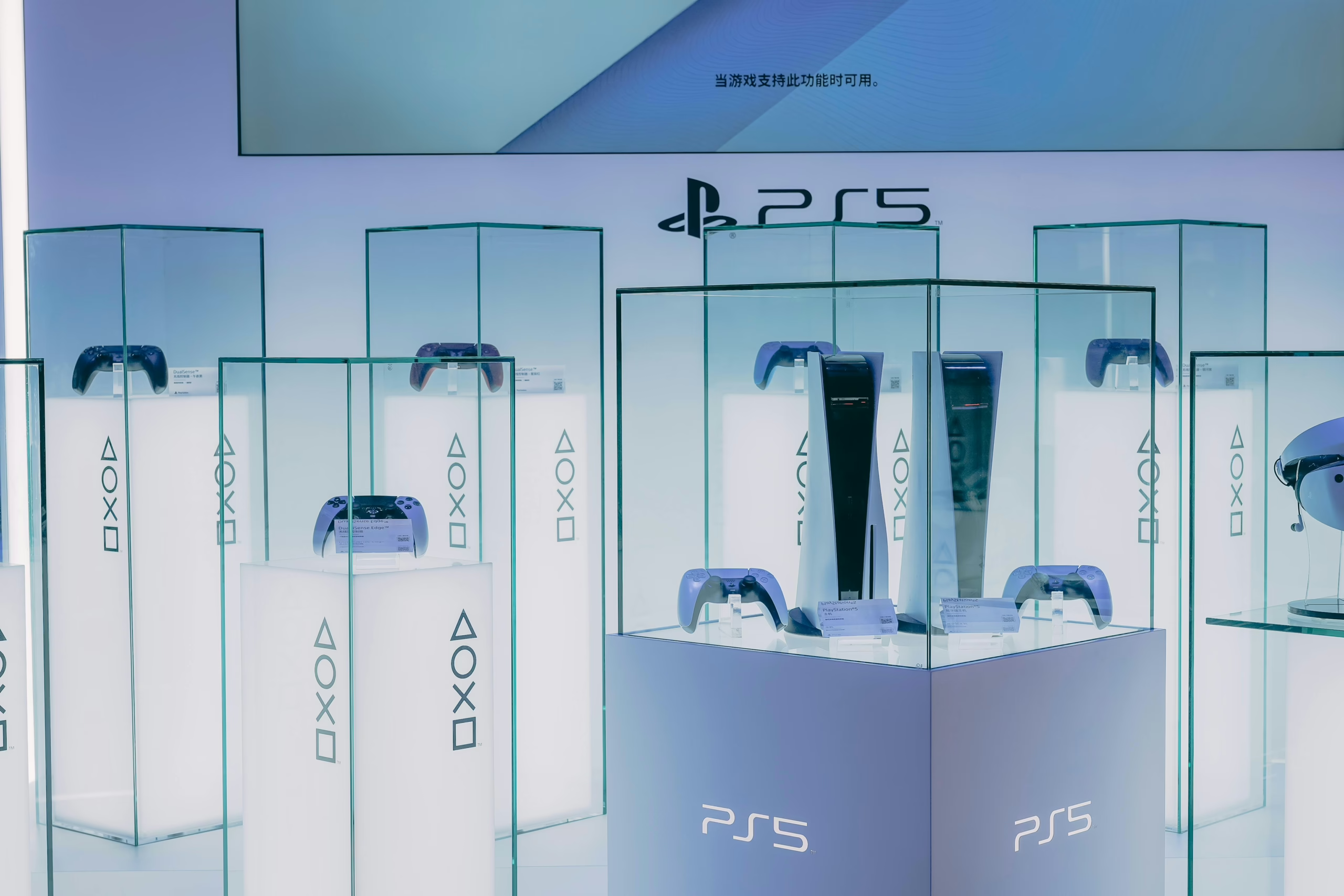
  • PS5 Error Code CE-108262-9: Why It Happens and What Actually Fixes It

    PS5 Error Code CE-108262-9: Why It Happens and What Actually Fixes It

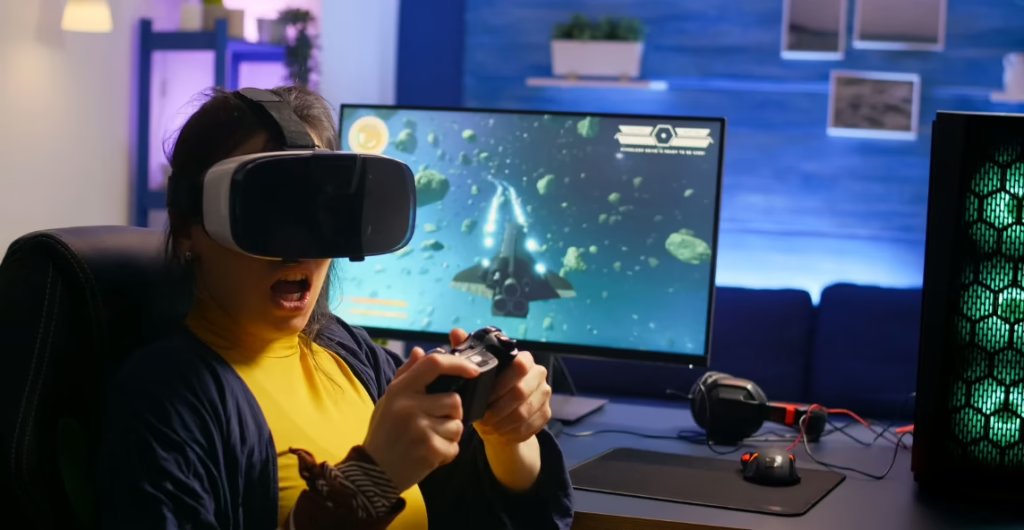
    One moment your game’s loading, the next – everything freezes. Then comes the message: “Something went wrong with the system software.” Error CE-108262-9 doesn’t explain much, but it shows up at the worst possible time, usually right after launching a PS5 game. Sometimes it’s just a one-off crash. Other times, it keeps happening until the game becomes unplayable.

    This issue isn’t always as dramatic as it seems, but it is persistent – and frustrating. It mostly points to software hiccups, broken update files, or corrupted game data. Occasionally, it’s something deeper. But most of the time, you can sort it out at home without sending your console off for repairs. Here’s how.

    What Is Error CE-108262-9 on PS5?

    Error CE-108262-9 usually shows up without warning – just a frozen screen, then a message about system software failure. Officially, it means “an error occurred while reading the system software or application data.” The console was unable to load something it needed – either from the system itself or the game you just launched. It often appears after a crash or freeze, especially with heavier PS5-native titles.

    What’s frustrating is how vague it feels. The console doesn’t tell you what failed, just that something went wrong and a report was sent. But underneath that message is usually one of a few culprits – corrupted data, unfinished installs, or a system cache that’s long overdue for a reset. It’s not always a sign of hardware damage. More often, it’s the result of routine digital clutter that builds up unnoticed – until the console finally pushes back.

    What Causes CE-108262-9?

    This error isn’t always about something breaking – it’s more often about something not syncing the way it should. When CE-108262-9 appears, it’s usually the result of one or more quiet malfunctions behind the scenes. Here’s where things tend to go off track:

    • Corrupted system software: A bad update, a half-finished install, or a glitch during startup can all leave the firmware in a weird state. It doesn’t always crash right away – but it will, eventually.
    • Damaged game or app files: If a specific title always crashes seconds after launch, chances are it’s the game’s local data that’s compromised, not the whole console. Reinstalling often clears it up.
    • Broken or overloaded cache: Your PS5 stores temporary data to speed things up. When that cache gets bloated or buggy, it can trip the system into errors like CE-108262-9. Clearing it is surprisingly effective.
    • Storage conflicts or SSD issues: More common than they seem especially with M.2 drives. Overheating, low space, or read errors can lead to data access problems and trigger CE-108262-9. The code points to system or app read failures, and SSD issues are a frequent cause.
    • Game-specific bugs: Some errors follow the game, not the console. A recent patch or corrupted save file might be all it takes to trigger the crash loop – especially in fast-loading PS5 titles.

    Each of these on its own might not be fatal. But when two or three stack up, that’s when CE-108262-9 tends to surface.

    Getting Rid of CE-108262-9: What Actually Works

    Fixing this error isn’t about finding a secret trick – it’s about cleaning up the parts of your PS5 that aren’t playing nice together. Sometimes it’s one step, sometimes it takes a few. Below is a straightforward walkthrough that’s helped many players get back to gaming without the crash-and-freeze routine.

    1. Update the System Software

    Before diving into anything more technical, check if your firmware is current. Outdated system files are a frequent trigger.

    • Go to Settings > System > System Software > System Software Update and Settings
    • If an update is available, download and install it
    • Restart the console after the update finishes

    It sounds basic, but half the time, this alone resolves it.

    2. Power Cycle the Console

    Think of this as a reset for your console’s short-term memory. It clears the cache without deleting any data.

    • Fully turn off your PS5 (not Rest Mode)
    • Unplug it from the wall
    • Wait at least 5 full minutes
    • Plug it back in and start it up fresh

    If your PS5 has been running hot or constantly left in Rest Mode, this helps more than you’d expect.

    3. Rebuild the Database in Safe Mode

    This step helps reorganize how your PS5 reads and indexes data – useful if crashes started after installing or updating a game.

    • Hold the power button until you hear a second beep to enter Safe Mode
    • Connect your controller via USB
    • Select “Clear Cache and Rebuild Database”
    • Then choose “Rebuild Database” from the submenu

    This scans and restructures the drive without deleting your saved data or installed games.

    4. Delete and Reinstall the Problem Game or App

    If the error only happens with one title, it may be that game’s files causing trouble.

    • Go to Settings > Storage
    • Select the game, then Delete
    • Reinstall from your library or disc

    For stubborn cases, also delete the game’s saved data (after backing it up, if you care about progress).

    5. Reinstall System Software via USB (Clean Slate)

    This is a deeper reset and should only be done if nothing else worked. It wipes the system clean and reinstalls everything from scratch.

    • Format a USB as FAT32 or exFAT
    • Create folders inside it: PS5 > UPDATE
    • Download the PS5UPDATE.PUP file from Sony’s official site
    • Save it inside the UPDATE folder
    • Plug the USB into your PS5 and boot into Safe Mode
    • Select Option 7: Reinstall System Software

    This deletes all local data. Back up what you can before doing this.

    6. Factory Reset (Last Resort)

    Still stuck? A full reset is the fallback plan before contacting support.

    • Go to Settings > System > System Software > Reset Options
    • Choose Reset Your Console

    Once done, re-download your games and sign in again.

    If none of this helps, it’s time to talk to PlayStation Support. But in most cases, one of these steps – especially database rebuild or clean reinstall – does the trick.

    Still Not Fixed? Contact PlayStation Support

    If you’ve tried everything – updates, safe mode, reinstalls – and CE-108262-9 is still showing up, it may be time to pass the baton. At that point, the issue could go deeper than anything user-facing: firmware corruption, SSD read faults, or internal hardware wear that needs hands-on inspection. Not ideal, but also not the end of the story.

    Sony’s support process is surprisingly methodical. You’ll start with a few diagnostics, either via chat or phone, and if needed, they’ll walk you through the repair submission. If your PS5 is still under warranty, you might only pay for shipping – if that. And even outside of warranty, getting a quote doesn’t lock you into anything. Sometimes, getting a second opinion from the people who built the system is the smartest move.

    How to Prevent CE-108262-9 From Happening Again

    No one wants to go through the same crash cycle twice. And while CE-108262-9 often arrives without warning, there are a few habits and maintenance steps that can quietly keep your PS5 running clean and stable. Think of it less like troubleshooting, more like giving your console room to breathe.

    1. Keep Your System Updated, Even When Everything Works

    Updates aren’t just about new features – they often patch quiet bugs you never saw coming. Letting the console auto-update is fine, but it’s worth checking manually every now and then, especially after installing a major game or system change.

    2. Rebuild the Database Periodically

    It’s easy to forget this option exists, but the database rebuild in Safe Mode is one of the PS5’s most useful tools. It reorganizes file paths, clears up invisible clutter, and smooths out performance – particularly after you’ve installed or removed a lot of content.

    Aim to run it once every couple of months, or after heavy use. It’s five minutes well spent.

    3. Avoid Filling the SSD to the Edge

    The PS5 handles storage well, but when space gets critically low, that’s when things start to misbehave – downloads hang, games crash, or cache errors sneak in. Try to keep at least 50-100GB free if possible. It’s less about exact numbers and more about giving the system enough headroom to operate cleanly.

    4. Shut It Down Properly – Sometimes

    Rest Mode is convenient, but when it’s the only state your console ever lives in, errors build up. Fully powering off your PS5 once in a while helps clear temporary files and resets internal processes. It’s the console equivalent of taking a deep breath.

    These aren’t magic fixes. But they quietly protect your system from the kind of wear that leads to errors like CE-108262-9. Think of it as upkeep – low-effort, high return.

    Why PS4 Games Still Work When PS5 Games Crash

    It’s a pattern a lot of users notice – but rarely expect. A PS5 title crashes five seconds after launch, yet a PS4 game runs without issue. Same console. Same hardware. So what gives?

    Here’s why older titles often slip through untouched while next-gen games trigger CE-108262-9:

    • PS4 games run in backward compatibility mode: When you launch a PS4 title on a PS5, it’s not tapping into the full power of the console. Instead, it uses a scaled-back environment designed for stability. That layer of separation can shield it from system-level bugs.
    • They rely on older, more stable libraries: PS4 games were built with years of patches behind them. The tools and architecture they use have been tested across millions of systems. PS5-native games, on the other hand, are still navigating a newer, more complex ecosystem.
    • Less stress on the SSD and RAM: Many PS5 games load assets at much higher speeds and volumes. If there’s any strain on the SSD – fragmentation, temperature spikes, data corruption – it’s the newer games that push into those limits first.
    • PS5 features introduce more failure points: Instant loading, ray tracing, haptic feedback, and activity cards all depend on deeper integration with the console’s OS. If one part of that chain falters, it’s often the newer titles that stumble, not the PS4 ones running in a leaner state.

    Should You Consider Sending Your PS5 for Repair?

    If you’ve rebuilt the database, reinstalled system software, wiped everything clean – and the CE-108262-9 error still shows up like clockwork – it’s probably time to stop troubleshooting and start asking different questions. Sometimes the issue isn’t something you can solve with settings and Safe Mode. Sometimes, it’s the hardware itself quietly telling you it needs help.

    Persistent crashes that happen even in the menus, games freezing before they fully launch, or your console randomly restarting without prompt – those are red flags. And while no one loves the idea of packing up their PS5 and shipping it out, Sony’s repair service is structured, predictable, and often faster than expected. If your system is under warranty, the process is mostly painless. Even if it’s not, getting a professional assessment can spare you the cycle of repeat errors and second-guessing. When a reset stops being a solution and starts feeling like a ritual, it’s worth letting someone else take a closer look.

    Conclusion

    CE-108262-9 isn’t the most dramatic error the PS5 can throw at you, but it’s one of the most persistent. It doesn’t break your system – it just quietly gets in the way, over and over, until you start to second-guess everything you launch. The good news is that in most cases, it’s fixable without sending your console off or starting from scratch. A few key resets, some file cleanup, maybe a system reinstall, and you’re back in the game.

    But if you’ve gone through the steps and the issue keeps circling back, don’t force it. At some point, it’s better to stop patching symptoms and let a technician dig into the root. Because gaming isn’t supposed to be this technical. It’s supposed to work. And when it doesn’t, the fix should feel like progress – not a loop.

    FAQ

    Does CE-108262-9 mean my PS5 is dying?

    Not necessarily. The error points to a system-level issue, but it’s usually software-related. Most consoles that throw this error are still physically fine – they just need some cleanup.

    Why does it only happen with certain games?

    CE-108262-9 often targets PS5-native titles because they access newer system features and load data more aggressively. PS4 games tend to be more stable since they run in a controlled compatibility mode.

    Will rebuilding the database delete my saved data?

    No. Rebuilding the database is safe – it reorganizes system files but doesn’t touch your saves, settings, or installed games.

    Can bad Wi-Fi cause this error?

    Not directly, but a failed or corrupted update caused by a weak connection can leave your system in a buggy state. That’s why wired updates or USB installs are often more reliable.

    Is it worth doing a factory reset?

    If you’ve already tried software updates, cache clearing, and database rebuilds and you’re still hitting the same wall – a factory reset can wipe out the deeper problems. Just be sure to back up anything important.

  • LiftMaster Error Code 4-6: What It Means and How to Get Your Door Working Again

    LiftMaster Error Code 4-6: What It Means and How to Get Your Door Working Again

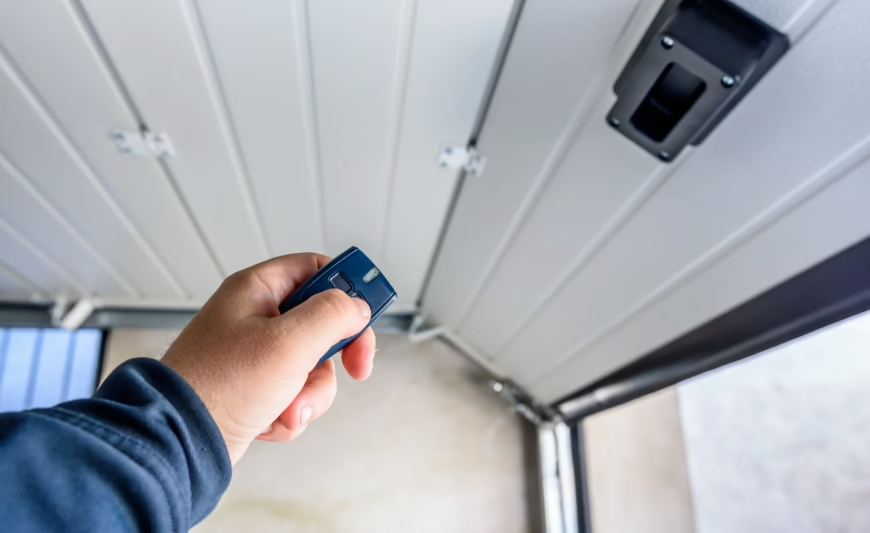
    The garage door stops halfway, blinks its lights like it’s trying to warn you, and then nothing. No movement. No progress. Just an error code 4-6 staring back from the LiftMaster unit. If you’ve hit that wall, you’re not alone. This one’s surprisingly common, but also fixable once you know what it’s really trying to tell you. 

    Before you start guessing or swapping out parts that don’t need replacing, let’s walk through what this error actually means, why it happens, and what usually solves it. Whether you’re dealing with a home garage or a commercial setup, a misaligned sensor shouldn’t bring everything to a halt. Let’s get you back up and running.

    Understanding the Message Behind Error Code 4-6

    Error code 4-6 on LiftMaster openers (UP LED flashes 4 times, DOWN LED flashes 6 times) specifically means “safety sensors momentarily obstructed” – not a mechanical failure, but a temporary interruption of the infrared beam between the sensors. This can happen due to misalignment, a small object blocking the path, dirty lenses, harsh sunlight, or loose wiring. If the sensors can’t see each other clearly even for a moment, the system stops the door from closing as a safety precaution.

    Think of it less like a malfunction and more like a quiet refusal. The opener is doing its job, preventing movement until it can confirm everything’s clear. That could mean a sensor got bumped out of place, a wire came loose, or even that dust and sunlight are interfering with the signal. The good news is that once you understand what the error is really saying, the path to fixing it becomes a lot less frustrating – and far less mysterious.

    Why Error 4-6 Happens: A Closer Look at the Causes

    This error doesn’t come out of nowhere. It’s a reaction – a signal that something in the system has drifted just far enough off course to trigger a stop. These are the most common reasons it appears, each with its own subtle fingerprint.

    Misalignment of Safety Sensors

    The most frequent cause is also the easiest to miss. The two photo sensors near the bottom of your garage door are meant to stay perfectly aligned, facing each other like a pair of eyes. If one shifts – even slightly – the connection is broken. A bumped bracket, uneven mounting, or vibration from regular use can all throw them off. The opener sees this as a safety risk, and stops the door in its tracks.

    Dust, Sunlight, or Lens Obstruction

    Even if the sensors haven’t moved, their view can still be interrupted. A buildup of dirt, spider webs, or even a harsh beam of sunlight can interfere with the beam they send between them. In many cases, a soft cloth and a quick clean is enough to restore the connection – but it’s one of those details most people overlook until the problem starts repeating.

    Loose Wiring or Poor Contact

    Sometimes the issue is tucked behind the scenes. Wires feeding into the sensor units can become loose over time, especially if they weren’t fully secured to begin with. Age, moisture, or temperature changes can also affect how reliably that signal moves through the system. A connection that flickers off, even for a second, can be enough to prompt the 4-6 error.

    External Electrical or Power Disruption

    Less common but still worth noting – a surge, tripped circuit, or brief power loss doesn’t directly trigger error code 4-6. That code only appears if a safety sensor issue (like obstruction or misalignment) is still present after power returns. The opener may blink or act unresponsive during a power event, but 4-6 itself points strictly to sensor interference.

    Each of these issues can trigger the same code, but the fix depends on reading the signs carefully. Sometimes it’s just a speck of dust. Other times, it’s a deeper wiring issue hiding just out of sight.

    Step by Step: How to Reset the Connection and Clear Error 4-6

    There’s a moment when the door just stops responding – and all you want is a calm, clear path forward. If error 4-6 has appeared, and you suspect it’s related to the sensors, there’s a good chance you can fix it yourself with a few deliberate steps. No tools, no rush – just observation and a little patience.

    1. Realign the Sensors

    Start by checking if the two photo sensors are facing each other cleanly. One slight bump is all it takes to misalign them.

    What to do:

    • Locate the sensors near the base of the door rails.
    • Look for indicator lights on both units – they should both be solid, not blinking.
    • Gently adjust them if needed.
    • Use a level if you have one. Precision helps more than force here.
    • Once both lights are steady, try operating the door again.

    2. Clean the Lenses

    Sometimes the problem isn’t mechanical – it’s environmental. Dust, moisture, or even a cobweb can interfere with the sensor beam.

    What to do:

    • Use a soft cloth to wipe the lenses on both sensors.
    • Avoid using chemicals or sprays – just a dry microfiber cloth.
    • Check again for solid lights after cleaning.

    3. Check the Wiring and Connections

    The wire running to each sensor can loosen or wear over time, especially if it’s been exposed to weather or movement.

    What to do:

    • Trace the wire from each sensor back toward the opener.
    • Look for obvious damage: fraying, bite marks, bent pins.
    • Gently test the connection where the wire meets the sensor.
    • If something feels loose, reseat it. If something looks broken, stop here and call a technician.

    4. Reset the Opener

    If everything looks right but the error remains, the unit may need a moment to clear its memory.

    What to do:

    • Unplug the garage door opener from the power source.
    • Wait at least 30 seconds.
    • Plug it back in and try opening or closing the door again.

    Sometimes, that’s all it takes. You don’t need to force it. These systems are designed to err on the side of caution – your job is just to guide them back into alignment. And if the error persists, that’s not a failure. It’s just a sign that the issue runs deeper, and it might be time for a professional to step in.

    How to Tell a Minor Issue from a Serious Fault

    There’s a fine line between a harmless glitch and a mechanical failure. One just needs a cloth and a steady hand. The other might call for tools, time, or a specialist. Here’s how to spot the difference without overreacting – or overlooking something important.

    Signs You’re Dealing with a Minor Disruption

    When the system still responds – even inconsistently – it’s often a signal that the core components are intact. What’s failing is usually peripheral: a dirty lens, a subtle misalignment, or an environmental hiccup.

    • The door sometimes responds after cleaning or light realignment
    • Sensor lights are on but flickering
    • The issue began after physical movement near the sensors
    • A full reset temporarily restores function
    • No grinding, straining, or unusual sounds from the opener

    Clues That Point to a Deeper Technical Problem

    Persistent failure, electrical silence, or visible damage are rarely casual. If the unit seems disconnected from its own hardware – or if attempts to troubleshoot don’t change anything – you’re likely looking at something more internal.

    • One or both sensor LEDs are completely off, even after cleaning
    • Wires appear frayed, pinched, or tampered with
    • The door makes harsh noises or stalls mid-movement
    • Nothing improves after completing basic fixes

    The difference isn’t always dramatic. But if the opener feels unresponsive despite clean lenses, aligned sensors, and a working outlet – the issue probably goes beyond what surface checks can solve. At that point, it’s less about “trying one more thing” and more about preventing lasting damage.

    Why Error 4-6 Demands Attention in Commercial Spaces

    In a private garage, error 4-6 is an inconvenience. In a business setting, it’s a bottleneck. The difference isn’t just scale – it’s cost, liability, and operational flow. When a commercial door stops mid-cycle because the sensors can’t connect, the impact reaches further than the entryway. Deliveries are delayed. Staff are locked out. Security is compromised.

    The opener doesn’t know if it’s guarding a logistics hub or a side gate – it simply stops when the risk feels uncertain. But for a warehouse, a storefront, or a distribution center, even a one-hour delay can have ripple effects. Customers wait. Schedules slip. And in the worst case, a workaround leads to a safety issue – someone forcing a door, bypassing a sensor, or exposing equipment.

    What makes error 4-6 particularly tricky is its appearance: no visible break, no loud malfunction, just a blinking light and a refusal to move. That quiet kind of failure is easy to underestimate – until it interrupts the rhythm of your business. That’s why many facility managers treat it not as a technical error, but as a signal to act immediately.

    When It’s Time to Call a Specialist

    Some problems make themselves small – until they don’t. Error 4-6 often starts as a subtle disruption. But when it resists quick fixes or begins affecting daily routines, professional help isn’t a luxury – it’s a safeguard.

    1. When Nothing Changes After Basic Fixes

    If you’ve realigned the sensors, cleaned the lenses, checked the wiring, and performed a reset – and the error still returns – the issue likely lives deeper in the system. This isn’t uncommon. Internal components like the logic board or power relay may be malfunctioning in ways that surface checks can’t uncover.

    At that point, continuing to troubleshoot blind becomes counterproductive. A specialist can diagnose with precision – not guesswork.

    2. When There’s a Safety Risk

    Commercial garage doors are heavy. Residential ones are fast. In both cases, forcing a door to move when the sensors aren’t responding properly creates risk – for people, property, and the opener itself. If the door jerks, stutters, or reverses unexpectedly, stepping back and calling a technician is the safest decision you can make.

    3. When Time Matters More Than the Fix

    In business settings, the clock moves differently. A stuck door might mean lost deliveries, delayed operations, or compromised access. If the fix needs to be fast, precise, and final – bringing in someone trained to handle the full system removes the guesswork and restores flow. Quickly, and without second-guessing.

    Knowing when to step away isn’t a failure of knowledge. It’s a decision to protect what matters – your time, your team, and your equipment. Sometimes, the smartest fix is the one you don’t try to do alone.

    What You Might Pay to Fix Error 4-6

    The cost of resolving a LiftMaster 4-6 error usually depends on the underlying cause and the level of intervention required:

    • Basic sensor realignment or cleaning: Often handled during a routine service visit, with typical costs ranging from $80 to $150.
    • Repair or replacement of sensor wiring: Includes diagnostics and component work, usually falling between $150 and $250.
    • Emergency or after-hours commercial service: Pricing varies based on response time, location, and service provider.

    In most situations, the repair itself is manageable. What tends to increase the expense is hesitation. Addressed early, error 4-6 is rarely dramatic. Ignored, it has a habit of becoming far more involved than it needs to be.

    Keeping the System Aligned Long After the Error Clears

    Most LiftMaster 4-6 errors don’t come from sudden damage – they build slowly, through small shifts and subtle wear. A sensor bracket loosens slightly. Dust settles unnoticed. A cable pulls just enough over time to strain the signal. These are not dramatic failures. They’re quiet ones. But the result is the same: a system that no longer trusts its own movement.

    Preventing this kind of disruption starts with observation, not urgency. Make it a habit to glance at the sensors every so often – are they steady, level, clean? After a storm, a deep clean, or any adjustment near the tracks, take a moment to confirm nothing shifted. For businesses, a seasonal tune-up does more than maintain motion – it protects continuity. And in both homes and warehouses, small attention paid now usually prevents downtime later.

    Conclusion

    Error 4-6 isn’t catastrophic. It’s the system doing exactly what it was designed to do – stopping when the line of trust between the sensors is broken. In that sense, the error is less a failure and more a pause for safety. Sometimes all it needs is a cloth and a steady hand. Other times, a closer look reveals something more structural. But it always has a reason. And it always has a path forward.

    If your LiftMaster opener keeps showing 4-6, don’t rush it, and don’t ignore it. Start with the details – alignment, connection, balance. If the problem holds on, let someone trained take the lead. Most importantly, remember that this isn’t just about function. It’s about how systems are built to protect what moves – and everyone around it.

    FAQ

    What exactly does Error 4-6 mean?

    It’s a sensor communication issue. The opener has stopped because it can’t confirm a clear signal between the two safety sensors near the bottom of the door. It’s a protective feature, not a mechanical fault.

    Can I temporarily bypass the sensors to close the door?

    Technically, yes. But it’s strongly discouraged. The sensors are there to prevent the door from closing on a person, vehicle, or object. Bypassing them removes that safeguard entirely.

    Will a power outage cause this error?

    Not directly. But a sudden loss or spike in power can sometimes reset the opener’s logic, especially in older units. If the sensors were already borderline in alignment, the reset may surface the issue more clearly.

    How long does it take to fix Error 4-6?

    In most cases, just a few minutes – if it’s sensor alignment or debris. If it’s wiring or internal, it depends on access and the parts needed. The key is diagnosing it correctly before assuming it’s a quick job.

    What if the sensors look fine but the error won’t clear?

    It’s possible the issue is in the wiring or logic board, not the sensors themselves. That’s usually the point where a technician should step in.

  • GeForce Experience Error Code 0x0003: Real Fixes That Work

    GeForce Experience Error Code 0x0003: Real Fixes That Work

    GeForce Experience is supposed to make your gaming life easier. Auto driver updates, game optimizations, one-click recording – it’s all there to help things run smoother. But when it breaks, it really breaks. If you’re staring at error code 0x0003, you already know the drill: the app won’t open, and all you get is a vague message telling you something went wrong.

    This guide isn’t going to throw 10 copy-pasted fixes at you. Instead, we’re going to walk through the real reasons this error shows up, what it actually means behind the scenes, and the specific fixes that have helped real users (not just the ones floating around support forums with no context). Let’s get into it.

    What Is GeForce Experience Error Code 0x0003?

    Error 0x0003 pops up when the GeForce Experience app refuses to launch properly. It’s usually accompanied by a vague message like “Something went wrong,” without any useful explanation. But behind that simple line is a deeper problem with how the app is trying (and failing) to run on your system.

    It’s important to note: Error code 0x0003 does not mean your GPU hardware is damaged. This error typically indicates issues with NVIDIA drivers or required NVIDIA services not running properly, preventing GeForce Experience from launching. 

    What Causes It?

    This error code isn’t random. It typically points to something interfering with how GeForce Experience launches or runs. Based on real-world reports, here are the most common causes:

    • Required NVIDIA services aren’t running: If key background services like NVIDIA Display Container LS or NetworkService Container are stopped or not set to launch automatically, the app may fail to open.
    • Corrupted or outdated driver installations: Incomplete updates or leftover files from old drivers can cause software conflicts that break the app.
    • Network configuration issues: VPNs, firewalls, or system-level network changes can corrupt the Winsock catalog, which sometimes affects NVIDIA’s network-based services.
    • Restricted telemetry service access: If the NVIDIA Telemetry Container isn’t allowed to interact with the desktop, it may silently fail and block the app from working.
    • Damaged temporary cache files: While less common, corrupted cache data in folders like DXCache or GLCache can interfere with the launch process.

    So even though the error message doesn’t say much, the root causes are usually trackable – and fixable.

    The Real-World Impact of the Error

    If you don’t use GeForce Experience, you might never notice this. But for many gamers, it’s become an important part of the setup. 

    When 0x0003 occurs, GeForce Experience may fail to launch, preventing access to its features like automatic driver updates, game optimizations, recording tools, and overlays. However, the GPU itself and some driver functions may still operate normally outside of the app.

    Once this app breaks, updating drivers or using features like NVIDIA ShadowPlay becomes a manual process again. That’s why fixing it matters.

    Let’s Fix It: A Clear Step-by-Step Breakdown

    Instead of listing every possible fix at once, let’s walk through the most common scenarios. Each fix solves a particular cause. You don’t need to do them all in order, but it helps to start from the top and work down if you’re not sure what’s wrong yet.

    1. Restart NVIDIA Services (It’s Not Just Turning It Off and On)

    Sometimes the background services that GeForce Experience relies on just stop working properly. You might not even notice until the app refuses to open.

    How to restart NVIDIA services:

    1. Press Win + R, type services.msc, and press Enter.
    2. In the Services window, scroll down and find the following services: NVIDIA Display Container LS, NVIDIA LocalSystem Container, NVIDIA NetworkService Container, NVIDIA Telemetry Container (if listed).
    3. For each one, right-click and select Restart. If the option is grayed out, choose Start instead.
    4. After restarting all services, close the window and try launching GeForce Experience again.

    This alone fixes it for a surprising number of users.

    2. Give Telemetry Permission to Interact with the Desktop

    Telemetry sounds scary, but in this case, it just refers to NVIDIA’s internal service that helps the app communicate with Windows. If it can’t interact with your desktop, it may silently block the whole thing.

    How to enable it:

    1. Open the Services window again (services.msc).
    2. Find NVIDIA Telemetry Container and right-click to open Properties.
    3. Go to the Log On tab.
    4. Check Local System account, and enable Allow service to interact with desktop.
    5. Hit Apply, close everything, and reboot.

    Yes, it’s obscure. But yes, it helps.

    3. Reset Your Network Settings (Especially if You’ve Had VPNs or Firewalls)

    GeForce Experience needs a working network to check for updates, log into your NVIDIA account, and sync data. If your Winsock catalog is corrupted (which happens more than you think), that alone can break the app.

    Here’s what to do:

    1. Open Command Prompt as admin. Type netsh winsock reset.
    2. Hit Enter.
    3. Restart your PC.

    This resets your network socket back to default without wiping your Wi-Fi settings or saved connections. It’s safe, and it’s often a cure when nothing else is working.

    4. Fully Reinstall All NVIDIA Components

    If your drivers have been installed over multiple versions or updates, they can end up broken or mismatched. A clean uninstall and reinstall wipes out the mess and starts fresh.

    You can do this manually or use a tool like Display Driver Uninstaller (DDU) in Safe Mode. But here’s the regular method:

    1. Press Win + R, type appwiz.cpl, and press Enter.
    2. Perform a clean reinstallation of NVIDIA components by uninstalling GeForce Experience and GPU drivers.
    3. Reboot your computer.
    4. Download the latest drivers from NVIDIA’s official site.
    5. Also reinstall GeForce Experience from scratch.

    After everything’s reinstalled, open the app. If there were file conflicts or old registry entries causing issues, this usually clears them out.

    5. Clear Out Temporary NVIDIA Cache Files

    Old cache files aren’t usually the culprit, but they can interfere if they’re corrupted. It’s a low-effort fix that’s worth trying if nothing else has worked yet.

    Steps:

    1. Press Win + R and type %localappdata%.
    2. Find the NVIDIA folder.
    3. Open the DXCache, GLCache, and NV_Cache folders inside it.
    4. Delete everything inside those folders.
    5. Restart your PC.

    You’re not deleting anything critical, just cache data. GeForce will rebuild these folders as needed.

    Why Does This Happen in the First Place?

    Understanding why this error pops up helps you avoid it in the future. Here are the usual suspects:

    • Driver leftovers after updates: Sometimes older driver components don’t uninstall properly, and they clash with newer ones.
    • Telemetry permissions being disabled: Either by user tweaks or security tools, this can block the app from functioning normally.
    • Windows services failing quietly: These can stop running after a system update or crash without throwing a visible error.
    • Broken Winsock stack: Especially common if you use VPNs, custom firewalls, or have recently changed network settings.
    • Corrupt temp files or failed installations: If a past install didn’t complete properly, remnants may stick around and cause trouble later.

    Extra Tips Before You Think It’s Hopeless

    If you’ve already tried the main fixes and GeForce Experience is still throwing error 0x0003 at you, don’t toss your PC out the window just yet. A few smaller details often get overlooked, and they can make the difference between a broken app and a working one. These quick checks are easy to do and worth your time before calling it quits.

    Reboot After Big Changes

    Reinstalling drivers, editing system settings, or restarting services without rebooting is like replacing parts in a machine while it’s still running. You won’t always see the impact right away. Always restart your PC after major changes, especially after reinstalling NVIDIA software or editing services.

    Get Drivers From the Right Place

    Avoid downloading drivers from third-party websites or those all-in-one update tools that claim to do everything. If you’re on a laptop, go to your laptop brand’s support page and get the official NVIDIA driver made for your exact model. If you’re on a desktop, download the latest drivers directly from NVIDIA’s own site. Anything else is rolling the dice.

    Don’t Use “Smart” Driver Updaters

    Those automatic driver update apps might look convenient, but they often miss the mark. They tend to install generic drivers that don’t include all the background components GeForce Experience needs. Worse, they might install incompatible versions that only create more issues. Stick with manual downloads – they’re safer and more reliable.

    Quick Checklist: Fixing GeForce Experience Error Code 0x0003

    Here’s a summarized version for anyone who just wants the action plan:

    • Restart all NVIDIA-related services.
    • Make sure NVIDIA Telemetry can interact with the desktop.
    • Reset your network adapter with netsh winsock reset.
    • Fully uninstall and reinstall all NVIDIA software.
    • Clear out NVIDIA cache files in %localappdata%.
    • Reboot between each major change.

    If none of this works, there’s one last fallback: create a new Windows user profile. In very rare cases, broken user-level permissions can block NVIDIA apps. A clean profile can sometimes bypass the issue.

    Final Thoughts

    The 0x0003 error might look cryptic, but it’s not a death sentence for your GPU or your system. It’s just NVIDIA’s way of saying, “something under the hood isn’t right.” Once you know where to look, the fixes are usually simple, even if they take a few restarts and a bit of patience.

    If you’ve been stuck with this for days, hopefully this breakdown gives you a clear way out without wasting time on guesswork. And if GeForce Experience still won’t budge after all this, you’re not alone, and you’re not out of options.

    FAQ

    Is error code 0x0003 a hardware problem with my GPU?

    Not usually. This error has more to do with the software around your GPU than the hardware itself. Your graphics card is probably fine. What’s more likely is that one of NVIDIA’s services isn’t running right, or a recent driver update didn’t fully install.

    Can I just uninstall GeForce Experience and forget about it?

    You can, technically. Your PC will still run games, and you can update drivers manually through NVIDIA’s website. But you’ll lose features like instant replay, recording, one-click optimizations, and auto driver updates. If you use those tools, it’s worth fixing the issue instead of skipping the app.

    What if I’ve tried all the fixes and it still won’t work?

    At that point, check if the problem is tied to your Windows user profile. Try creating a new user account on your PC and installing GeForce Experience there. It sounds like overkill, but corrupt user settings can sometimes block services even when everything else looks fine.

    Will resetting Winsock mess up my internet?

    Nope. The netsh winsock reset command just restores your network stack to its default state. It won’t delete your Wi-Fi networks, passwords, or change your IP settings. It’s safe, and it’s helped a lot of users clear this exact error.

    Why do NVIDIA services stop working in the background?

    A few reasons. Windows updates can quietly disable or delay services. Antivirus tools sometimes interfere too. And honestly, sometimes things just crash without warning. That’s why restarting those services is such a common and effective first step.

  • How to Fix Windows Error Code 0x80070490 Without the Stress

    How to Fix Windows Error Code 0x80070490 Without the Stress

    Windows updates aren’t exactly famous for going smoothly. One minute you’re installing something routine, the next you’re staring at a cryptic error like 0x80070490. No warning, no context, just an update that fails and leaves you wondering what went wrong.

    This error doesn’t always mean something is seriously broken. In fact, most of the time, it’s linked to update conflicts, damaged files, or driver issues that Windows just doesn’t handle very gracefully. The good news? You don’t have to call in IT support or wipe your machine to deal with it. 

    We’ll walk through what this code means, why it shows up, and how you can fix it using simple, clear steps – no tech jargon, no guesswork.

    What Is Error Code 0x80070490?

    The short version: it’s a Windows Update failure, often tied to driver-related issues or corrupted update files. But it can also involve registry errors, malformed configuration files, or missing system components.

    In most cases, this error comes with no clear explanation. The update fails, the system rolls back, and you’re left guessing. What sets 0x80070490 apart from other update errors is how frequently it appears during major Windows feature upgrades, monthly rollup updates, servicing stack updates (SSUs), and general Windows patch installations.

    Common Triggers for 0x80070490

    This error doesn’t always stem from the same issue. Below are the most common reasons it might appear:

    • Pending updates interfering with new ones.
    • Corrupted or missing driver files.
    • Registry keys left behind by failed installations.
    • Broken or incomplete SetupConfig.ini files.
    • Issues in the Component-Based Servicing (CBS) stack.
    • Conflicts from previous update attempts.

    Symptoms: How the Error Manifests

    You’ll typically notice one of these behaviors:

    • The update seems to install, then fails midway and rolls back.
    • Windows Update shows “Install pending” or “Retry” next to the failed patch.
    • Windows logs display repeated 0x80070490 entries in CBS or Setup logs.
    • The update installer (e.g. WindowsUpdateBox.exe) exits with this error code.

    Fixes Based on the Scenario

    Windows 0x80070490 can appear in a few different contexts, and the fix depends on which type of update is failing. Below are targeted solutions based on real symptoms seen in Microsoft’s official guidance.

    1. If the Update Is Stuck in “Pending” State

    Sometimes a failed driver operation gets stuck and blocks the rest of the update chain. You’ll usually find entries like this in the CBS.log file:

    Failed reading Identity for driver operation sequenceID 1 [HRESULT = 0x80070490 – ERROR_NOT_FOUND]

    What to do:

    • Open Registry Editor. Navigate to
      HKEY_LOCAL_MACHINE\SOFTWARE\Microsoft\Windows\CurrentVersion\Component Based Servicing\DriverOperations\1
    • Right-click on the 1 key and delete it. Then run this command in an elevated Command Prompt
      sc config trustedinstaller start=auto
    • Restart the computer and try the update again from Windows Update.

    2. If the Servicing Stack Update (SSU) Is Failing

    Servicing Stack Updates are required before other updates can be installed. If the SSU itself fails, other updates may get stuck behind it.

    What to do:

    • Check the CBS.log file to confirm errors like
      Failed loading driver operations queue [HRESULT = 0x80070490 – ERROR_NOT_FOUND]
    • Open Registry Editor.
    • Go to
      HKEY_LOCAL_MACHINE\SOFTWARE\Microsoft\Windows\CurrentVersion\Component Based Servicing\DriverOperations\0
    • Export the key as a backup, then delete the 0 key – only if CBS.log confirms it’s causing the error.
    • Download the latest Servicing Stack Update (SSU) from the Microsoft Update Catalog.
    • Install the SSU, reboot the system, and retry the updates.

    3. If Feature Updates Are Not Installing

    Feature updates (like version upgrades) may fail with error 0x80070490 if the SetupConfig.ini file is missing, malformed, or improperly configured.

    What to do:

    • Check if the following file exists
      C:\Users\Default\AppData\Local\Microsoft\Windows\WSUS\SetupConfig.ini
    • If it’s present and either empty or misconfigured, remove it or insert the following valid line
      ShowOOBE=None
    • Make sure there are no spaces before or after the equals sign.
    • Save the file and retry the upgrade via Windows Update or ISO.

    4. If Cumulative Updates Fail

    Cumulative updates may return 0x80070490 (often alongside 0x8e5e03fa) and fail during installation or rollback unexpectedly.

    What to do?

    Open Command Prompt as administrator, then run:

    DISM /Online /Cleanup-Image /RestoreHealth

    SFC /Scannow

    Then reset the update components:

    net stop cryptsvc

    md %systemroot%\system32\catroot2.old

    xcopy %systemroot%\system32\catroot2 %systemroot%\system32\catroot2.old /s

    del %systemroot%\system32\catroot2\* /q /f

    net start cryptsvc

    net stop wuauserv

    ren %systemroot%\SoftwareDistribution SoftwareDistribution.old

    net start wuauserv

    Reboot and attempt the update again.

    5. If Monthly Rollups Fail (Especially on Older Servers)

    On older systems like Windows Server 2012 R2, rollup updates can fail due to missing or corrupted driver files required during servicing.

    What to do:

    • Manually create the missing driver folder:
      C:\Windows\System32\DriverStore\FileRepository\wvms_pp.inf_amd64_81d18de8dedd4cc4
    • Then copy all .inf files from this source directory (adjust path for your system):
      C:\Windows\WinSxS\amd64_wvms_pp.inf_*
    • Open Command Prompt and load the driver hive if needed:
      reg load HKLM\DriverHive C:\Windows\System32\Config\DRIVERS
    • Then verify the driver is properly registered by checking this registry path:
      HKEY_LOCAL_MACHINE\DriverHive\DriverDatabase\DriverInfFiles\wvms_pp.inf
    • Don’t forget to unload the hive when finished:
      reg unload HKLM\DriverHive

    Additional Tips Before You Try Again

    Sometimes, the fix is about doing the basics right. Before diving into deeper troubleshooting, make sure you’ve taken these smart precautions.

    Back Up First, Always

    Before editing the registry or changing system folders, back up your system. Even experienced users can make a mistake, and having a restore point or system image means you’re not stuck if something unexpected breaks. It’s a quick step that can save hours of recovery time later.

    Use Azure’s Built-In Backup (If Applicable)

    If you’re working on a Windows Server or machine in Azure, take advantage of the snapshot feature. You can back up the entire VM directly from the Azure portal before making any changes. If anything goes wrong, rolling back is fast and painless.

    Reboot Before You Retry

    Run updates after a fresh reboot. It might seem obvious, but it matters. Some background processes from previous update attempts or software conflicts can quietly interfere. Starting clean gives Windows the best shot at getting through the update without issues.

    Don’t Multitask During the Update

    Avoid running heavy apps or tools while installing updates. It’s not always the cause of failure, but it can lead to slowdowns or memory conflicts that get in the way. Let the update do its thing without distractions.

    Try the Microsoft Update Catalog

    If you’ve tried everything and Windows Update still fails, go manual. Head to the Microsoft Update Catalog, search for the KB number of the update you need, and download the standalone installer. It’s a direct way to apply the patch without relying on Windows Update.

    When to Involve Support

    If you’ve already tried:

    • Resetting update components
    • Running DISM and SFC
    • Registry edits or file replacements,

    …and you’re still stuck, it might be time to contact Microsoft support or escalate via WSUS (if you’re in an enterprise environment). Make sure you include logs from:

    • CBS.log
    • WindowsUpdate.log
    • Setupact.log

    Quick Recap: Fix Checklist

    If you’ve made it this far, you’ve seen how many different things can trigger error 0x80070490. To make things easier, here’s a no-fluff checklist of the main fixes we covered. You don’t have to try every single one, but this list gives you a clear order to work through based on the symptoms you’re seeing:

    • Remove stale driver operations from the registry.
    • Repair SSU with a fresh install.
    • Edit or remove SetupConfig.ini.
    • Run DISM and SFC tools.
    • Reset Catroot2 and SoftwareDistribution.
    • Restore missing driver files (if needed).
    • Try manual installation from Microsoft Update Catalog.

    Tackle them one at a time, check for progress after each step, and don’t rush. Fixing update errors can be a bit of a process, but most people don’t need to go beyond this list.

    Final Thoughts

    The 0x80070490 error is annoying, yes, but it’s not permanent. It’s a symptom of a deeper conflict inside Windows Update’s dependency chain. Whether it’s a driver file that’s missing, a registry key that’s blocking progress, or a corrupted config file, the fix is usually well within reach once you know where to look.

    You don’t need advanced tools or expensive software. Most of the time, solving it just takes a bit of patience and knowing which part of the update process to check first.

    FAQ

    What does Windows error code 0x80070490 actually mean?

    It usually means something went wrong during a Windows update, often related to drivers or corrupted update files. It doesn’t necessarily point to one specific issue, which is why it’s so frustrating. Think of it more like a generic “update failed” flag, and less like a precise diagnosis.

    Can I fix error 0x80070490 without using third-party software?

    Yes, absolutely. Everything you need is already built into Windows. Most fixes involve using tools like Command Prompt, checking the registry, or adjusting system files. You don’t need to download anything sketchy or pay for a repair tool.

    Is it safe to delete registry keys as part of the fix?

    It’s safe if you know exactly which key to remove and why. In this case, Microsoft’s own documentation recommends deleting specific DriverOperations keys that are left behind after failed updates. Just make sure to export a backup of any registry folder before making changes.

    I ran DISM and SFC, but the error is still there. Now what?

    If DISM and SFC didn’t clear it up, it usually means there’s a deeper issue, like a broken configuration file or missing driver reference. At that point, go one layer deeper: check for an invalid SetupConfig.ini file, or reset the Windows Update components manually. Those fixes often do the trick when the basic repair tools don’t.

    Do I need to reinstall Windows if I keep getting this error?

    Not unless everything else fails. Reinstalling Windows is kind of the nuclear option, and in most cases, not necessary. Try every targeted fix first – removing stale registry entries, fixing corrupted system files, and resetting update folders. Most people get the issue resolved long before needing a full reinstall.

    How do I know which type of update is failing?

    You can usually tell by where the error appears. If it’s during a feature update, the setup tool will crash and show the code. If it’s a monthly patch, you’ll see “failed” or “install pending” in Windows Update history. You can also check CBS.log or WindowsUpdate.log for more detailed clues.

  • LE Error Code on LG Washing Machine: A Straightforward Guide

    LE Error Code on LG Washing Machine: A Straightforward Guide

    Your laundry cycle suddenly stops, the screen flashes “LE,” and the drum won’t spin. Great. Another cryptic code from an appliance that’s supposed to make life easier. But don’t worry just yet. The LE error on an LG washer isn’t as mysterious as it seems. It usually points to an issue with the motor not being able to do its job properly, and in most cases, it’s something you can sort out yourself in a few steps. Let’s break it down like a real person would, no tech jargon needed.

    What Is the LE Error Code on LG Washers?

    The LE error code appears when the tub fails to spin, often due to the motor being unable to operate properly. That doesn’t mean the motor is broken. It just means it isn’t spinning the way it should.

    In most cases, the washer’s built-in safety system is trying to protect the motor from damage, either because the load is too heavy, something is stuck, or the washer’s brain (the control board) is just having a bad day.

    Common Causes Behind the LE Error

    Let’s not overcomplicate it. The LE code usually shows up because of one of the following:

    • Overloaded drum: Too many towels, bedding, or heavy clothes can put stress on the motor.
    • Foreign objects: Coins, small accessories, or even socks can slip between the drum and tub and jam things up.
    • Temporary glitch: Like any modern appliance, sometimes your washer just needs a restart.
    • Wiring or sensor issues: Less common, but a loose wire or sensor failure could also trigger the LE code.

    Quick Things to Try Before You Panic

    If you’re seeing the error for the first time, start with the simple stuff. Don’t jump to worst-case scenarios.

    Try this first:

    • Turn off and unplug the washer: Wait at least 5 minutes to fully reset the system.
    • Plug it back in and run a short cycle: If the error disappears, it may have been a temporary issue.
    • Check the load size: If you’re washing bulky items like blankets or rugs, reduce the load and use the Bedding cycle to avoid straining the motor.
    • Look inside the drum for foreign objects: Use a flashlight to inspect the holes and edges for coins, wires, or small garments that might be lodged between the drum and tub. Remove them carefully with tweezers or pliers if needed.

    Two More Options You Can Turn to Before Calling for Help

    When the LE code shows up, you’ve usually got a couple of solid options to work with before jumping to service calls or assuming the worst. These aren’t guesses – they’re based on how LG washers are designed to respond when something’s physically off. Below are two of the most common triggers you can check and fix on your own: one has to do with too much laundry, the other with something stuck inside the drum. Both are easy to spot and even easier to sort out.

    What to Do If Your Washer Is Overloaded

    This is the most common trigger. LG washers are pretty sensitive to balance and load size. That’s not a flaw, just the price of getting quiet, efficient performance.

    If you suspect overloading, remove some items and redistribute the rest. Run a rinse and spin cycle with a lighter load. For bulky items like blankets or duvets, use the Bedding or Bulky/Large cycle instead of the standard one.

    Always leave about a hand’s width of space between the top of the load and the drum opening.

    How to Check for Stuck Objects

    Sometimes it’s not what you can see but what you can hear. If the drum feels tight when you try to spin it manually, or if it makes scraping sounds, something might be lodged between the drum and outer tub.

    Here’s how to check:

    • Turn off and unplug the machine.
    • Gently rotate the drum by hand. It should spin smoothly.
    • Use a flashlight and look through the drum holes to spot anything unusual.
    • Use tweezers or pliers (carefully) to remove any visible objects.

    Don’t try to force anything out if it’s deeply lodged. That’s when it’s time to call service.

    Still Seeing the LE Code? It Could Be a Sensor or Motor Issue

    If the error comes back even after a reset and removing load issues, there might be something deeper going on. In rare cases, it could be:

    • A faulty Hall sensor (monitors motor speed and direction).
    • Damaged motor wires.
    • A worn-out stator or rotor.

    You’ll likely need a technician for these, but don’t assume it’s a full breakdown. These parts are fixable, and often still under warranty if your washer is fairly new.

    When to Call LG Support (and What to Expect)

    If you’ve tried all the above and the LE error won’t go away, it’s time to bring in help. LG’s service centers deal with this exact issue regularly.

    Here’s what you can do:

    • Contact LG Support directly through their website or phone.
    • Have your model and serial number ready (usually on a sticker near the door).
    • Describe exactly what happened and what you’ve already tried.

    LG may guide you through one more reset or suggest a technician visit. If your washer is under warranty, repairs may be covered.

    Tips to Avoid the LE Error in the Future

    A few good habits can prevent the error from popping up again

    How to Avoid the LE Error in the Future

    Most LE errors aren’t random. They show up because something pushes the washer a bit too far. The good news? A few small habits can go a long way toward preventing it from happening again.

    Don’t Rely on the “If It Fits, It Washes” Rule

    Just because everything squeezes into the drum doesn’t mean the washer can handle it properly. Overloading puts strain on the motor and throws off the spin cycle. Try to leave enough space at the top for your hand to fit comfortably. That’s a good rule of thumb for most loads.

    Empty Pockets – Every Time

    It’s surprising how often small things like coins, keys, or hairpins end up inside the drum. Over time, they can get lodged in places they’re not supposed to be and trigger motor issues. One quick pocket check before each load can save you a lot of trouble.

    Keep the Drum Clean

    Running a drum clean cycle once a month helps clear out detergent residue, lint, and anything else that might interfere with the washer’s internal sensors. It’s quick, and it helps the machine stay efficient in the long run. Most LG washers even have a cycle for it — no need to guess.

    LE Code Doesn’t Always Mean a Big Problem

    Here’s the truth: modern washers are sensitive for a reason. They’re designed to catch problems early, before they become expensive. The LE error is just your machine’s way of saying, “Hey, something’s not right. Let’s pause before we make it worse.”

    Most of the time, it’s fixable at home. No special tools. No service fees. Just a little attention and common sense.

    Final Thoughts

    The LE error code on an LG washer can feel frustrating at first, especially if it interrupts your laundry mid-cycle. But once you understand what it’s trying to tell you, it becomes a lot easier to deal with. Start with the small fixes. Check your load. Look for anything stuck. Reset the machine. And if needed, don’t hesitate to reach out to LG’s support team.

    You don’t need to be an appliance expert to troubleshoot this. Just take it one step at a time.

    FAQ

    What does the LE error code on my LG washer actually mean?

    It means your washer’s motor isn’t spinning the way it’s supposed to. That could be from too much laundry in the drum, something stuck inside, or a glitch in how the washer communicates with the motor. It doesn’t always mean something’s broken.

    Can I fix the LE error myself, or do I need a technician?

    You can usually fix it yourself. Unplug the washer, wait five minutes, lighten the load, and try again. If something’s stuck in the drum or you’re using the wrong detergent, that might be all it takes. If the error keeps coming back, then it’s time to call in support.

    How do I know if my washer is overloaded?

    If you have to shove the clothes in or the drum is packed to the top, that’s a red flag. A good rule is to leave a hand’s width of space at the top. For heavy stuff like blankets, use the Bedding cycle instead of the regular one.

    Could the LE error be caused by something small, like a coin?

    Absolutely. A coin, wire, or even a sock stuck between the drum and the tub can trigger the error. If the drum feels stiff or makes odd noises when you turn it by hand, there’s a good chance something’s jammed.

    Is it safe to keep using the washer if the LE code pops up now and then?

    Not really. Even if it goes away after a reset, frequent LE codes could mean your motor is under too much stress. Keep ignoring it and you might end up with real damage. Better to fix the small stuff early.

    Does the LE error mean I need a new washer?

    In most cases, no. It’s usually something fixable. Only if there’s an issue with internal wiring or a sensor failure that can’t be repaired would replacement even be considered. And even then, it’s rare.

    What should I have ready when I call LG support?

    Have your washer’s model and serial number handy. It’s usually on a sticker inside the door frame. And let them know exactly what happened and what you’ve already tried. That’ll speed things up.

  • Marvel Rivals Error Code 10: What’s Causing It and How to Fix It

    Marvel Rivals Error Code 10: What’s Causing It and How to Fix It

    You launch Marvel Rivals, ready to dive in. Then – Error Code 10. Just like that, the game won’t load, won’t connect, and doesn’t tell you much else. It’s not just you. This login issue has been frustrating a lot of players lately. 

    Whether it’s a connection glitch, outdated files, or something on the server side, the fix is usually within reach. This guide lays it out simply, without the fluff – what the error means, what causes it, and how to get back into the match fast.

    What Is Marvel Rivals Error Code 10?

    Let’s start with what we know. Error Code 10 usually kicks in during the login or server connection phase. You launch the game, try to enter, and the message appears. Sometimes it’s labeled as an “unknown error.” Other times, it’s just Error 10 and nothing else.

    What it actually means is this: the game client wasn’t able to connect to the server successfully. That could be due to something on your end (like network instability or blocked files), or it could be something happening server-side (like downtime or overload).

    The lack of detail makes this error more frustrating than it needs to be. But the good news is that most fixes are straightforward, and you don’t need to be a tech expert to get through them.

    Common Triggers Behind Error Code 10

    While there’s no official list from the developers, these are the most frequently reported causes based on community forums and user experiences:

    • Unstable or slow internet connection, which can interrupt the server handshake process.
    • Running an outdated version of the game that may not be compatible with current servers.
    • Corrupted or leftover cached files from previous sessions interfering with the login process.
    • Antivirus software or firewalls mistakenly blocking the game’s access to online services.
    • Skipping or failing to load the End User License Agreement (EULA), which can prevent login for some players.
    • Some users mention differences depending on whether they play via Steam or Epic Games, though no official confirmation of platform-specific bugs exists.
    • Temporary server outages or maintenance events, although this is considered a less frequent cause compared to local setup issues.

    In some cases, these causes stack, meaning one issue masks another until all are addressed.

    How to Fix Marvel Rivals Error Code 10

    Here’s a complete list of fixes that have worked for many users. Try them in order, starting with the simplest.

    1. Accept the EULA (Yes, Really)

    Oddly enough, one of the most overlooked causes is skipping the End User License Agreement. If the EULA did not load properly or was skipped during the first launch, it may contribute to login issues for some players.

    What to do:

    • Relaunch the game.
    • Let the EULA screen load fully.
    • Scroll down and select “Accept”.
    • Close the game completely, then relaunch.

    It’s a minor step, but it’s blocked more players than you’d expect.

    2. Restart Game and System

    Sometimes the problem is temporary. A clean restart clears up background tasks, cached memory, and pending connection attempts.

    For PC:

    • Close the game.
    • Restart your computer.
    • Reconnect to your network.
    • Try again.

    For Console (PS5, Xbox):

    • Fully power down (don’t just rest mode).
    • Unplug for 1-2 minutes.
    • Reconnect and launch the game again.

    3. Test and Reset Your Internet Connection

    A spotty connection can trip the login sequence. Even brief interruptions can block server handshake.

    Things to try:

    • Switch from Wi-Fi to Ethernet if possible.
    • Restart your router (unplug for 30 seconds).
    • Run a connection test (via your PC or console settings).
    • Use a different network (e.g. mobile hotspot) to compare.

    If the error disappears on a different network, the issue is likely ISP-related or tied to local DNS routing.

    4. Change DNS Settings

    Custom DNS servers often fix weird connection issues that your default ISP setup can’t handle.

    Recommended DNS options are Google DNS: 8.8.8.8 and 8.8.4.4 and Cloudflare DNS: 1.1.1.1 and 1.0.0.1.

    To manage it on Windows, go to Control Panel > Network and Internet > Network Connections. Right-click your active connection > Properties. Double-click “Internet Protocol Version 4”. Manually enter the DNS addresses. Save and restart your PC

    5. Update the Game and Your Platform

    Running an old version of the game client is a surefire way to cause issues. Updates often patch connection bugs or security blocks.

    On PC (Steam/Epic):

    • Open your library.
    • Right-click Marvel Rivals.
    • Select “Check for Updates”.

    On Console:

    • Highlight the game on the home screen.
    • Press options (three dots or menu button).
    • Select “Check for Update”.

    Also check for system updates – sometimes firmware mismatches cause trouble.

    6. Verify Game Files

    If your installation is missing key files or has corrupted ones, the game may fail to launch properly.

    Steam:

    • Library > Marvel Rivals > Right-click > Properties
    • Installed Files > “Verify Integrity of Game Files”

    Epic Games:

    • Library > Marvel Rivals > Click the three dots
    • Select “Manage” > Click “Verify”

    This process scans your local files and re-downloads anything broken or missing.

    7. Clear Cache and Reserved Data

    Leftover files from past sessions can block the game from running smoothly.

    On Windows:

    • Press Win + R, type %localappdata%, and hit enter.
    • Navigate to the Marvel\Saved folder.
    • Delete the Saved folder (it only contains temporary files).

    Console:

    • Open Settings
    • Storage > Clear Reserved Data (varies by platform)

    Then restart the game cleanly.

    8. Adjust Firewall or Antivirus Settings

    Some antivirus programs block game processes by default, especially ones that try to access online servers.

    To fix:

    • Whitelist Marvel Rivals in your antivirus settings.
    • Add exceptions to Windows Defender or your third-party firewall.
    • Temporarily disable the firewall, launch the game, then re-enable it with proper permissions.

    If the game loads while the antivirus is off, you’ve found the culprit.

    9. Try Network Troubleshooter (PC Only)

    Windows includes a built-in tool for diagnosing network issues.

    You have to press Win + S and type “network troubleshooter”, click “Find and fix network problems”, and follow the instructions in the window that opens.

    This can flag issues with your adapter, DNS, or background services.

    10. Reinstall the Game (Last Resort)

    If none of the above works, a clean reinstall may help, especially if something deep in the install folder got corrupted.

    Tips before reinstalling:

    • Uninstall Marvel Rivals completely.
    • Delete remaining folders manually (especially in AppData or Program Files).
    • Restart your system.
    • Reinstall the game from a fresh download.

    Installing the game on an SSD may improve general performance, but it does not directly affect Error Code 10.

    Preventing Error Code 10 in the Future

    Once you’ve fixed it, you don’t want to deal with this again. Here’s how to avoid future problems:

    • Keep your game and system up to date.
    • Use wired internet if possible.
    • Whitelist the game in all security apps.
    • Clear cache files monthly.
    • Avoid background downloads while gaming.
    • Monitor server status via Reddit, Discord, or official channels.

    Quick Checklist (Recap)

    Here’s a condensed version of all the key fixes:

    • Accept EULA in-game.
    • Restart game and router.
    • Switch to wired internet.
    • Change DNS to Google or Cloudflare.
    • Update game and system.
    • Verify game files.
    • Clear saved data or cache.
    • Whitelist in firewall and antivirus.
    • Use network troubleshooting (PC).
    • Reinstall the game if needed.

    Final Thoughts

    Marvel Rivals Error Code 10 is annoying, no question. It shows up without warning and doesn’t give you much to work with. But it’s rarely a dead-end. Most of the time, it’s a connection issue or a small setup snag, and once you know where to look, it’s surprisingly fixable.

    Take it step by step, don’t skip the boring stuff (like file checks or firewall settings), and you’ll be back in the game soon enough.

    FAQ

    What does Marvel Rivals Error Code 10 actually mean?

    It means the game client wasn’t able to connect to the server during login. That could be because of a weak connection, corrupted files, or even just skipping the user agreement screen. Unfortunately, the game doesn’t give you much to work with, which makes this error more frustrating than it needs to be.

    Is Error Code 10 a server issue or a problem on my end?

    It can be either. If servers are down or overloaded, you might get booted with Error 10. But more often than not, it’s tied to local network issues, outdated files, or security software getting in the way. Always check the server status first, then work through fixes on your side if everything looks fine.

    Why does accepting the EULA fix the error?

    It sounds silly, but skipping the User Agreement can block your login. Marvel Rivals requires that you accept the terms before connecting to servers. If you skipped past it the first time or it didn’t load properly, that alone can trigger Error 10.

    I verified my files and reset my router, but nothing changed. What now?

    If you’ve tried all the obvious stuff and the game still won’t launch, dig a little deeper. Switch your DNS, clear cached data, and temporarily disable your antivirus to test. Sometimes the issue is buried in a network setting or a file your security software doesn’t like.

    Do I really need to reinstall the game?

    Reinstalling is a last resort. Most of the time, you won’t need to go that far. But if nothing else works, and especially if your files are corrupted beyond repair, starting fresh can sometimes be the fastest way out of the loop.

  • Hulu Error Code P-DEV322: A Simple Fix Guide That Works

    Hulu Error Code P-DEV322: A Simple Fix Guide That Works

    You fire up Hulu expecting a smooth stream, and instead get hit with error P-DEV322. No details, no real clue what’s broken – just a number and a stalled show. If that’s where you are right now, don’t worry. This error is more common than you’d think, and it’s usually tied to a few fixable things like network issues or app glitches. Let’s walk through what’s going on behind the scenes and how to get things running again without overcomplicating it.

    What’s Behind the Hulu P-DEV322 Error?

    Hulu isn’t always great at telling you what’s wrong. P-DEV322 is a perfect example. One moment you’re about to watch something, the next you’re staring at a vague message that stops everything cold. No extra info, no guidance. Just a frustrating roadblock.

    Hulu error code P-DEV322 typically indicates a playback or connection issue between your device and Hulu’s servers, which can be caused by network instability, corrupted cache data, outdated app or system software, or server problems. Sometimes the error is temporary and resolves on its own. Other times, especially when related to cached data or app issues, it may stick around until you take action.

    Before you dive into fixes, it helps to understand what might actually be causing the error.

    Possible Reasons You’re Seeing P-DEV322

    While the message itself doesn’t give much away, Hulu error P-DEV322 can result from a wide range of issues, including:

    • Temporary service outage on Hulu’s end.
    • Slow or unstable internet connection.
    • Outdated version of the Hulu app.
    • Corrupted app data or cached files.
    • Device-specific issues after updates or resets.
    • VPN interference or regional settings conflict.

    The key is to start with the most likely issues and rule them out one at a time.

    Getting Hulu Back on Track: Step-by-Step Fixes That Actually Help

    So, you’ve hit the P-DEV322 wall, and you’ve ruled out any serious outages. Now what? This is where we move from guessing to action. The fixes below cover everything from network resets to small app cleanups that can make a big difference. You don’t need to do them all at once – just work your way down the list until Hulu stops acting up.

    Check If Hulu Is Down First

    It’s surprisingly common for Hulu to have a momentary hiccup, especially during peak streaming hours or after an update. If that’s the case, no amount of restarting your device is going to fix it.

    You can quickly check for service issues using a third-party tool. Just search “Hulu” and you’ll see recent user reports. If there’s a spike in complaints, the problem likely isn’t on your end.

    You can also check Hulu’s official Twitter or support pages for service announcements.

    Clear App Cache and Data (It’s Easier Than It Sounds)

    If the app has stored corrupt data over time, that can cause communication issues with Hulu’s servers. This is one of the more common reasons P-DEV322 appears.

    Here’s how to do it based on your device:

    For Android Phones and Tablets:

    • Go to Settings > Apps
    • Find and tap on Hulu
    • Select Storage
    • Tap Clear Cache and then Clear Data

    For iPhone or iPad:

    • Open Settings > General > iPhone Storage
    • Scroll and find Hulu
    • Tap Delete App
    • Reinstall it from the App Store

    Doing this won’t erase your Hulu account or subscriptions. You’ll just need to log in again.

    Test and Reset Your Internet Connection

    Streaming apps rely on a strong and stable connection, and Hulu is no exception. Even if other apps are working fine, Hulu might struggle if your network dips below certain thresholds.

    Here’s what you can do:

    • Restart your router and modem (unplug, wait 30 seconds, plug back in).
    • Avoid using public Wi-Fi or school networks that limit streaming services.
    • Run a speed test to make sure you’re hitting at least 3 Mbps for standard streaming and 8 Mbps for live TV.

    If your connection is barely meeting those speeds or keeps dropping, consider switching to a wired connection or moving closer to your router.

    Try a Clean Power Cycle

    It might sound basic, but turning everything off and back on in the right order can reset network and system-level issues that cause P-DEV322.

    Here’s how to do a full clean cycle:

    1. Turn off your streaming device (smart TV, tablet, etc.).
    2. Unplug your modem and router completely.
    3. Wait at least 1 minute.
    4. Plug your internet equipment back in and let it fully restart.
    5. Turn your device back on and try Hulu again.

    This helps flush out any stuck settings or handshake issues between your device and Hulu’s servers.

    Reinstall the Hulu App (Don’t Skip the Reboot)

    Sometimes the app itself gets out of sync, especially if it hasn’t been updated in a while or was affected by a buggy update. Reinstalling can wipe away old files and give you a fresh start.

    Steps:

    • Uninstall Hulu.
    • Turn off your device completely.
    • Restart it after a few seconds.
    • Download the latest version of Hulu from your app store.
    • Log in and test.

    Rebooting between uninstall and reinstall helps fully clear memory that might still be holding on to bad data.

    Disable VPNs or Proxies Temporarily

    Hulu is very particular about where you’re streaming from. If you’re using a VPN to access shows from a different country or for privacy, that could be triggering the error.

    To rule this out, turn off your VPN or proxy, restart the Hulu app, and try streaming without the VPN.

    If the error goes away, you’ll know the VPN was interfering with Hulu’s content or server region settings.

    Extra Step for Browser Users: Remove Extensions

    If you’re streaming through a browser, certain extensions (especially ad blockers) can mess with how Hulu loads content.

    Try the following:

    • Open an incognito window.
    • Disable any ad blockers, privacy shields, or video downloaders.
    • Log into Hulu and try playing a video.

    If it works in incognito mode, one of your extensions is the issue. Disable them one by one to find the culprit.

    Still Seeing the Error? Try Resetting Your Hulu Password

    It might sound unrelated, but a few users have reported success after resetting their Hulu account password. This can help reauthenticate your session if the app is stuck in some kind of login error loop.

    Here’s how:

    • Go to Hulu.com.
    • Click Log In and then select “Forgot your password?”.
    • Follow the steps to reset and confirm your email.
    • Log back in on your device with the new credentials.

    Although rarely a direct cause of P-DEV322, resetting your password can help in case your account session has expired or is caught in a login loop.

    When to Contact Hulu Support

    If you’ve tried everything and Hulu still won’t load without throwing up P-DEV322, it’s time to get in touch with Hulu’s support team. They may be able to check for account-specific issues or device compatibility problems you can’t see from your end.

    You can reach them via live chat at Hulu Help Center or Twitter support account @hulu_support.

    Be ready to share your device model, Hulu app version, and a quick summary of the steps you’ve already tried.

    Recap: Quick Fix Checklist

    Here’s a summary of the most effective steps to fix Hulu error P-DEV322:

    • Check Hulu server status.
    • Clear app cache and data.
    • Restart your device and internet equipment.
    • Reinstall the Hulu app.
    • Turn off VPN or proxy settings.
    • Try browser incognito mode if using a computer.
    • Reset Hulu password as a final step.

    Final Thoughts

    Hulu error code P-DEV322 can feel random, but it’s almost always tied to something fixable. Whether it’s an outdated app, a network hiccup, or cached data that needs clearing, the fixes are usually quick once you know where to look.

    Hopefully, this guide helped cut through the confusion. And if not, you at least have a solid list of what to try before throwing the remote.

    FAQ

    What does Hulu error code P-DEV322 actually mean?

    It’s a general error that usually shows up when Hulu can’t connect properly to its servers. That could be because of a network problem, outdated app, or even a hiccup on Hulu’s end. It’s not very descriptive, but luckily, it’s usually fixable.

    Is this error coming from my device or from Hulu itself?

    It could be either, but more often than not, it’s a local issue. Things like a weak Wi-Fi signal, a VPN running in the background, or an outdated app can all cause it. Still, it’s always smart to check if Hulu is having service issues before digging into device fixes.

    Will clearing cache or data delete my Hulu account or subscriptions?

    Nope. Clearing cache and data just removes temporary files that might be causing problems. Your login info and watchlist are tied to your account, not your device, so you won’t lose anything important.

    Can using a VPN cause Hulu to show this error?

    Yes. Hulu can be picky about VPNs or proxies, especially if you’re trying to stream content from a different region. Turning off your VPN is one of the easiest ways to rule out the issue.

    Why does Hulu work on my phone but not on my TV (or vice versa)?

    Different devices handle app updates and network settings in their own way. One might be running an outdated app or have a different DNS setup. That’s why it’s worth testing Hulu on another device to see if the issue is specific to one.

    I’ve tried everything. Now what?

    If none of the usual fixes worked, it’s probably time to reach out to Hulu support. They can check if something’s wrong on their side, or if there’s a deeper account issue that needs attention.