Author: World Arabia

  • ISP Blocking Service Error Code 202: What It Means and What to Do

    ISP Blocking Service Error Code 202: What It Means and What to Do

    You sit down to stream something, and your Samsung TV suddenly flashes a message you’ve never seen before: ISP Blocking Service – Error Code 202. The internet works fine on your phone. The router lights are blinking like they should. But Smart Hub won’t open, and half the apps are refusing to load. This isn’t just a bad Wi-Fi day – it’s a deeper issue between your TV and the services it’s trying to reach.

    This guide breaks down what the error actually means, why it shows up (even when your Wi-Fi seems fine), and how to get things running again without diving straight into a factory reset. If you’ve hit a wall with YouTube, Netflix, or Samsung TV Plus, you’re in the right place.

    What Is Error Code 202 and Why Does It Show Up?

    When your Samsung Smart TV hits you with ISP Blocking Service – Error Code 202, it’s not just a random network hiccup. This error usually means the TV is connected to the internet, but something is interrupting its ability to communicate with Smart Hub or app-related services.

    You’re likely to see this error when the Smart Hub fails to load, apps like YouTube, Disney+, Plex, or Netflix won’t launch or crash right away, or Wi-Fi shows as connected, but nothing online actually works.

    And no, it doesn’t mean your TV is broken.

    What it usually comes down to is a miscommunication between your TV and the internet – often due to DNS issues, blocked domains, outdated firmware, or even overly protective ISP-level filters.

    Signs You’re Dealing With the Real Thing

    Before diving into settings and resets, it helps to know what you’re actually up against. If you’re not sure whether your problem is the dreaded 202 or just flaky Wi-Fi, here are some common red flags:

    • Smart Hub freezes during startup or refresh.
    • Apps won’t update or reinstall, even with full signal.
    • You see a message that includes ISP Blocking Service or Network Error.
    • Other devices (your phone, laptop) work perfectly on the same Wi-Fi.

    What Causes Error 202 on Samsung Smart TVs?

    There’s no single culprit. Think of it more like a combination lock – if one part doesn’t line up, the connection breaks.

    Here are some common factors that can contribute to Error Code 202:

    • Network configuration issues, such as DNS settings or filtering, that interfere with the TV’s ability to reach Smart Hub services.
    • Outdated TV firmware that may have trouble communicating with current Smart Hub or app servers.
    • Corrupted Smart Hub data caused by interrupted updates or incomplete setup processes.
    • Certain advanced network features or compatibility issues within the local network environment.
    • Region or location settings that no longer align with the requirements of specific apps or Smart Hub services.

    How to Actually Fix It (Without Guesswork)
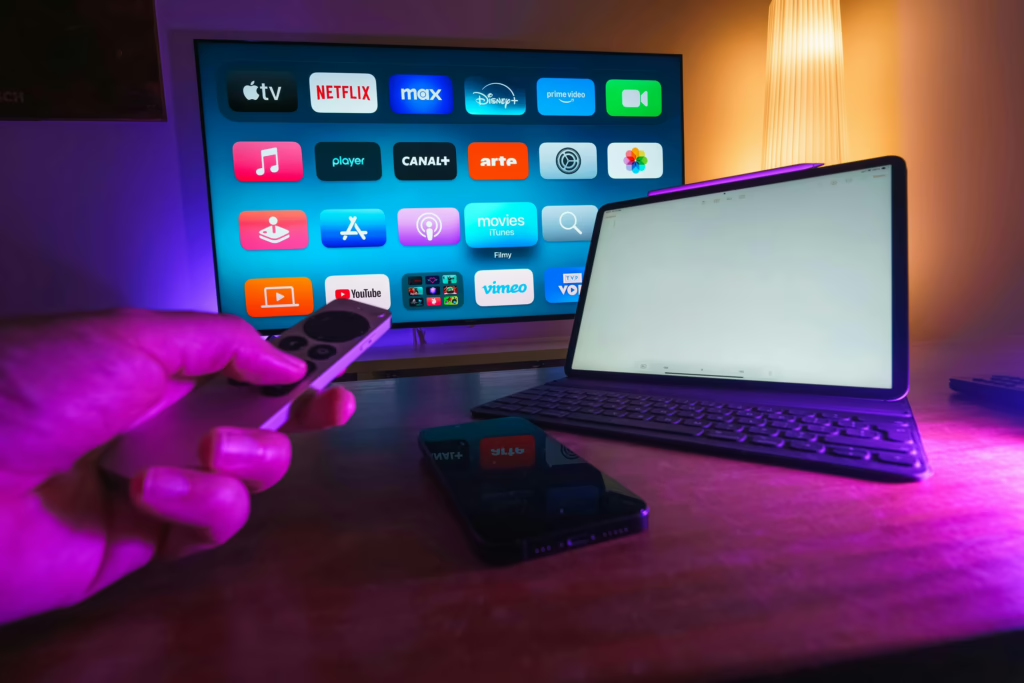
    Now that we’ve nailed down what’s going wrong, let’s walk through the most effective ways to fix it.

    1. Start With the DNS Settings

    In most cases, the default DNS your ISP gives you won’t play nice with Samsung’s backend servers. Luckily, this one’s easy to override.

    To change your DNS manually:

    • Go to Settings > General > Network > Network Status.
    • Select IP Settings > DNS Setting > Enter Manually.
    • Enter 8.8.8.8 (Google) or 1.1.1.1 (Cloudflare).
    • Save and restart your TV.

    This small change routes your traffic through global DNS servers that aren’t subject to local ISP restrictions.

    2. Restart Everything in the Right Order

    Sometimes it’s not a deep tech issue – it’s just a stuck cache or handshake failure. Rebooting your setup in a clean sequence can help.

    Here’s the correct reboot order:

    • Power off the TV.
    • Unplug your modem and router.
    • Wait 60-90 seconds.
    • Plug in the modem first, then the router.
    • Turn the TV back on last.

    Avoid just “soft resetting” with the remote. Full power cycles clear more stubborn temporary issues.

    3. Turn Off IPv6 (If Your TV Has It)

    Disabling IPv6 has helped some users resolve connectivity problems, but results may vary depending on your network setup.

    Go to Settings > General > Network > Expert Settings. If you see IPv6, switch it off.

    This helps when ISPs support IPv4 well but handle IPv6 poorly, which is surprisingly common in some regions.

    4. Reset Smart Hub (But Know What It Does)

    This step clears all Smart Hub data, app accounts, and installed apps. It’s helpful if the error started after a failed app update or a partial reset.

    To reset Smart Hub:

    • Navigate to Settings > Support > Self Diagnosis > Reset Smart Hub.
    • Enter your TV’s PIN (default is 0000).
    • Let the system wipe and reload.

    Once done, you’ll need to sign in again to your Samsung account and reinstall your apps. But if the issue was in corrupted data or regional mismatch, this reset will flush it out.

    5. Update Firmware (Even Manually If Needed)

    If your TV can’t reach Samsung’s update servers due to error 202, you might need to update manually with a USB drive.

    To check for updates:

    • Go to Settings > Support > Software Update > Update Now.
    • If that fails, visit Samsung’s official support site on a computer.
    • Download the latest firmware for your exact model.
    • Copy it to a USB stick and plug it into the TV.

    Outdated firmware can break authentication with Smart Hub or cause apps to fail certificate handshakes.

    6. Test with a Mobile Hotspot

    This is the fastest way to rule out your ISP as the root cause.

    To try it, turn on hotspot mode on your phone, then connect the TV to the hotspot Wi-Fi, and try opening Smart Hub or any app.

    If things start working on a hotspot, it suggests the issue may relate to your home network or ISP-level configurations.

    When the Problem Is Your ISP

    Sometimes it’s not something you can fix from the TV. Some ISPs use DNS filtering or parental control systems that may unintentionally interfere with Smart TV services.

    If the issue only happens on your home network, but not on mobile data, you’ll want to contact your internet provider and ask:

    • Whether any Samsung or streaming domains are being filtered.
    • If DNS filtering or parental controls are enabled.
    • Whether they can whitelist or bypass Smart Hub-related addresses.

    Be polite, but persistent. Not all support reps will know about Smart TV compatibility right away.

    What Not to Do (Unless You’re Desperate)

    You might come across people online recommending a full factory reset. Be cautious.

    Yes, it can help in extreme cases, but it wipes everything: your apps, preferences, network settings, and even remote pairing.

    Use factory reset only if:

    • You’ve ruled out all network and software issues.
    • Your firmware is up to date.
    • You’re willing to start from scratch.

    And make sure Samsung servers are fully up and reachable before doing it, or you’ll end up stuck at setup.

    Temporary Workaround: Use a Streaming Device

    If your TV still won’t cooperate and you’re waiting for Samsung or your ISP to sort things out, there’s a plan B.

    Using a device like Roku, Fire TV Stick, Apple TV, or Google Chromecast can bypass Samsung Smart Hub entirely. These connect directly to app servers and usually don’t run into the same DNS or SSL issues.

    Summary: Fixing Error 202 in the Real World

    Error 202 is frustrating because it hits in that middle zone where your TV looks online, but nothing works right. It’s not always obvious whether to blame the TV, the router, or your provider.

    To recap, your action plan should look like this:

    • Change DNS to 8.8.8.8 or 1.1.1.1.
    • Power cycle everything in order.
    • Disable IPv6 if you can.
    • Reset Smart Hub only if other steps fail.
    • Update firmware manually if needed.
    • Call your ISP if all signs point to DNS filtering.
    • Use a streaming stick as a temporary workaround.
    • Try a mobile hotspot to compare connection behavior and help isolate whether the issue is network-related.

    Final Thoughts

    Error Code 202 doesn’t mean your TV is dying. It usually means your network or ISP is putting up roadblocks between the TV and the services it depends on. Thankfully, most of those blocks can be fixed without wiping your settings or buying new gear.

    Take it one step at a time, start with DNS, and don’t jump to factory reset too fast. Most people fix this issue in 10-20 minutes with the right steps and a little patience.

    FAQ

    Why does my Samsung TV show “ISP Blocking Service” if my internet is working fine?

    It’s a bit misleading, right? Your internet might be working great on your phone or laptop, but the TV could still be blocked from talking to specific servers it needs for apps or Smart Hub. This usually happens when your ISP’s DNS settings or filters are preventing certain connections behind the scenes.

     Is this error Samsung’s fault or my ISP’s?

    Honestly, it could be either. Sometimes it’s a glitch on Samsung’s end, like a server outage or an expired certificate. In some cases, the issue may stem from your ISP’s DNS settings or network filtering tools. The fastest way to tell? Try connecting your TV to a mobile hotspot. If everything works there, your ISP is the likely blocker.

    Will changing my DNS mess up anything else on my network?

    Nope. It only affects the TV, and it’s a common and safe change. All you’re doing is telling the TV to use Google’s or Cloudflare’s DNS instead of your provider’s. It often clears up weird errors like this one without touching anything else.

    What if my TV doesn’t have the option to turn off IPv6?

    Some older or lower-end models might not show it at all. That’s fine. Just skip that step and focus on the others. DNS changes and Smart Hub resets tend to have a bigger impact anyway.

    Do I really need to factory reset my TV?

    Only if nothing else works. Factory reset is a last-resort move. It wipes everything, including all your apps and settings, and can be a hassle if Samsung’s servers are down when you try to set it up again. Try DNS changes, updates, and Smart Hub reset first.

  • How to Fix Disney Plus Error Code 73 and Start Streaming

    How to Fix Disney Plus Error Code 73 and Start Streaming

    You open Disney Plus expecting to dive into a new episode or revisit a favorite movie, but instead, you’re hit with a message about availability in your region. That’s error code 73 – a signal that Disney Plus doesn’t think you’re in the right place to watch.

    The thing is, this error isn’t always accurate. Sometimes it pops up when you’re traveling. Other times, it’s just your VPN getting in the way. Either way, it’s fixable. Here’s how to understand what’s really going on and get things working again without a tech headache.

    What Is Disney Plus Error Code 73?

    If you’re seeing a message saying Disney+ is only available in certain regions, you’re dealing with Error Code 73. It’s one of those errors that doesn’t give much context but essentially boils down to this: Disney Plus thinks you’re somewhere you’re not supposed to be.

    This usually happens when the platform can’t confirm that you’re in a supported country. It could be a real location issue, like trying to stream from a place where Disney+ hasn’t launched yet. But it also happens when your device’s location data is confusing the app – often due to VPNs, proxy servers, or mobile carriers that route traffic in unusual ways.

    Why Error Code 73 Happens

    The trigger behind Error 73 is pretty straightforward, but the reasons it appears can vary. Here’s what’s most likely going on behind the scenes:

    • You’re in an unsupported region: Disney Plus isn’t available everywhere yet. If you’re traveling or living in a country where the service hasn’t launched, the app will block access.
    • VPN interference: A VPN can make it look like you’re in a different country. Even if that country supports Disney+, the platform may flag it as suspicious and block your access.
    • Mobile data routing: Sometimes, mobile carriers route data through regional servers that confuse location services, even if you’re physically in a supported country.
    • Outdated or incorrect IP data: Your IP address might be misclassified in Disney’s system, putting you on the wrong side of a digital border.
    • Network-level settings: If you’re on a work or school Wi-Fi, certain network settings might interfere with location detection.

    How to Fix Disney Plus Error Code 73

    Now for the practical part. Here’s what you can do to get past Error 73 and back to watching:

    1. Turn Off Your VPN or Proxy

    This is the most common fix. If you’re using a VPN to protect your privacy or access other content libraries, Disney+ might block your connection.

    • Disable the VPN or proxy in your device settings.
    • Fully close and restart the Disney+ app or browser.
    • Try accessing the service again.

    2. Check Your Location

    Make sure you’re actually in a supported country. If you’re traveling to a region where Disney+ hasn’t launched yet, there’s no workaround – the service won’t be available until it’s officially rolled out there.

    3. Use a Different Network

    If you’re on mobile data or a shared Wi-Fi connection, try switching:

    • From mobile data to home Wi-Fi.
    • From one Wi-Fi network to another.
    • Tether from a device with a different provider.

    This can help if your current connection is misrouting your IP or location.

    4. Restart Your Device

    It might sound basic, but a full reboot can clear up cached location or DNS data:

    • Power your device off.
    • Wait a few seconds.
    • Power it back on and try again.

    5. Reinstall the App

    If none of the above work, uninstall and reinstall the Disney+ app. This ensures you’re using the latest version with updated location-handling features.

    Where Is Disney Plus Available?

    Before diving into fixes, it’s worth checking if Disney+ is even supposed to work where you are. Error 73 often shows up simply because the service isn’t available in your country yet.

    Disney+ is currently available in select countries across North America, Latin America, Europe, and parts of Asia-Pacific. Availability may vary depending on your location.

    If you’re outside these areas, Disney+ likely doesn’t live in your region yet. Even if you have an account, the platform may block access entirely. And no, adjusting settings or trying a workaround won’t change that – you’ll just need to wait for the official rollout.

    What to Do if You’re Still Getting the Error

    If you’ve tried everything and Error 73 won’t go away, you still have a few options:

    Check for Regional Outages First

    Before digging into settings or reinstalling anything, take a quick look to see if the problem is on Disney’s end. Sometimes, the platform experiences regional service interruptions. It doesn’t happen often, but when it does, it can block access even in supported countries.

    You can check multiple sites that track service issues to see if other users are reporting similar issues. If there’s a spike in complaints, it’s probably not just you.

    Use Disney+ Live Chat Support

    Still stuck after trying the usual fixes? Head over to the Disney+ Help Center and look for the live chat option. It’s available 24/7 and can be a lifesaver when you’ve tried everything else.
    A support rep can check your account, confirm your location status, and sometimes spot something you missed. If your subscription is valid and your region is supported, they’ll help dig deeper.

    Skip Public Wi-Fi or School Networks

    If you’re trying to stream on a shared or restricted network, like public Wi-Fi at a café, airport, or university, you might hit roadblocks. These networks often have firewall settings or traffic filters that interfere with streaming platforms.

    When in doubt, switch to a home connection or use mobile data to see if the error clears. It’s a quick way to rule out network-related restrictions.

    Tips to Avoid Region Errors in the Future

    To keep Error Code 73 from coming back, it helps to set up your devices and network with streaming in mind. Here are a few habits that can save time down the road:

    • Don’t use VPNs when watching Disney+.
    • Keep your app updated.
    • Avoid changing your device’s region manually.
    • Use stable home Wi-Fi with a clean IP history.
    • If using mobile data, double-check your provider’s routing.

    Quick Checklist for Fixing Disney+ Error 73

    Here’s a simple summary if you just want the short version:

    • Turn off VPN or proxy.
    • Confirm you’re in a supported country.
    • Switch to a different Wi-Fi or mobile network.
    • Restart your device.
    • Reinstall the Disney+ app if needed.
    • Contact support if it still doesn’t work.

    Final Thoughts

    Disney Plus Error Code 73 can be frustrating, especially if you know you’re in a supported location. But most of the time, it comes down to how your device or network is reporting your location. With a few quick checks and changes, you’ll likely be back to streaming in no time.

    If you’re outside of the service area, though, there’s not much to do but wait. Disney+ is expanding, and your country may be next on the list.

    FAQ

    Why does Disney Plus say it’s not available in my region when I’m at home?

    That usually means the app is picking up a location that doesn’t match your actual one. A VPN, proxy, or even your mobile network might be making it seem like you’re in another country. Try turning those off and restarting the app. It’s a frustrating glitch, but often an easy fix.

    Will Disney Plus ever work if I’m traveling to a country where it’s not available?

    No, unfortunately. If you’re in a region where Disney+ hasn’t launched, you won’t be able to access it, even with a valid subscription. The app checks your location and blocks access outside supported areas. You’ll have to wait until the service expands to that country.

    Can I use a VPN to watch Disney Plus from anywhere?

    Technically, you can try, but Disney+ actively blocks many VPNs. Even if the VPN routes through a country where Disney+ is available, it may still trigger Error 73. The service is strict about licensing and location rights, so the best bet is to use it without a VPN.

    What if I’ve turned off my VPN and still get the error?

    Switch networks if you can. Try using a different Wi-Fi connection or tethering from mobile data. Sometimes your current network’s IP address is flagged or misclassified. Also, restarting your device can refresh location data and clear out cached settings.

    How do I contact Disney Plus support if nothing works?

    Go to the Disney+ Help Center, scroll to the bottom, and look for live chat. They’re available 24/7 and can walk you through advanced fixes or check if your account’s region is mismatched. It’s not always instant, but they’re usually pretty responsive.

  • Minecraft Error Code Drowned: What It Means and How to Manage It

    Minecraft Error Code Drowned: What It Means and How to Manage It

    You fire up Minecraft, everything looks fine, and then boom – you’re hit with a Drowned error. No fancy crash, just a message saying you can’t log in properly. It’s confusing, especially if you were just playing a few hours ago. This isn’t some random bug – it’s usually tied to your Microsoft account and how the game handles sign-ins.

    The good news? It’s fixable. Whether you’re on Xbox, mobile, PC, or console, the steps aren’t complicated. Let’s walk through what this error really means and how to get things working again without having to dig through a dozen support threads.

    What Minecraft Error Code Drowned Actually Means

    When Minecraft shows error code Drowned, it is telling you one simple thing: your Microsoft account did not sign in correctly.

    You may already be inside the game, but Minecraft relies on Microsoft services to unlock online features. If the connection to those services fails, the game limits what you can access. This usually includes access to Realms, your profile, and Marketplace items.

    The game often displays a message similar to this: “Failed to log in. We could not sign you into your Microsoft account. Access to Realms, Profiles, and your Marketplace items will be limited.”

    This is important to understand: Drowned is not a ban, and it is not permanent. It does not mean your account is broken or compromised. It means the sign-in process was not fully complete.

    Why the Drowned Error Happens in Bedrock Edition

    Minecraft Bedrock Edition uses a shared ecosystem across platforms. Whether you play on Xbox, PlayStation, Switch, Windows, or mobile, the same Microsoft account system is involved. That also means the same points of failure.

    The most common reasons for error code Drowned include:

    • A stalled or expired Microsoft sign-in session.
    • Platform services being temporarily unavailable.
    • Account credential issues, such as password sync problems.

    Sometimes the error appears after an update. Other times it shows up after switching devices or signing in on multiple platforms. It can even happen if everything looks normal on the surface.

    The key thing to remember is that this error is rarely random. There is almost always a connection or update issue behind it.

    First Thing to Check: Refresh Your Microsoft Sign-In

    Before changing settings or reinstalling anything, start with the simplest and most effective fix: refresh the sign-in process.

    Minecraft often keeps you logged in even when the session itself is no longer valid. This creates a mismatch where the game thinks you are signed in, but Microsoft services disagree.

    How to refresh your sign-in:

    • Launch Minecraft and go to the main menu.
    • Open Settings.
    • Navigate to Account.
    • Select Manage Account.
    • Sign out of your Microsoft account.
    • Close Minecraft completely.
    • Reopen the game and sign in again.

    On some platforms, this step also involves signing out of the Xbox app or companion app tied to your account. The goal is to fully reset the session and force a clean login.

    In many cases, this alone resolves error code Drowned.

    Why Game Updates Matter More Than You Think

    Minecraft Bedrock Edition updates frequently, and sign-in services evolve along with it. If your game version is even slightly behind, authentication can fail.

    This is one of the most overlooked causes of error code Drowned. Players often assume the game is updated automatically, but that is not always true.

    When you start Minecraft, the current version number appears on the launch screen. Compare that version to the one listed in your platform’s store.

    If the numbers do not match, your game is outdated.

    Not All Minecraft Updates Work the Same Way

    Depending on where you play, Minecraft updates can show up differently. On mobile, updates usually happen in the background. Consoles tend to bundle them into system prompts. On PC, things rely more on the Minecraft Launcher. And even when auto-update is enabled, it doesn’t always kick in when you expect it to. That’s why it’s worth knowing how to check and trigger updates yourself on each platform.

    Manually Updating Minecraft on Mobile Devices

    On mobile, Minecraft usually updates automatically. But automatic updates can be paused, delayed, or disabled without you realizing it.

    Android and iOS Update Basics:

    • Open the app store on your device.
    • Search for Minecraft.
    • Check whether an update is available.
    • Install the update if one appears.

    After updating, restart your device before launching the game again. This helps clear cached services that may still reference the old version.

    Once updated, sign back into your Microsoft account and check if the error is gone.

    Manually Updating Minecraft on Consoles

    Consoles are usually good at handling updates, but they are not perfect. If your console missed an update or failed to install one correctly, Minecraft may run an older build.

    Updating on Xbox:

    • Open My games and apps.
    • Go to Manage.
    • Select Updates.
    • Look for Minecraft in the list.
    • Update the game or select Update All.

    Updating on PlayStation and Nintendo Switch

    On PlayStation and Switch, updates are handled through the system menu. If Minecraft is not on the latest version, manually checking for updates usually resolves it.

    Once updated, fully restart the console before opening Minecraft again.

    Manually Updating Minecraft Bedrock Edition on PC

    On Windows, Minecraft Bedrock Edition is updated through the Minecraft Launcher. If the launcher has not been opened recently, the update may never start.

    How to Force a PC Update:

    • Open the Minecraft Launcher.
    • Select Minecraft: Bedrock Edition.
    • Open the Installation tab.
    • Choose Check for Updates.

    If a newer version is available, the launcher will download and install it. After the update finishes, restart your PC before launching the game.

    Checking Platform Service Status

    Sometimes the problem is not on your device at all.

    Minecraft depends on platform services to process sign-ins. If those services are experiencing issues, error code Drowned can appear even if your account is fine.

    This can affect:

    • Xbox services.
    • PlayStation network services.
    • Nintendo online services.
    • Mobile store authentication systems.

    When these platforms have outages or partial downtime, Minecraft may fail to validate your session.

    If everything else looks correct and the error appears suddenly, waiting it out for a short time can be the best option.

    When Changing Your Microsoft Password Helps

    This step sounds extreme, but it works surprisingly often.

    If your Microsoft account credentials are out of sync across devices, Minecraft may fail to authenticate even though your login details appear correct.

    Changing your password forces all sessions to refresh and reconnect.

    How to do this safely:

    • Close Minecraft completely.
    • Change your Microsoft account password.
    • Restart your device.
    • Open Minecraft and sign in again using the new password.

    This clears lingering sign-in tokens that may be causing the error.

    Can You Lose Worlds or Purchases Because of Drowned?

    This is one of the most common worries, and the answer is reassuring.

    Error code Drowned does not delete worlds, purchases, or progress.

    Your content is tied to your Microsoft account, not the current session. Once the sign-in issue is resolved, everything reconnects automatically.

    Local worlds are generally unaffected, and Marketplace purchases should reappear once the sign-in issue is resolved.

    Why Reinstalling Minecraft Is Rarely Necessary

    Many guides jump straight to reinstalling the game. For error code Drowned, that is usually unnecessary.

    Reinstalling Minecraft does not fix Microsoft account authentication by itself. In most cases, the issue is session-based, not installation-based.

    Only consider reinstalling if:

    • Updates fail repeatedly.
    • The launcher itself is broken.
    • The game does not start at all.

    For sign-in errors like Drowned, account resets and updates are far more effective.

    Common Mistakes That Make the Error Persist

    Some actions can unintentionally keep the error active:

    • Signing in and out repeatedly without restarting the game.
    • Updating Minecraft but not restarting the device.
    • Ignoring platform service outages.

    A clean fix usually involves one change at a time, followed by a restart.

    A Simple Fix Order That Actually Works

    If you want a clear plan, follow this order:

    • Sign out of your Microsoft account in Minecraft.
    • Restart the game.
    • Update Minecraft manually.
    • Restart your device.
    • Sign back in.
    • Check platform service status if the error remains.
    • Change your Microsoft password if needed.

    This sequence resolves the vast majority of Drowned errors without extra steps.

    Final Thoughts

    Minecraft error code Drowned looks more serious than it actually is. It feels disruptive because it limits features rather than crashing the game, but at its core, it is just a sign-in problem.

    Once you understand that the issue lives between Minecraft and your Microsoft account, the fixes make sense. Refresh the session. Update the game. Check the platform. Reset credentials if needed.

    Most players fix this error in minutes once they approach it calmly and methodically. If you see Drowned again in the future, you will know exactly where to start.

    FAQ

    Does Minecraft error code Drowned mean my account is banned?

    No, it does not. Error code Drowned is a sign-in issue, not a punishment. Your Microsoft account is still active. The game just cannot fully verify your login at that moment, which is why online features get limited.

    Can I still play Minecraft if I see the Drowned error?

    Yes, in most cases you can still play offline or access local worlds. What usually gets blocked are Realms, multiplayer services, profiles, and Marketplace content. Once the sign-in issue is fixed, those features come back automatically.

    Why does the Drowned error keep coming back after I fix it once?

    This usually happens when the game is not fully updated or when your sign-in session expires again. Switching devices, logging into multiple platforms, or skipping restarts after updates can also cause the error to reappear.

    Will I lose my worlds or Marketplace purchases because of this error?

    Typically, no. Worlds, purchases, and progress are tied to your account, not the current sign-in session. Even if the error sticks around for a while, your content stays safe and reconnects once the account signs in properly.

    Is reinstalling Minecraft a good fix for error code Drowned?

    Most of the time, no. Reinstalling rarely solves sign-in errors on its own. Refreshing your account login, updating the game, or resetting your Microsoft password works far more often and takes less time.

    How long does the Drowned error usually last?

    It depends on the cause. If it is a local sign-in or update issue, the fix can take just a few minutes. If platform services are having problems, the error may stick around until those services are stable again.

  • Roblox Error Code 524: What It Means and How to Fix It

    Roblox Error Code 524: What It Means and How to Fix It

    You’re all set to join a game on Roblox, maybe even a private server your friend told you about. You click “Join” and – bam – up pops Error Code 524. No clear reason, no simple fix. Just a message telling you that you don’t have permission to join. It’s annoying, especially if you’ve already waited through a queue or loaded up the app just for this one match. 

    But here’s the thing: error 524 is more common than you might think, and most of the time, the fix isn’t that complicated. Let’s break down why it happens and what you can do to get around it.

    What Does Roblox Error Code 524 Actually Mean?

    In plain terms, Error Code 524 means you don’t have permission to enter a specific game or server. Most of the time, this happens when you try to join:

    • A private or VIP server you weren’t invited to.
    • A game that’s under maintenance or temporarily locked.
    • An experience with group or age restrictions.

    But it’s not always about the game itself. Sometimes, the issue is on your end: your privacy settings might be blocking access, or your network is having a bad day.

    Common Reasons Why You See Error Code 524

    There’s more than one path that leads to this roadblock. Here’s what’s typically behind it:

    1. You’re Trying to Join a Private Server Without an Invite

    This is the number one cause. Private servers are invite-only. If you weren’t added to the guest list, you’re not getting in. Even if you got a direct link, Roblox will block access unless the server owner allows you in.

    2. Your Privacy Settings Are Too Strict

    Roblox lets you control who can invite you to private servers. If those settings are locked down, no one can invite you, even friends. For users under 13, there are extra restrictions in place by default.

    3. The Game or Server Is Temporarily Unavailable

    Some games take a break for updates or bug fixes. If you’re trying to jump in during that window, you might get 524. It’s not permanent, just bad timing.

    4. Your Network or Device Isn’t Cooperating

    Spotty Wi-Fi, mobile data interruptions, or a weird glitch in your browser or app could be the culprit. Network or device-related issues are one of the documented causes of Error Code 524 and should be checked alongside permission settings.

    Quick Check: Are You Using a Virtual Machine or a Modified OS?

    It might not be the first thing you think about, but the device you’re using can be part of the problem. Roblox doesn’t officially support virtual machines, cloud-hosted computers, or mobile devices running unofficial or modified operating systems. That includes rooted Android phones, jailbroken iPhones, or any system with custom firmware.

    Even if everything else seems fine, Roblox may block access to private or secure servers when it detects one of these setups. The platform treats them as potentially unstable or unsafe environments, which can trigger errors like 524.

    If you’re running Roblox in any of those environments, try switching to a standard device with a supported OS. A regular desktop, laptop, or unmodified phone will give you the best chance of joining servers without hitting these kinds of roadblocks.

    How to Fix Roblox Error Code 524: Step-by-Step

    You don’t need to be a tech wizard to solve this. Start with the simplest fix and work your way down.

    Step 1: Check Your Private Server Settings

    This is your first stop. If your settings block invites, you’ll never make it through the door.

    To update settings:

    • Open Roblox and go to Settings.
    • Click Privacy.
    • Find Private Servers under Visibility & Content Restrictions.
    • Adjust the option for who can add you to their private server.

    Note that if your account is under 13, Roblox limits who can invite you for safety reasons. You’ll only be able to join servers made by your friends.

    Step 2: Get an Invite (The Real Kind)

    If you’re trying to join a private or VIP server, the owner must add your username to the Server Members list. A shared link will only work if the server owner has enabled ‘Connections Allowed’ or added your username to the Server Members list.

    Also double-check if the game is part of a group. If it is, you may need to join the group to access it.

    Don’t Overlook the Basics: Restart Things

    Restarting often clears minor bugs or stuck connections.

    • Close Roblox completely.
    • Restart your device (not just the app).
    • Reopen Roblox and try again.

    It sounds simple, but it works more often than you’d think.

    Check the Game’s Status

    Sometimes the game you’re trying to join is the problem, not you. It might be:

    • Down for updates.
    • Under moderation.
    • Experiencing a glitch or rollout error.

    What you can do:

    • Wait a few minutes and try again.
    • Look up the game’s group or developer page.
    • Check if other players are reporting similar issues.

    Is It Your Internet?

    If the internet connection is unstable, Roblox may fail to establish a proper session, resulting in Error Code 524. Here’s what to try:

    • Switch from Wi-Fi to mobile data or vice versa.
    • Use a different Wi-Fi network if possible.
    • Reboot your router (unplug for 30 seconds, then plug back in).

    Make sure your connection speed is at least 4 to 8 Mbps for smooth gameplay.

    When All Else Fails: Reinstall Roblox

    Sometimes a fresh install clears up background bugs or missing files that the error messages don’t explain.

    For PC and Mac:

    • Uninstall Roblox through Settings or Control Panel.
    • Restart your computer.
    • Reinstall the Roblox app from the official site.

    For Mobile:

    • Delete the Roblox app from your phone or tablet.
    • Reinstall it from the App Store or Google Play.

    For Chromebook:

    • Go to All Apps.
    • Remove Roblox from Chrome.
    • Reinstall it via Google Play.

    Always install from official sources to avoid errors linked to modified files.

    Still Getting the Error? Here’s What Else You Can Try

    If the usual fixes don’t work, try these backup options:

    • Try a different account: This can help you spot whether the issue is account-specific or device-related.
    • Use another device: Log in from a friend’s phone or a second PC if you have one.
    • Clear cache: Sometimes, old data gets in the way. On browser versions, clear your cache and cookies.
    • Avoid VPNs or Proxies: Roblox may flag these as suspicious and block access.

    Good to Know: Roblox’s Own Rules and Limits

    There are some things users just can’t control. Roblox won’t support access from virtual machines or altered phones. Kids under 13 have limited permissions by design. Not every game is available 24/7

    If you’re running into walls even after trying everything, it might not be something you can fix directly. In that case, reaching out to the Roblox Support Team might be your best move.

    Final Thoughts

    Error Code 524 feels like a closed door, but it’s usually not locked forever. Whether it’s a permissions issue, a missed invite, or a network hiccup, the fixes are mostly manageable. Take it one step at a time, and you’ll be back in your favorite game faster than you think.

    No need to panic, no need to rage-quit. Just work the problem and you’ll find the solution.

    FAQ

    Why does Roblox show error code 524 even when I have a game link?

    A direct link does not override permissions. If the game is running on a private or VIP server, the owner still has to add your username or allow connections. Without that step, Roblox blocks access and shows error code 524, even if the link itself works.

    Can error code 524 happen in public games?

    Yes, but it’s less common. It usually shows up in public games when the server is temporarily locked, under maintenance, or restricted to a specific group. In those cases, waiting a bit or checking the game’s page often clears up the confusion.

    Does error code 524 mean I was banned?

    No. A ban usually comes with a different message or error code. Error 524 is about access, not punishment. It means you don’t have permission to join that specific server, not that your account is in trouble.

    Why do younger accounts run into error 524 more often?

    Accounts under 13 have stricter privacy rules by default. These limits control who can invite them to private servers. Even if everything else looks fine, those built-in restrictions can quietly block access.

    Can my internet connection really cause error code 524?

    It can, especially if the connection is unstable. If Roblox can’t confirm your session properly, it may deny access to the server. Switching networks or restarting your router is worth trying if nothing else explains the error.

    Will reinstalling Roblox always fix error code 524?

    Not always, but it helps when the issue is tied to corrupted files or outdated app data. If the problem is purely about permissions, reinstalling won’t change that. It’s best used as a cleanup step after checking settings and invites.

    Should I contact Roblox Support for error code 524?

    If you’ve confirmed your settings are correct, you were properly invited, and the game is online, then yes. Support can look at account-level issues that aren’t visible from your side and tell you if there’s a deeper restriction in play.

  • Ticketmaster Error Code 0011: What It Is and How to Fix It

    Ticketmaster Error Code 0011: What It Is and How to Fix It

    You’re in the middle of buying tickets to a big show, everything’s moving fast, and then – bam. The page freezes and Error Code 0011 shows up like a brick wall. No tickets, no clear explanation. Just a number and a vague message that something went wrong.

    If this sounds familiar, you’re not the only one. Ticketmaster’s error code 0011 tends to hit when the pressure’s on, especially during high-demand sales. It’s frustrating, confusing, and often feels like it’s punishing you for clicking too fast. But there’s a method to the madness? and a few practical steps that can help you get around it without losing your spot in line. Let’s break it down.

    What Is Ticketmaster Error Code 0011?

    Let’s start with the basics. Ticketmaster may display error code 0011 when certain actions trigger its automated security systems, such as excessive requests or unusual browsing behaviour. It doesn’t always mean something’s broken. In many cases, it’s Ticketmaster’s way of saying: “Hey, this looks suspicious. We’re stopping this transaction for now.”

    It often appears with messages like “Something went wrong. Please try again.”, “You’ve been blocked from accessing the page.”, or no message at all, just a reload that gets you nowhere.

    While error code 0011 is commonly reported during high-demand sales, it can also occur during regular browsing due to technical or network-related factors.

    The Real Reasons Behind Error Code 0011

    There’s no single cause, but based on patterns, user reports, and official help articles, here are the main culprits:

    1. Too Many Refreshes Too Fast

    When you refresh the page repeatedly, Ticketmaster’s bot detection kicks in. Even if you’re just impatient or nervous, the system doesn’t know that. All it sees is unusual activity that looks automated.

    2. Using Multiple Tabs or Devices

    Opening the site on your phone, your laptop, and maybe your tablet? That’s another red flag. Ticketmaster might interpret this as a bot farm or bulk buyer, even if you’re just a single person juggling screens.

    3. VPNs and Proxy Servers

    You might be using a VPN to keep your data private or appear in a different region. But Ticketmaster sees VPN traffic as a potential threat, especially if your IP address keeps switching mid-session.

    4. Browser Issues

    Corrupted cookies, stored cache, or browser extensions (especially ad blockers and privacy tools) can mess with how the site loads and interacts with your device.

    5. Unstable or Public Networks

    If you’re on a slow Wi-Fi connection or a public network like one at a coffee shop or airport, that can lead to timeouts and loading failures. Ticketmaster may also block some public IPs to avoid abuse.

    6. High Traffic Conditions

    Sometimes the issue is related to overall site activity rather than a specific action on your side. During major ticket releases, Ticketmaster applies stricter automated checks to manage demand, which can occasionally interrupt normal browsing or purchasing attempts.

    How to Fix Ticketmaster Error Code 0011 Without Losing Your Mind

    There’s no magic button, but here’s a set of steps that actually work for most users. Start from the top and work your way down.

    1. Pause and Breathe

    First, stop refreshing. Give the system a minute to calm down. If you’ve already been flagged for too much activity, refreshing again will just keep the block going.

    2. Clear Your Browser Cache and Cookies

    Cached data can sometimes conflict with how Ticketmaster loads. Cleaning it up gives you a fresh start.

    How to do it (Chrome example):

    • Go to Settings > Privacy and security > Clear browsing data.
    • Select “Cookies and other site data” and “Cached images and files”.
    • Click “Clear data” and restart your browser.

    3. Disable Extensions

    Especially ad blockers, anti-tracking tools, or script blockers. You don’t need to uninstall them forever, just turn them off temporarily.

    Or better yet, try Incognito or Private mode where extensions are usually disabled by default.

    4. Turn Off VPNs or Proxy Services

    If you’re using a VPN, switch it off. Ticketmaster prefers to see your real IP and location. If you need to use a VPN later, save it for after checkout.

    5. Switch Devices or Networks

    If possible, try using a different device or connect to another network. A mobile hotspot can sometimes be more stable than public Wi-Fi.

    6. Try a Different Browser

    If you’re getting blocked in Chrome, open Firefox, Safari, or even Edge. Some users report getting around the error just by changing browsers.

    7. Wait It Out

    If you’re in the middle of a major ticket drop, the system might be too overloaded to respond. Close the browser, walk away for 10-15 minutes, then try again. Yes, it’s painful. But sometimes that’s the only thing that works.

    8. Use the Mobile App

    Some users report fewer browser-related issues when using the Ticketmaster mobile app, though this is based on user experience rather than official guidance. Just make sure the app is up to date and you’re logged into your account before trying again.

    What Not to Do

    Let’s quickly go over what can make things worse.

    • Don’t open multiple tabs or devices to “increase your chances”.
    • Don’t refresh the page every few seconds.
    • Don’t share your ticket link with friends (especially during checkout).
    • Don’t try to game the system with location spoofing or bots.

    These tactics might work once, but they’re far more likely to get you flagged by the system permanently.

    What If None of This Works?

    If you’ve tried everything and you’re still hitting a wall, it might be time to call in backup.

    Here’s what to have ready:

    • A screenshot of the error.
    • Time and date when it happened.
    • Device and browser details.
    • Whether or not you were using a VPN.

    They may not respond instantly, but if the error was on their end, they’ll usually acknowledge it and may give you a way to retry or access your order another way.

    You can also check their official help center and social media pages to see if others are reporting similar issues in real time.

    Why Does This Error Always Show Up During Big Sales?

    That’s actually the point. Ticketmaster has systems in place to prevent scalping, bots, and bulk buying. Error 0011 is part of that.

    The downside? Regular users often get caught in the crossfire. During major events like a Taylor Swift presale or an international sports final, everything is more sensitive. The system raises its guard, and any slight hiccup, like opening two tabs or switching devices, can get you booted out.

    It’s not ideal, but it’s part of how they try to keep tickets in the hands of real fans. That said, it also means you need to be extra careful with how you approach a high-demand release.

    Best Practices to Avoid Error 0011 in the Future

    Want to lower your chances of seeing this error again? Here’s what helps:

    • Use only one device and one browser at a time.
    • Stick to a private, stable internet connection (avoid public Wi-Fi).
    • Log into your Ticketmaster account ahead of time.
    • Disable any VPNs, proxies, or privacy extensions before the sale.
    • Don’t refresh repeatedly – trust the queue system.
    • Use the app as a backup option if the site fails.

    Final Thoughts

    Ticketmaster Error Code 0011 is one of those errors that shows up at the worst possible moment. It’s not always your fault, but it’s often triggered by things you can control.

    Understanding how the system works, and what triggers it, gives you a better shot at getting your tickets without getting blocked. Be prepared, stay calm, and avoid suspicious activity that might flag your session.

    And hey, if you do get hit with the error, now you’ve got a plan to get back in the game.

    FAQ

    Why did I get error code 0011 on Ticketmaster out of nowhere?

    This error usually shows up when Ticketmaster thinks your activity looks automated. That might mean you refreshed too many times, had the site open in multiple tabs, or were using a VPN. Even if you weren’t doing anything shady, the system can misread certain behavior and block you temporarily.

    Does using a VPN really cause this error?

    Yep, it can. VPNs mask your location, and Ticketmaster doesn’t always like that. If your IP keeps changing or looks unfamiliar, the system might assume you’re a bot. Turning off your VPN before logging in is a smart move if you’re trying to avoid issues.

    Can I still buy tickets after getting error 0011?

    Yes, but you’ll need to reset your session. That usually means clearing your browser’s cache and cookies, closing all Ticketmaster tabs, and waiting a bit before trying again. In some cases, switching browsers or using a different device also helps.

    How long does the block from error 0011 last?

    There’s no fixed timer, but it’s temporary. It could be minutes or longer depending on what triggered it and how much traffic the site’s handling. The more you try to push through aggressively, the longer you might stay locked out.

    Will using the Ticketmaster app help avoid this error?

    It can. The app is generally more stable during busy sales, and since it runs differently than a browser, you might sidestep some of the browser-related problems that trigger the error.

    I wasn’t doing anything weird. Why did it still happen?

    Ticketmaster’s bot filters don’t always get it right. Even normal activity like refreshing a few times or using a work computer with a shared network can set off alarms. It’s frustrating, but it doesn’t always mean you did something wrong.

    Is there anything I can do in advance to avoid this next time?

    Definitely. Stick to one device, use a stable private connection, disable VPNs and browser extensions before the sale, and try not to refresh obsessively. Basically, keep your setup as clean and simple as possible.

  • Roblox Error Code 267: What It Means and How to Fix It

    Roblox Error Code 267: What It Means and How to Fix It

    If you’ve ever been mid-scroll on Roblox, picked a game, clicked “Join,” and got smacked with Error Code 267, you’re not alone. It’s one of those vague, frustrating messages that leaves you staring at the screen, wondering what just happened. Did you do something wrong? Is it a bug? A ban? Or maybe your Wi-Fi just blinked at the worst possible moment?

    In this guide, we’ll break down what error 267 actually means, what causes it (spoiler: it’s not always your fault), and what you can realistically do to get back into the game. 

    What Roblox Error Code 267 Actually Means

    Error 267 is Roblox’s way of telling you that the game kicked you out. Not Roblox the platform. Not your account in general. Just that one specific experience. Think of it as getting removed from a party, not banned from the whole city.

    This error usually shows up for one of two reasons. The first is you were banned or kicked by the game’s creator.The second is that the game’s internal script flagged something based on your in-game behavior, not your Roblox account or connection itself.

    The important thing to know is this: Roblox itself didn’t ban you. It’s not a moderation strike from Roblox staff. It’s the experience’s developer or the game’s internal scripting that triggered it.

    The Most Common Reasons You See Error Code 267

    Let’s break down what’s actually going on behind the scenes when you get this error. Most of the time, it’s one of the following:

    1. The Game Developer Banned You

    Many Roblox games have built-in systems that allow creators to ban or kick players for things like:

    • Breaking in-game rules (cheating, spamming, trolling).
    • Using exploits or third-party tools.
    • Harassment or offensive behavior.
    • Violating their own custom community standards.

    This kind of ban may be temporary or permanent. Either way, it’s enforced at the game level, not across your whole account.

    2. Suspicious or Automated Behavior

    Some games include scripts that remove users based on patterns like rejoining too soon or unusual input, but the exact triggers depend entirely on how the developer sets them up.

    Even if you weren’t doing anything wrong on purpose, your behavior might look “off” to the game’s script.

    3. Connection Issues

    Connection issues do not directly cause error 267, but if your network interrupts gameplay during loading, some games might interpret it as abnormal behavior and trigger a scripted kick.

    This usually happens because the game assumes your device is desynced or lagging too hard to keep up.

    How to Tell If It’s a Ban or Something Else

    The key detail is what shows up with the error. Often, the message will include a reason like:

    • “You have been banned from this game.”
    • “You have been kicked for suspicious activity.”
    • “Ban duration: 3 days.”

    If you see one of these, it’s likely a ban or manual removal. If there’s no reason and it happens inconsistently, it might be network or device-related.

    To confirm:

    • Try joining a different game.
    • Try rejoining the same game later.
    • See if the message changes over time.

    What You Can Do If You Get Error Code 267

    Now that you know what’s going on, here’s what you can try:

    1. Wait It Out

    If it’s a temporary ban (like 1 or 3 days), the only fix is to wait. Trying to rejoin right away won’t help. In fact, some games extend bans if you keep attempting to bypass them.

    2. Join Another Game

    Most likely, your account is still totally fine on the platform. So test it. Join a few other experiences. If they load without a problem, you know the issue is local to that one game.

    3. Contact the Creator

    If you feel the ban was unfair or want to ask for a second chance:

    • Message the creator through Roblox.
    • Post on their group or game wall (if it exists).
    • Check the game’s page for Discord, Twitter, or other links.

    Just remember: creators are not required to unban you, and Roblox Support won’t do it for you.

    What Not to Do

    Here’s what won’t help (and might even make things worse):

    • Spamming rejoin attempts: Repeated rejoin attempts might be flagged by the game’s own scripts and could lead to extended bans, depending on how the system is set up.
    • Creating alt accounts to sneak in: Some games detect this and ban those accounts too.
    • Contacting Roblox Support: They won’t get involved in game-specific bans. It’s not in their hands.

    Connection Fixes That Might Help

    If you’re getting error 267 in more than one game, or if the ban message doesn’t show any clear reason, try these steps to rule out device or network issues:

    Check Your Internet:

    • Restart your router.
    • Switch to a more stable Wi-Fi or use a wired connection.
    • Run a quick speed test to see if your ping or download rate is struggling.

    On PC:

    • Whitelist Roblox in your firewall.
    • Disable VPNs or proxies that could mess with region or connection.
    • Update Roblox and Windows (sometimes mismatched versions cause errors).

    On Mobile:

    • Close background apps that use data.
    • Turn airplane mode on and off.
    • Reinstall the Roblox app if problems persist.

    Could It Be a Bug?

    Every now and then, the problem isn’t on your end at all. If a game is still being developed or just pushed out a new update, there’s a chance the developer accidentally broke something in the game’s script. If the game’s script is misconfigured during development or after an update, it could unintentionally kick players with error 267.

    If you notice a bunch of other people running into the same issue around the same time, chances are it’s not just you. In that case, it’s worth checking the game’s group page or comment section to see if anyone else is talking about it. You might also spot discussions on Reddit or Roblox forums. If it looks like a wider issue, the best move is to hang tight and wait for the developer to patch things up.

    Is There Any Way to Appeal?

    Not officially.

    Roblox doesn’t handle in-experience bans. Only global moderation (like getting banned from Roblox entirely) goes through their appeals process.

    If you want to appeal a game ban:

    • Be polite when reaching out to the creator.
    • Explain what happened without blaming.
    • Don’t demand anything – they don’t owe you a response.

    Quick Recap: What to Remember About Error 267

    If you’ve made it this far, you probably just want the main points without all the extra. Fair enough. Here’s what really matters when it comes to Roblox error code 267:

    • It means you were kicked from a specific game, not banned from Roblox entirely.
    • Most of the time, either the creator banned you or the game’s system flagged something in your behavior.
    • Roblox Support can’t remove these kinds of bans – they don’t manage individual games.
    • If it’s a temporary ban, you’ll just need to wait it out.
    • If you think it was a mistake, try contacting the game’s developer directly and explain the situation politely.

    That’s the gist. It’s frustrating, but not the end of the world, and definitely not the end of your Roblox adventures.

    Final Thoughts

    Roblox is a huge platform with millions of games, and every one of them has different rules, systems, and moderation styles. That’s part of what makes it interesting, but also what makes error 267 so frustrating.

    The good news? It’s not permanent. It’s not the end of your Roblox life. And more often than not, you can be back playing again within a few hours or days.

    Just take a breath, figure out what triggered it, and move smartly. And if the game you got banned from wasn’t all that fun to begin with… maybe that’s the universe telling you to try something new.

    FAQ

    Does error code 267 mean my Roblox account is banned?

    Nope. This error doesn’t mean your whole account is banned from Roblox. It usually just means you were kicked or banned from a specific game. You can still play other experiences on the platform unless you’ve received a separate moderation notice from Roblox itself.

    Can I fix error code 267 myself?

    That depends on what caused it. If it’s a ban from a game creator, there’s nothing to “fix” on your end. You’ll have to wait it out or reach out to the developer. But if it’s a technical issue like a bad connection or a glitch, restarting your router, switching networks, or updating Roblox might help.

    Will creating a new Roblox account let me bypass the ban?

    Technically, it might work short-term. But many games can detect alt accounts, and some developers ban those too. Plus, it’s kind of a sketchy move that can make things worse. Best to reach out politely or just wait it out.

    Can I appeal an error 267 ban through Roblox Support?

    Typically, no. Roblox Support won’t get involved in bans that happen inside individual games. These are handled entirely by the game’s developer, and Roblox doesn’t have the ability (or the authority) to reverse them.

    Why did I get banned if I didn’t do anything wrong?

    Sometimes games use automatic systems that flag players for certain behavior, even if it wasn’t intentional. Lag, quick rejoining, or just a misunderstanding by a script can get you kicked. If you’re sure you didn’t break any rules, try reaching out to the developer nicely and explain what happened.

  • What Is and How to Fix Paramount Plus Error Code 3005 Without the Stress

    What Is and How to Fix Paramount Plus Error Code 3005 Without the Stress

    You settle in for a night of streaming, snacks in hand, ready to watch something good. But just as the show starts loading, Paramount Plus throws up an error code: 3005. No explanation, no clear fix. Just a number and a frozen screen.

    If you’ve hit this wall, you’re not the only one. Error 3005 is one of the most common issues Paramount Plus users run into, especially on smart TVs, streaming sticks, and browsers. The good news? It’s usually not serious, and you don’t need to be a tech expert to fix it.

    In this guide, we’ll walk through what the error really means, why it pops up in the first place, and how to get things working again without wasting your whole evening.

    What Is Error Code 3005 on Paramount Plus?

    There’s nothing like settling in to watch your favorite show, only to have the screen freeze up and throw a cryptic message at you. If you’ve run into Paramount Plus Error Code 3005, you’re not alone. It’s one of the more frequent playback issues users report, and while it’s frustrating, it’s also fixable.

    In plain terms, error code 3005 generally points to a playback issue, often related to how the app or device connects to Paramount Plus servers. It is most often linked to playback, network, or app-related issues, rather than billing problems. It can show up at the start of a show or interrupt you mid-scene, often with a black screen or constant loading wheel.

    It’s been reported across all types of devices: smart TVs, Fire Sticks, Roku, Apple TV, mobile phones, and web browsers. And while the root cause isn’t always the same, the good news is that it typically boils down to a short list of common issues.

    What’s Causing the Error? (It’s Not Just One Thing)

    This isn’t one of those errors with a single fix. Error 3005 is more like a symptom of a broader problem with how your device connects to Paramount’s servers.

    Here’s what’s usually behind it:

    • Slow or unstable internet connection: Paramount Plus requires a minimum speed to stream smoothly. If your connection drops, lags, or has weak signal strength, playback can crash.
    • Corrupted app cache or browser data: The app stores temporary files to speed things up. But if those files get outdated or damaged, they can cause loading issues.
    • Outdated app or device software: Running an old version of the Paramount Plus app, or an outdated TV/browser, may cause conflicts with newer streaming protocols.
    • VPN or ad blocker interference: Using a VPN or certain ad-blocking tools can sometimes interfere with Paramount Plus streaming. While not officially supported, these tools might prevent the app from connecting properly.
    • Router or modem problems: Just like apps, routers can act up too. If yours hasn’t been restarted in weeks, it might be choking your connection.
    • Server-side issues from Paramount: Less common, but sometimes the problem isn’t on your end. High traffic or maintenance on their side can throw this error too.

    The Practical Fixes (Tried, Tested, and Actually Useful)

    There’s no need to overthink it. Start with the simplest solution and work your way down. These methods are pulled from both official support recommendations and what real users have reported actually working.

    1. Restart the App and Your Device

    Sometimes, the oldest advice is the best.

    • Close the Paramount Plus app completely (not just switch away from it).
    • Power down your streaming device or TV.
    • Turn it back on and relaunch the app.

    Why it works: This clears up any temporary system hiccups or memory errors.

    2. Reboot Your Modem and Router

    Your internet might be running, but not well.

    • Unplug the modem and router.
    • Wait at least 30 seconds.
    • Plug them back in (modem first, then router).
    • Wait for full reconnection before reopening the app.

    Pro tip: If your device is far from the router, try moving it closer or using a wired Ethernet connection. WiFi drops are a huge culprit.

    3. Clear App Cache or Browser Cookies

    Over time, your app or browser collects data that can conflict with new updates.

    On Android phones or Fire Stick: Settings > Apps > Paramount Plus > Storage > Clear Cache.

    On browsers (Chrome, Edge, Firefox): Go to Settings > Privacy > Clear browsing data. Select “Cookies” and “Cached images and files”. Restart the browser.

    On iPhones: Offload and reinstall the app from iPhone Storage settings

    Keeping Things Updated (It Matters More Than You Think)

    Outdated apps don’t always scream for attention. Sometimes, they just crash at random or show mystery errors like 3005.

    Make it a habit to:

    • Check for Paramount Plus app updates regularly.
    • Ensure your streaming device’s operating system or firmware is current.
    • For browsers, check for updates via the “About” section.

    Don’t assume auto-update is doing its job. Double-check it, especially if you haven’t updated anything in weeks.

    Is Your Internet Fast Enough?

    General streaming guidelines commonly referenced for Paramount Plus include:

    • 2 Mbps for standard definition
    • 5 Mbps for HD
    • 25 Mbps for 4K

    But those are minimums. For a more stable experience:

    • Aim for at least 10 Mbps for HD, and 40 Mbps if you want consistent 4K playback.
    • Run a speed test.
    • Avoid streaming when lots of other devices are active on the same network.

    Quick fixes to boost streaming stability:

    • Use the 5GHz WiFi band if your router supports it.
    • Disconnect unused devices hogging bandwidth.
    • Avoid large downloads or uploads during streaming.

    Check for VPNs, Ad Blockers, and Other Interference

    If you’re using a VPN, that could be the problem. Paramount Plus may restrict playback when a VPN is detected, due to regional licensing requirements

    The same goes for ad blockers or privacy extensions, especially on browsers. Try turning off the VPN and disabling any blockers you’ve got running, then refresh the app or reload the page. If the error disappears, there’s your answer. You might need to stream without those tools or make an exception specifically for Paramount Plus.

    When to Delete and Reinstall the App

    Sometimes, clearing cache just isn’t enough. If you’ve tried everything above and error 3005 still shows up, it’s time for a full reset.

    Steps:

    1. Uninstall the Paramount Plus app completely.
    2. Restart your device.
    3. Reinstall the app fresh from the official app store.
    4. Log back in and try again.

    This wipes any lingering corruption in settings or files.

    Still Stuck? Here’s When to Call Support

    If you’ve worked through all of the above and error 3005 keeps coming back, especially on multiple devices, it’s time to talk to Paramount’s support team.

    Here’s what to have ready:

    • Device type and model.
    • App version (if available).
    • Internet speed test results.
    • What show or event you were trying to watch.
    • Which fixes you’ve already tried.

    You can reach them via live chat at help.paramountplus.com or Twitter at @askparamount.

    Support can help identify known device compatibility issues or confirm whether there are active service problems on their end.

    Tips to Prevent Error 3005 in the Future

    Once you’ve fixed it, you don’t want it coming back. A few low-effort habits can go a long way in keeping Paramount Plus running smoothly.

    Smart maintenance tips:

    Give Your Router a Fresh Start

    Restarting your router and streaming devices once a week helps clear out connection hiccups and memory buildup. It only takes a minute but can make a big difference in streaming stability.

    Let Updates Happen Automatically

    Turn on auto-updates for your apps and system software. That way, you’re always running the latest version without needing to think about it, and you’ll avoid compatibility problems down the line.

    Clear the Digital Clutter

    Over time, your app or browser cache fills up with temporary data that can slow things down or cause playback errors. Wiping it clean once a month helps keep things running smoothly.

    Keep It Simple: No VPNs or Ad Blockers

    Streaming platforms like Paramount Plus don’t play well with VPNs or aggressive ad blockers. Disabling them can prevent a lot of the random issues that crop up.

    Use What’s Known to Work

    Stick with supported browsers and device models. If you’re trying to stream on something obscure or outdated, that could be part of the problem. A little compatibility goes a long way.

    Final Thoughts

    Error 3005 is annoying, but it’s rarely permanent. Most of the time, it’s your app, network, or device needing a bit of cleanup or a fresh start. The key is to work through the potential causes methodically instead of jumping from one fix to another at random.

    If you’re still seeing the error after all the basics, reach out to support. And if you’ve already solved it, consider bookmarking this guide in case it pops up again in the future.

    Paramount Plus has a lot going on behind the scenes to deliver your shows. And sometimes, just like any streaming platform, those systems hiccup. The good news is you now know how to nudge things back on track.

    Happy streaming.

    FAQ

    Why does error code 3005 always show up at the worst time?

    It’s not just you. Some users report seeing error 3005 more often during busy streaming periods, though this can vary by device and network. If your connection isn’t strong enough to handle the load, the stream can time out or get stuck trying to buffer. Think of it as too many people crowding into the same lane at once.

    Is there a way to fix this without messing with my router?

    Sometimes, yes. The first thing to try is force-closing the Paramount Plus app and reopening it. That alone clears the error for a lot of people. If that doesn’t do it, you might need to restart your router, but don’t start there unless you have to.

    I’m using a VPN. Could that be the issue?

    Definitely. Paramount Plus doesn’t officially support streaming through VPNs, and if they detect one, they may block playback entirely. Even if it worked fine before, updates on their end can suddenly cause problems. Try turning the VPN off just to see if that clears it.

    Does error 3005 mean something is wrong with my account?

    Not usually. This error is about video playback and connection issues, not your login or billing. If it were account-related, you’d probably see a different message. But if 3005 keeps showing up across multiple devices, it’s not a bad idea to check in with support.

    How do I know if it’s Paramount’s fault, not mine?

    A quick way to check is by trying other streaming platforms. If they’re working fine, it might be an issue on Paramount’s side. You can also look at their official help page or check social media for recent reports. Sometimes, server problems are more common than they admit.

    Will reinstalling the app actually help?

    It’s not a magic fix, but it can work when other things don’t. If clearing the cache and restarting your device doesn’t help, a clean reinstall gives the app a fresh slate. It’s worth a shot if you’ve already gone through the usual steps.

  • How to Fix Hulu Error Code P-DEV320 Without Losing Your Patience

    How to Fix Hulu Error Code P-DEV320 Without Losing Your Patience

    If you’re seeing Hulu error code P-DEV320 pop up right when you’re trying to settle in for a show, you’re not alone. It’s one of those vague-sounding messages that leaves you guessing – is it your Wi-Fi? The app? Hulu itself? The good news is, this error isn’t usually permanent and doesn’t require a tech degree to fix. 

    In this article, we’ll break down what P-DEV320 actually means, walk through a few quick fixes, and show you how to figure out whether it’s your device or Hulu that’s having a rough day. No jargon, no filler, just real answers that help you get back to watching.

    What the Error Looks Like on Screen

    When Hulu throws the P-DEV320 error, you’ll usually see a message that says something along the lines of:

    “We’re having trouble playing this. It may help if you turn your device off for a minute and try again. Hulu Error Code: P-DEV320.”

    It might pop up while a show is loading, right after you hit play, or sometimes even mid-stream. On some devices, it may stop playback or cause the app to become unresponsive, but it does not typically freeze the entire device interface. Others might let you browse but won’t actually play anything. It’s one of those errors that looks harmless but refuses to go away unless you do something about it.

    The Real Meaning Behind P-DEV320

    Let’s break it down. Hulu error code P-DEV320 is a general playback issue that usually points to one of these causes:

    • A network problem on your end.
    • A temporary glitch with the Hulu app or your device.
    • Less commonly, a disruption in Hulu’s service itself.

    What makes it tricky is that the message doesn’t specify which of these is to blame. You could be dealing with a buggy app, a Wi-Fi dropout, or a Hulu outage affecting half the country.

    Unlike errors that only appear on a specific platform, P-DEV320 can show up on:

    • Smart TVs
    • Streaming boxes (like Roku or Fire TV)
    • Mobile apps
    • Web browsers

    In some cases, users may see other error codes like P-DEV318 or P-DEV322, but these do not always appear together and may have different underlying causes. If you’re seeing any of these, the troubleshooting tips you’ll find below should still apply.

    Why This Error Keeps Showing Up

    P-DEV320 isn’t new, and it’s not rare either. One of the reasons it’s so common is because it’s broad. The error triggers any time the Hulu app can’t talk to Hulu’s servers properly.

    Some of the usual suspects include:

    • An outdated Hulu app or system software.
    • A Wi-Fi signal that’s unstable or too weak for smooth streaming.
    • Cached data or temporary files messing with how the app functions.
    • Widespread outages on Hulu’s end (yes, it happens more often than you’d think).

    Some users report noticing the error after an update or profile change, but there is no confirmed evidence that updates themselves directly cause P-DEV320.

    Quick Checks Before You Do Anything Else

    Before diving into detailed steps, there are a few easy things you can do that might fix the problem right away:

    • Try another device: If Hulu works fine on your phone but not your Smart TV, you’ve already narrowed down the issue.
    • Restart your app and device: Fully close Hulu, power down your device for a minute, and try again.
    • Check if Hulu is down: Go to a site that tracks streaming service issues to see if others are reporting the same issue.

    Sometimes that’s all it takes. But if the error’s still sticking around, it’s time to go deeper.

    Step-by-Step Fixes That Actually Work

    These are the most reliable methods to troubleshoot Hulu error code P-DEV320 based on real user reports and support guidance.

    1. Update the Hulu App and Your Device

    Outdated apps are one of the most common reasons streaming errors pop up, and Hulu is no exception. If the app hasn’t been updated in a while, it might be missing important bug fixes that Hulu has already released. The first thing to do is head to your device’s app store and check if there’s a newer version of Hulu available. While you’re at it, take a minute to check if your system software needs an update too. 

    On some devices, like Smart TVs and game consoles, system updates are just as important as app updates. It’s not the most exciting task, but keeping both the app and the device current can save you from a lot of random streaming headaches.

    2. Clear Cache and Temporary Data

    Cached data can speed up load times, but it also gets corrupted easily.

    • On Android: Go to Settings > Apps > Hulu > Storage > Clear Cache.
    • On iOS: You’ll need to uninstall and reinstall Hulu (Apple doesn’t allow clearing cache directly).
    • On browsers: Clear cookies and cached files via your browser settings.

    This is especially useful if you notice Hulu crashing, freezing, or loading slowly before the error appears.

    3. Test and Strengthen Your Internet Connection

    Streaming relies on a stable connection, not just speed. Here’s what to try:

    • Switch from Wi-Fi to Ethernet if you’re using a set-top box or console.
    • Move closer to the router or use a Wi-Fi booster for better signal.
    • Try a different network (like mobile data or a friend’s Wi-Fi) to see if your ISP is part of the issue.
    • Restart your router by unplugging it for at least 30 seconds, then plugging it back in.

    Even if other apps work fine, Hulu may be more sensitive to momentary dips or packet loss.

    What to Do If You’re Using a Smart TV

    Hulu doesn’t always behave consistently on Smart TVs. If you’re using a device like an LG, Samsung, Vizio, or Android TV and keep running into the P-DEV320 error, here’s what to try:

    • Remove and reinstall the Hulu app.
    • If your TV supports it, reset the app cache or Smart Hub.
    • Use a wired Ethernet connection instead of Wi-Fi.
    • Check for and install any available firmware updates for your TV.

    Some users report the error vanishes after a clean reinstall, especially after Hulu pushes a backend change.

    Don’t Forget to Check Hulu’s Server Status

    If you’ve tried everything and nothing’s changed, it might not be you at all. When Hulu has a major outage, you’ll see multiple complaints on X (formerly Twitter), a spike on a site that tracks issues, or streaming issues across multiple platforms, even on different internet connections.

    If it looks like Hulu is the one having a bad day, there’s not much to do but wait it out. In the meantime, you could try streaming on a different service or switching to downloaded content.

    When It’s Time to Contact Hulu Support

    If you’ve hit every fix and the error still won’t go away, don’t waste more hours troubleshooting alone. Hulu support may be able to:

    • Identify whether your account has an issue on the backend.
    • Walk you through device-specific fixes.
    • Escalate the problem if it’s tied to a broader server bug.

    To reach Hulu, head to their Help Center and start a live chat or submit a support request. Be ready to share your device model, app version, and what you’ve already tried.

    A Few Extra Tips to Avoid P-DEV320 in the Future

    While there’s no permanent way to guarantee you’ll never see this error again, these small habits help keep things running smoothly:

    • Enable automatic updates for apps and system software.
    • Clear app cache every few weeks (especially on devices you use often).
    • Use Ethernet whenever possible for streaming setups.
    • Restart your router every now and then to avoid buildup of network errors.

    Also, try not to switch Hulu profiles rapidly or leave long queues running in the background. These patterns sometimes trigger bugs in the app, especially during peak traffic hours.

    Final Thoughts

    Hulu error code P-DEV320 is one of those frustrating but fixable issues that remind us how fragile streaming tech still is, even in 2026. The key is to stay calm, go down the checklist, and figure out whether the problem’s on your end or Hulu’s.

    It’s not always one-size-fits-all, and sometimes, the fix is as simple as switching to another device or waiting for Hulu to sort itself out. Either way, now you’ve got a real-world guide to lean on the next time that error code shows up.

    If you’ve found a workaround that isn’t listed here, drop it into the comments or share it with Hulu support. Odds are, someone else out there is dealing with the exact same glitch.

    FAQ

    Is Hulu error code P-DEV320 something I did wrong?

    Not really. Most of the time, this error isn’t caused by anything you did. It usually shows up when the app can’t connect properly to Hulu’s servers. That might be because of a spotty internet connection, an outdated app, or just Hulu having a bad day. It’s annoying, yes, but not your fault.

    Why does P-DEV320 happen on one device but not another?

    That’s actually a pretty common thing. Each device runs its own version of the Hulu app, and some handle errors better than others. One might have a cache issue or an outdated app, while another works fine. That’s why testing Hulu on a second device is a good shortcut when you’re trying to figure out what’s going on.

    Will uninstalling and reinstalling Hulu really help?

    It can, and surprisingly often. Reinstalling clears out any corrupted files or old cached data that might be throwing things off. Think of it as giving the app a clean slate. If you’re stuck and nothing else works, it’s worth the few extra minutes.

    How do I know if Hulu is actually down?

    The fastest way is to check any of the sites tracking service issues. If you see a bunch of reports from other users around the same time, it’s probably not just you. Social platforms like X (Twitter) are also useful – people tend to post there the moment a streaming service breaks.

    Is there a way to stop this error from coming back?

    There’s no magic switch, but you can lower the chances by keeping the Hulu app updated, clearing your cache now and then, and using a stable connection (Ethernet is best if you can swing it). No guarantees, but these steps help keep things smooth.

  • Roblox Error Code 103: What’s Actually Blocking You From Playing

    Roblox Error Code 103: What’s Actually Blocking You From Playing

    You click a game, expect it to load, and instead Roblox stops you with error code 103. No clear explanation. Just a message saying the experience isn’t available. For many players, especially on Xbox, this error feels random. It isn’t.

    Error code 103 isn’t about broken servers or a bad Roblox install. In most cases, it’s a restriction problem. Something in the background – your account age, privacy settings, or platform limitations – is quietly blocking access before the game even starts. Until you know what Roblox is checking, the error keeps coming back and nothing you try seems to help.

    This article breaks down what Roblox error code 103 really means, why it shows up so often on consoles, and how to think about fixing it without wasting time on guesswork or repeated reinstalls.

    What Roblox Error Code 103 Really Means

    At its core, error code 103 means this: Roblox decided you are not allowed to join that experience from the platform you are using.

    That decision happens before the game loads. Your device does not fail to connect. The server does not crash. Roblox simply checks a few conditions, sees a mismatch, and blocks access.

    Those conditions usually fall into four categories:

    • Platform compatibility
    • Account age and content filters
    • Xbox privacy and family settings
    • Network permissions specific to console play

    If any one of these checks fails, Roblox does not try to work around it. It just stops the attempt and shows error code 103.

    This is why the error feels random. The same account might work perfectly on a phone or PC but fail instantly on Xbox. The same console might load one game without issue and block another seconds later.

    Why Error Code 103 Appears So Often on Xbox

    Roblox on Xbox operates under tighter rules than Roblox on PC or mobile. Microsoft adds its own layer of privacy controls, content restrictions, and network requirements on top of Roblox’s systems.

    That extra layer creates friction.

    On PC, Roblox assumes the player can manage their own settings. On Xbox, Roblox has to respect the console’s account structure, especially when a child or family profile is involved. If Roblox and Xbox disagree about what is allowed, the safest option is to block access.

    Error code 103 is the result of that disagreement.

    Platform Restrictions: When the Game Is Not Made for Xbox

    One of the simplest causes of error code 103 is also one of the least obvious. Not all Roblox games support Xbox.

    Some experiences are built only for keyboard and mouse. Others rely on interfaces or mechanics that do not translate well to a controller. Developers can choose to disable Xbox access entirely.

    When that happens, Roblox does not warn you ahead of time. You can see the game. You can click it. But when you try to join, error code 103 appears.

    This is not a bug. It is a deliberate restriction set by the developer.

    A quick test helps confirm this cause. Try joining a well known Xbox-compatible experience. If those work consistently, but certain games never load, platform support is the likely issue.

    Age Restrictions and the Date of Birth Problem

    Account age is one of the most common triggers for Roblox error code 103, especially for players under 13 or accounts created for children.

    Roblox applies stricter content filtering to younger accounts. On Xbox, those filters are reinforced by Microsoft’s family safety rules. Certain experiences are flagged as user-generated or social-heavy and are blocked automatically.

    The result is confusing. The game exists. Friends can play it. But your account cannot enter it.

    The key detail is that Roblox does not allow you to change your date of birth freely once an account is created. If the birth year places the account under 13, those limits stay in place.

    That is why many guides mention creating a new account as a solution. It is not a workaround so much as a reset of the rules applied to the account.

    This also explains why the same player can log in on PC and access more games. PC does not enforce Xbox family restrictions in the same way.

    Xbox Privacy Settings That Quietly Block Roblox

    Even if the Roblox account itself is not restricted by age, Xbox settings can still trigger error code 103.

    Xbox uses a set of permissions that control how accounts interact with content created by other users. Roblox relies heavily on user-generated content, which means those permissions matter more than most players realize.

    The most important setting is the one that controls whether an account can see and interact with content created by other people. If this is blocked, Roblox treats many experiences as inaccessible.

    This setting is often disabled automatically on child or family-managed accounts. Parents may not realize it affects Roblox at all.

    From the player’s perspective, everything looks fine until they try to join a game. Then error code 103 appears, with no hint that the issue lives inside Xbox settings rather than Roblox itself.

    Network Restrictions and NAT Type on Console

    In some cases, error code 103 is tied to how the console communicates with Roblox servers.

    Xbox requires specific network ports to be open for multiplayer communication. If the network’s NAT type is set to Moderate or Strict, certain connections can be blocked.

    This does not always stop Roblox from launching. It often only blocks joining experiences created by other players. That inconsistency adds to the confusion.

    Checking the console’s network status helps clarify this cause. If the NAT type is not Open, Roblox may struggle to establish the connections it needs, especially for multiplayer-heavy experiences.

    This is one of the few cases where router settings actually matter. However, it is also one of the most overused explanations in low-quality guides. Network issues cause error code 103 far less often than age or privacy restrictions.

    Why Reinstalling Roblox Rarely Solves Error Code 103

    Reinstalling Roblox feels like a logical first step. It just rarely helps.

    Error code 103 is not caused by corrupted game files. It is not a local installation problem. Reinstalling the app does not change account age, privacy settings, or platform permissions.

    In rare cases, a bad install can contribute to connection issues. But when error code 103 appears consistently for specific games or accounts, reinstalling is usually a dead end.

    This is why many players reinstall Roblox multiple times and see no improvement. The block lives upstream, not on the console.

    Why the Error Feels Inconsistent Across Devices

    One of the most confusing aspects of Roblox error code 103 is how inconsistent it feels.

    The same account might:

    • Work on PC
    • Fail on Xbox
    • Work on mobile
    • Fail only for certain games

    That inconsistency is not random. Each platform applies different rules.

    PC Roblox prioritizes account-level restrictions. Xbox adds console-level controls. Mobile often sits somewhere in between.

    Understanding that difference helps reframe the problem. The error is not about Roblox failing. It is about Roblox enforcing rules differently depending on where you log in.

    When Creating a New Account Actually Makes Sense

    Creating a new Roblox account is often suggested as a fast fix for error code 103, but it should never be the first thing you do. In some situations, it is the only realistic option. In others, it solves nothing and just creates new problems.

    Situations Where a New Account Is the Right Call

    A new account makes sense when the restriction is baked into the account itself and cannot be changed. This usually happens when the account is permanently limited by age. If the date of birth places the account under 13 and those limits are enforced at the platform level, no amount of settings changes will remove them. The same applies when parental controls are locked and cannot be adjusted, or when an account was created years ago with incorrect birth information that Roblox no longer allows you to edit. In these cases, the block is structural, not technical, and starting fresh may be the only way forward.

    Situations Where a New Account Will Not Help

    Creating a new account does not help when the problem lives outside the account. If a game is not available on Xbox, a new profile will be blocked in the same way. If Xbox privacy settings are restricting access to user-generated content, those limits will still apply. Network issues such as NAT configuration also remain unchanged. In these scenarios, a new account simply adds friction without fixing the underlying issue.

    A fresh account resets the rules, but it also wipes progress, purchases, and social connections. That tradeoff should be a conscious decision, not a default reaction to a vague error message.

    How to Diagnose the Real Cause Without Guessing

    Instead of trying random fixes, approach error code 103 logically.

    Ask these questions in order:

    1. Does the game support Xbox at all?
    2. Does the account work on PC or mobile for the same game?
    3. Is the account under 13 or managed by family settings?
    4. Are Xbox privacy permissions fully open for user-generated content?
    5. Is the console’s NAT type set to Open?

    Answering those questions usually reveals the block without touching reinstall buttons or factory resets.

    When the Error Is Not Your Fault

    Sometimes error code 103 has nothing to do with your account or setup.

    Developers can change platform availability without notice. Experiences can be temporarily disabled for Xbox during updates. Roblox can roll out restrictions that affect certain regions or account types.

    When error code 103 appears suddenly across many players, checking Roblox service status and community reports can save time. Not every block is personal.

    The Bigger Pattern Behind Roblox Error Code 103

    Roblox error code 103 exists because Roblox is trying to balance openness with safety, especially on consoles.

    The platform allows anyone to create experiences. Xbox demands tighter control over what users can access. Error code 103 is the friction point between those two philosophies.

    Understanding that context makes the error easier to deal with. It is not a mystery. It is a gatekeeper doing its job, just without explaining itself well.

    Final Thoughts: Stop Treating Error Code 103 Like a Glitch

    Roblox error code 103 is rarely a glitch and almost never a sign that something is broken.

    It is a rule being enforced quietly.

    Once you stop treating it like a technical failure and start treating it like a permissions issue, the frustration drops. The fixes become targeted. The wasted time disappears.

    The error is annoying, but it is also predictable. And predictability is the one thing that makes it manageable.

    FAQ

    What does Roblox error code 103 actually mean?

    Roblox error code 103 means access to a game is being blocked before it loads. This is not a crash or a server failure. It is a restriction based on platform support, account age, privacy settings, or console permissions. Roblox is preventing the connection rather than failing to make one.

    Why does error code 103 happen mostly on Xbox?

    Xbox adds its own privacy and family safety rules on top of Roblox’s systems. These extra checks affect which games can load, especially for accounts under 13 or profiles managed by parents. The same account may work on PC or mobile because those platforms apply fewer restrictions.

    Can Roblox error code 103 be caused by server outages?

    In most cases, no. Server outages usually trigger different error messages or connection failures. Error code 103 appears when Roblox deliberately blocks access to a specific experience. If many players report the same issue at once, it may be due to a temporary platform or game restriction rather than a server crash.

    Does reinstalling Roblox fix error code 103?

    Reinstalling Roblox rarely helps. Error code 103 is not caused by corrupted files or a bad installation. Reinstalling does not change account age, Xbox privacy settings, or platform compatibility. It only helps in rare cases where the app itself failed to install correctly.

    Why can I play some Roblox games but not others?

    Some Roblox experiences are not designed for Xbox or are restricted based on account settings. If one game loads while another consistently triggers error code 103, the issue is usually game compatibility or content restrictions rather than a problem with your console or internet.

  • Error Code STATUS_ACCESS_VIOLATION: What’s Actually Going Wrong

    Error Code STATUS_ACCESS_VIOLATION: What’s Actually Going Wrong

    You’re browsing like normal, a page starts to load, and then everything stops. Chrome or Edge crashes, sometimes without warning, sometimes with a blunt message: error code: STATUS_ACCESS_VIOLATION. No explanation. No clear next step. Just a browser that suddenly refuses to cooperate.

    This error looks technical, but it’s rarely random. STATUS_ACCESS_VIOLATION usually means the browser tried to access memory it wasn’t allowed to touch. That sounds dramatic, but in practice it’s often caused by something mundane running in the background: a misbehaving extension, aggressive antivirus software, a corrupted browser process, or a system-level conflict that only shows up under certain conditions.

    What makes this error especially frustrating is that it doesn’t point to a single failure. The browser isn’t broken in a traditional sense. The system isn’t necessarily unstable. Instead, something interferes at the wrong moment, and the browser shuts things down before damage can happen. Understanding that distinction matters. Once you stop treating STATUS_ACCESS_VIOLATION like a mystery crash and start seeing it as a protection mechanism, the fixes become more targeted and far less trial-and-error.

    What STATUS_ACCESS_VIOLATION Means in Plain Terms

    At its core, STATUS_ACCESS_VIOLATION is a memory access error. On Windows systems, it is commonly associated with the code 0xc0000005. That code indicates that a process attempted to read, write, or execute a part of memory that it did not have permission to use.

    Modern operating systems are strict about memory isolation. Every application is given specific memory space. When an app steps outside that space, intentionally or not, the system stops it. This prevents corruption, crashes spreading to other programs, and in extreme cases, security vulnerabilities.

    Browsers are complex applications. They rely on multiple processes, sandboxing, extensions, GPU acceleration, security layers, and external system hooks. That complexity makes them sensitive to interference. When something injects itself into the browser process or alters how memory is handled, the browser can trigger STATUS_ACCESS_VIOLATION and shut down.

    Importantly, this does not mean the browser is defective. In most cases, the browser is reacting correctly to an unsafe condition.

    Why This Error Appears Mostly in Browsers

    STATUS_ACCESS_VIOLATION can happen in other applications, but browsers are one of the most common places users encounter it. There are a few reasons for this.

    First, browsers interact with a wide range of system components. They use hardware acceleration, network drivers, encryption libraries, and real-time content rendering. Each of these layers increases the chance of a conflict.

    Second, browsers are heavily extended. Extensions modify behavior, inject scripts, block content, and interact with page memory. One poorly written or outdated extension can destabilize the entire process.

    Third, browsers are frequent targets for security software. Antivirus tools, firewalls, and monitoring software often hook directly into browser processes to scan traffic and content in real time. That interaction is useful, but it is also one of the most common causes of STATUS_ACCESS_VIOLATION.

    Finally, browsers update often. A system that worked fine last week can suddenly show errors after a browser update if another component has not adapted yet.

    The Antivirus Connection Most People Miss

    One of the most revealing real-world patterns around STATUS_ACCESS_VIOLATION is its relationship with antivirus software.

    In many reported cases, including user confirmations in community forums, the error stopped appearing immediately after disabling or removing third-party antivirus tools. This is not because antivirus software is inherently bad. It is because some security tools aggressively inject scanning hooks into browser memory.

    When the browser updates or changes how it manages memory, those hooks can become incompatible. The browser then detects unexpected memory access and terminates the process. From the user perspective, it looks like a browser crash. From the system perspective, it is a controlled shutdown.

    This explains why reinstalling Chrome or Edge often does nothing. The browser is not the source of the violation. It is reacting to it.

    This also explains why Windows Defender tends to cause fewer issues. It is more tightly integrated into the system and browser security model, while third-party tools often rely on deeper injection techniques.

    Extensions as Silent Triggers

    Extensions are another common source of STATUS_ACCESS_VIOLATION, especially when the error appears only on certain websites.

    Some extensions manipulate page scripts, intercept network requests, or alter rendering behavior. If an extension is outdated or poorly optimized, it can cause memory access issues under specific conditions.

    The tricky part is that extensions rarely cause immediate, obvious problems. The browser may work fine most of the time. The error may only appear on heavy pages, media-rich sites, or after long browsing sessions. This makes the connection harder to spot.

    Disabling all extensions at once and re-enabling them one by one is not elegant, but it is effective. If the error disappears when extensions are disabled, you have your answer. At that point, the goal is not to remove everything permanently, but to identify the specific extension that does not play well with your current browser version.

    Why Renaming the Browser Executable Sometimes Works

    One of the stranger fixes people encounter is renaming the browser executable file, such as changing chrome.exe to chrome1.exe. On the surface, this makes no sense. The browser code remains the same.

    The reason this can work has to do with how external software identifies and hooks into processes. Some security tools and monitoring applications target specific executable names. When the name changes, those hooks may not activate.

    This does not solve the underlying conflict, but it can bypass it. That is why this fix sometimes works and sometimes feels pointless. It depends entirely on what is interfering with the browser in the first place.

    This approach should be seen as a diagnostic step, not a permanent solution.

    Cache, Cookies, and Why They Are Rarely the Real Cause

     Why Cache Clearing Is Suggested So Often

    Clearing cache and cookies is one of the first suggestions people see when a browser error appears. It is simple, familiar, and sometimes effective. That is why it shows up in almost every troubleshooting list. In the case of STATUS_ACCESS_VIOLATION, though, it is usually addressing the wrong layer of the problem.

    What Cache Problems Actually Cause

    Corrupted cache or cookies typically lead to surface-level issues. Pages may load incorrectly. Layouts can break. Login sessions may fail or loop endlessly. These are data consistency problems, not memory permission problems. They affect how content is displayed, not how the browser process interacts with system memory.

    When Clearing Cache Can Still Be Useful

    There are situations where clearing cache helps narrow things down. If STATUS_ACCESS_VIOLATION appears only on a single website or after a specific page interaction, removing stored scripts or session data can rule out page-level corruption. It is a diagnostic step, not a cure. If the error continues across sites and sessions, the cause almost certainly lives outside cached data.

    Hardware Acceleration and Graphics Drivers

    Browsers use hardware acceleration to offload rendering tasks to the GPU. This improves performance but adds another layer of complexity.

    Outdated or unstable graphics drivers can cause memory-related crashes, especially on systems with older hardware or mixed driver versions. In some cases, disabling hardware acceleration in browser settings reduces or eliminates STATUS_ACCESS_VIOLATION errors.

    This is particularly relevant when the error appears during video playback, scrolling, or loading visually complex pages.

    Again, the browser is not malfunctioning. It is responding to instability in the rendering pipeline.

    Why Reinstalling the Browser Rarely Fixes Anything

    Reinstalling feels like a clean reset. It removes files. It clears settings. It gives the illusion of control.

    Unfortunately, STATUS_ACCESS_VIOLATION almost never lives inside the browser installation itself. The error is triggered by interactions between the browser and the system environment.

    Reinstalling does not remove:

    • Antivirus hooks
    • System drivers
    • Faulty extensions synced back from your account
    • Background utilities that inject into processes

    That is why people reinstall multiple times and see no change. The context stays the same, so the result does too.

    When the Error Points to a Deeper System Issue

    In rare cases, STATUS_ACCESS_VIOLATION can signal broader system instability. This is more likely when:

    • The error appears in multiple applications, not just browsers
    • The system crashes or freezes outside the browser
    • Errors persist even in safe modes or clean environments

    At that point, memory corruption, failing RAM, or low-level driver issues become more plausible explanations. These cases are less common, but they do exist.

    Running system integrity checks and memory diagnostics makes sense only when browser-specific causes have been ruled out.

    A Practical Way to Think About Fixing It

    The most productive mindset is to treat STATUS_ACCESS_VIOLATION as a boundary violation, not a bug.

    Ask:

    • What touches the browser from the outside?
    • What modifies its behavior?
    • What scans, injects, accelerates, or monitors it?

    Start with antivirus and security tools. Then look at extensions. Then consider hardware acceleration and drivers. Only after that should you suspect deeper system problems.

    This approach saves time and avoids unnecessary resets.

    Conclusion

    STATUS_ACCESS_VIOLATION is not a sign that your browser is broken or your system is falling apart. It is a signal that something crossed a line it should not have.

    The mistake most people make is treating it like a random crash. It is not random. It is conditional. Once you understand the conditions, the solution becomes clearer and far less stressful.

    Instead of fighting the browser, look at what surrounds it. That is where the real answer usually lives.

    FAQ

    What causes the STATUS_ACCESS_VIOLATION error most often?

    In practice, the most common causes are antivirus conflicts, faulty browser extensions, and system-level hooks that interfere with browser memory.

    Is STATUS_ACCESS_VIOLATION dangerous?

    No. It is usually a protective response. It stops unsafe memory access before damage occurs.

    Why does it happen only in Chrome or Edge?

    Browsers are complex and heavily monitored by security software. They also update frequently, which increases the chance of compatibility issues.

    Does resetting the browser help?

    Sometimes, but only if extensions or settings are involved. It does not fix external conflicts.

    Should I worry about malware?

    Malware can cause access violations, but most cases involve legitimate software behaving aggressively rather than malicious code.