

Canceling an Adobe subscription isn’t complicated, but there are a few small catches depending on your plan. Some people cancel and get a full refund. Others get hit with a surprise fee. The difference usually comes down to timing and where you signed up. In this guide, we’ll walk through how to cancel directly through Adobe, what to expect if you’re on a yearly plan, and what changes if you subscribed through Apple or Google. Whether you’re switching tools or just cutting costs, here’s how to leave without second-guessing it.
Know What You Signed Up For
Before you cancel, it helps to know which kind of plan you actually have. Adobe doesn’t treat all subscriptions the same, especially when it comes to fees and refunds. You’ll find this info by logging into your account at account.adobe.com/plans.
Here’s a quick breakdown of the most common types:
Annual Plan, Paid Monthly
This option spreads the cost across monthly payments, but it still locks you into a one-year commitment. The monthly price is lower than a true month-to-month plan, though canceling early usually means paying a cancellation fee.
Annual Plan, Prepaid
Here, you pay for the entire year upfront. It’s often the cheapest overall option, but it’s also the least flexible. Once the first two weeks pass, refunds aren’t available if you decide to cancel.
Month-to-Month Plan
This is the simplest and most flexible setup. You pay one month at a time and can cancel whenever you like, without worrying about penalties or long-term commitments.
If you signed up through Apple, Google, or Microsoft, the rules are a little different. We’ll cover that too.
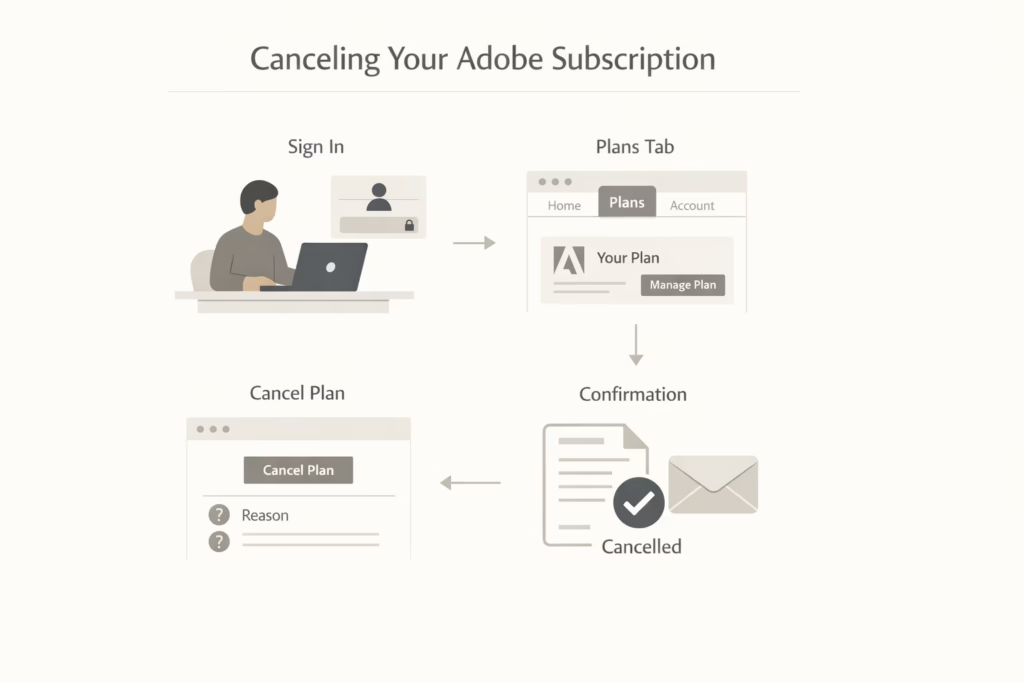
Canceling a Subscription Through Adobe
If you bought your plan directly from Adobe, the process is fairly straightforward. Here’s what to do:
- Go to account.adobe.com and sign in.
- Under the “Plans” tab, find the plan you want to cancel.
- Click Manage plan.
- Choose Cancel your plan and follow the on-screen steps.
You’ll be asked to select a reason for canceling and then confirm a few more details. After that, you’ll get a cancellation email. That’s your receipt – hang on to it just in case.
What Happens After You Cancel?
After cancellation, your account remains active, but you only get limited access to Adobe services. That means you’ll lose access to most apps like Photoshop, Illustrator, or Premiere Pro. Some free versions or starter plans might still be available. You’ll keep access to cloud storage, but it drops to 5GB. If you’re using more than 5GB, you’ll have 30 days to move files elsewhere before they’re deleted.
You can still sign in using your Adobe ID. And if you decide to return later, your old account will still be there.
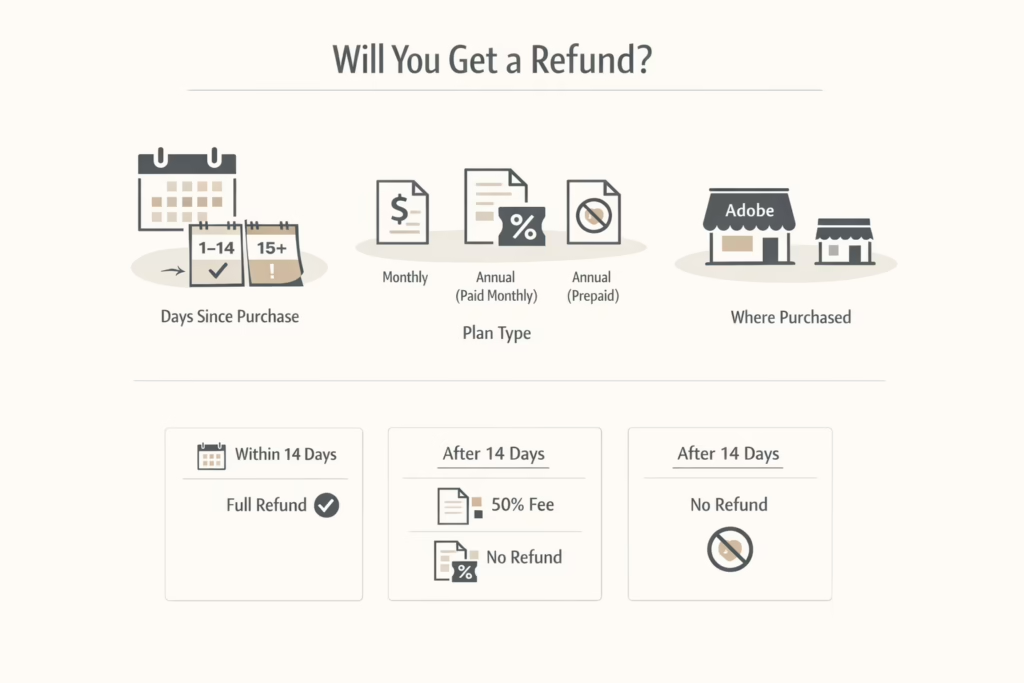
Will You Get a Refund?
Here’s where things get a little more nuanced. Whether or not you get money back depends on:
- How long it’s been since you signed up
- What type of plan you have
- Who you bought it from
Adobe’s General Refund Rules
Here is the refund terms you can rely on:
- Within 14 days of original purchase: You’re eligible for a full refund, no questions asked.
- After 14 days (annual, paid monthly): You’ll be charged a 50% cancellation fee on the remaining value of your contract.
- After 14 days (annual, prepaid): No refund at all. You lose the remainder.
- Month-to-month: no early termination fees and no refund for the current billing cycle.
So if you’re in the first two weeks, canceling is painless. Past that point, check the math before pulling the plug.
Avoiding That Surprise Fee
The early termination fee on annual monthly plans catches a lot of people off guard. Adobe calls it a “discount trade-off,” and technically that’s true. You got a cheaper monthly rate in exchange for a 12-month commitment.
But if you want out early, here’s how the fee is calculated:
- Let’s say you pay monthly for a $50 plan.
- You cancel in month 8.
- You still owe 4 months.
- Your fee is 50% of those 4 months, or about $100.
There’s no way around this once the 14-day window passes, unless Adobe support makes an exception (which happens, but isn’t guaranteed).
If You Subscribed Through Apple, Google, or Microsoft
Canceling works differently if your subscription runs through a mobile platform. In these cases, Adobe can’t help – you’ll need to cancel through:
- Apple App Store (iPhone, iPad, Mac): Use [Settings > Apple ID > Subscriptions] or open the App Store.
- Google Play Store: Go to [play.google.com > Subscriptions] or use the Play Store app on Android.
- Microsoft Store: Visit [account.microsoft.com] and check under Services & Subscriptions.
Each platform has its own refund and billing terms, so don’t assume Adobe’s 14-day policy applies.
What About Team or Business Plans?
If you’re part of a Creative Cloud for teams or enterprise subscription, the process is a bit different. If you bought a plan directly from Adobe, the team admin can cancel through the Admin Console. If you bought from a reseller, you’ll have to contact that seller to handle the cancellation.
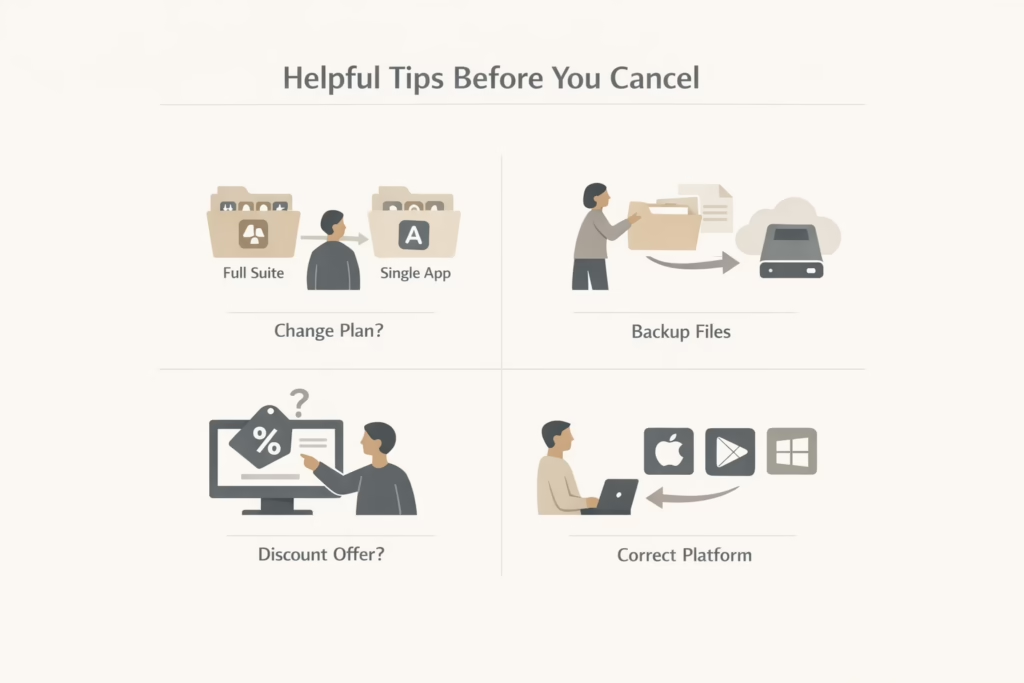
Helpful Tips Before You Cancel
Canceling Adobe might seem like the obvious next step, but there are a few things worth doing before you fully commit. These quick checks can save you money, time, or both:
See If a Plan Change Works Better
Maybe you don’t need the full suite of apps anymore. Adobe lets you switch plans instead of canceling outright. For example, if you’re only using Photoshop, you can downgrade to a single-app plan and pay less. It’s worth looking into if your main goal is to cut costs, not leave completely.
Clear Out Your Cloud Storage
After canceling, Adobe drops your cloud storage limit to 5GB. If you’re over that limit, you get 30 days to download or move your files before Adobe starts deleting them. Don’t wait until the last minute. Open up your Creative Cloud folder and make sure anything important is backed up or transferred somewhere safe.
Check for Retention Offers
Every now and then, Adobe offers a discount to people who are about to cancel. It’s not guaranteed, but if you’re on the fence and just testing the process, you might see an offer to stay at a lower rate. Some people even click through the cancel flow just to see if a deal pops up. No harm in checking.
Make Sure You’re Canceling in the Right Place
It sounds basic, but a lot of people miss this one. If you signed up through the App Store, Google Play, or Microsoft, canceling through Adobe’s website won’t do anything. You’ll need to go back to the same platform where you originally subscribed. Otherwise, you’ll think it’s canceled but still get charged next month.
Final Thoughts
Canceling your Adobe subscription doesn’t have to be stressful, but it does help to know what you’re dealing with. Whether you’re trimming costs, switching tools, or just done with the subscription for now, the key is to cancel at the right time and through the right channel. The biggest mistake people make is assuming all plans work the same way – they don’t.
So take a minute, check your plan type, and use this guide to avoid the typical headaches. And if you’re still unsure, Adobe’s support team can walk you through it (just be ready for a bit of waiting time).
FAQ
1. Can I cancel Adobe anytime, or do I have to wait?
It depends on your plan. If you’re on a monthly subscription, you can cancel whenever you want without a fee. But if you’re on an annual plan (paid monthly or prepaid), there’s a commitment involved. Canceling too early could cost you extra, so it’s worth checking your plan details before hitting that cancel button.
2. Will I still have access to my files after canceling?
Yes, but with limits. You’ll keep access to your Adobe account and stored files, but your cloud space drops to 5GB. If you’re using more than that, Adobe gives you 30 days to back things up or move them elsewhere. After that, anything over the limit could get deleted.
3. How do I know if I signed up through Apple, Google, or Adobe?
If you were on your phone or tablet when you subscribed, chances are it went through Apple or Google. You can check by going to your App Store or Play Store subscriptions. If you don’t see Adobe there, it probably means you signed up directly at Adobe.com.
4. Is there a way to avoid the cancellation fee?
Sometimes, yes. If you cancel within the first 14 days of starting your plan, Adobe offers a full refund.
5. What happens if I just stop paying without canceling?
Not the best idea. Adobe will keep trying to charge your payment method. If the charges keep failing, your account might get suspended, but the remaining contract balance could still be owed. It’s better to go through the proper cancellation steps to avoid a surprise later.