
Canceling a subscription shouldn’t feel like solving a puzzle. But if you’ve ever tried to cancel Amazon Music and got lost somewhere between “Account Settings” and “Renewal Options,” you’re not alone.
Maybe you’re switching to another service, or just need a break from monthly charges. Whatever the reason, this guide breaks down the different ways to cancel Amazon Music, depending on how you signed up. No fluff, no dead ends, just clear steps to get it done.
First, Know What Plan You’re On
Before you cancel anything, you’ll want to be clear on which Amazon Music plan you’re subscribed to. Here’s a quick rundown of what you might be dealing with:
Amazon Music Unlimited
This is Amazon’s most complete music streaming plan. It gives you full control over what you play, along with ad-free listening, offline downloads, and higher audio quality options like HD and Ultra HD.
Amazon Music Standard
Amazon Music Standard is a paid plan available in some regions. It offers access to over 100 million songs in HD and Ultra HD, ad-free listening, on-demand playback, unlimited skips, offline downloads, and similar flexibility to Unlimited, but without audiobooks.
Amazon Music Free
This version doesn’t require a subscription. You can listen to music without paying, but it comes with ads, fewer skips, and less control over what plays next.
Amazon Music for Prime Members
This plan is included with an Amazon Prime membership. Since it’s bundled into Prime, you can’t cancel it on its own. To stop using it, you’d have to cancel Prime entirely.
This guide focuses on canceling paid plans: Unlimited and Standard. If you’re not sure which one you have, visit your Amazon Music Settings or Amazon.ca settings and it’ll be listed there.
If You Subscribed Directly Through Amazon
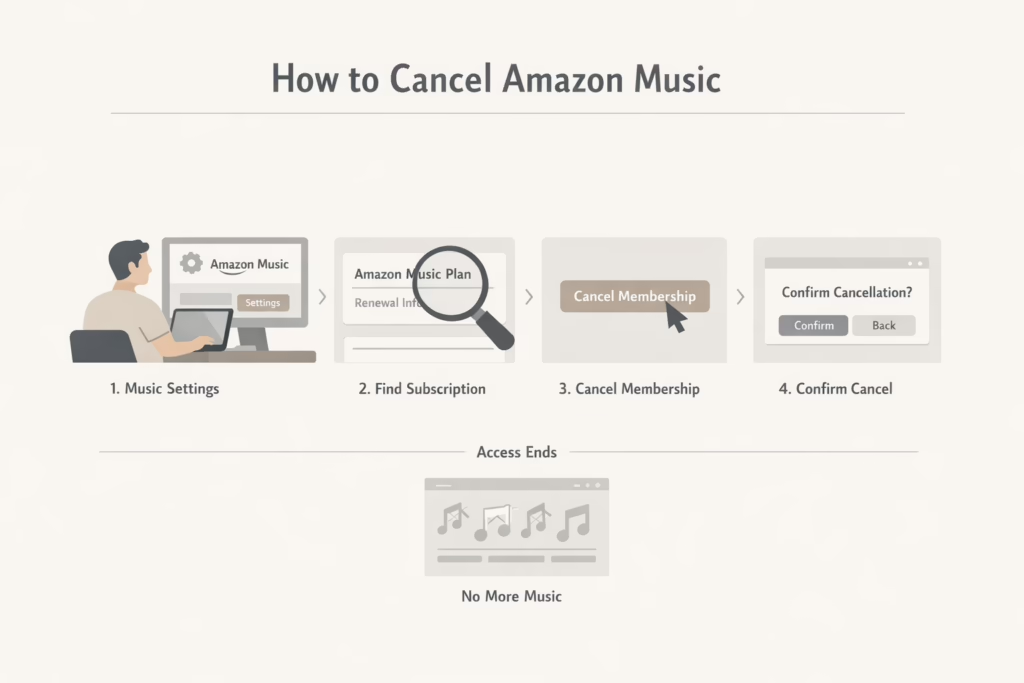
This is the most straightforward cancellation path. If you signed up for Amazon Music on the Amazon website or app, just follow these steps.
How to cancel Amazon Music (Unlimited or Standard):
- Go to Amazon Music Settings: Sign in to your Amazon account and visit your Music settings page.
- Locate the Subscription section: Scroll down to find your active plan under “Subscription Renewal” or “Amazon Music Unlimited.”
- Click Cancel: You’ll see an option to cancel. Select it and follow the on-screen prompts.
- Confirm the cancellation: You may need to confirm a second time to finalize it.
Once canceled, your subscription will continue until the end of the billing cycle. After that, you’ll lose access to Music Unlimited or Standard features, and songs in your library will be grayed out.
If You Subscribed Through Apple, Google, or a Mobile Provider
Here’s where things get a little more complicated. If you joined Amazon Music via your iPhone, Android, or your mobile carrier, Amazon can’t cancel it for you.
Who you Should cancel through:
- Apple Users: Use your Apple ID to cancel via your iPhone settings or Apple’s website.
- Google Play Users: Cancel via the Google Play store under Subscriptions.
- Mobile Providers (like Verizon, EE, etc.): Contact your provider directly or log in to your mobile account.
Amazon can’t access billing details or cancel these plans on your behalf.
Can You Cancel with Alexa?
Yes, but only if you subscribed through Amazon. If that’s the case, you can cancel by saying:
“Alexa, cancel my Amazon Music Unlimited subscription.”
Alexa will guide you through confirmation steps. If you signed up using another platform (like Apple), Alexa won’t be able to help.
Pause Instead of Canceling? Here’s When That Works
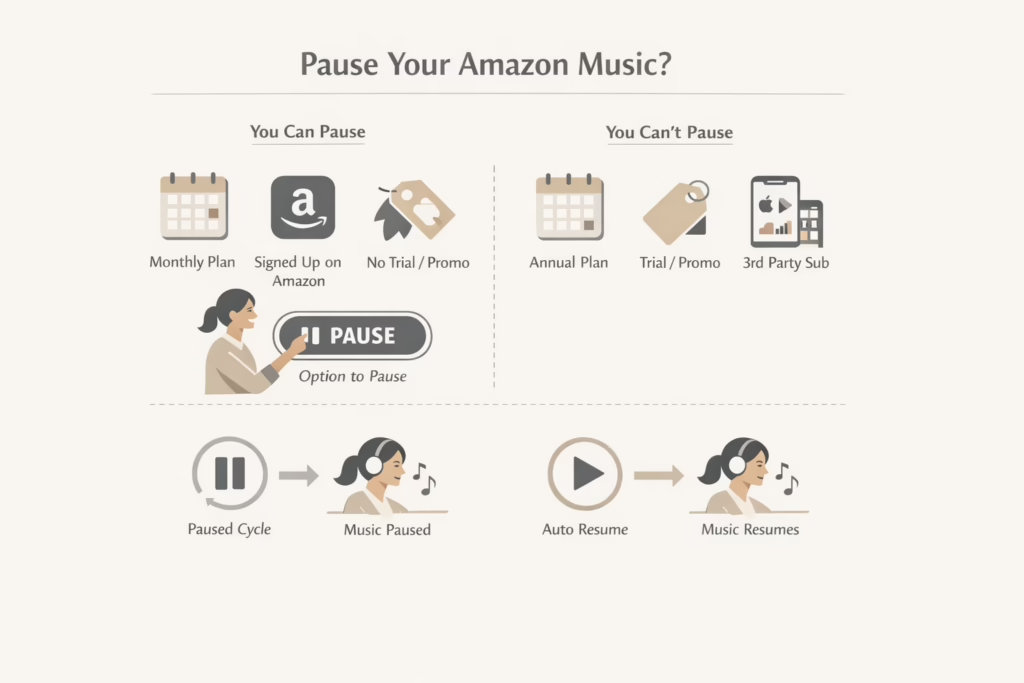
Amazon gives you the option to pause your Amazon Music Unlimited or Standard subscription, but only under certain conditions:
You can pause if:
- You’re on a monthly plan (not annual).
- You signed up directly through Amazon.
- You’re not on a trial or promo.
If you’re eligible, you’ll see the option to pause during the cancellation process. When paused, your subscription stops at the end of the current billing cycle. It resumes automatically after the pause period, or you can manually resume it earlier.
You can’t pause if:
- You’re on a yearly plan.
- You’re on a promotional offer or trial.
- You subscribed through Apple, Google, or a mobile service.
What Happens After You Cancel
Canceling Amazon Music doesn’t instantly wipe your account, but there are some key things to know.
Here’s what changes:
- No more streaming from the paid library: Songs you added from Unlimited or Standard become inactive.
- Playback options are removed: You’ll still see the songs in your library, but can’t play them unless you resubscribe.
- You can still use free Amazon Music: The free tier sticks around, but expect ads and limitations.
If you just paused, everything comes back when the pause ends. You won’t be billed during the pause, and can manually resume early if you change your mind.
Can You Get a Refund?
Usually, no. Amazon does not offer refunds for unused subscription time unless there’s a billing error or some special case.
However, if you believe you were wrongly charged, you can contact Amazon Customer Service and explain the situation. They’ll occasionally issue a refund as a one-time exception, but it’s not guaranteed.
Tips to Avoid Being Billed Again
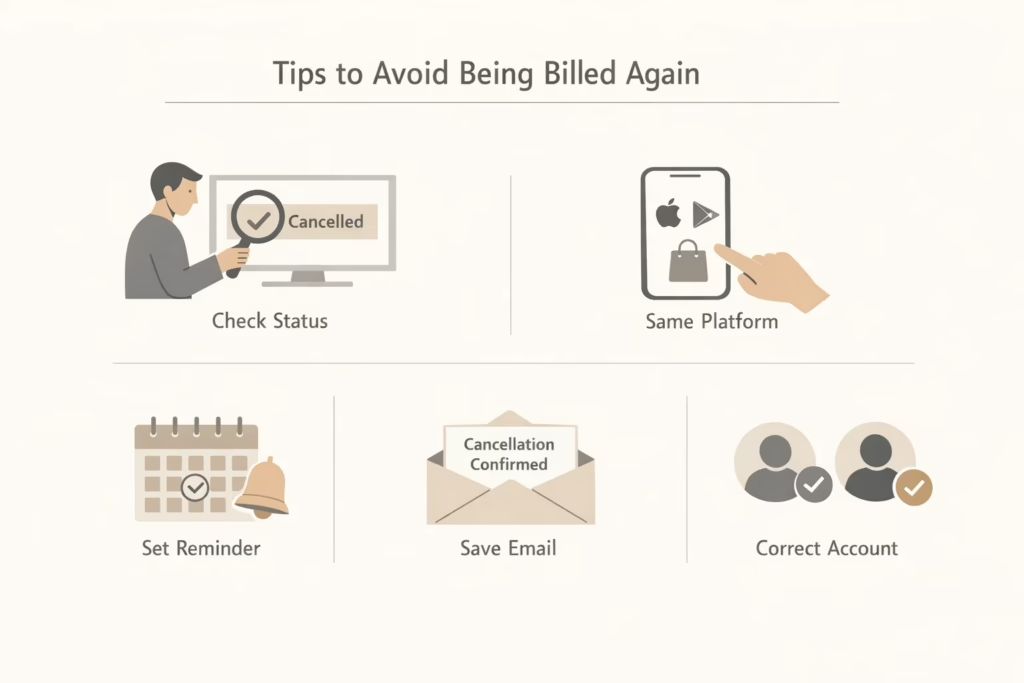
It’s surprisingly common for people to cancel a subscription and still get charged the next month. It’s not always a scam or a system glitch – more often, it’s just a missed step or a wrong assumption. Here’s how to make sure your Amazon Music cancellation actually sticks:
- Double-check your Amazon Music settings: Don’t just hit “cancel” and walk away. Go back into your Amazon Music settings after a few minutes and confirm the plan shows as canceled or ending.
- Match your cancellation platform with your signup: Signed up on Apple or Google Play? You have to cancel through the same platform where you started the subscription.
- Set a calendar reminder: Before the next billing date rolls around, add a quick note on your phone or calendar to check that the subscription didn’t auto-renew. It takes five seconds and can save you a refund hassle.
- Save your confirmation email: Amazon sends a cancellation confirmation via email. Keep it just in case you need proof later on if a charge appears unexpectedly.
- Watch out for multiple accounts: If you’ve ever used more than one Amazon account or device, double-check you’re logged into the right one when canceling.
Final Thoughts
Canceling Amazon Music isn’t hard once you know the route you need to take. The trickiest part is figuring out how you signed up, since that determines who controls your billing. If it was Amazon, you’re in luck – it’s a few clicks away. If it was Apple or a carrier, expect a few more steps, but still doable.
The main thing is to be thorough. Take a minute to check your subscription source, cancel through the right platform, and confirm that it worked. That’s it. No mystery, no confusion.
FAQ
1. Can I cancel Amazon Music anytime, or do I have to wait until the end of my billing cycle?
You can cancel whenever you want. The service will keep running until the end of your current billing cycle. After that, it shuts off automatically, so you’re not paying for time you don’t use.
2. What if I subscribed through Apple or Google? Can I still cancel on Amazon’s website?
Nope. If you joined through Apple or Google, you’ll need to cancel using their platforms. Amazon won’t be able to do it for you, even if you’re logged into your account. That’s just how third-party billing works.
3. Will I lose all my music and playlists after canceling?
You’ll lose access to songs tied to the subscription, but your playlists and library usually stay saved. If you come back later, most of your stuff should still be there. That said, nothing’s guaranteed if your account sits inactive for too long.
4. Is pausing better than canceling?
If you’re just taking a short break, pausing might make sense. It stops the billing temporarily and keeps everything intact. But not every plan qualifies. You won’t see the pause option if you’re on a promo, annual plan, or signed up through Apple or a carrier.
5. Why did I get charged even though I canceled?
Chances are the cancellation didn’t go through completely, or you canceled on the wrong platform. Always double-check for a confirmation email or go back to your subscription settings to make sure it’s actually marked as canceled.
6. Can I still use Amazon Music after canceling?
Yes, but it’ll be the free version. That means ads, no offline playback, and limited song control. If you’re a Prime member, you’ll still get access to the Prime Music catalog, which is a stripped-down version of Unlimited.
7. Will Alexa stop playing music if I cancel?
Alexa can still play music, but from free or Prime options depending on what’s available to you. Just don’t expect full control or ad-free playback unless you’re on a paid plan.