
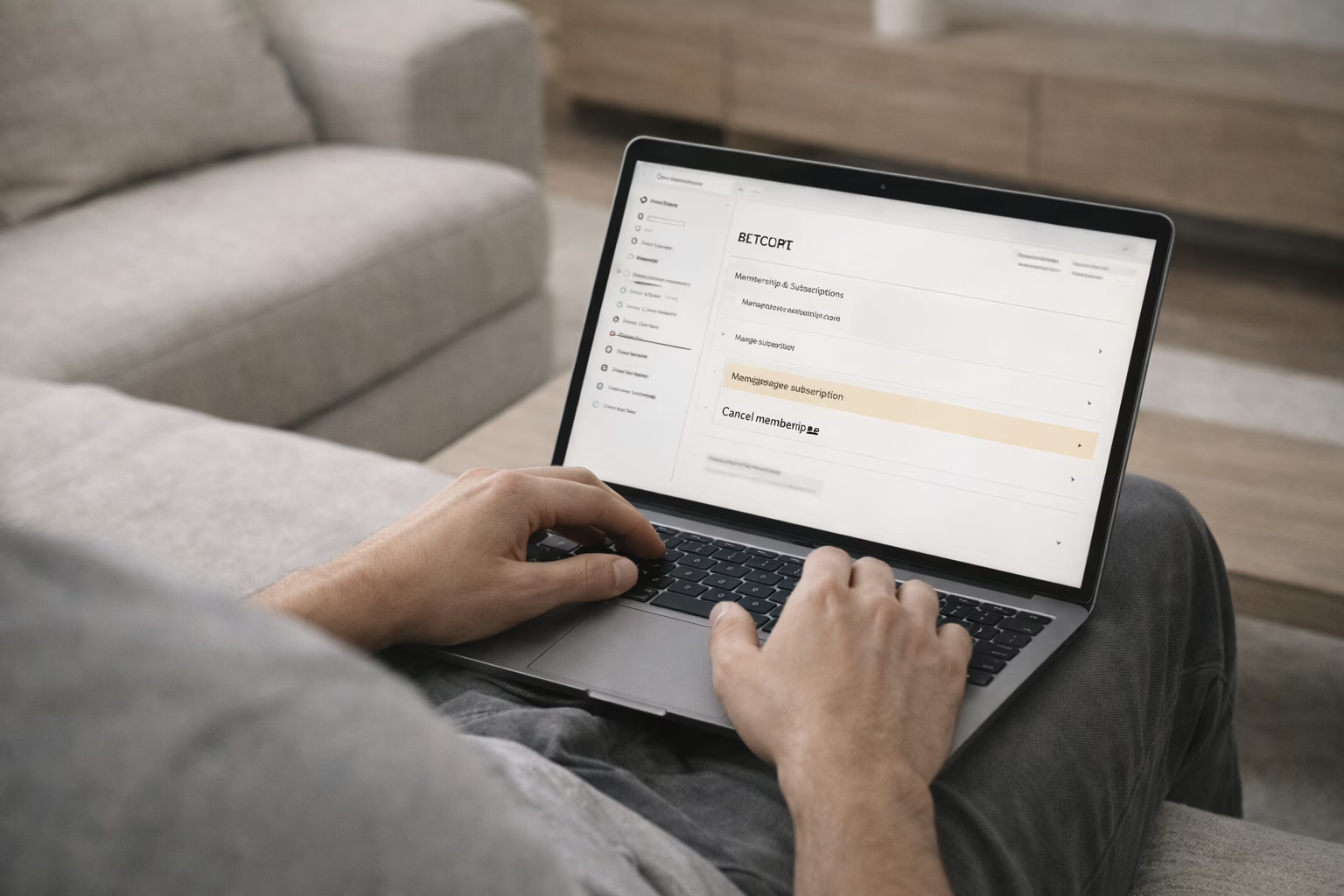
Thinking of canceling Amazon Prime? You’re not alone. Whether you’re cutting back on subscriptions, not using the perks anymore, or just testing other options, ending Prime is pretty straightforward. But before you hit that cancel button, it helps to know how the process works and what happens afterward. In this guide, we’ll walk you through how to cancel on both desktop and mobile, what to expect once you cancel, and a few things you might want to double-check before letting go of your membership.
What Is Amazon Prime?
Amazon Prime is a subscription service that combines fast shipping, streaming, and shopping benefits under one account. It started out as a way to get free two-day delivery, but over time, it’s grown into something bigger. Members get access to Prime Video for movies and shows, exclusive discounts, grocery delivery in some areas, and a few extra perks like free Grubhub+ or special music and reading deals. For many people, it’s a convenient all-in-one package, but it’s not for everyone, especially if you’re not using most of what it offers.
Why People Cancel Amazon Prime
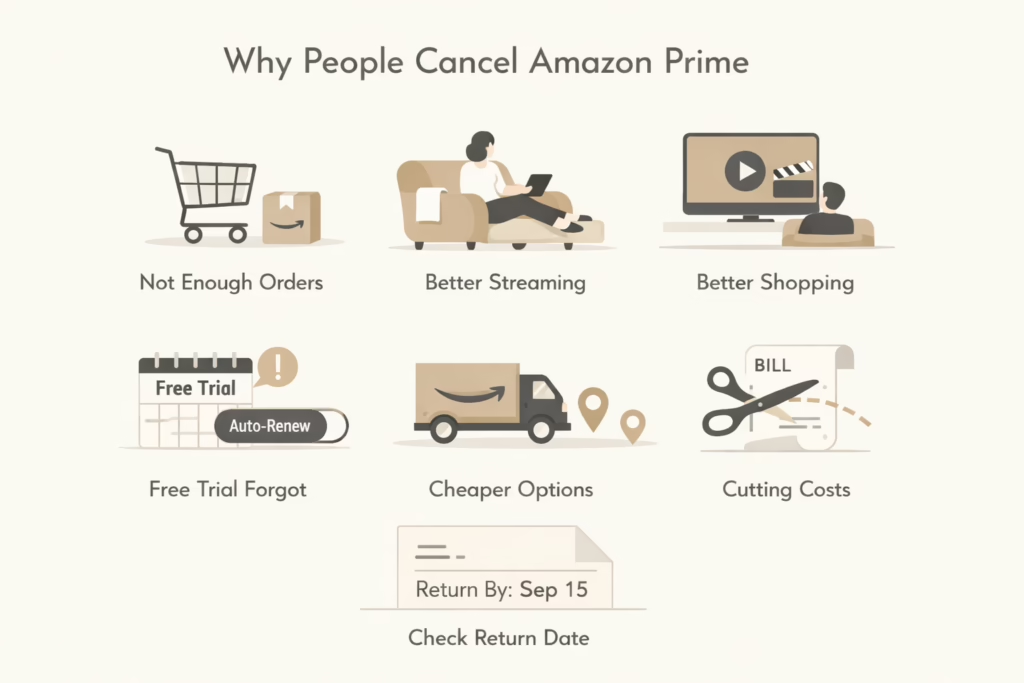
Not everyone needs two-day delivery or on-demand access to Prime Video. Sometimes the math just doesn’t add up. Other times, people sign up during sales like Prime Day, use it for a month or two, then forget about it.
Here are some common reasons people cancel:
- They don’t order enough from Amazon to justify the membership.
- Competing services offer better streaming content.
- They signed up for a free trial and forgot to turn it off.
- They found cheaper or more relevant delivery options locally.
- They’re simplifying finances and trimming subscriptions.
Regardless of your reason, Amazon makes it possible to cancel (even if they’ll try a bit to make you stay).
What Happens When You Cancel Prime?
Before we walk through the how-to, it’s smart to know what actually changes when you cancel:
- You keep Prime benefits until the end of your current billing cycle.
- If you’re on a free trial, your benefits stop immediately when you cancel.
- Prime Video channels (like Paramount+) are billed separately and won’t cancel automatically.
- Add-ons like Amazon Music Unlimited or Amazon Kids+ also stick around unless you cancel them separately.
Also worth noting: you may qualify for a refund only if you are a paid member and have not used any Prime benefit during the current billing period, including streaming, shipping, or access to exclusive deals. But that’s only for paid members who haven’t used things like free shipping or streaming.
How to Cancel Amazon Prime on Desktop
Canceling from a computer is pretty simple, though the steps might be a little tucked away:
- Go to Amazon.com (or Amazon.ca if you’re in Canada).
- Hover over Accounts & Lists at the top right.
- Click Prime Membership from the dropdown menu.
- Look for the Manage Membership box, usually on the right.
- Click End Membership.
- Follow the on-screen prompts to confirm cancellation.
Amazon might offer you a free month or a reminder option instead of canceling right away. If you’re on the fence, you can choose to be reminded later or pause instead.
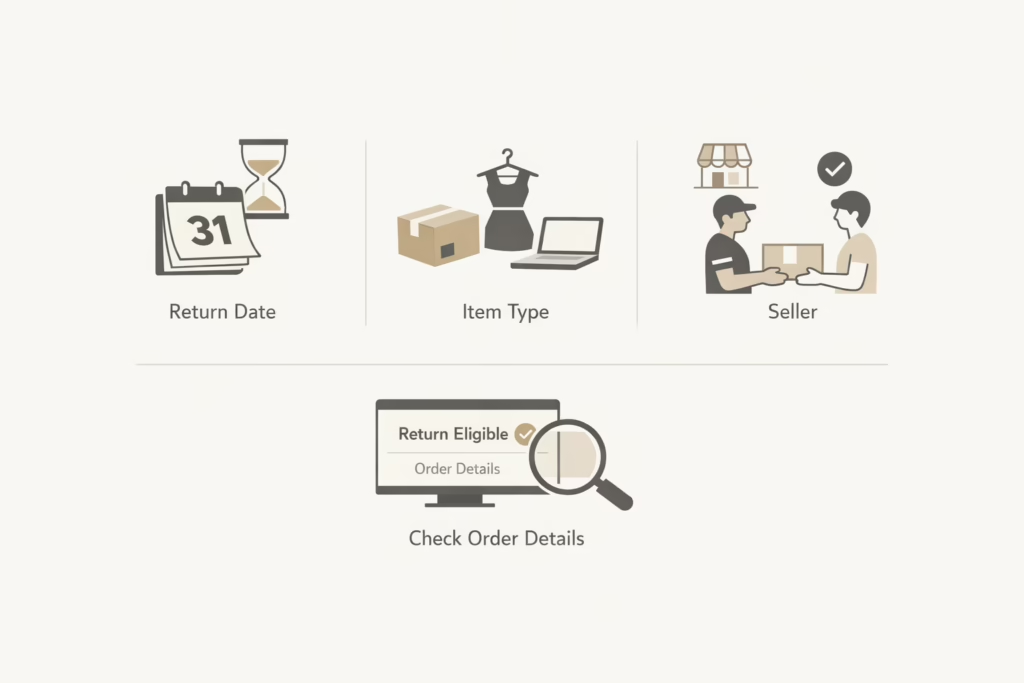
How to Cancel Amazon Prime on Mobile
If you mostly use the Amazon app, here’s how to cancel:
- Open the Amazon Shopping app.
- Tap the Profile icon at the bottom.
- Scroll to Manage Prime Membership.
- Tap Manage Membership again in the dropdown.
- Tap End Membership and go through the confirmation steps.
Same as on desktop, you might see options to pause or delay the cancellation. Make sure to read carefully so you’re not just postponing it without realizing.
Canceling Prime If You Signed Up via Google Play
If you created your Amazon Prime account using the Amazon app on Android or subscribed through the Prime Video Android app, you can’t cancel directly on Amazon.
Here’s what to do:
- Go to Google Play Store.
- Tap your profile icon, then select Payments & subscriptions.
- Choose Subscriptions, find Amazon Prime, and tap Cancel.
This also applies to any third-party provider you may have used to sign up. In that case, you’ll need to cancel through their system.
What Happens to Your Subscriptions After Canceling Prime
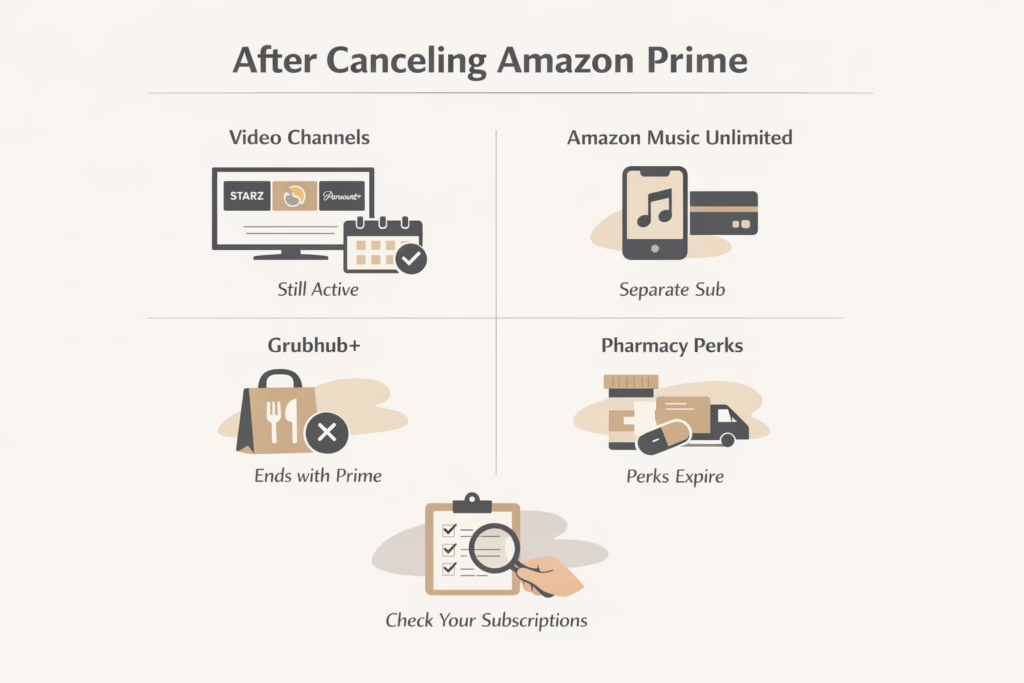
Canceling Amazon Prime doesn’t automatically shut off every service tied to your account. Some perks stop right away, others continue unless you cancel them manually. Here’s how it breaks down.
Prime Video Channels Keep Running
Channels like STARZ, discovery+, or Paramount+ that you subscribe to through Prime Video don’t end when your Prime membership does. These are billed separately and need to be canceled individually if you’re not planning to keep them.
Amazon Music Unlimited Is Separate
If you’re paying for Amazon Music Unlimited, that’s a standalone subscription. Canceling Prime doesn’t affect it, so you’ll need to head to your Memberships & Subscriptions section and end it yourself if you no longer want it.
Grubhub+ Will Be Removed
Grubhub+ is a perk included with Prime in some regions. Once your Prime membership ends, access to Grubhub+ ends with it. There’s nothing else you need to do – this one disappears on its own.
Amazon Pharmacy Perks Expire Too
Amazon Pharmacy perks go away when Prime ends, but only if the service is available in your region (currently US only). Any delivery or savings benefits you got through Amazon Pharmacy as a Prime member will also go away. Prescriptions will still be available, but you won’t get the two-day delivery or Prime discounts anymore.
Quick Tip: Review All Your Subscriptions
Before you walk away from Prime, take a moment to go through your Memberships & Subscriptions tab in your Amazon account. It’s easy to miss something and get billed for services you forgot about. A quick check now can save you a surprise charge later.
Refund Policy: Can You Get Your Money Back?
Yes, but only in very specific cases.
Amazon’s policy allows full refunds only if:
- You’re a paid member (not on a trial).
- You haven’t used any Prime benefits during the current billing period.
This includes streaming, fast shipping, early access deals, or any other Prime feature.
If you qualify, the refund usually takes 3 to 5 business days.
To request it, you don’t need to fill out a form. The refund option may appear during cancellation if you’re eligible. If not, you can contact Amazon Customer Support and ask.
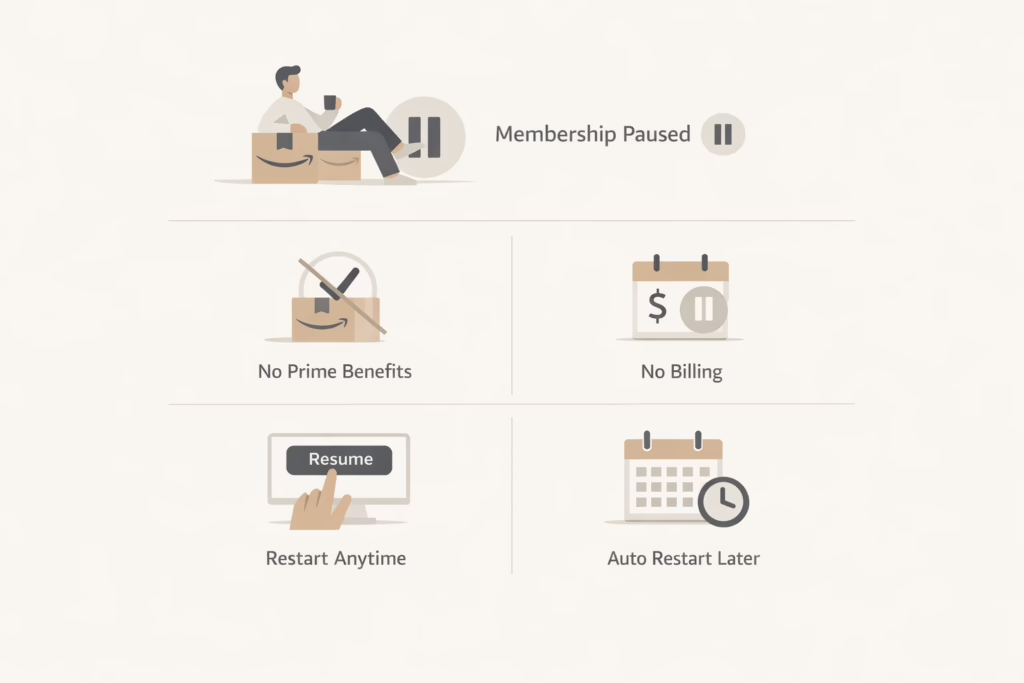
Pausing Instead of Canceling: Is It Worth It?
Sometimes you don’t want to cancel completely but also don’t want the monthly charge to keep running. Amazon allows users in certain regions to pause their membership.
When you pause:
- Your benefits are put on hold.
- You won’t be billed during the pause.
- Your membership resumes when you manually restart it or at the end of the pause period.
It’s a decent middle-ground if you’re unsure about canceling entirely.
How to Contact Amazon Support
If something doesn’t look right or you’d rather just talk to someone, Amazon gives you a few ways to reach out.
Start by going to the Customer Service page. From there, choose “Help with something else,” and then select “Prime” as your topic. Depending on your region, you might see options to chat, request a call, or send an email.
Support can help confirm if your membership was canceled properly, explain if you qualify for a refund, or even pause your account if you’re having trouble doing it yourself.
Things to Double-Check Before You Cancel
Before hitting “End Membership,” here are a few things to quickly review:
- Are you on the right Amazon account? People often have more than one.
- Do you have open Prime Video subscriptions?
- Are any of your family members using Prime through household sharing?
- Is it close to a big sale like Prime Day?
- Did you use any Prime-only coupons or benefits recently?
Final Thoughts
Canceling Amazon Prime isn’t hard, but it helps to go in knowing what you’re losing, what keeps going, and where to tap. Whether you’re leaving for good, switching to a different service, or just taking a break, Amazon gives you a few ways to manage your membership without too much hassle.
Just don’t forget to double-check all your connected subscriptions and accounts before you walk away. That way, you won’t be surprised by stray charges down the line.
FAQ
1. Will I lose my benefits right away after canceling?
Not immediately. If you’re on a paid plan, your Prime perks stick around until your current billing cycle ends. That means you can still use things like Prime Video, fast shipping, and Grubhub+ up until the cutoff date. If you’re on a free trial, cancellation usually ends it right then and there.
2. Can I get a refund after canceling Prime?
It depends. If you paid for Prime but haven’t actually used any of the benefits this period, Amazon may give you a full refund. The trick is you can’t have used shipping, streaming, or anything else tied to Prime. If you think you qualify, the refund option should pop up when you cancel. If not, try contacting customer support.
3. What happens to my Prime Video channels?
They don’t go away automatically. Channels like Paramount+ or STARZ are billed separately, so even if you cancel Prime, those subscriptions will keep charging unless you cancel them too. Best to check your “Memberships & Subscriptions” tab just to be sure nothing slips through.
4. I signed up through Google Play. How do I cancel?
If you used an Android device to sign up, you’ll need to cancel through your Google account. Head into the Play Store, tap your profile, then find Subscriptions. From there, you can manage and cancel Amazon Prime directly.
5. Can I pause my membership instead of canceling it?
In some cases, yes. Amazon offers a pause option that lets you freeze your Prime benefits. You won’t get charged while it’s paused, and everything resumes later when you reactivate or make a Prime-eligible purchase. It’s handy if you just want a break without fully quitting.
6. How do I know if I actually canceled it?
Amazon should send you a confirmation email once you’ve gone through all the steps. If you’re unsure, go back into your Prime settings. If it says “membership ends on [date],” then you’re good. If it still shows renewal details, double-check you didn’t just delay it instead of canceling.
7. Will other people in my household lose access too?
Yep. If you’ve shared Prime benefits with family or roommates using Amazon Household, canceling your membership will cut off their access too. Worth giving them a heads-up if they’ve been using your account for shipping or streaming.