
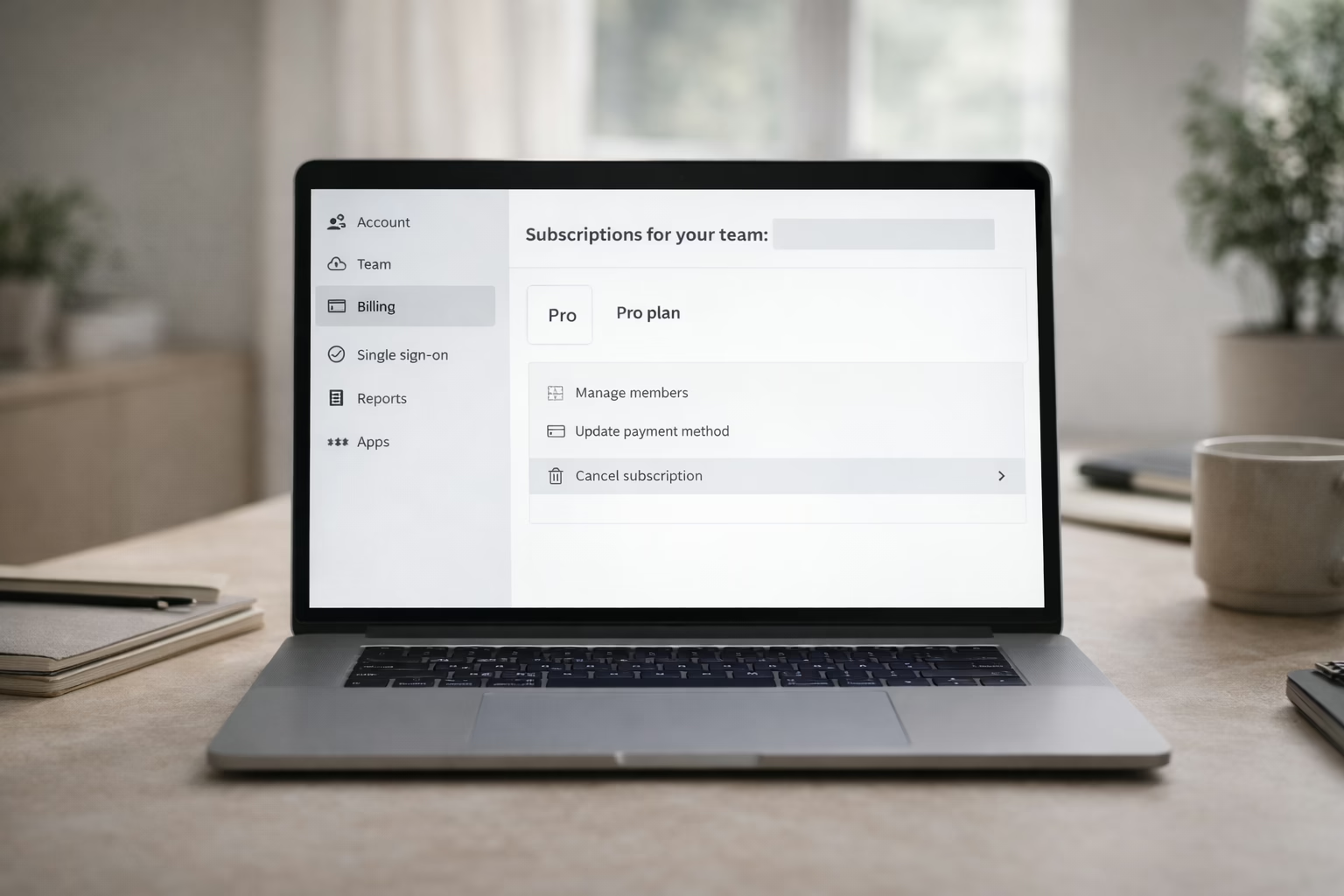
Canceling a Canva subscription is usually straightforward, but only if you do it in the right place. That’s where most people run into trouble. Some click around Canva’s settings and assume the job is done, only to see another charge appear later.
The reason is simple. Canva handles some subscriptions directly, and others are managed by Apple or Google. If you cancel in the wrong place, nothing actually stops. This guide walks through how Canva cancellation really works, what to check before you cancel, and how to make sure billing actually ends when you expect it to. No filler, no upsell language, just the parts that matter.
First, Understand What Kind of Canva Subscription You Have
Before clicking any cancel button, you need to know how your Canva plan was set up. Canva subscriptions fall into two main categories, and they behave very differently.
If you subscribed through a web browser, either on a computer or mobile browser, and Canva sends invoices directly to your email, you have a Canva-managed subscription. These are canceled inside your Canva account.
If you subscribed through the Canva mobile app on an iPhone, iPad, or Android device, your subscription is managed by Apple or Google. In that case, Canva cannot cancel it for you, even if support confirms your account looks inactive.
This distinction matters more than anything else in this process.
How to Check Quickly
Open Canva and go to your account settings. Navigate to Billing or Payments. If you see invoices issued by Canva, it is Canva-managed. If you do not see billing controls and instead see a note about Apple or Google, your subscription lives in the app store.
Do not skip this step. Most billing complaints start right here.
What Canceling a Canva Subscription Actually Does
Canceling does not usually mean your access ends immediately. In most cases, cancellation stops future renewals but keeps your plan active until the end of the current billing period.
That means you can still use Pro or Teams features for a while after canceling. This is normal and not a sign that cancellation failed.
Refunds are a separate issue. Canceling stops future charges. It does not automatically return money already paid.
Understanding this upfront avoids panic later when you still see premium features active.
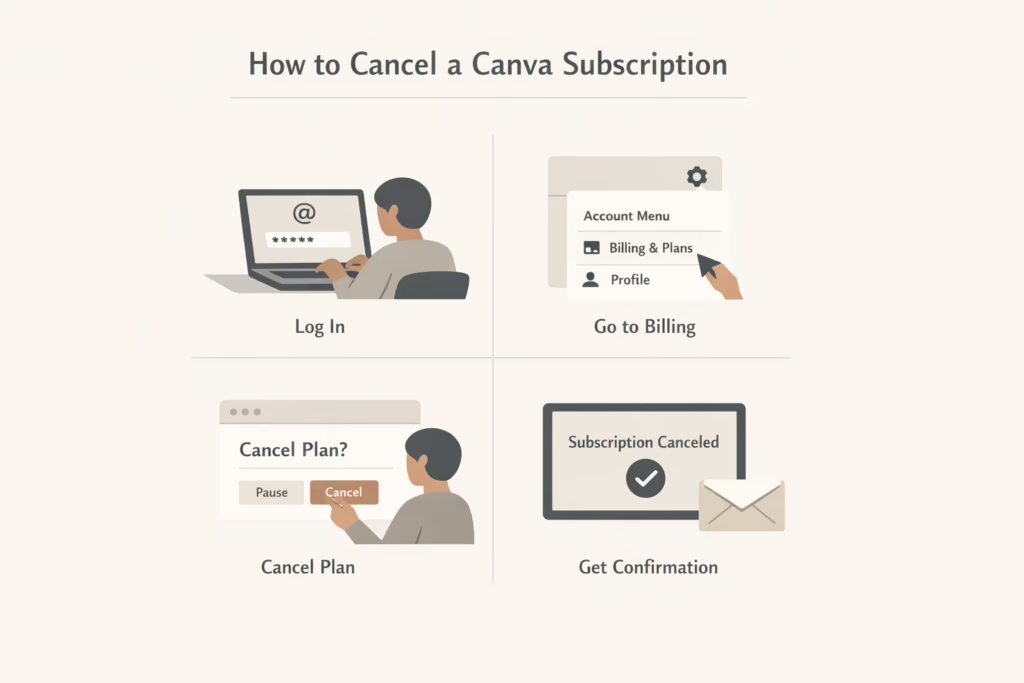
How to Cancel a Canva Subscription on the Canva Website
If your subscription is Canva-managed, this is the most reliable cancellation path.
Step-by-Step Process
- Log into the correct Canva account. Many people have more than one account tied to different email addresses, especially if they use Canva for work and personal projects.
- Open your account menu and go to Settings. From there, navigate to Payments and Plans, then Billing.
- Find your active plan and select Cancel Plan. Canva may ask why you are canceling or show options like pausing or switching plans. These screens are optional and do not cancel anything unless you reach the final confirmation step.
- Complete the cancellation and wait for confirmation. You should see a message on screen and usually receive a confirmation email.
- If you do not see confirmation, assume the cancellation did not complete and check again.
Canceling a Canva Subscription on Mobile Devices
Mobile cancellations depend entirely on how you subscribed.
If You Subscribed Through the Canva App on Android
- Open the Google Play Store and make sure you are signed into the Google account used for the subscription.
- Go to Payments and Subscriptions, then Subscriptions.
- Find Canva in the list and select Cancel Subscription.
- Follow the confirmation steps until Google confirms the cancellation.
- Uninstalling the Canva app does nothing. The subscription lives in Google Play, not on your phone.
If You Subscribed Through the Canva App on iPhone or iPad
- Open your device Settings.
- Tap your name at the top, then go to Subscriptions.
- Find Canva in the list and tap Cancel Subscription.
- Confirm when prompted.
- As with Android, deleting the app does not cancel the subscription.
If you want, I can continue converting other sections into the same clean, skimmable format.
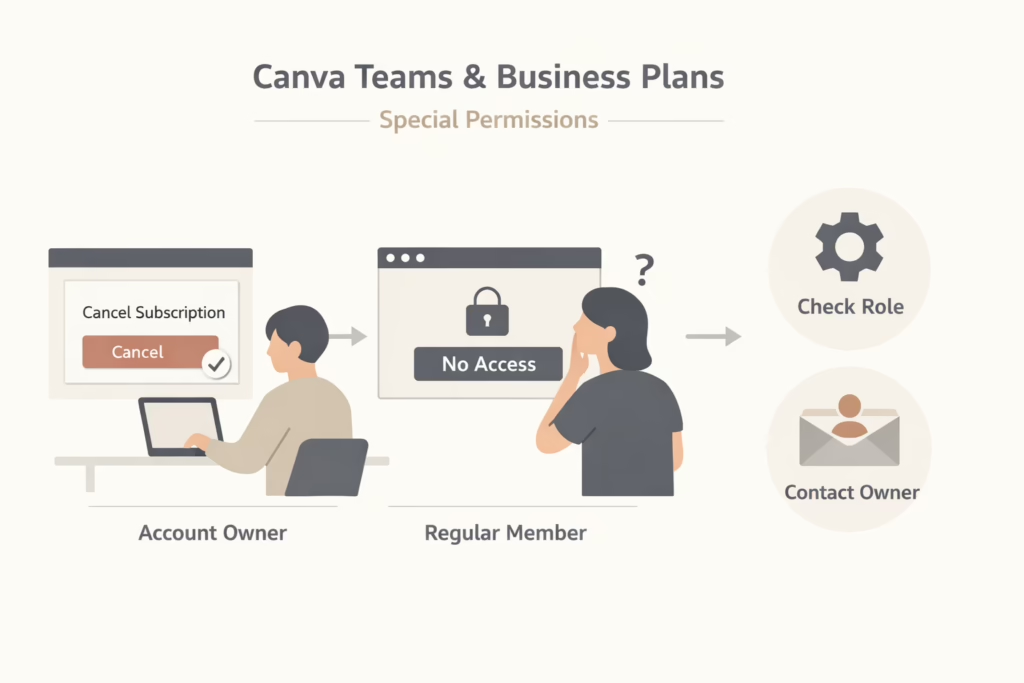
Canva Teams and Business Plans Require Special Attention
If you are part of a Canva Teams or Business account, your role matters.
Only the account owner or an administrator can cancel or pause the subscription. Regular members do not see cancellation options, even if they are being charged indirectly through their employer.
If you do not see billing controls and believe you should, check your role inside the team settings. If needed, contact the team owner to handle cancellation.
Trying to cancel from a member account will not work and often leads people to think Canva is blocking them, when it is simply a permissions issue.
Pausing a Canva Subscription Instead of Canceling
Canva sometimes offers a pause option, depending on your plan and billing method.
Pausing stops billing for a set period while keeping your account and settings intact. This can be useful if you expect to return soon and do not want to reconfigure brand kits or team settings later.
Pausing is not the same as canceling. Billing resumes automatically when the pause period ends unless you take further action.
Always read the pause terms carefully before accepting them.
What Happens to Your Designs After Cancellation
Canceling a Canva subscription does not delete your account or your work.
Your designs stay saved. Your Brand Kit remains stored, although some advanced features become inactive. If you open and edit designs that include Pro elements after your paid period ends, those elements may show watermarks or require replacement.
If you upgrade again later, everything becomes available as before.
This is one of the few parts of the process that is genuinely user-friendly.
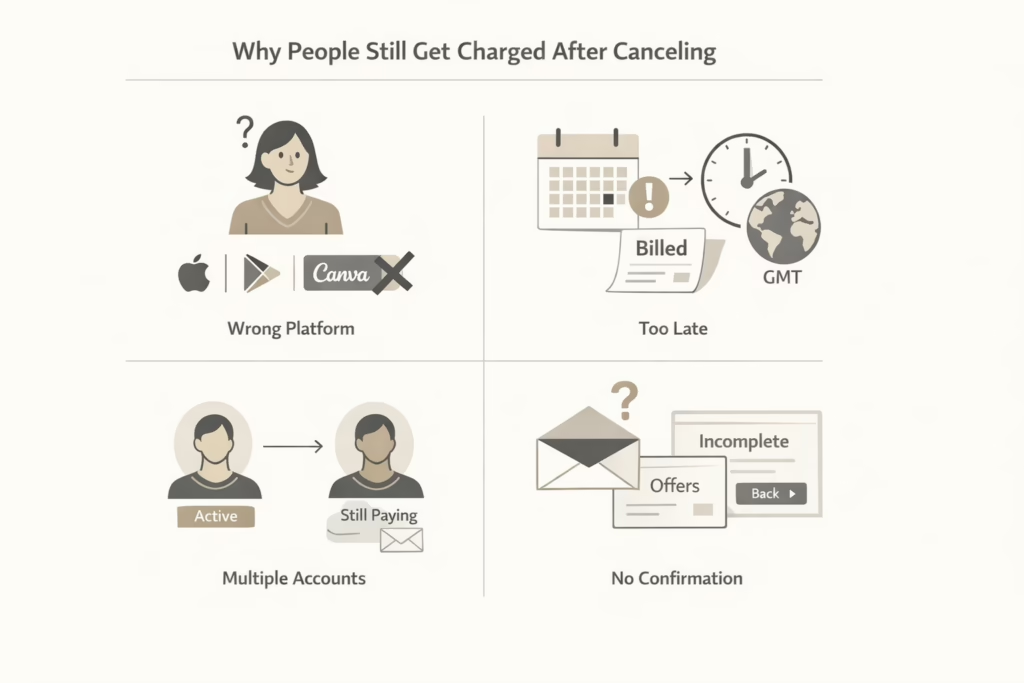
Why People Still Get Charged After Canceling
Most billing problems follow predictable patterns. Understanding them makes them easy to avoid.
1. Canceling in the Wrong Place
Canceling inside Canva when Apple or Google controls billing does nothing. The subscription keeps renewing because Canva is not the billing provider.
2. Missing the Billing Cutoff
If you cancel too close to the renewal date, especially within the same day, the system may already have processed the next charge. Time zones matter here. Canva operates on GMT, not local time.
3. Multiple Canva Accounts
Many users accidentally create more than one account. They cancel one and keep paying on another. This is especially common when using different emails or signing in through Google once and email another time.
4. No Confirmation
If you do not see a confirmation message or email, assume cancellation did not complete. Screens that offer discounts or alternatives are not confirmations.
How to Confirm That Cancellation Actually Worked
- Go back to your Canva billing page after canceling. You should see a message showing the plan will end on a specific date.
- Check your email for a cancellation confirmation and save it for reference.
- If you subscribed through Apple or Google, open your subscriptions list there and confirm the status shows canceled or set to expire.
- If any of these checks fail, act immediately. Waiting until after the next charge makes resolution harder.
Dealing With Unexpected Charges After Cancellation
If you are still charged after canceling, stay methodical.
First, confirm the charge date and invoice number from your bank or card statement. Then identify which platform processed the payment.
If it came from Canva directly, log into your account and review billing history. If you recognize the account tied to the charge, cancel there.
If the charge came from Apple or Google, contact their support. Canva cannot refund or cancel app store subscriptions on your behalf.
Documentation matters here. Screenshots, invoices, and confirmation emails speed things up.
Refunds and What to Realistically Expect
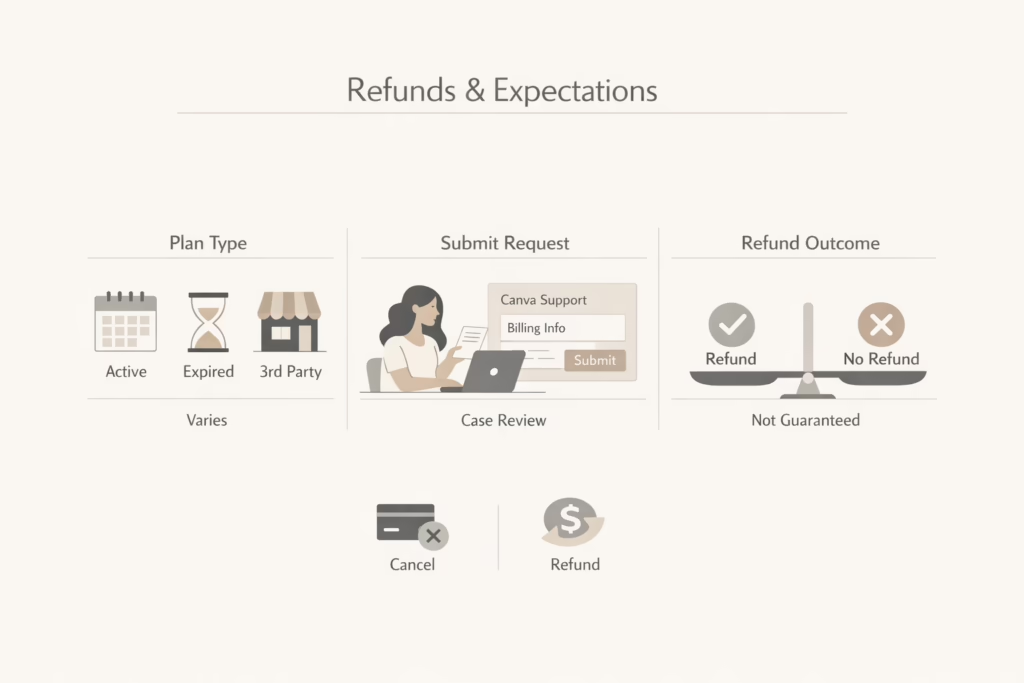
Canva subscriptions are generally non-refundable, especially once a billing period has started. That said, Canva does review refund requests on a case-by-case basis.
If you believe you were charged incorrectly, submit a request through Canva support with full billing details.
For Apple and Google subscriptions, refund requests must go through those platforms. Their approval criteria vary and are not controlled by Canva.
Do not assume cancellation equals refund. Treat them as separate processes.
Special Cases and Regional Quirks
Some regions have specific behaviors worth noting.
For example, free trials may end automatically without a visible cancel button in certain countries. In those cases, the account reverts to the free plan after the trial period without charges.
Billing time zones can also cause charges to appear earlier than expected, depending on where you live. Seeing a charge one day before a trial ends is often a timing issue, not an error.
Knowing this can save unnecessary disputes.
When Contacting Support Makes Sense
Support should be your last step, not the first.
Contact Canva support if you cannot identify the billing account, if charges persist after confirmed cancellation, or if billing pages do not load correctly.
Include clear details. What went wrong, when you canceled, and copies of invoices or receipts.
If your subscription was purchased through Apple or Google, contact those platforms directly for refunds or billing disputes.
Wrapping It Up
Canceling a Canva subscription is not difficult, but it is easy to do incorrectly. Most problems come from assumptions, not from hidden rules.
Know who bills you. Cancel in the right place. Confirm everything. Save proof.
If you do those four things, Canva cancellation is predictable and clean. Skip them, and you risk paying for a subscription you thought was gone.
That difference is what separates a smooth cancellation from weeks of unnecessary back-and-forth.
Frequently Asked Questions
Can I cancel my Canva subscription at any time?
Yes. You can cancel your Canva subscription at any point. Canceling stops future renewals, but you usually keep access to paid features until the end of your current billing period.
Will I lose my designs after canceling?
No. Canceling your subscription does not delete your account or your designs. Everything stays saved. If you edit designs that use Pro elements after your paid period ends, those elements may require replacement or show watermarks.
Why am I still seeing Pro features after canceling?
This is normal. Cancellation usually turns off automatic renewal, not immediate access. You keep Pro or Teams features until the billing period you already paid for ends.
Does deleting the Canva app cancel my subscription?
No. Deleting the app does not cancel anything. Subscriptions must be canceled through Canva, Apple, or Google, depending on how you originally signed up.
Why am I still being charged after I canceled?
This usually happens if the subscription was canceled in the wrong place, canceled too close to the renewal time, or tied to a different Canva account. Always check where the billing comes from and confirm cancellation in that system.