
Maybe you signed up for a free trial and forgot to cancel. Or maybe you’ve just finished binge-watching what you came for. Either way, figuring out how to cancel Paramount Plus shouldn’t feel like a puzzle.
The tricky part? It depends on how you subscribed – whether through the app, Apple, Roku, or your browser. In this guide, we’ll walk through each method in plain terms, so you can cancel confidently without digging through five help pages.
Why You Might Want to Cancel
There’s no shame in canceling a subscription. Sometimes you signed up for one show and finished it. Other times, life just gets busy and streaming isn’t on your radar anymore. Maybe you’re juggling too many services and something has to go. Or maybe you’re cutting back on spending for now.
Whatever the reason, Paramount Plus doesn’t make you jump through hoops to leave. You just need to cancel in the right place, depending on how you first signed up.
First Things First: Know Where You Subscribed
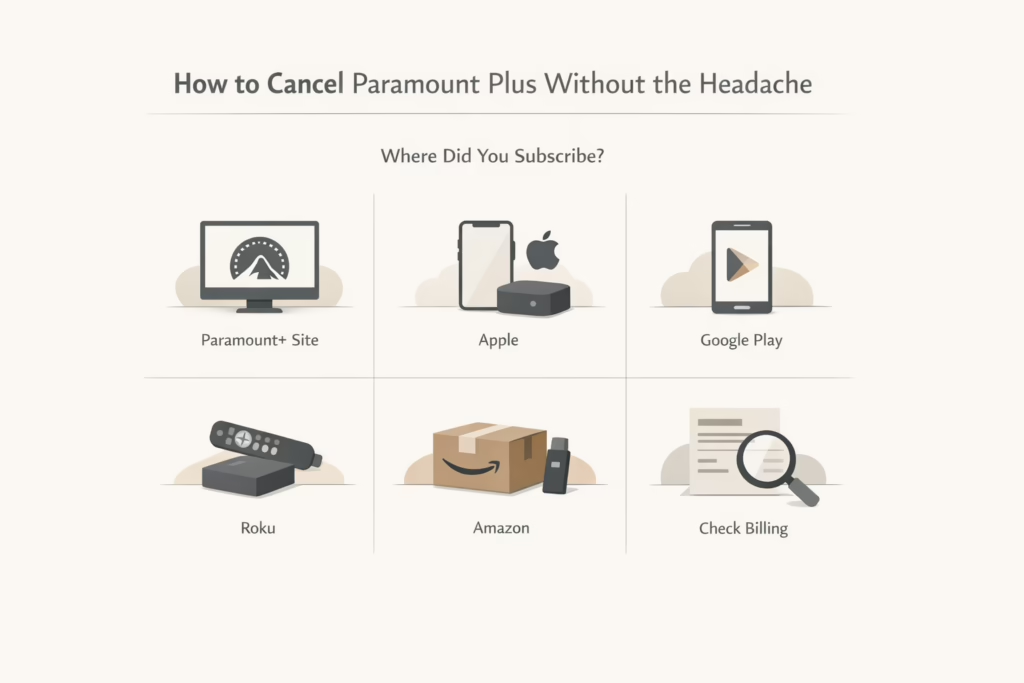
Before diving into the steps, it helps to figure out where you subscribed to Paramount Plus. Did you sign up on the Paramount+ website? Through your iPhone? Maybe it was part of a Roku or Amazon bundle? The cancellation method depends entirely on that.
Here are the most common places people sign up:
- Directly on the Paramount+ website
- Apple (iPhone, iPad, Apple TV)
- Google Play (Android phones or Android TV)
- Roku
- Amazon (Fire TV or Appstore)
- Optus SubHub (for users in Australia)
If you’re not sure, a quick check of your billing statement should point you in the right direction.
Cancel Paramount Plus via the Website
If you signed up on the official site, the cancellation is probably the easiest.
- Go to paramountplus.com
- Click your profile icon and head to Account
- Find the Cancel Subscription button and follow the prompts
Important notes: you’ll still have access until the end of your billing period. If you cancel a free trial, your access may continue until the trial’s scheduled end date – but this depends on where you signed up. Some platforms may end the trial immediately upon cancellation. There are no refunds for partial billing cycles.
Canceling on an iPhone or iPad
If you subscribed through Apple, you’ll need to cancel it in your iOS settings. Deleting the app alone won’t do anything.
- Open Settings on your iPhone or iPad
- Tap your name at the top
- Go to Subscriptions
- Find Paramount+ and tap it
- Tap Cancel Subscription and confirm
If you don’t see the cancel option, your subscription might already be inactive.
Cancel on Apple TV
This only applies if you signed up through the Apple TV itself (4th generation or later):
- Open Settings on your Apple TV
- Go to Users & Accounts, then choose your account
- Select Subscriptions
- Choose Paramount+, then hit Cancel Subscription
Easy to miss, but yes, this needs to be done directly from your Apple TV device.
Cancel via Google Play (Android Devices & TVs)
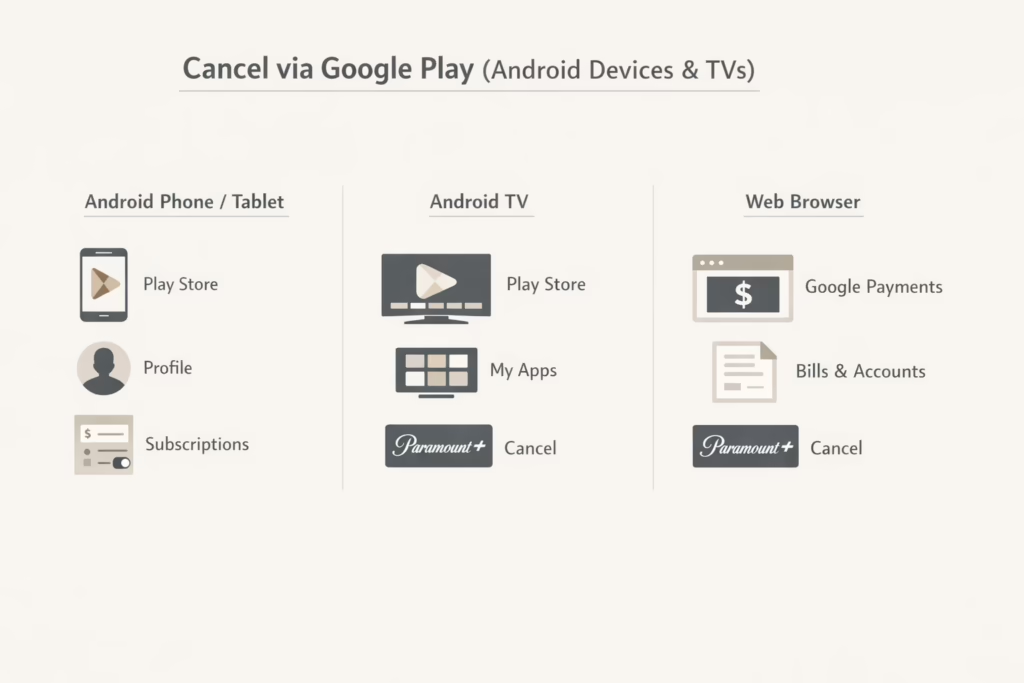
There are a few ways to cancel if you used Google Play, depending on the device.
On Android phone or tablet:
- Open the Google Play Store
- Tap your profile icon
- Select Payments & Subscriptions, then Subscriptions
- Tap Paramount+
- Tap Cancel Subscription and follow the instructions
On Android TV:
- Open the Play Store app
- Go to My Apps > Subscriptions
- Select Paramount+, then hit Cancel
From a web browser:
- Visit payments.google.com
- Sign in and select Bills and Accounts
- Find Paramount+, then cancel it from there
Cancel Paramount Plus on Roku
There are two ways to do this – through your Roku device or online.
From the Roku device:
- Highlight the Paramount+ channel on your home screen (don’t click it)
- Press the * button on the remote
- Choose Manage Subscription
- Select Cancel Subscription
From the Roku website:
- Visit my.roku.com and sign in
- Click Manage Your Subscriptions
- Find Paramount+ and click Unsubscribe
Either way, you’ll still have access until the end of the billing period.
Cancel via Amazon (Fire TV or Appstore)
If you subscribed using your Amazon account:
- Go to amazon.com/appstoresubscriptions
- Sign in with your Amazon credentials
- Locate Paramount+ in the list
- Click Actions, then Turn Off Auto-Renewal
- Confirm when prompted
Just remember: deleting the app on your Fire TV doesn’t cancel the subscription.
Optus SubHub (Australia Only)
If you’re using Optus SubHub:
- Go to subhub.optus.com.au and log in
- Manage your subscriptions from there
What Happens After You Cancel?
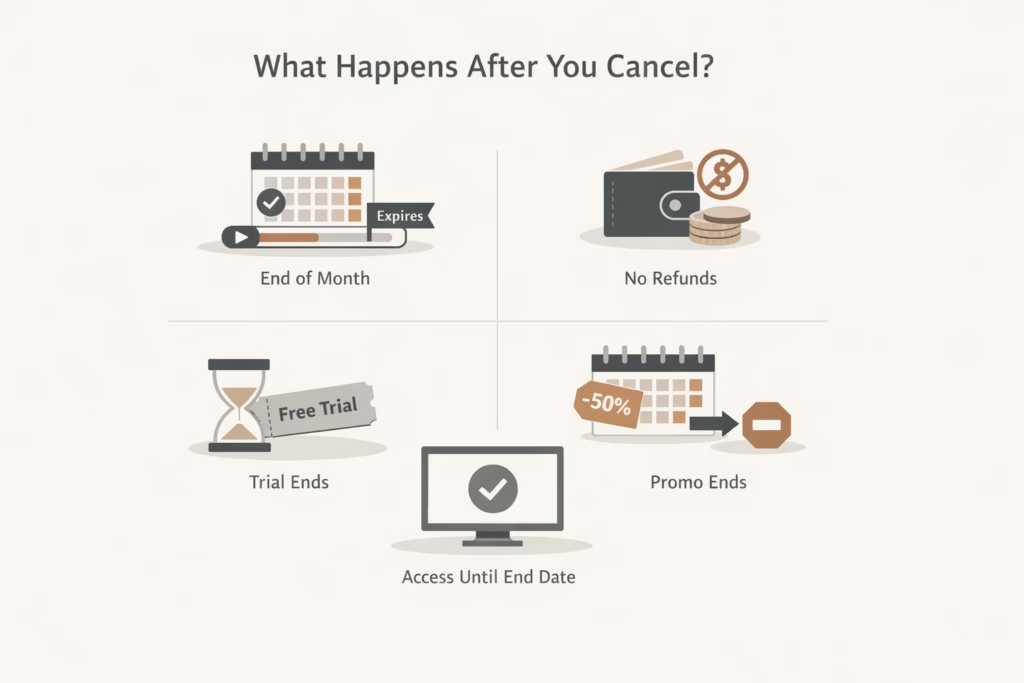
Here’s what you can generally expect after hitting that cancel button:
You Still Have Access for a While
Canceling doesn’t instantly cut you off. Once you hit the cancel button, your account stays active until the end of your current billing period. So if your next charge is two weeks away, you can keep streaming until then. It’s not a shutdown – more like letting your access wind down.
No Refunds for Unused Time
Paramount Plus doesn’t do partial refunds. If you cancel in the middle of your billing cycle, you won’t get any money back for the days you don’t use. You can still watch during that time, but your payment is considered final once the billing period starts.
Free Trials Run Their Course
If you’re on a free trial and cancel, you won’t lose access right away. The trial continues until its scheduled end date. But once the trial ends, you won’t be charged, and your access will stop unless you choose to resubscribe.
Promo Periods Don’t Extend Your Access
Some promos give you a few months free, or at a discount. But if you cancel during that time, the subscription ends with your current billing cycle – not when the whole promo was originally supposed to finish. Depending on the platform, canceling during a multi-month promo may cut your access at the end of the current billing cycle rather than letting you use the full promo.
Common Issues and Tips
Canceling might not always go smoothly. Here are a few things that trip people up:
- You forgot how you signed up: Start by checking your bank statement or email for clues.
- The cancel button isn’t showing: That might mean it’s already canceled or you’re in the wrong account.
- Uninstalling the app doesn’t cancel anything: This applies across the board.
- You’re seeing charges after canceling: Double-check you didn’t accidentally sign up on multiple platforms.
Final Thoughts
Canceling Paramount Plus isn’t hard once you know where to look, but getting there can be confusing if you don’t remember where you started. The platform you used to sign up controls the process, and most of the time, that means you’ll be dealing with Apple, Google, Roku, or Amazon’s subscription systems – not Paramount directly.
Give it five minutes, check your settings, and you’ll be free of the subscription without drama. Or, if you change your mind later, re-subscribing is just as easy.
No need to overthink it. Just take it one step at a time.
FAQ
1. Can I cancel Paramount Plus anytime, or am I locked in for a year?
You can cancel anytime. There’s no long-term contract or weird penalty. If you’re paying monthly, the subscription just runs until the end of your billing cycle and then stops. Annual plans work the same way, but there’s no refund if you cancel midway.
2. What happens to my account after I cancel?
Your profile and watch history stick around, just in case you decide to come back later. You’ll still have access to everything you paid for until the billing period ends, then the account switches to inactive.
3. I deleted the Paramount+ app. Does that count as canceling?
Nope, deleting the app doesn’t cancel anything. Think of the app as just the doorway. You still have to turn off auto-renewal through the account you subscribed with, like Apple, Google, Roku, or Amazon.
4. I don’t remember how I signed up. How do I figure it out?
Check your bank or email for the original charge. If it says Apple, Google, or Amazon, that’s your answer. Still stuck? Try logging into the Paramount+ website and see if it lets you manage billing there. If not, it’ll usually tell you who handles it.
5. Will I get a refund if I cancel right after being charged?
Paramount Plus doesn’t offer partial refunds once a billing cycle starts. You’ll keep access until the period ends, though. If you feel like there’s a billing mistake, it’s worth contacting support directly.
6. Can I pause my subscription instead of canceling?
There’s no official “pause” button, unfortunately. You’d need to cancel and just come back later when you’re ready. When you re-subscribe, your preferences and account info should still be there.
7. What if I signed up during a promotion? Will I lose my remaining free months if I cancel now?
Yes, if your promo spans more than one month and you cancel early, your access stops at the end of the current billing period – not at the end of the full promo duration. So if you’re planning to ride out a full three-month offer, wait until closer to the end.