
Spotify Premium is great when you use it. Offline listening, no ads, unlimited skips – all useful things. But sometimes you just want to pause, save a bit of money, or move on. Canceling should be simple, yet many people still get stuck clicking around their account, wondering if they did it right.
This guide walks through how to cancel Spotify Premium clearly and calmly. No tech jargon, no confusing detours. Just what actually works, what to expect after you cancel, and a few things worth checking so you do not get charged again by accident.
Why You Might Want to Cancel Spotify Premium
There’s no one-size-fits-all reason. Maybe you’re not using it enough to justify the cost. Maybe another music app fits your habits better. Or maybe it’s just part of cutting down on monthly subscriptions you forgot you had. Some folks cancel during the summer when they’re outdoors more, others during a financial reset. Whatever the reason, it’s your call, and it doesn’t have to be complicated.
The Straightforward Way to Cancel (If You Signed Up Through Spotify)
If your Spotify Premium is billed directly by Spotify (most common), here’s what you do:
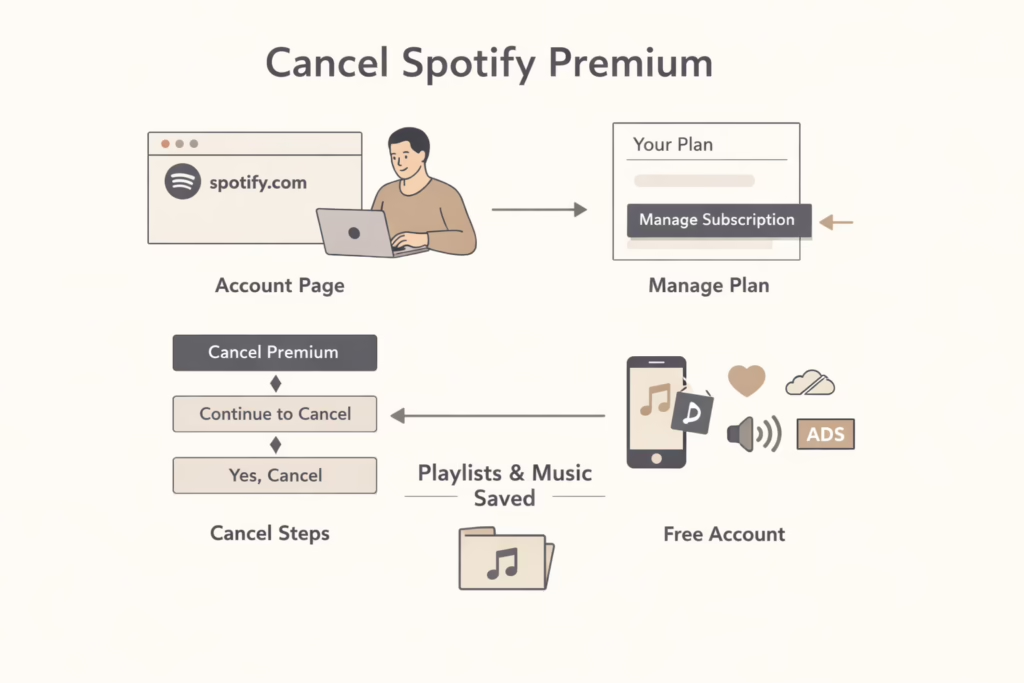
- Go to your Spotify account page: Visit spotify.com/account and log in.
- Find ‘Manage Your Plan’: Under the section labeled Your Plan, click Manage your subscription.
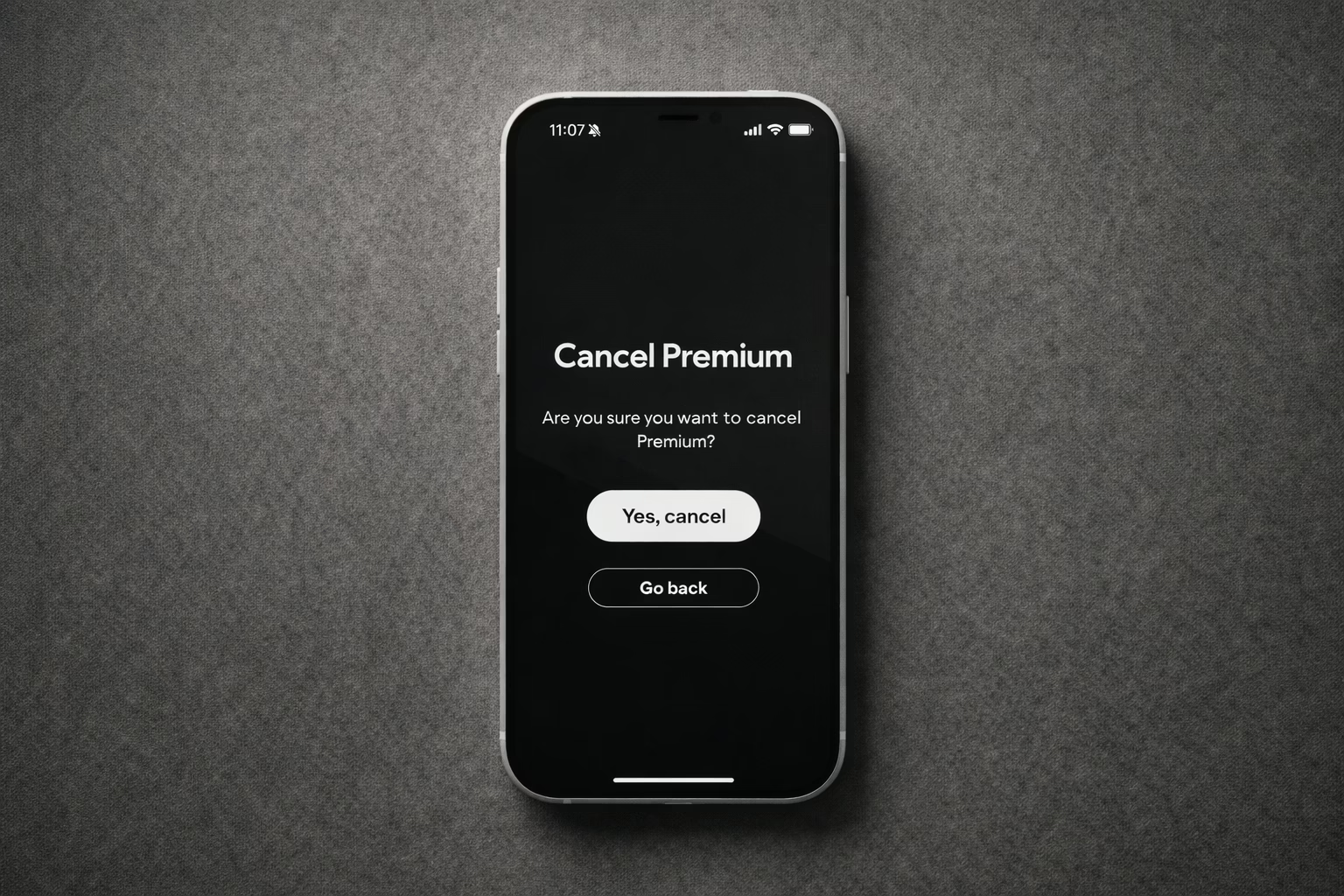
- Click through the cancellation prompts: Hit Cancel Premium, then Continue to cancel, and finally Yes, cancel.
That’s it. Your Premium access sticks around until the end of your billing cycle, and after that, your account switches back to the free version.
Quick heads-up: You won’t lose your playlists, liked songs, or saved albums. You’ll still have access to your music, just with ads and without offline listening.
How to Cancel Through the Spotify Cancellation Form (Alternate Route)
There’s another way, especially useful if you’re having trouble logging into your account the usual way.
- Go to the official cancellation form: spotify.com/uk/signed-out/cancel.
- Enter the email tied to your Spotify account.
- Choose your subscription type and cancellation reason.
- Submit the form and check your inbox for confirmation instructions.
This route won’t instantly cancel things, but it gets the process started if you can’t access your account dashboard.
Canceling a Spotify Family or Duo Plan
If you’re the plan manager (the one paying), you can cancel just like any other Premium account.
But if you’re a member of a Family or Duo plan (not the manager), you can’t cancel the whole thing. What you can do is leave the plan, and your account will revert to Free. Just visit your Spotify account page, go to Your Plan, and remove yourself.
Important: Only the person who set up the Family or Duo plan can stop the subscription from being billed. If that’s not you, you’ll need to talk to the person who invited you.
What If You Signed Up Through Apple, Google, or Your Phone Provider?
This is where it gets tricky.
Spotify Premium subscriptions can also be handled through third parties like:
- Apple (via App Store)
- Google Play
- Mobile or internet providers (like Verizon, AT&T, etc.)
In these cases, you can’t cancel through the Spotify website. You’ll need to manage the subscription through the service where you first signed up.
How to check:
- Go to your Spotify account overview.
- Look under Payment, if you see a provider name there, it’s handled outside of Spotify.
Where to cancel:
- Apple: Go to your iPhone Settings > Your Name > Subscriptions.
- Google Play: Open the Play Store app > Tap your profile > Payments & Subscriptions > Subscriptions.
- Carrier-billed: Log into your provider’s account portal or app.
Tip: Canceling in the wrong place won’t stop the billing. Always double-check where you originally subscribed.
Things That Might Confuse You (But Shouldn’t)
Canceling Premium doesn’t always play out the way people assume. A few things might catch you off guard if you haven’t done it before. Here’s what actually happens once you hit that cancel button.
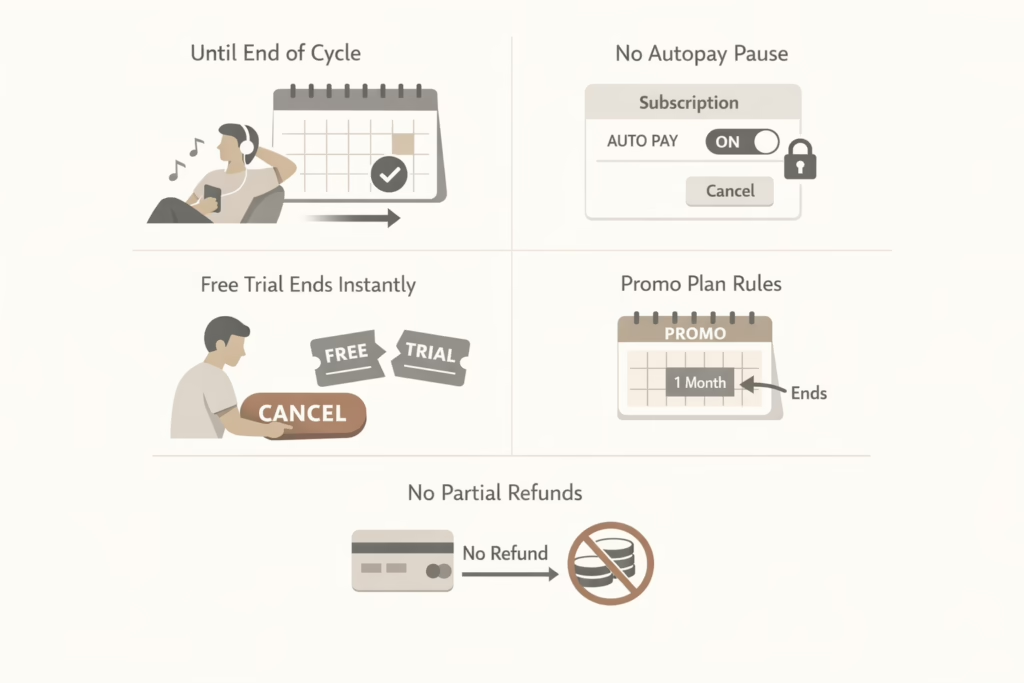
You’ll Keep Premium Until the End of Your Billing Cycle
Spotify doesn’t shut off Premium the moment you cancel. You’ll still get all the features you’ve paid for – ad-free streaming, downloads, offline listening, higher-quality audio – right up until your billing period ends. So you can still enjoy Premium until the final day, even if you cancel early.
There’s No Way to Turn Off Autopay Without Canceling
Spotify doesn’t have a “pause” option or a toggle to stop automatic payments. If you don’t want to be charged again, the only real move is to cancel the plan outright. Once it runs out, you’ll roll back to the free version, and you can resubscribe anytime.
Free Trials End the Moment You Cancel
This one surprises people: canceling a free trial immediately cuts off Premium access. Even if you had a few days left in the trial, those vanish once you cancel. So if you want to take full advantage of a free trial, mark the end date on your calendar and cancel just before it expires.
Promo Plans Stick to the Calendar
Got a promotional offer, like three months of Premium for $1? It generally follows the same billing logic. If you cancel during the second month, Premium access usually stops at the end of that billing cycle – not at the end of the full promo period.
However, depending on the platform, canceling during a multi-month promo may end access at the end of the current billing cycle rather than letting you use the full promo period. Some third-party platforms like Apple or Google may handle promo cancellations differently, so it’s worth checking their terms too.
No Refunds for Partial Months
Spotify doesn’t prorate. If your card got charged yesterday and you cancel today, you’ve still paid for the full month. There’s no refund for unused days, even if you barely used the app. It’s one of those “read the fine print” moments that catches people off guard.
What Happens After You Cancel?
Here’s what changes, and what doesn’t:
What stays the same:
- Your account and login
- All playlists, saved albums, and history
- Your followers and people you follow
What you lose:
- Ad-free listening
- Offline downloads
- Unlimited skips
- High-quality streaming
You’re basically going back to Spotify Free. Still very usable, just with some limitations.
Tips to Avoid Billing Surprises
Even when you think you’ve canceled everything correctly, small things can slip through the cracks. To avoid unexpected charges or leftover subscriptions, it helps to slow down and double-check a few details before walking away from Spotify Premium.
Start by setting a reminder a few days before your next billing date. That way, if you still want to cancel, you won’t miss the cutoff and get charged again out of habit. After canceling, always look for a confirmation email. If it didn’t show up, you may not have finished the process all the way through.
Also, if you signed up through a bundle – like Spotify with Hulu, or through a mobile provider – canceling one part doesn’t always cancel the rest. Check any linked services just to be safe.
Lastly, if you’re seeing charges after canceling, double-check whether you might’ve created a second Spotify account at some point. It happens more often than you’d think, especially if you’ve logged in with Facebook or a different email in the past.
Locked Out of Your Account but Still Being Charged?
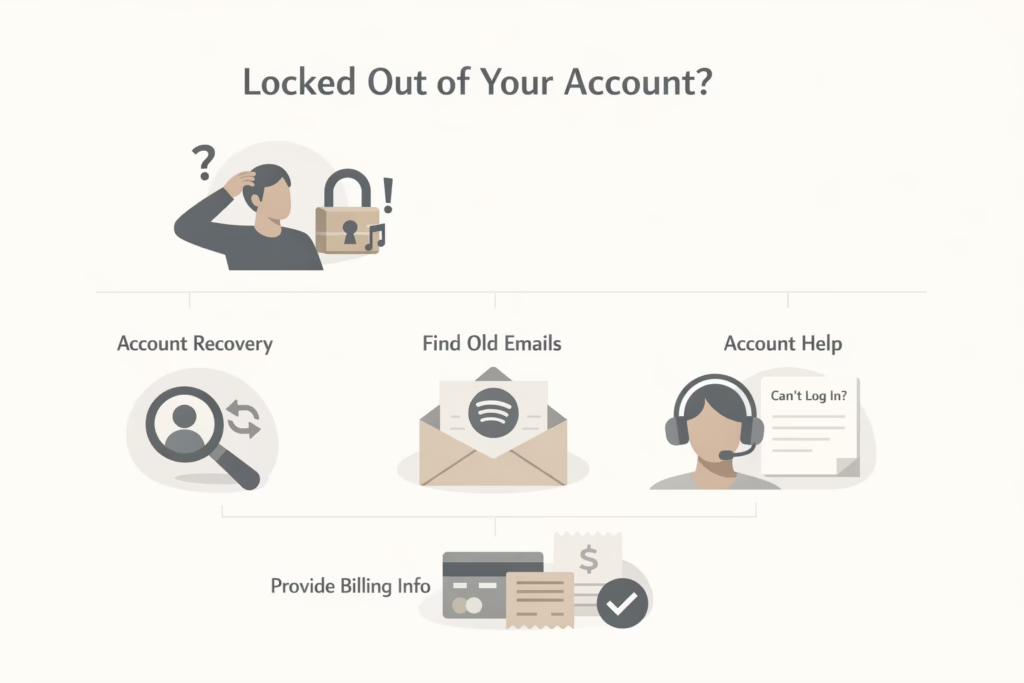
It happens. People switch emails or forget login details, but billing keeps going. If you can’t access your Spotify account, try this:
- Use Spotify’s account recovery tool.
- Search your inboxes for old Spotify emails to track down the account.
- If you’re totally stuck, go to Spotify Support and choose Account Help > I can’t log in.
Be ready to share any billing receipts or payment details to prove it’s your account.
Final Thought: Canceling Doesn’t Burn the Bridge
Spotify doesn’t make you jump through hoops to resubscribe. If you change your mind later, you can go back to Premium anytime without losing your music library or settings. That’s the upside to everything being tied to your login, not your plan type.
So whether you’re switching apps, saving money, or just simplifying your digital life, canceling Spotify Premium shouldn’t feel stressful. Hopefully now, it won’t.
FAQ
1. Can I cancel Spotify Premium anytime?
Yes, you can cancel whenever you want. There’s no contract holding you in. Just know that even after canceling, your Premium benefits will stick around until the end of your billing cycle. After that, your account drops back to the free version with ads and streaming limits.
2. What happens to my playlists when I cancel?
Nothing dramatic. All your playlists, liked songs, and saved albums stay right where they are. You won’t lose anything you’ve built over time. The only change is that you’ll hear ads and won’t be able to download songs for offline use.
3. How do I know if I signed up through Apple or another service?
Good question, because this trips a lot of people up. The easiest way is to visit your Spotify account page. Under the “Your Plan” or “Payment” section, it’ll show if a third party like Apple or your mobile provider is handling the subscription. If it is, you’ll need to cancel through them, not through Spotify directly.
4. Will I get a refund if I cancel early?
No, Spotify doesn’t refund unused time. If you cancel two days after being charged, that payment still stands. You’ll keep Premium until your billing period ends, but there’s no partial refund for the rest of the month.
5. I forgot which email I used. How do I find my Spotify account?
Start by searching your email inboxes for past messages from Spotify. Look for receipts, welcome emails, or password reset requests. If you still can’t find it, go to Spotify’s account recovery page and enter possible emails one by one. Still stuck? Contact Spotify support and be ready to show proof of payment.
6. Does canceling Spotify Premium delete my account?
Nope, not even close. Canceling Premium just stops the paid plan. Your account still exists, and you can log in anytime using Spotify Free. If you ever want to resubscribe, it’s just a few clicks.
7. Can I pause my subscription instead of canceling?
Spotify doesn’t offer a formal pause option. It’s either active or canceled. If you’re thinking of taking a short break, your best bet is to cancel, let your plan end, and then resubscribe when you’re ready. All your playlists and history will still be there waiting.